
Find the property to control
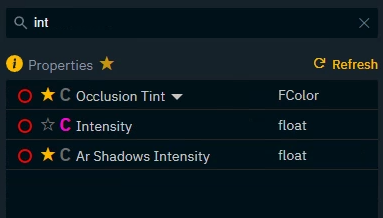
Any property with a red/orange circle to the left of the property can be controlled.
For functions use FN
Learn more about Supported target property types
-
Go to the "Properties and States" drawer to find the Target property you want to control
-
If necessary use the search field to search for objects/actors or properties (use the exposed filter )
|
Exposed tab |
shows all exposed properties |
|
Control panel tab |
shows all widgets and their properties |
|
Engine tab |
shows all objects/actors in a level and all their properties and functions |
For advanced users
|
Store tab |
shows all properties of the current show file |
|
API Log tab |
shows all Pixotope API messages |
Learn more about how to
Sub properties
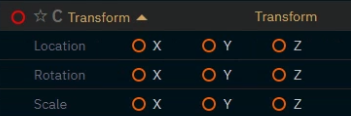
Some properties can be further broken down into sub properties which can be controlled.
-
Click on the down arrow next to the property name
Transform
Color

Vector

Expose property to show up in Exposed tab - (optional)
Properties can be exposed in two ways
-
Per object/widget
-
Exposes the property of one specific object
-
-
Per class (only for objects/actors)
-
Exposes the property for all objects based on this class
-
-
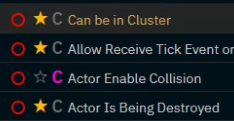
Go to any property with a star and/or C icon
-
Click the
-
Star icon to expose the property per object
-
C icon to expose the property per class
-
-
Functions, transforms and visibility can currently not be exposed
-
Pixotope World settings are only exposable per class
Of course you can always Expose properties from within the Editor
Next step
Continue to Add widgets and actions