
The API Log tab lists all occurring API messages of the Pixotope network. You can
-
listen to and read values from them
-
(re-)trigger them
This is an advanced feature. Use with caution!
Make a backup of your show file before changing show file parameters through the control panel! Also check Automatic backups
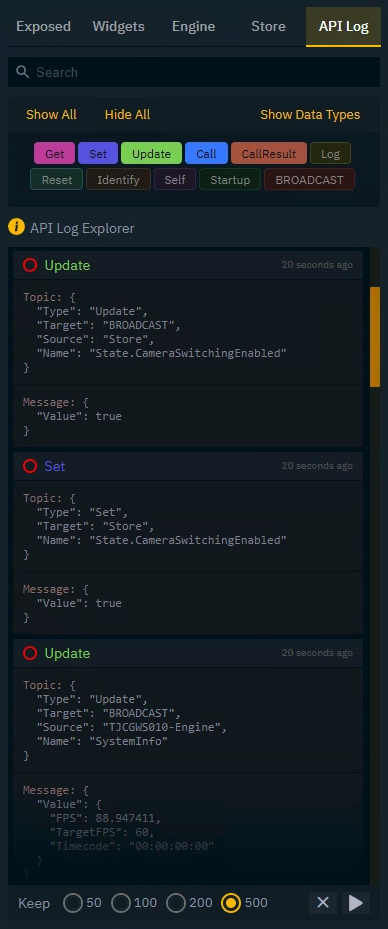
Find the API call to replicate or read from
Start listening
-
Go to the API Log tab
-
If not already done, click the Play button to start logging messages

-
Use the
xbutton to clear the logs-
Use the
Keepoptions to set the maximum amount of messages to keep.
-
Find the right message
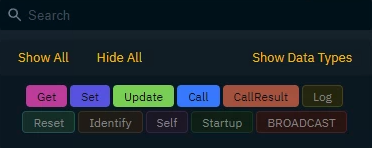
In a Pixotope network there is continuous message traffic, which might make it harder to find the correct message. Filtering on the correct message type will help.
-
Select one or more message type filters
-
Trigger an action, in Director for example, which you would like to replicate or read from
-
The incoming messages are grouped by
TargetandName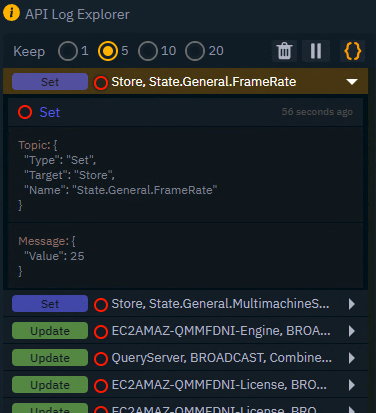
-
Here some options on how to deal with a lot of messages:
-
Click the Pause button to stop listening
-
Change how many message to Keep within a group
-
Choose to listen to less data types using the Data Type filter
Main message types
|
Type |
Details |
Used to |
|---|---|---|
|
Get |
Get a state or non-state value from any service |
Get value |
|
Set |
Request a change of a state or non-state value of any service |
Set value |
|
Update |
Returned
|
Get continuous updates |
|
Call |
Service specific black box RPC function call |
Trigger action |
|
CallResult |
CallResult - Response to a Call |
Get resulting value |
Learn more about their details and other message types in Pixotope API - Message Scheme
Double clicking a message in the API Log copies it to the clipboard. Depending on which one you double click, it copies either only the Topic, the Message or both.
Add a widget using this action
-
Click and drag the red circle onto the canvas
-
Select a widget based on if you are
-
reading a value
-
OR setting a value/triggering an action
-
Suggested widgets based on message type
|
Type |
Default action |
Main widgets |
|---|---|---|
|
Get, Update, Call Result |
Read (Get value) |
|
|
Set, Call |
Send (Set value/Trigger action) |
|
You can change to Send or Read (default action) using the Trigger toggle next to the action.

Update Send action
-
Click on the action in the action list to open the Code Editor
-
Change the Topic and Message to fit your needs
-
The messages are in a JSON format
-
Learn more about the Pixotope API - Message Scheme
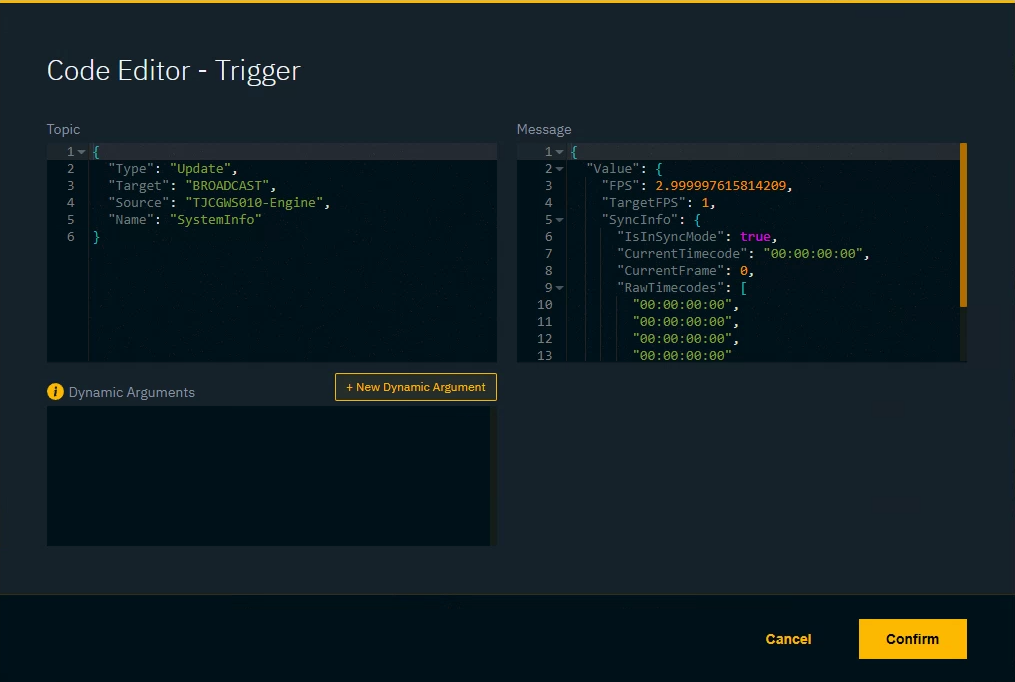
Update Read action
Message results come in a JSON format. To only get a specific property use the dot notation.
Learn more about → Property accessors in Javascript
-
Click on the action in the action list to open the Code Editor
-
Change the Return property path to retrieve a specific value
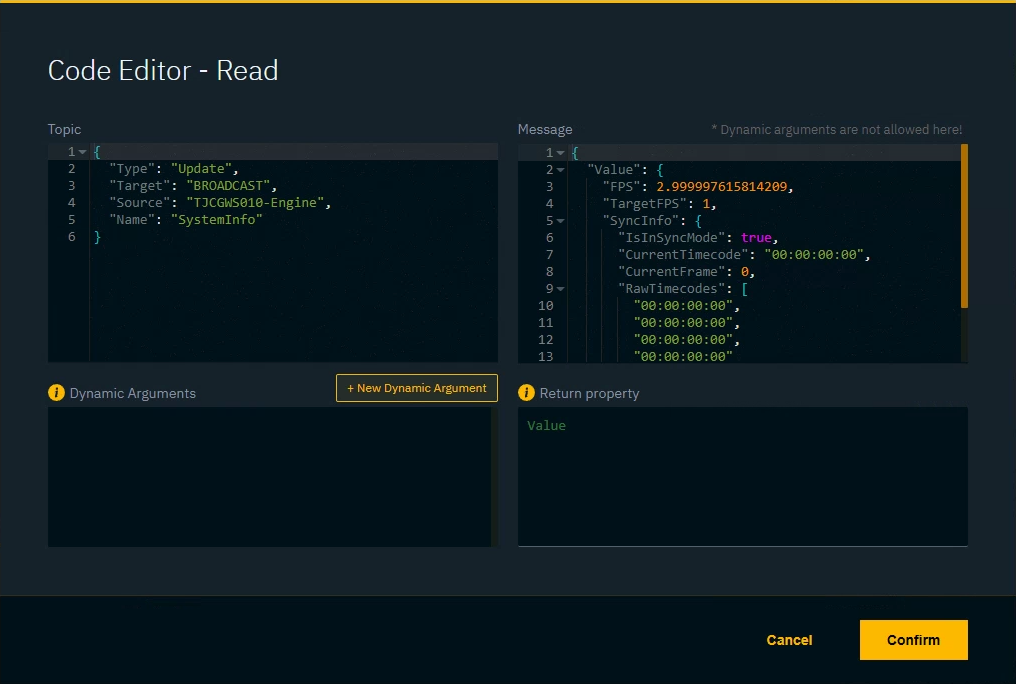
Example
{
  "Value": {
    "TJCGWS010-Engine": {
      "FPS": 59.99781,
      "TargetFPS": 59.9,
      "SyncInfo": {
        "IsInSyncMode": true,
        "CurrentTimecode": "00:00:00:00",
        "CurrentFrame": 0,
        "RawTimecodes": [
          "00:00:13:29",
          "00:02:00:00"
        ]
      }
    }
  }
}
|
|
Return property |
Returns |
|---|---|---|
|
Return single value |
|
|
|
Return single value in array |
|
|
|
Return all values of an array as separate values |
|
|
Use dynamic arguments
To inject dynamic data into the API calls use Dynamic arguments. They can be used in
-
Topic
-
Message
-
Return property
-
Click "New dynamic argument" and give it a descriptive name
-
Copy the argument and replace the string you want to dynamically inject
-
Click Confirm
-
For each argument, there will be a field in the Action List
-
Drag a property into the field
-
OR double-click it to input static data
-
Dynamic arguments are
-
surrounded by double curly brackets
-
need to be placed inside quotes (for Topic and Message)
Example usage in Topic or Message
{
  "Type": "Update",
  "Target": "BROADCAST",
  "Source": "{{machineName}}-Engine",
  "Name": "SystemInfo"
}
Example usage in Return property
Value.{{machineName}}-Engine.SyncInfo.RawTimecodes
Debug actions
-
Toggle the Debug button in the action row on the right
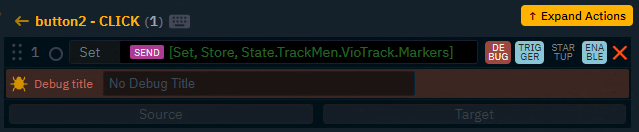
-
Optionally give it a title, useful when debugging multiple actions simulatneously
-
Check the Debug actions icon in the header and click it if actions are logged
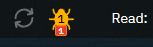
-
Inspect the actions
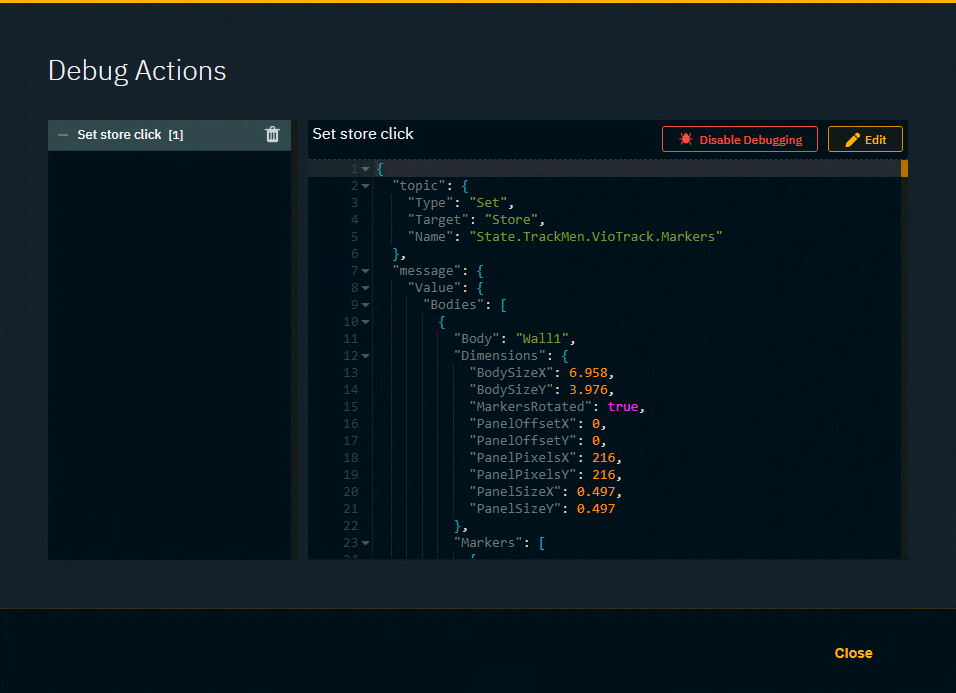
Listen to variable changes within a blueprint
By default, blueprint changes are not broadcasted to the network. If you need to variable changes within a blueprint to broadcast Update messages, do the following:
-
Add a
-
Get Update Broadcaster node
-
Broadcast Property Changed Update node
-
Self node
-
-
Connect them as shown below
-
Enter the variable name you want to get updates from in the Property path field on the Broadcast Property Changed Update node