
The Notification center shows a log of all the alert messages dispatched across your Pixotope network.
Components
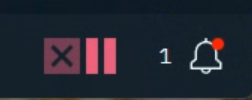
Bell icon and total count
-
found in the right end status bar (footer)
-
clicking the bell icon opens and closes the notifications panel
-
the count includes all notifications in the Recent tab
Having any Error or Warning notifications in the Recent tab will display a red dot on the bell icon. Learn more about the different notification types below.
Recent tab
-
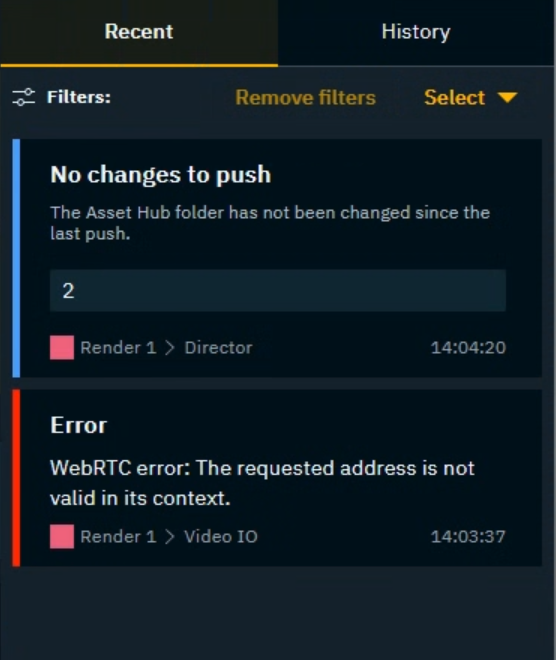
Shows all "unread" notifications of the current session which were not yet moved to history
-
at midnight (local time) these notifications will automatically be moved to history
-
History tab
-
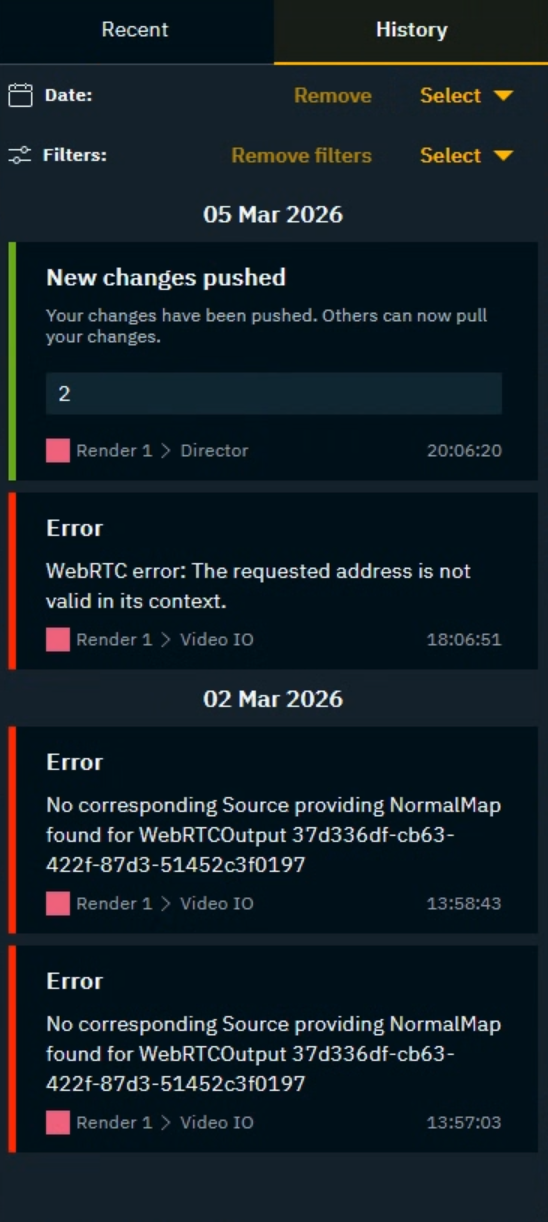
Shows all notifications across all sessions
-
excluding the ones of the current session not yet moved to history
-
Filters
-
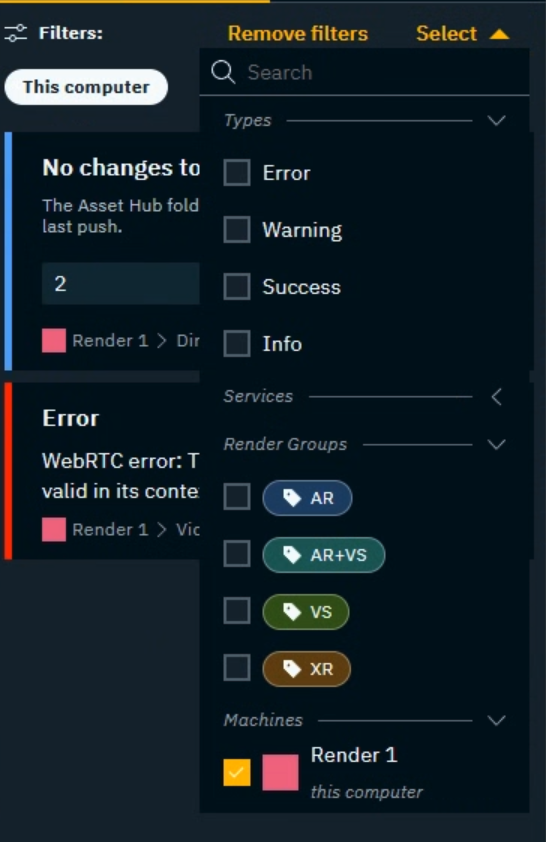
Filter on notifications by their
-
type
-
services
-
render groups
-
connected machines
-
date (History tab only)
-
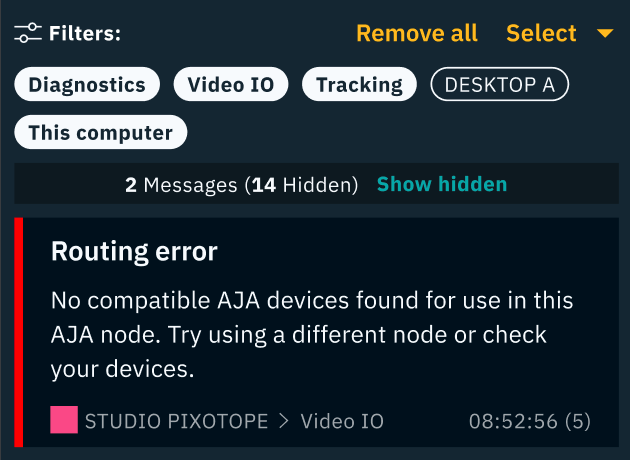
Once a filter is selected/exposed, it appears as a chip. This way you can toggle filters on/off as you need, without having to remove them entirely.
Count bar
-
when notifications are being filtered, the Count bar shows
-
the amount of notifications shown
-
the amount of notifications hidden due to the filter
-
a button to Show hidden which will toggle all filters off
-
Action buttons
Recent tab

Move all to History clears the recent tab and moves all notifications (including hidden ones) into the History tab
History tab

Open logs folder opens a file explorer of the following folder
..\Pixotope\[Version number]\Logs\NotificationCenter
Lock toggle

-
Locking the drawer will dock it on the right side and keep it fixed across all panels
-
Unlocking it will keep the drawer free floating, and close when clicking outside
Notifications
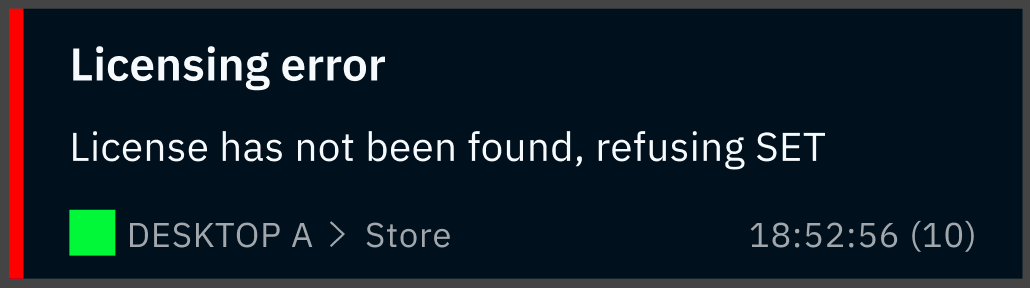
A typical notification shows:
-
Title
-
Text
-
Machine color and name
-
The service relevant to the message ie. where it originated from
-
Timestamp
-
Counter in parentheses (if occured multiple times)
Notification types
-
Error: red
-
Warning: orange
-
Success: green
-
System information: blue