
Outline:
-
Main level:
-
Replace ControlPxMotionDesign with ControlMotionDesign
-
Type Channel_1 in Details > Control > Playback channel
-
Add all levels that were streamed into MD_Collection into the Details > Levels array in the ControlMotionDesign actor
-
-
MD_Collection can be removed from the project
-
Make sure the right Rendering Mode is selected. It is possible that the 2D Mode will provide better rendering results to the existing project
-
Template Builder is not available anymore.
-
Each level will be one template.
-
The name of the template will be the name of the level.
-
The “Mark as template” option in the Motion Design Outliner does not exist anymore. A level will be a template imported in Erizos if it is added in the step 1. c. above.
-
-
In each of the templates (levels), the Remote Control window will present the exposed properties with the same IDs as they were set in Template Builder.
-
Erizos Studio still supports this workflow where only properties are exposed, without Controllers, and the values for the properties are set directly from the rundown.
-
However, the Controller workflow is also available and the user is free to use this instead. Please note that once you add at least one Controller to the scene, Erizos Studio will switch to Controller-driven templates and only import Controllers, not exposed properties.
-
-
From 25.3, Motion Design levels will NOT spawn a PixotopeTrackedCamera by default. If this was used as the main camera, a new AvaCineCameraActor must be added instead. You can easily do this by pressing the Create Defaults button on the bar on top of the viewport and only checking the Cine Camera option.
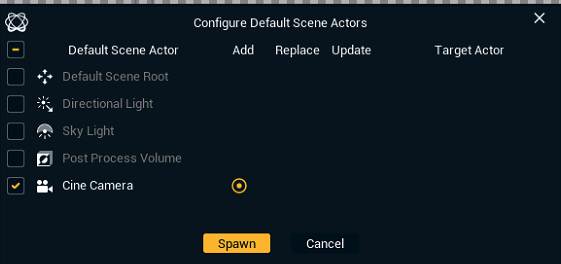
-
Once the actor is added, make sure it has the right Horizontal FOV by setting the correct Focal length values in the Details panel
-