
To achieve specific compositing effects, objects can be rendered differently within our compositing pipeline.
Learn more about Compositing and rendering
Objects can be converted between object types/render layers by
-
right-clicking them in the 3D view or the World Outliner and selecting the new type
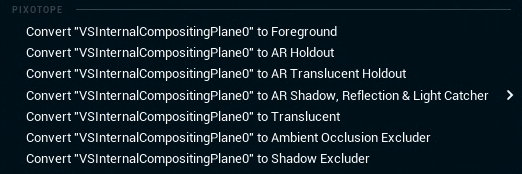
-
using the Render Layer dropdown in the object’s Details panel
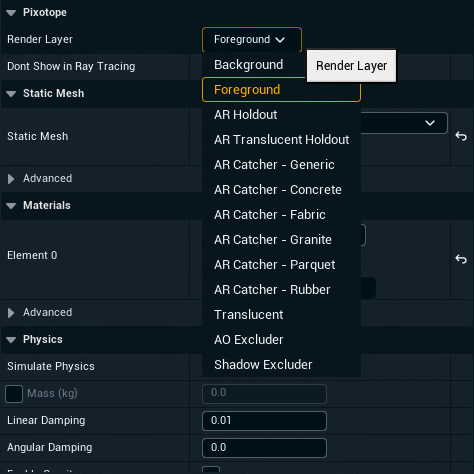
Changing object types/render layers might change its material and other values. Check the Render Layer tooltip below for more details.
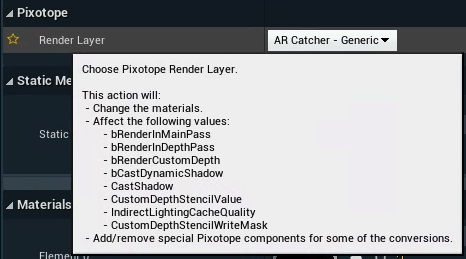
Render layers
Background
-
The object is rendered behind the video even if the object is in front of a Compositing Plane
-
To improve performance, for example when using Nanite meshes, use this render layer on objects which are always behind the video
Foreground (default)
-
This is the default for all objects
-
The object is rendered in front of the video
Translucent
-
It renders objects with translucency and possible refraction in front of the video without anti-aliasing the video
Opaque Holdout
-
A holdout object prevents any AR object from occluding the video backplate in the region where it is placed
-
This makes it appear that AR objects pass behind that section of the video backplate
-
The object itself is not rendered
Translucent Holdout
-
Same as Opaque Holdout, but controls the translucency using a gradient based material
-
This can be used to provide a feathered edge to a holdout object to soften the blending
-
The default material gives a box feather pattern
Learn more about Masking and feathering
AR Shadow, Reflection & Light Catcher
-
It renders shadows and reflections that are cast onto this object
-
Can be illuminated by scene lights
-
The object itself is not rendered
-
These are typically floors or walls where you want to catch shadows and reflections to be composited on top of the video
Learn more about the AR Shadow, Reflection & Light Catcher
AR Ambient Occlusion Excluder
-
In the area the volume covers, ambient occlusion will not be rendered
-
This can be used on intersecting shadow-catcher planes
AR Shadow Excluder
-
In the area the volume covers, no shadows are rendered