Pixotope supports adding multiple additional video feeds as textures in your scene. You can for example, create virtual TV walls, monitors, or screens. Sources can be live media inputs routed through Director, or local files (images and video) played back directly from disk.
Using Media Inputs
-
Learn how to use Media inputs to set up virtual monitors and other video feeds for your scene
Setup in Director
To access Media inputs inside the Editor, they must be configured in Director:
-
Route a Media input in SETUP > Configure > Routing
Learn more about Setting up a show
Preview in Editor
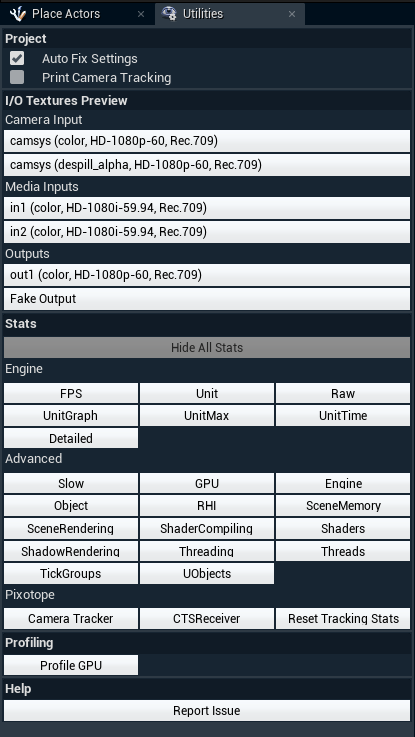
When correctly configured, the Media inputs can be previewed using the "Utilities" panel.
Add a Media Input actor
-
Add a Media Input or a Media Input Combined Actor
Media Input Combined Actor plugin is currently in Beta and needs to be enabled.

|
Actor |
Wysiwyg |
Media inputs |
File (Image/Video) |
|---|---|---|---|
|
Media Input |
Yes |
Yes |
|
|
Media Input Combined |
|
Yes |
Yes |
Learn more about how to Place Actors
Choose source type
-
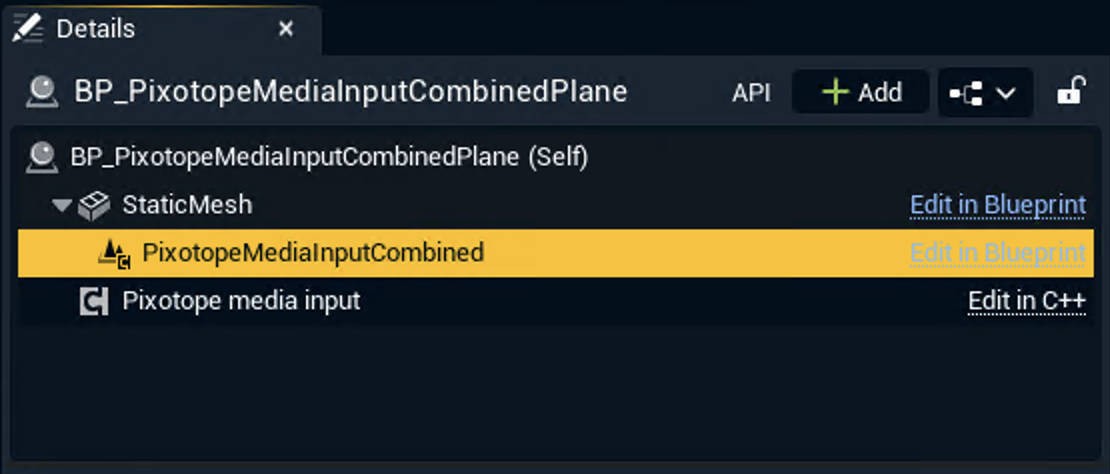
Select the "PixotopeMediaInputCombined" component in the "Details" panel
-
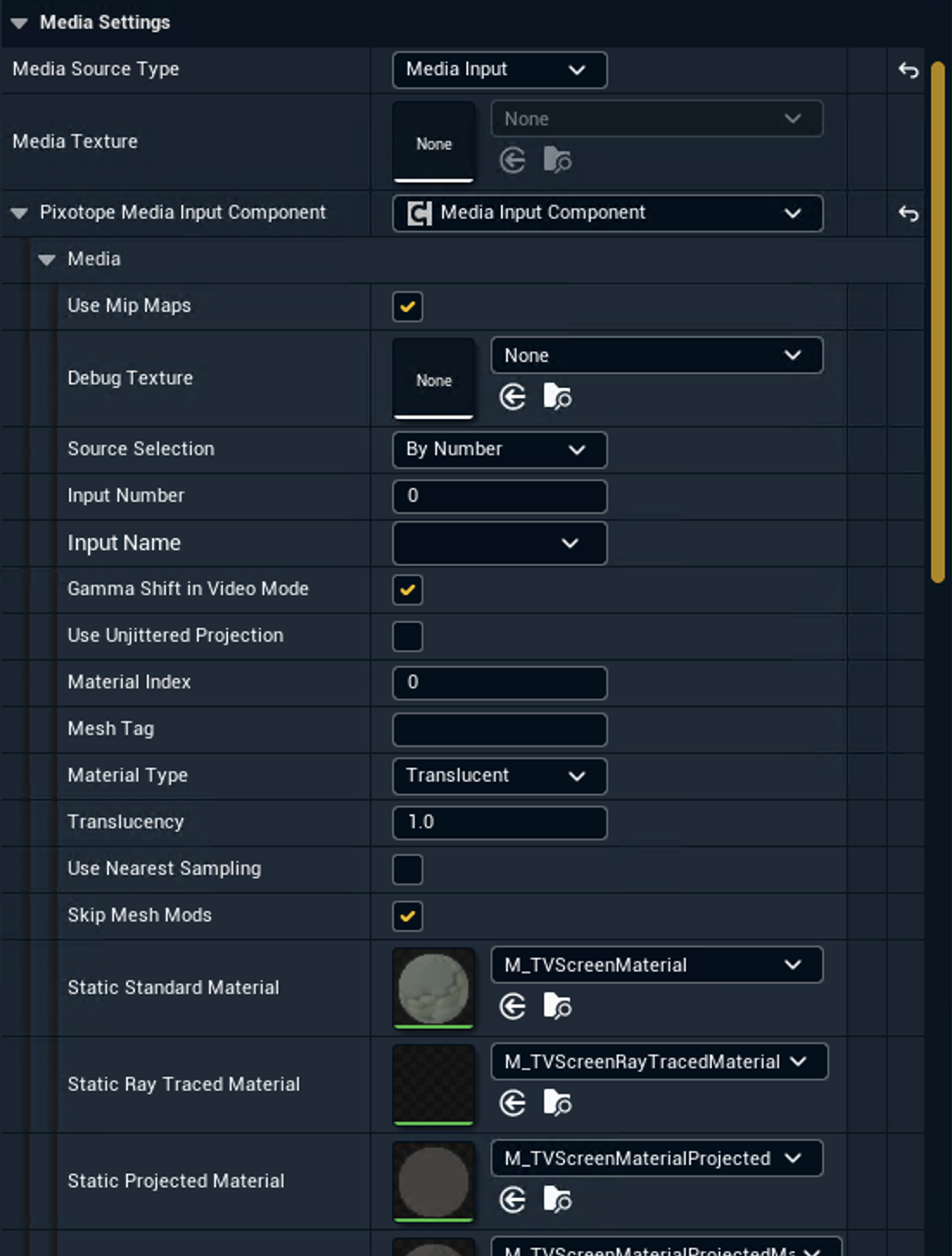
Choose the Media Source Type
-
Media input
-
File
-
Route texture
Media input
-
Choose how to select the media input
-
By name - uses the Media input name
-
By number - zero based index
-
Routed Media inputs are ordered alphabetically
-
-
Camera - uses the active camera
-
-
Select the Input name/Input number
-
Optionally change additional options
Additional options
-
Use Mip Maps - whether to use mip maps on the component or not. This will give a blurrier but less "grainy" result at long distances. Enabled by default.
-
Use Unjittered Projection will move the media video component past Unreal Engine TAA, giving a much sharper result. However, it will only work correctly on flat or almost flat surfaces. Enabled by default.
-
Gamma shift in Video Mode – in Video mode the media video component will be affected by the Unreal Engine filmic tonemapper (unless moved past post-processing). Enabling this option compensates for this so that the resulting output is in the correct gamma space. Enabled by default.
And in World settings:
-
Move Media Inputs Past Tonemapping will make media inputs unaffected by post-processing and tonemapping. This requires them to have Use Unjittered Projection enabled which is disabled by default.
File
-
Browse for a video or enter a path into Media File Path
-
Click the "OpenMedia" button
-
The video starts playing unless Play on Open is disabled
-
For more granular controls like Play/Pause/Seek use the functions inside a blueprint or the Control panel.
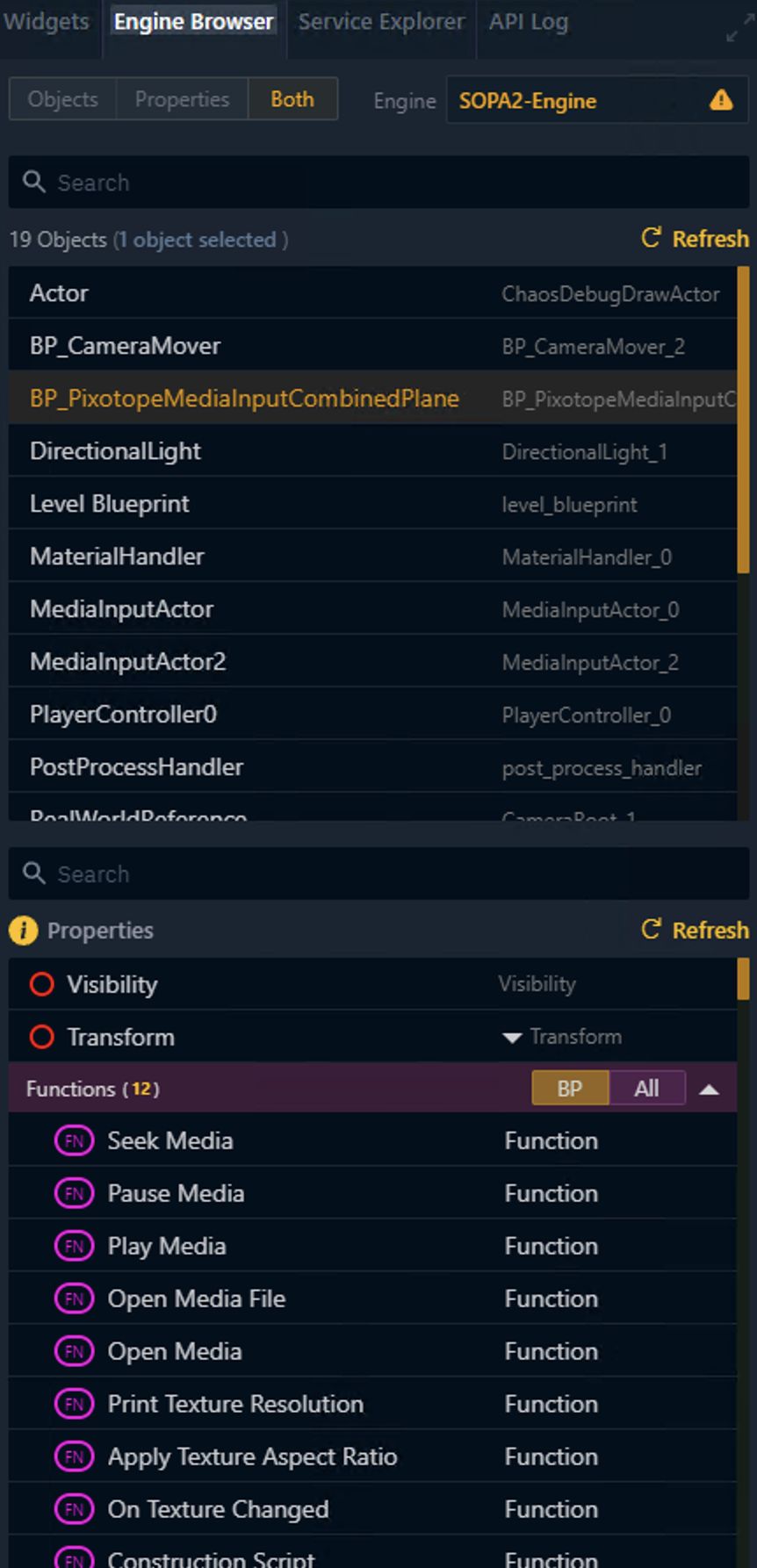
Learn more about how to how to Add widgets and actions
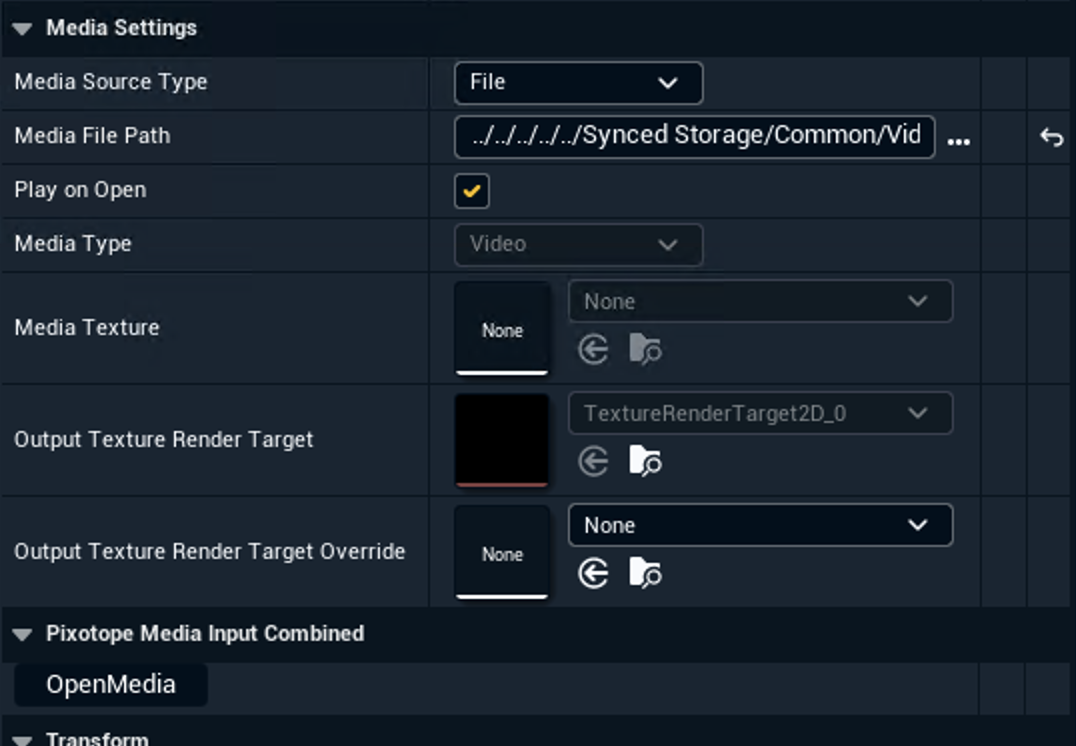
You can also choose to override the texture render target to an asset in your project. The component will then draw the texture onto that render target instead of an automatically created one.
Use component in blueprints
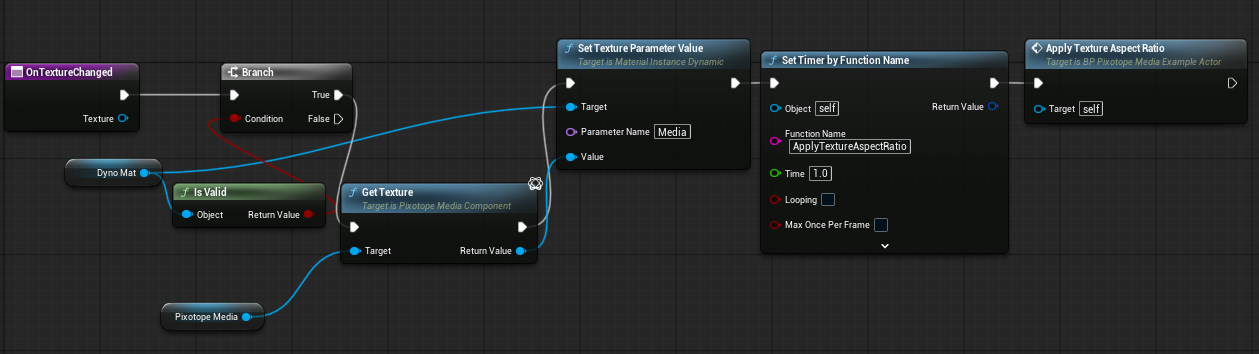
Example on how to use the component in a blueprint
Inspect the PixotopeMediaInputCombined blueprint to see how the component is used.
In this example, we create a dynamic material and bind an event to the media component's On Texture Changed delegate.
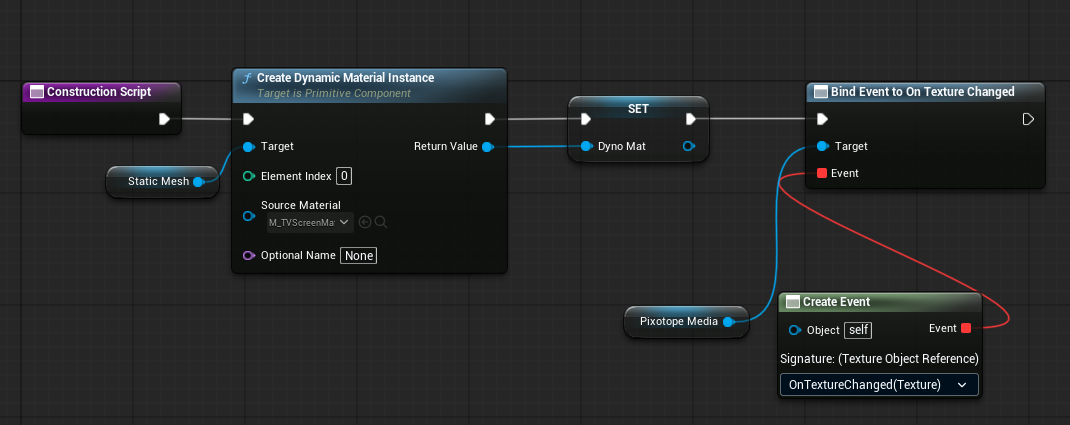
This delegate fires every time a significant change has been made to the texture
-
a new source is loaded
-
the texture has been replaced with an override
-
the texture dimensions have changed
In the delegate, we get the texture and set it to the created dynamic materials slot.
Finally, we call a custom function that applies the loaded media's aspect ratio to the plane mesh.