Introduction
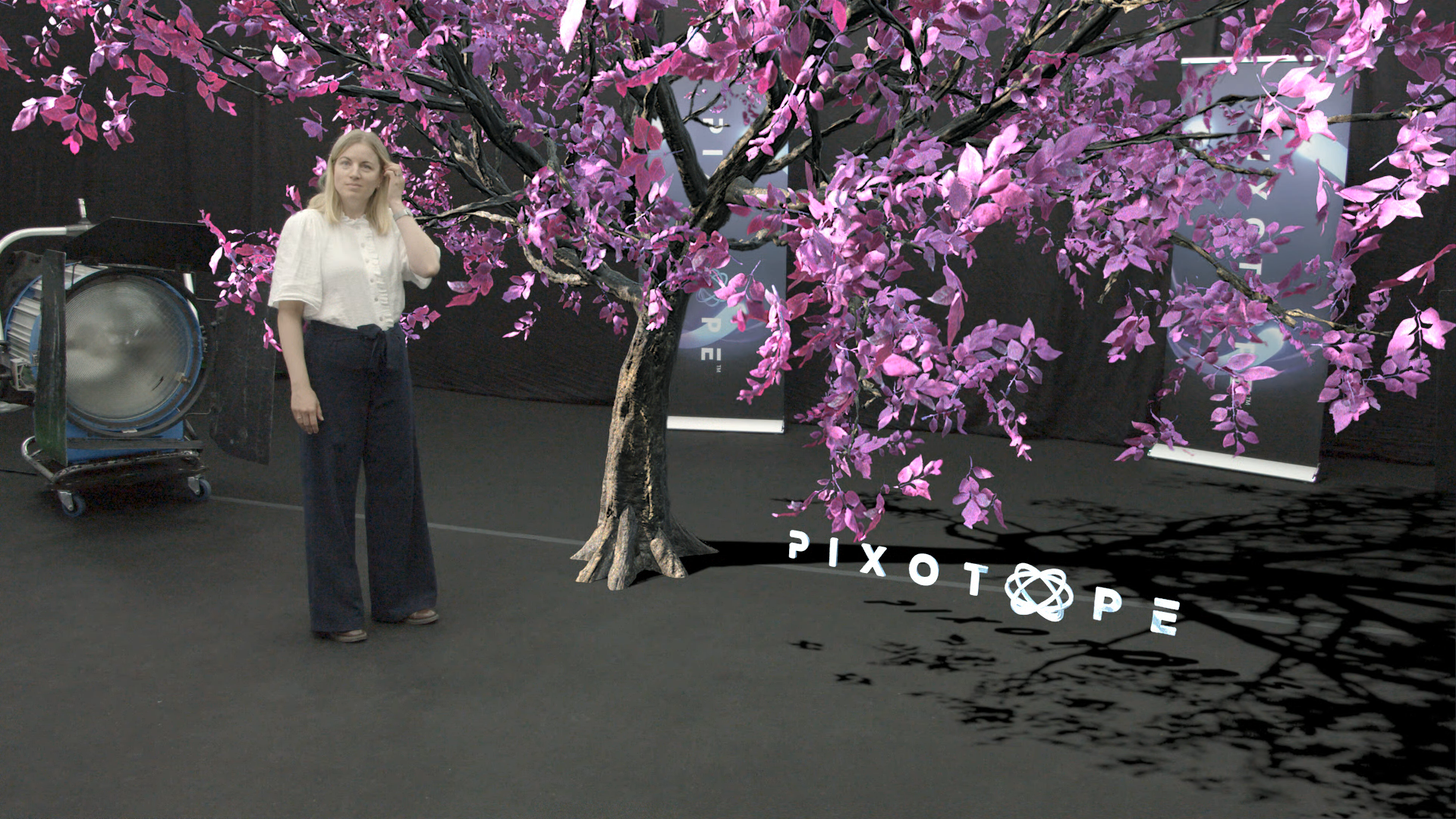
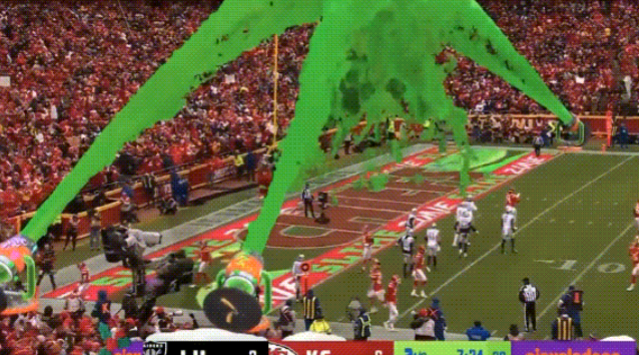
AR+VS is designed to allow using a VS Internal Compositing Plane in an AR scene so we can put virtual elements behind the talent.
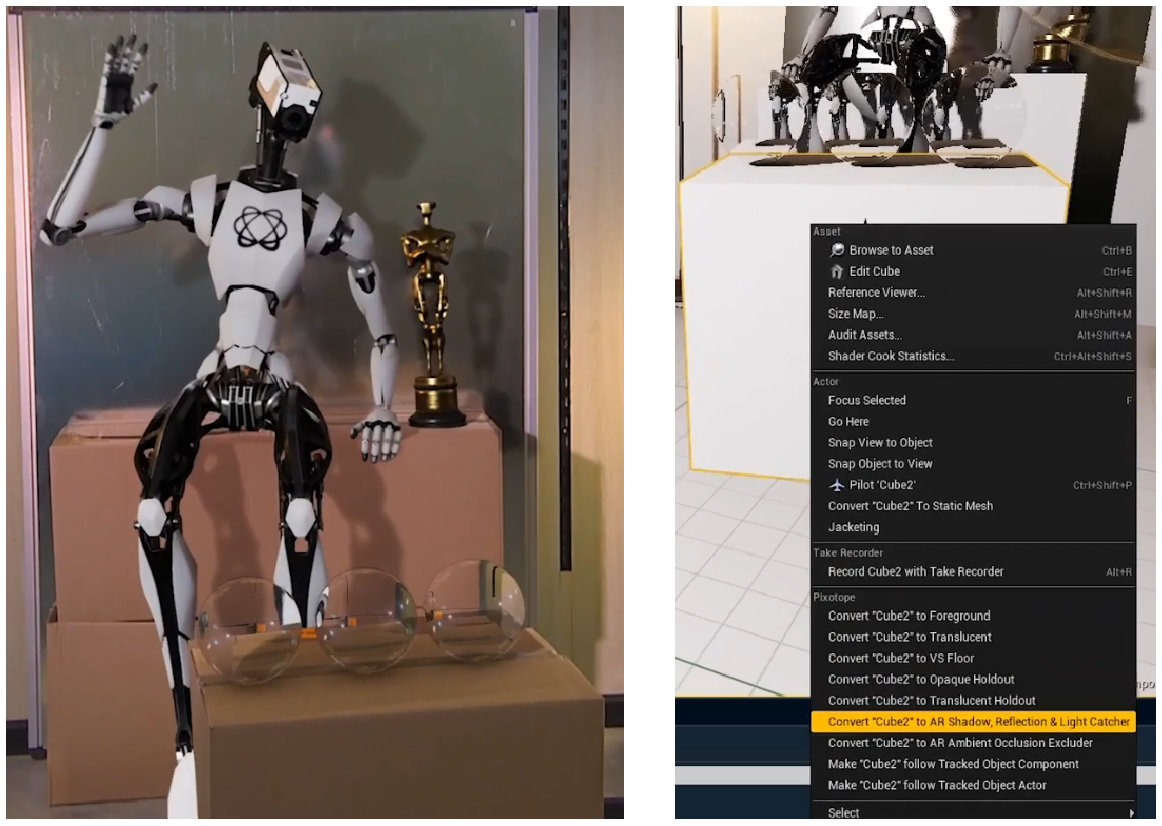
In a normal AR scene, every virtual element is in front of the AR backplane (the camera video input). We can use AR holdouts or Shadow/Reflection catchers to block virtual elements so they appear behind the real world objects. This requires an exact 3D replica of the real world object and precise positioning.
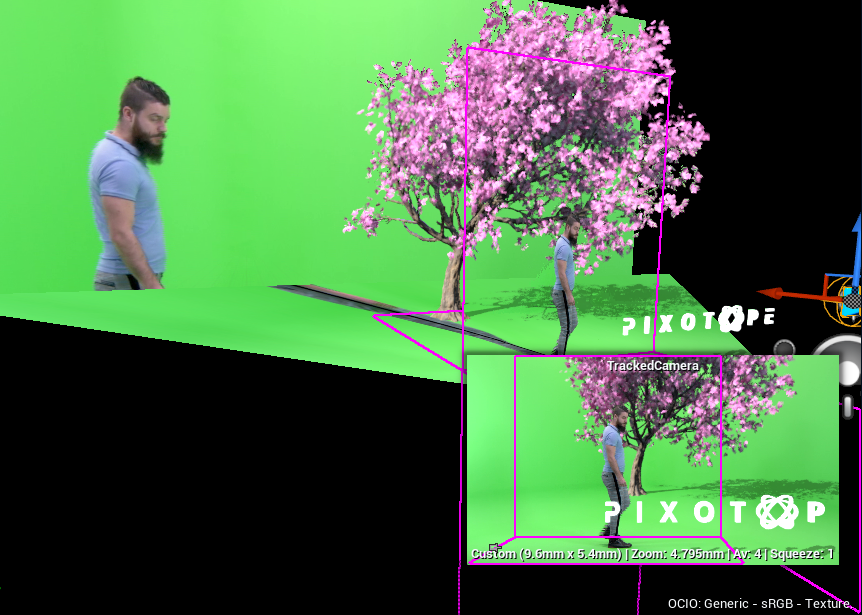
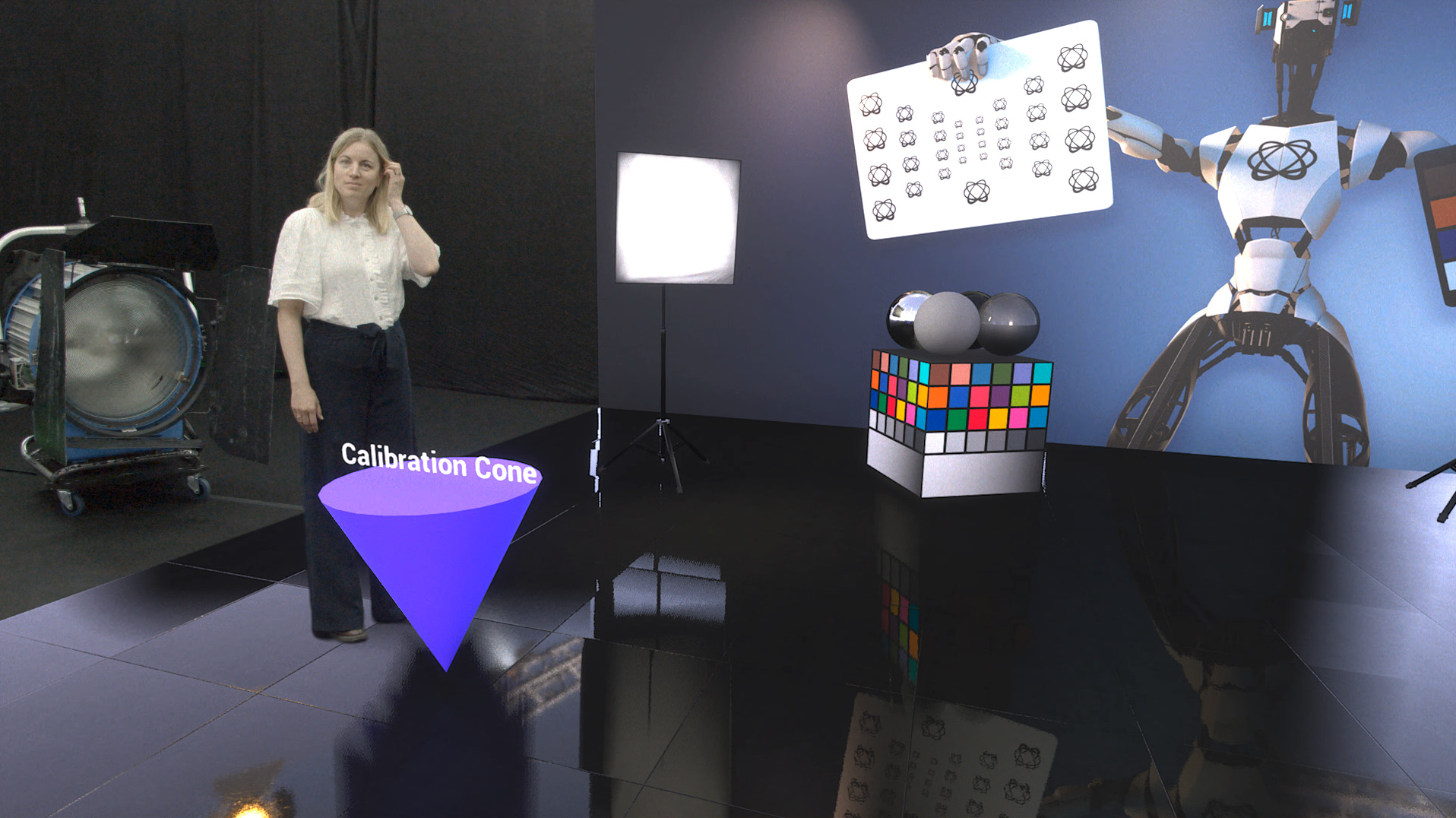
However if we want our talent to be in front of AR elements, it will be impossible to do in a normal AR scene. That’s where AR+VS comes in. In AR+VS compositing mode, the AR backplane is still the camera input video, but in addition you are able to use VS Internal Compositing Planes. This way you can have virtual elements in between the AR backplane and the keyed camera input.
|
|
Prerequisite
To make AR+VS work, “Unified compositing” needs to be enabled in project settings.
Unified Compositing in Project Settings > Pixotope - General is now enabled by default.
Changing this setting will require to reconvert any AR holdout object.
-
Right click the object which is used as AR holdout
-
Select "Convert … to AR Holdout" to convert it again
Green screen based
Use when integrating people who transition between the real and the virtual world using a green screen.
Set up same as VS level
Follow the example on how to Set up a VS level
Enable AR+VS
-
In Director: Add the machine to the "AR+VS" Render group in SETUP > Configure > Machines
Learn more about Render groups - AR, VS, AR+VS, XR and how to Configure machines
Update the Chroma Screen actor
-
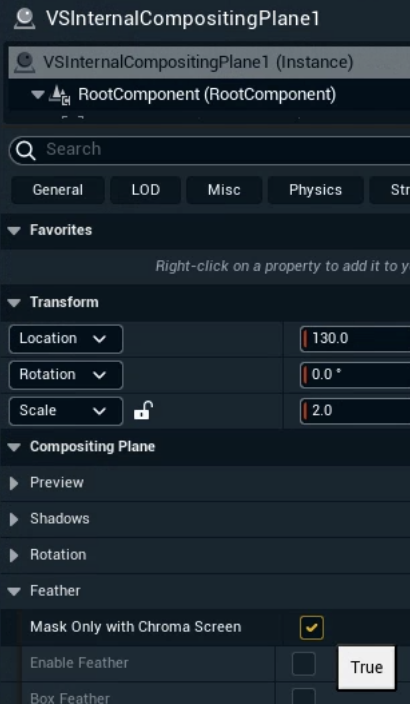
Set Feather on the Chroma Screen Parametric & Plane actor to
0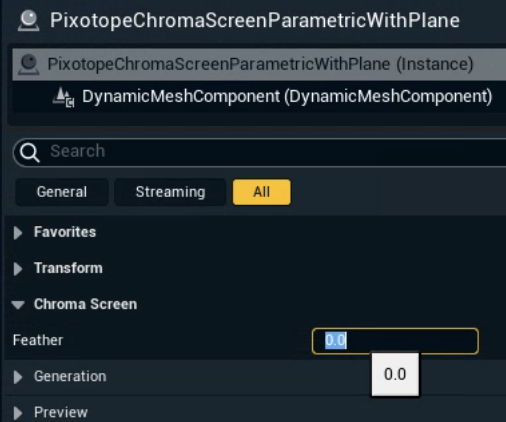
-
While keeping Mask only with Chroma Screen of the attached compositing plane set to
true