
We do not recommend that you upgrade your Pixotope machines in the middle of a production or pre-production phase.
When choosing to upgrade, we recommend that you back up your existing Pixotope projects, so that you will be able to go back if you need to.
Engine
Projects will be migrated to version 5.7.4
Latency increase
To improve stability for high-load systems, we increased the default engine pass-through latency by 1 frame.
Need to keep latency the same, enable Low latency mode
External compositing
The way External compositing is set up has been simplified. Just output fill and key separately. That’s it. The External/Internal compositing toggle in Pixotope World Settings > Advanced > Compositing mode has been removed.
Learn more about how to Configure external compositing
Garbage matte and AR Translucent Holdouts
We have consolidated the different ways of masking and feathering where
-
Garbage Matte Plane actor has been removed in favor of the Feathering Garbage Matte
-
AR Translucent Holdouts now use Box Feather
Learn more about Masking and feathering
Digital twin
XR holdouts
XR holdouts are now dynamically created and their settings are saved in the Show file/on Store.
Multiple digital twins
You now have the ability to store multiple Digital twins and switch between them.
Learn more about how to Manage multiple digital twins
Tracking
Rotation offset handling
Prior to 26.1 the rotation offset was not consistently applied for all tracking protocols. This was now fixed.
To not break any previously calibrations, will camera systems which were created before 26.1 keep using the old rotation offset method. To switch a camera to the new method, uncheck Apply rotation offsets per-axis (legacy) in Calibrate > Tracking offset and re-calibrate.
Newly created camera systems will use the new rotation offset method by default.
Learn more about how to Calibrate tracking offsets
Director
Pixotope Reveal has been deprecated.
Motion
The Motion design plugin is now disabled by default.
Windows 10 Support Ended
With this release (26.1) we have stopped testing on Windows 10 and focused our efforts on Windows 11 as Microsoft has ended support for Windows 10 in October 2025.
Migrating show files
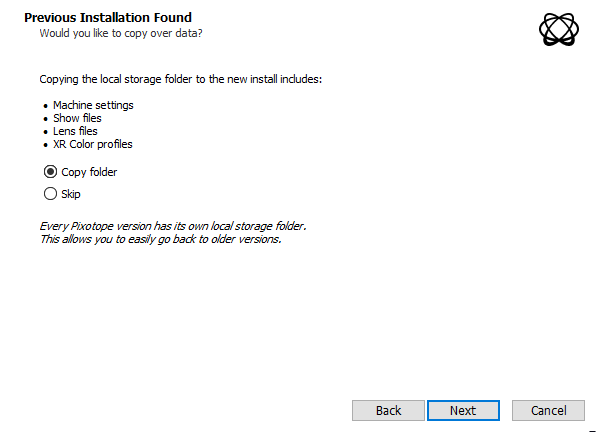
To carry over show files and machine settings from an old installation, you can
-
Click "Copy folder" at the start of the installation
-
OR manually copy the files into the Local storage folder of the new installation
Learn more about Show files and where they are stored
Migrating projects
When opening a project from Unreal or an old Pixotope version:
-
When prompted in the Editor, click "Update"
-
This will update your .uproject file

-
-
Restart the Editor
Unreal projects can be used in Pixotope right away and do not need any migration steps.