
Find the property to control
Any property with a red/orange circle to the left of the property can be controlled.
For functions use FN
Learn more about Supported target property types
-
Go to for example the Engine Browser
-
Make sure "Both" is selected on the top to show Objects and their Properties
-
-
Select an object
-
Go to the Properties section to find the Target property you want to control
-
If necessary use the search field to search for objects/actors or properties
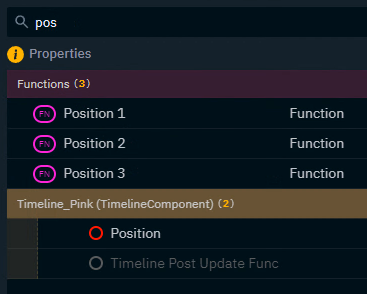
Panels to use
|
Engine Browser |
shows all objects/actors in a level and all their properties and functions |
|
Widgets |
shows all widgets and their properties |
|
Data Sources |
shows all data sources and their properties Learn more about Using Data Mapper |
For advanced users
|
Service Explorer |
shows all properties of the current show file Learn more about how to Control properties of the current show - Service Explorer |
|
API Log |
shows all Pixotope API messages Learn more about how to Replicate any Pixotope functionality - API Log |
Sub properties
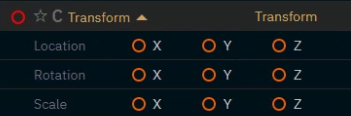
Some properties can be further broken down into sub properties which can be controlled.
-
Click on the down arrow next to the property name
Transform
Color

Vector

Next step
Continue to Add widgets and actions