
This feature is experimental. We do not recommend using it in production.
See below: Known limitations and issues for this first version.
The Lens file editor allows you to visualize and manually edit lens file data.
You can also import lens files with the following formats:
-
ptrk (
*.ptrk,*.ftrk) -
Aximmetry (
*.xml) -
Mo-Sys (
*.json) -
Stype (
*.txt) -
TrackMen (
*.zlc) -
Unreal ULens (
*.ulens) -
Viz (
*.lcb) -
Viz XML (
*.lcb,*.xml)
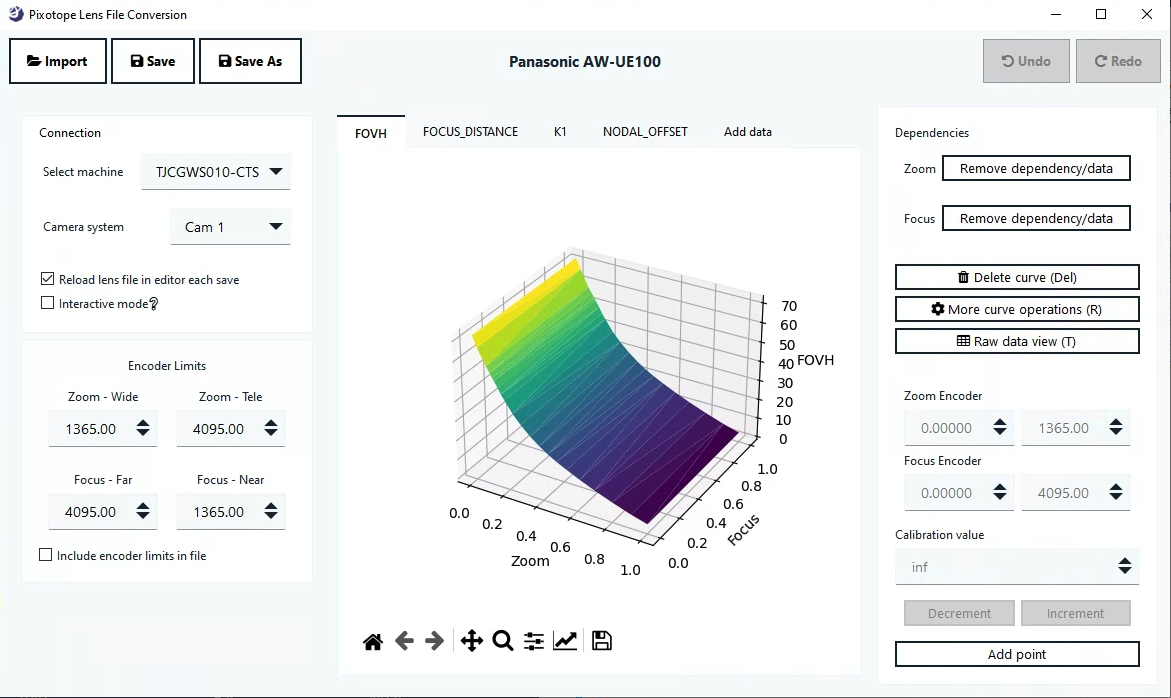
How to use the Lens file editor
Preparations
-
Make sure the camera system who’s lens file you want to edit has
-
a tracking service assigned
-
a lens file enabled and selected
-
The lens files provided with the installation act as templates and should not be overwritten. It is good practice to duplicate the file and edit the duplicated version.
Open lens file
-
Start the Lens file editor by double clicking
Run-PX_LensFileEditor.exein[Installation folder]\Services\Tracking -
Click "Import" and open the same lens file that was selected in Director
-
Individual tabs are opened for all parameter curves stored in the lens file
-
-
Select the machine and the camera system of that lens file
-
Select “Interactive mode”
-
This auto saves the file on each change without the need for clicking "Save"
-
Interactive mode combined with the Reload lens file in editor each save updates to your lens file can be seen almost instantly.
Edit lens file
-
Select the tab of the parameter curves you want to edit
-
Select the point you would like to edit
-
Change the calibration value
Keyboard shortcuts and viewport control
|
Action |
Current |
|---|---|
|
Select |
Left mouse button |
|
Deselect |
Left mouse button on empty area |
|
Zoom |
Right mouse button + drag |
|
Rotate |
Left mouse button |
|
Translate/move |
Middle-mouse click + drag |
|
Or via the viewport controls in the bottom left 
|
|
Advanced controls
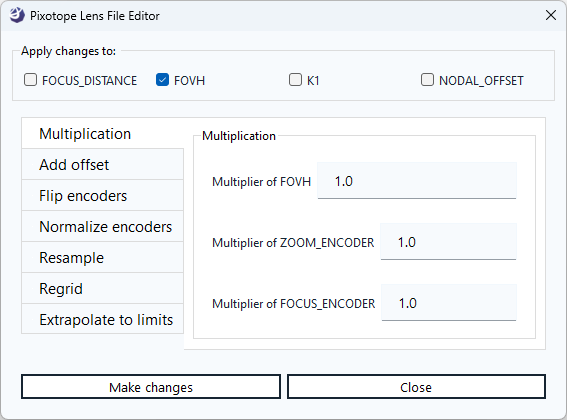
More curve operations
Let’s you apply advanced operations like
-
Multiply
-
Offset
-
Normalize encoders
-
Flip encoders
-
Resample
-
Methods
-
min: Minimum number of points required to form a grid of data where every zoom point has the same number of focus points.
-
user: Resample surface with the user provided number of zoom and focus points.
-
extra interval: Resamples with user provided zoom or focus points between each existing pair of zoom or focus points. Neutral value 1 is no extra points
-
-
-
Regrid
-
Forces zoom and focus lines which are nearly equal to have the same encoder value. Regrid delta specifies how close points need to be for the merge to happen.
-
-
Extrapolate to limits
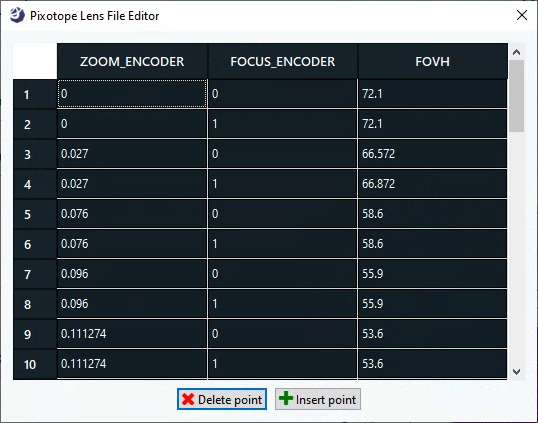
Raw data view
Let’s you edit the data in a table view.
Add new parameter curves
-
Click on the “Add data” tab
-
Select the parameter curve you want to add
-
Start adding points
Delete parameter curve
-
Click on the parameter curve tab you want to delete
-
Click on “Delete curve (Del)"
Known limitations and issues
-
Lens files have to be edited on the same machine the tracking service is running on, to which the camera system is routed to
-
Current encoder position is not shown, use the display from the plotter to be sure the right point is selected