
Route streaming output in Director
-
Go to Setup > Configure > Routing
-
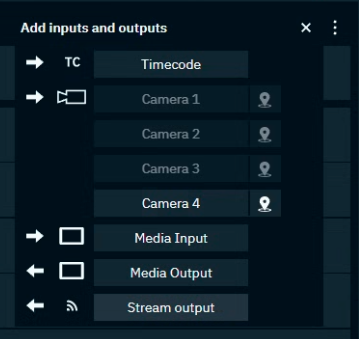
Click on the top right
+on the target machine or theAdd inputs and outputsbutton to add to all machines -
Click on "Stream output"
-
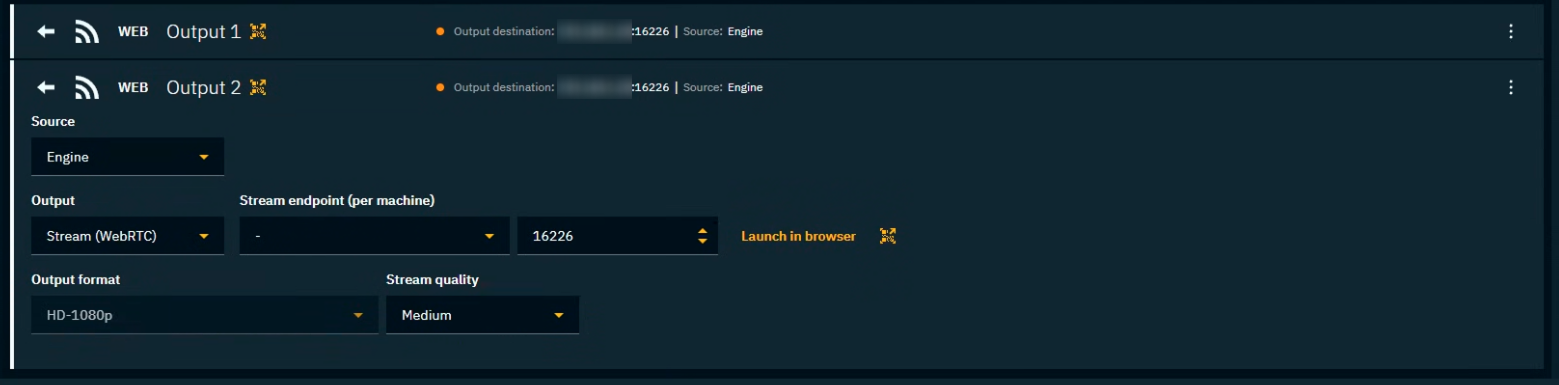
A media output with a default name gets added
-
this is essentially a pre-set Media output with the type set to Stream (WebRTC)
-
-
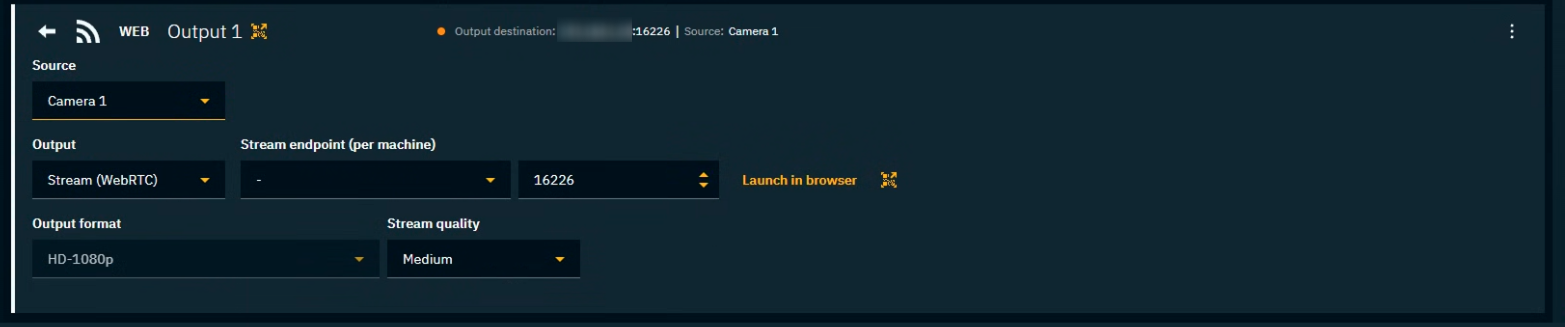
Change the Source as needed
-
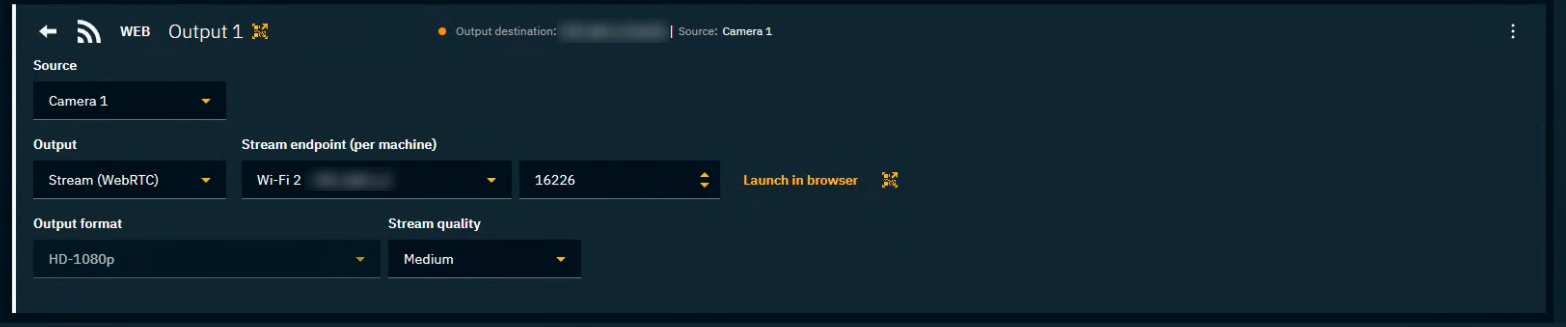
Choose which network endpoint to use
-
Note: this setting is per machine
-
-
Optionally: adjust the Port number and Stream quality
Stream quality essentially changes the bitrate of the stream
-
Low quality bitrate is 2 Mbps
-
Medium quality bitrate is 4 Mbps
-
High quality bitrate is 8.5 Mbps
-
Click on the
Launch in browserbutton to launch this output directly in your default browser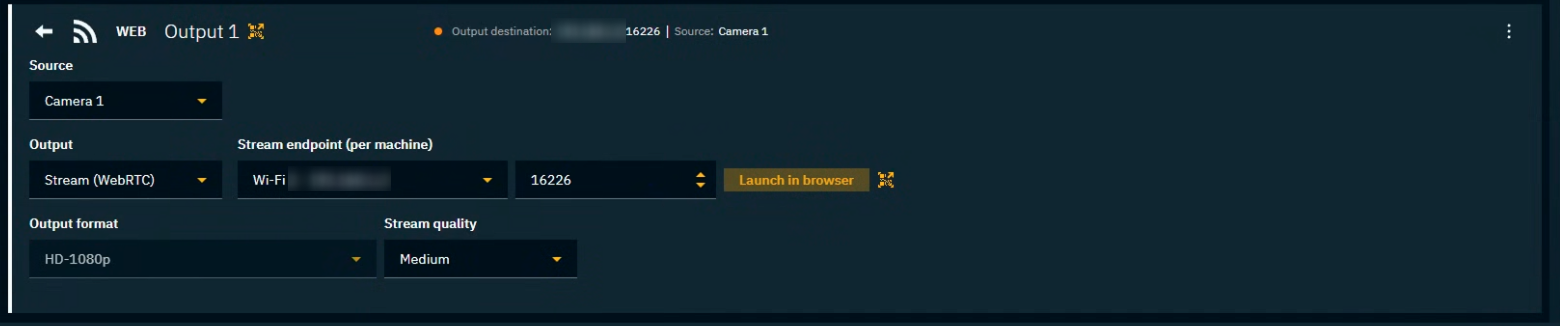
-
Clicking on the QR code/Launch icon displays an overlay with multiple ways to launch the stream
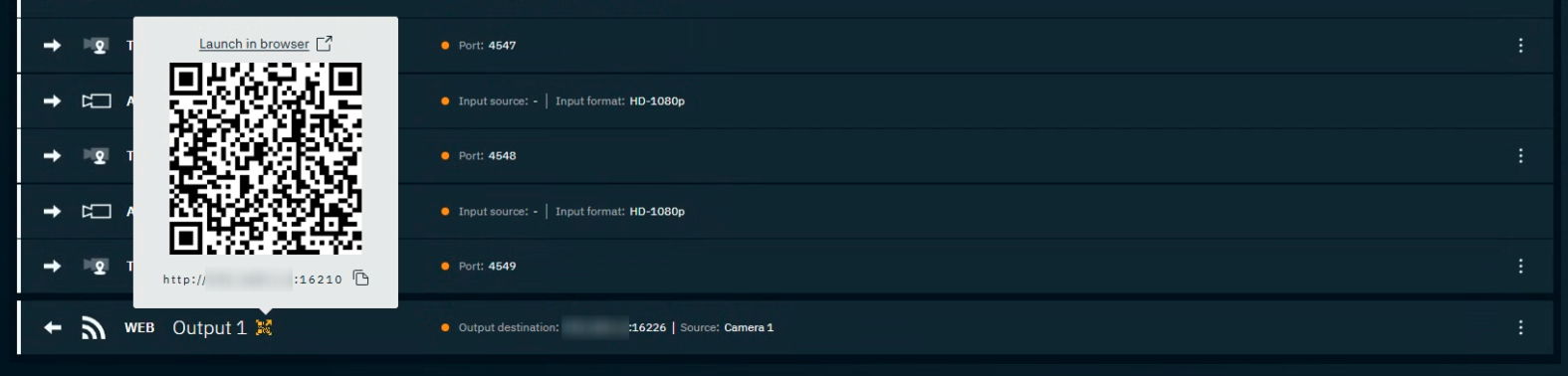
-
Launch stream in browser
Streams will be started once launched, so the feed should be available right away. If you have yet to establish the connection to a source, a waiting screen is displayed.
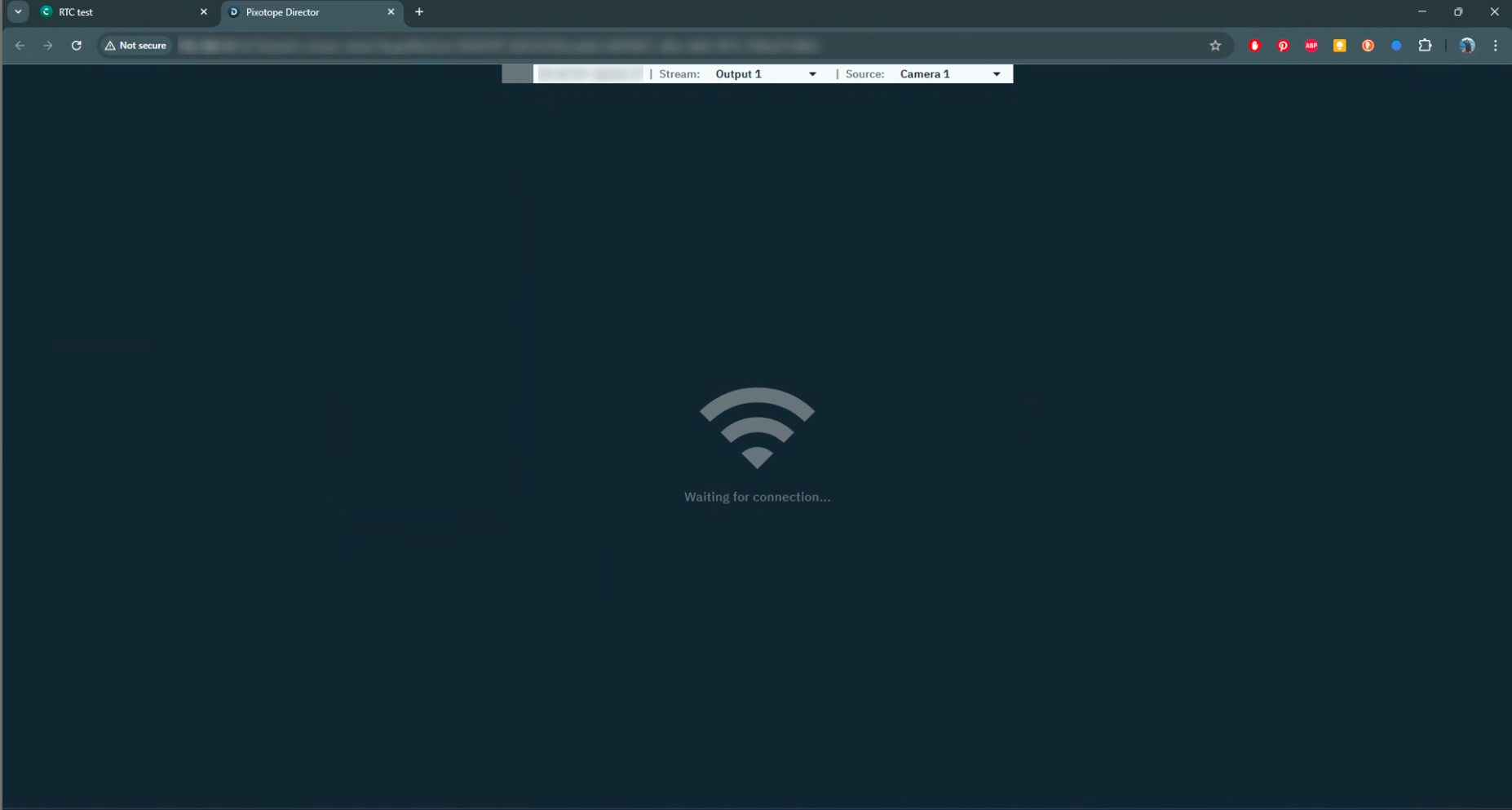
The waiting screen is also displayed in browser when the the Stream endpoint setting in Routing has not been selected.
Combine tabs in a split view to watch your streams side-by-side (Chrome used in this example)
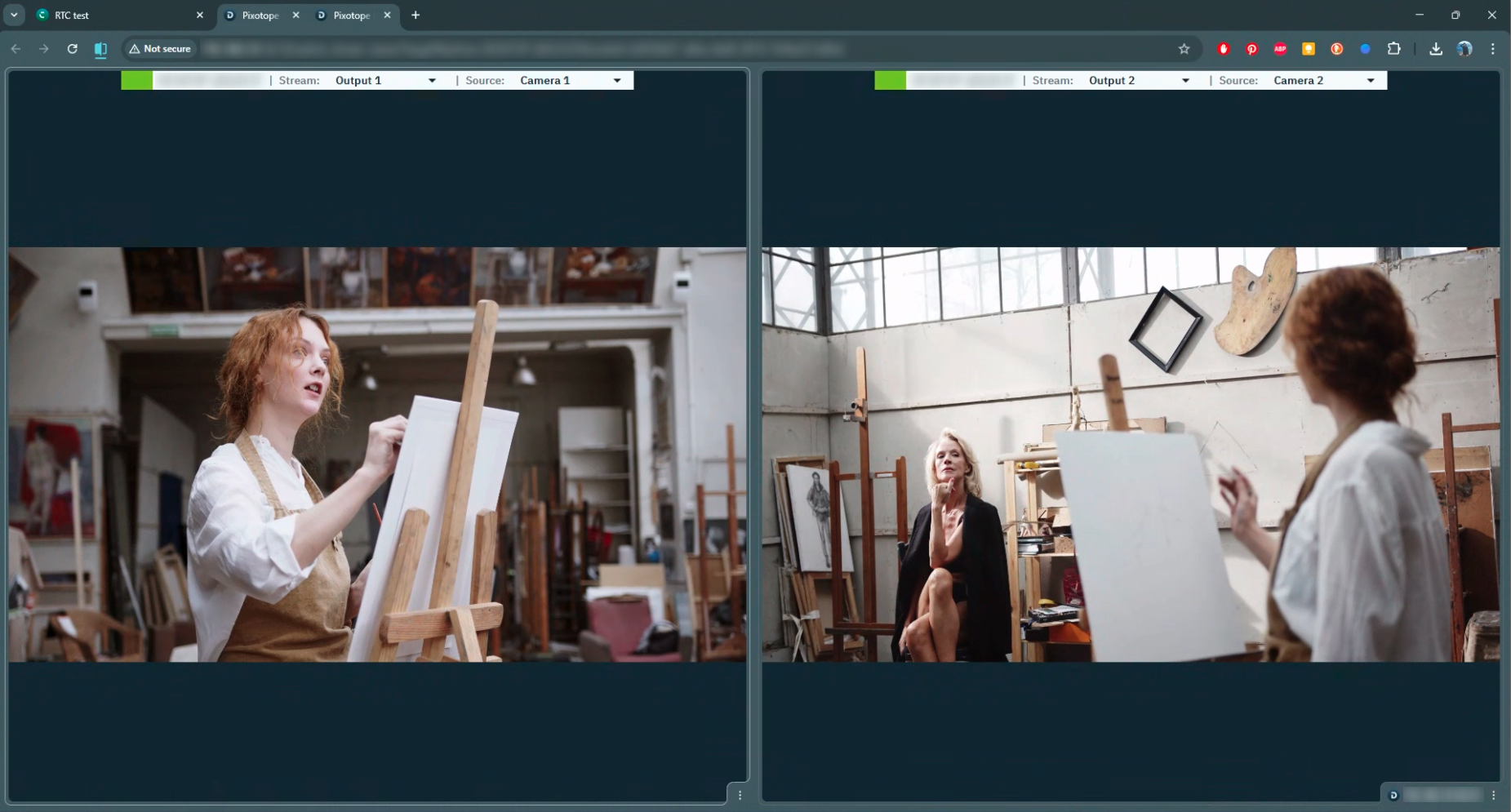
Change which stream to view
-
Open the Stream dropdown on the top and choose a different stream to view
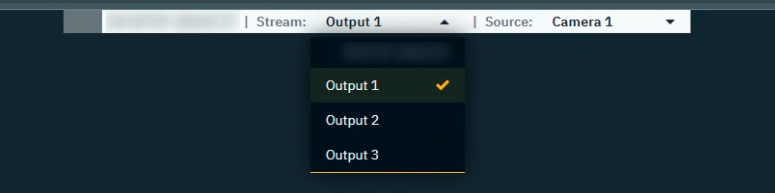
The streams are listed per machine.
Change the source of the stream
-
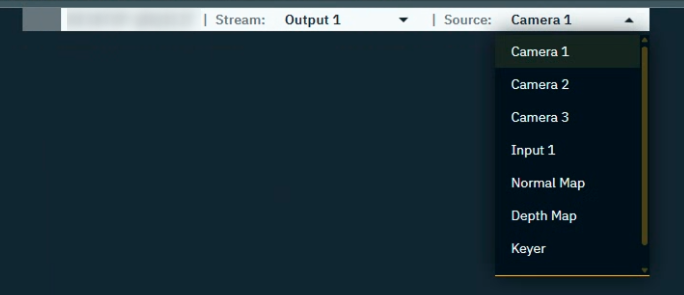
Open the Source dropdown on the top and choose a different input source for this stream
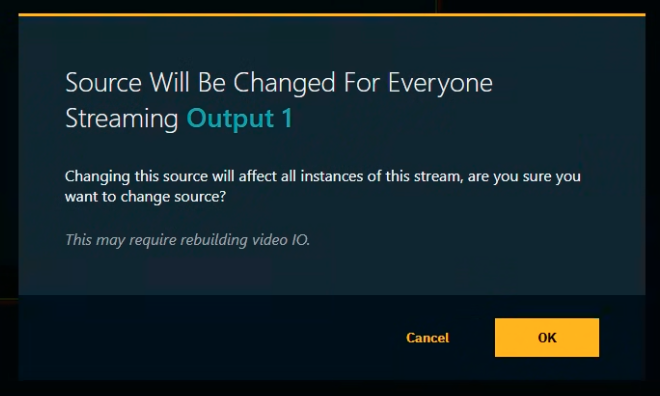
Changing the Source affects all machines viewing the same Stream.
Do not change the Source during live production as it rebuilds the videoIO service resulting in glitch on that machine!
Show streams in control panel
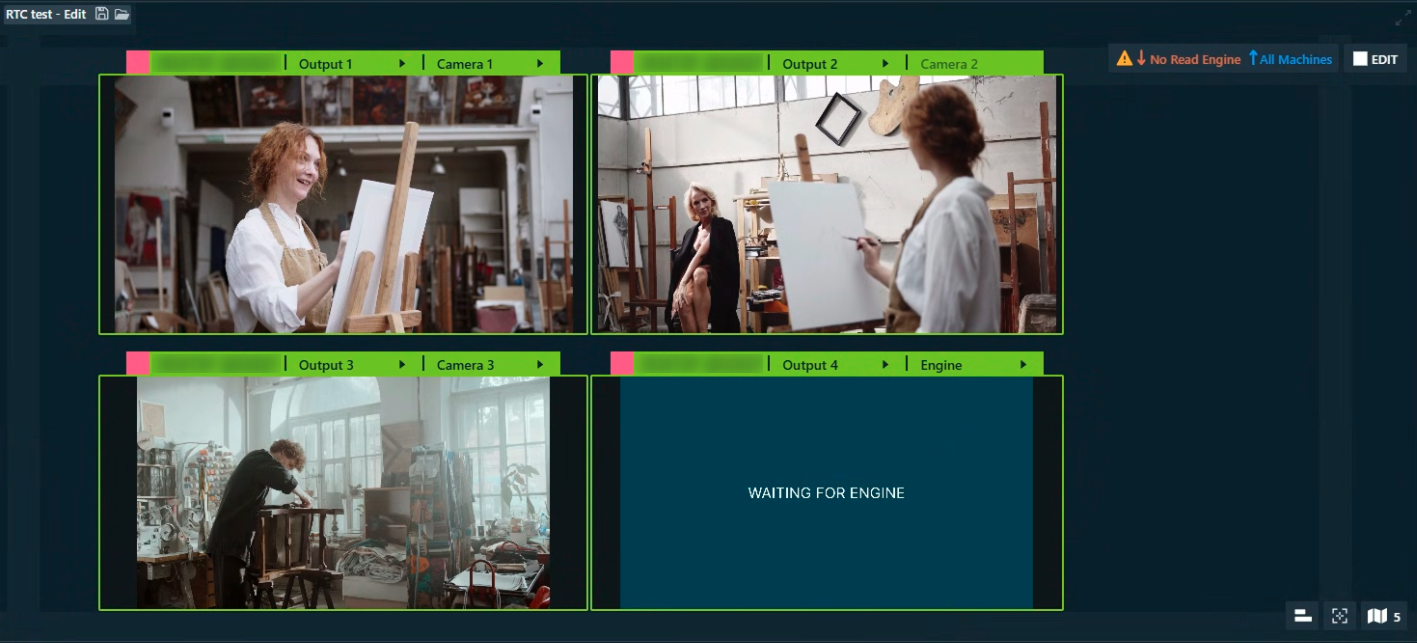
Using the Stream widget in the control panel allows to create a custom multi-viewer.
-
Drag the Stream widget from the toolbar on the left
OR select it in the toolbar or the toolbox (T) and draw it onto the canvas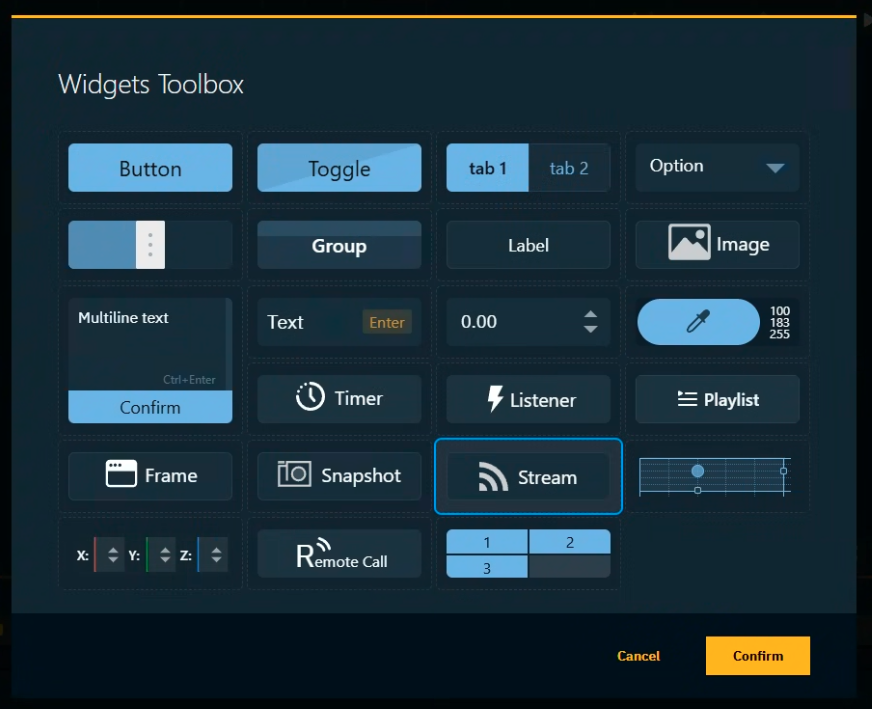
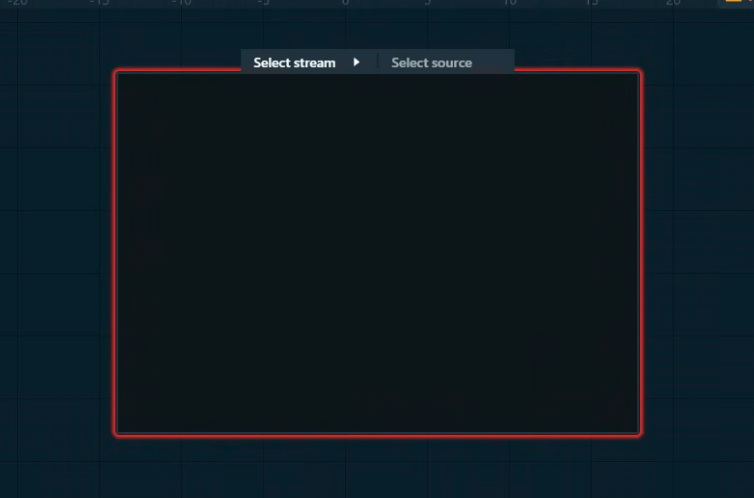
-
Select the default Stream to view from the top bar of the widget or the widget properties panel
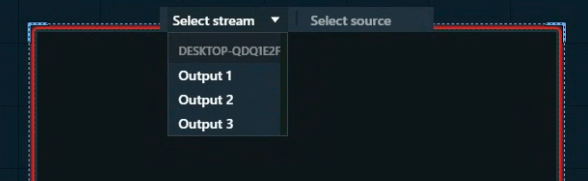
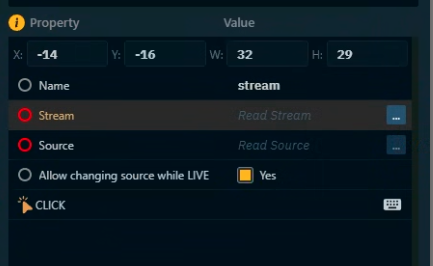
The Stream which was selected while in Edit mode, is the default one viewed when launching the Control panel in Live mode.
Changes to which stream is being viewed while in Live mode will not persist.
-
The Source is set to Engine by default
See above on how to Change which stream to view or how to Change the source of the stream
Set up a custom WebRTC client (advanced)
For advanced use cases, such as embedding the stream into a custom tool or external workflow, you can connect directly to the VideoIO WHEP server using standard browser WebRTC APIs.
Custom WebRTC client (advanced)
Technical details
-
The WHEP server runs on port
16226 -
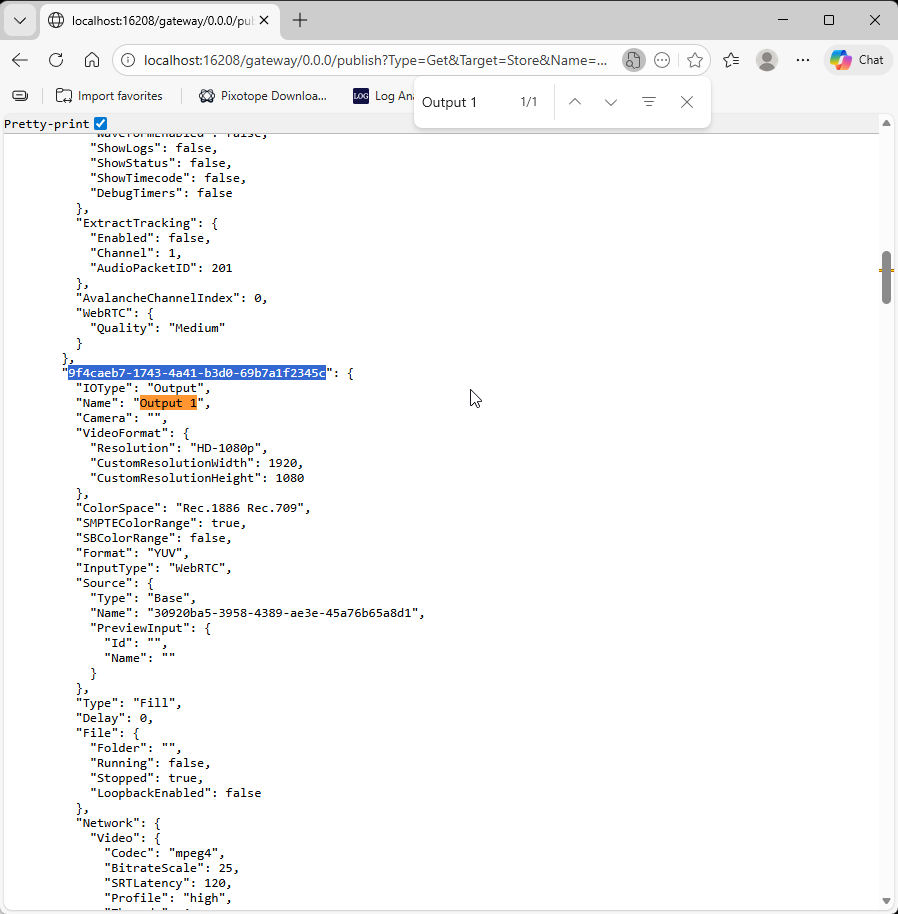
The Node ID is the key of the stream output object, same as the routing ID in Director when the stream output is configured
To get the node ID/routing ID of the WebRTC stream:
-
Run the following Gateway URL command in the browser
http://localhost:16208/gateway/0.0.0/publish?Type=Get&Target=Store&Name=State.Machines.[machineName].Routing -
Search for the name of the WebRTC stream output
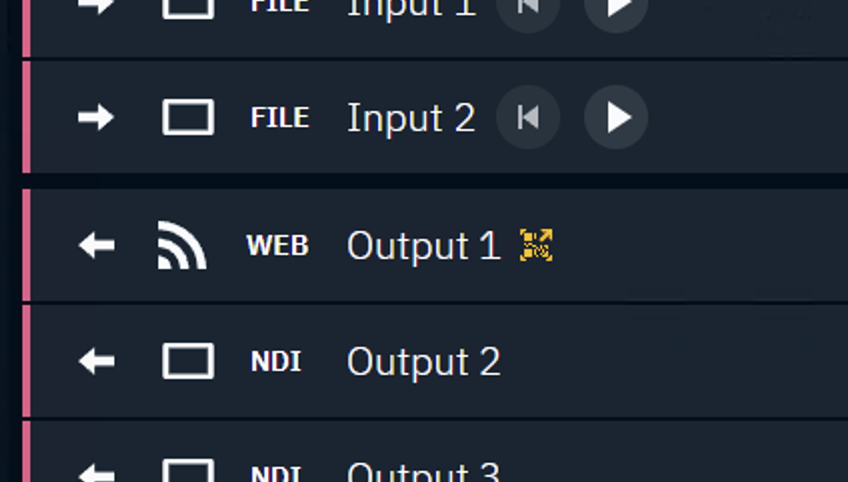
Connection flow
-
Send a
GETtohttp://[machineIP]:16226/[nodeID]?id=[clientID], the server responds with an SDP offer -
Call
setRemoteDescriptionon theRTCPeerConnectionwith that offer -
Create an answer, wait for ICE gathering to complete, then
POSTthe answer back tohttp://[machineIP]:16226/[nodeID] -
The
ontrackevent fires and the stream can be displayed in a<video>element
Minimal working example (standalone HTML)
<!DOCTYPE html>
<html lang="en">
<head>
    <meta charset="UTF-8">
    <title>WebRTC stream viewer</title>
    <style>
        video { width: 100%; }
    </style>
    <script>
        function randomId(length) {
            const characters = '0123456789ABCDEFGHIJKLMNOPQRSTUVWXYZabcdefghijklmnopqrstuvwxyz';
            const pickRandom = () => characters.charAt(Math.floor(Math.random() * characters.length));
            return [...Array(length)].map(pickRandom).join('');
        }

        let pc = null;
        let dc = null;
        let id = randomId(10);

        function createPeerConnection() {
            let pc = new RTCPeerConnection({ bundlePolicy: "max-bundle" });
            pc.ondatachannel = (evt) => {
                dc = evt.channel;
                dc.onclose = () => console.log("datachannel closed");
            };
            pc.ontrack = (evt) => {
                document.getElementById('media').style.display = 'block';
                const video = document.getElementById('video');
                video.srcObject = evt.streams[0];
                video.play();
            };
            pc.onconnectionstatechange = (evt) => console.log(evt.target.connectionState);
            return pc;
        }

        async function waitGatheringComplete() {
            return new Promise((resolve) => {
                if (pc.iceGatheringState === 'complete') {
                    resolve();
                } else {
                    pc.addEventListener('icegatheringstatechange', () => {
                        if (pc.iceGatheringState === 'complete') resolve();
                    });
                }
            });
        }

        async function sendAnswer(pc) {
            await pc.setLocalDescription(await pc.createAnswer());
            await waitGatheringComplete();
            const answer = pc.localDescription;
            const machineIP = document.getElementById("adressInput").value;
            const nodeID = document.getElementById("nodeIdInput").value;
            await fetch(`http://${machineIP}:16226/${nodeID}`, {
                method: "POST",
                body: JSON.stringify({ id, type: answer.type, sdp: answer.sdp }),
                headers: { "Content-type": "text/plain; charset=UTF-8" }
            });
        }

        async function getSDPOffer() {
            const machineIP = document.getElementById("adressInput").value;
            const nodeID = document.getElementById("nodeIdInput").value;
            try {
                const response = await fetch(`http://${machineIP}:16226/${nodeID}?id=${id}`);
                if (!response.ok) throw new Error(`Response status: ${response.status}`);
                const offer = await response.json();
                pc = createPeerConnection();
                await pc.setRemoteDescription(offer);
                await sendAnswer(pc);
            } catch (error) {
                console.error(error.message);
            }
        }

        function stopStreaming() {
            if (dc !== null) dc.close();
        }
    </script>
</head>
<body>
    <h3>Machine IP address:</h3>
    <input id="adressInput" />
    <h3>Node ID (same as routing ID):</h3>
    <input id="nodeIdInput" />
    <br><br>
    <button onclick="getSDPOffer();">Start streaming</button>
    <button onclick="stopStreaming();">Stop</button>
    <h2>WebRTC output:</h2>
    <div id="media" style="display: none">
        <video id="video" autoplay playsinline></video>
    </div>
</body>
</html>