
Academy Tutorial - Getting Started
-
Learn how to launch a project in Pixotope and configure a basic camera & routing for your Virtual Production.
Learn how to do a simple virtual studio production using:
-
1 tracked camera
-
1 computer
-
1 Pixotope AR/VS or XR license
Learn more about Plan your virtual production.
Check out the following links to get an overview of Pixotope, its concepts and components.
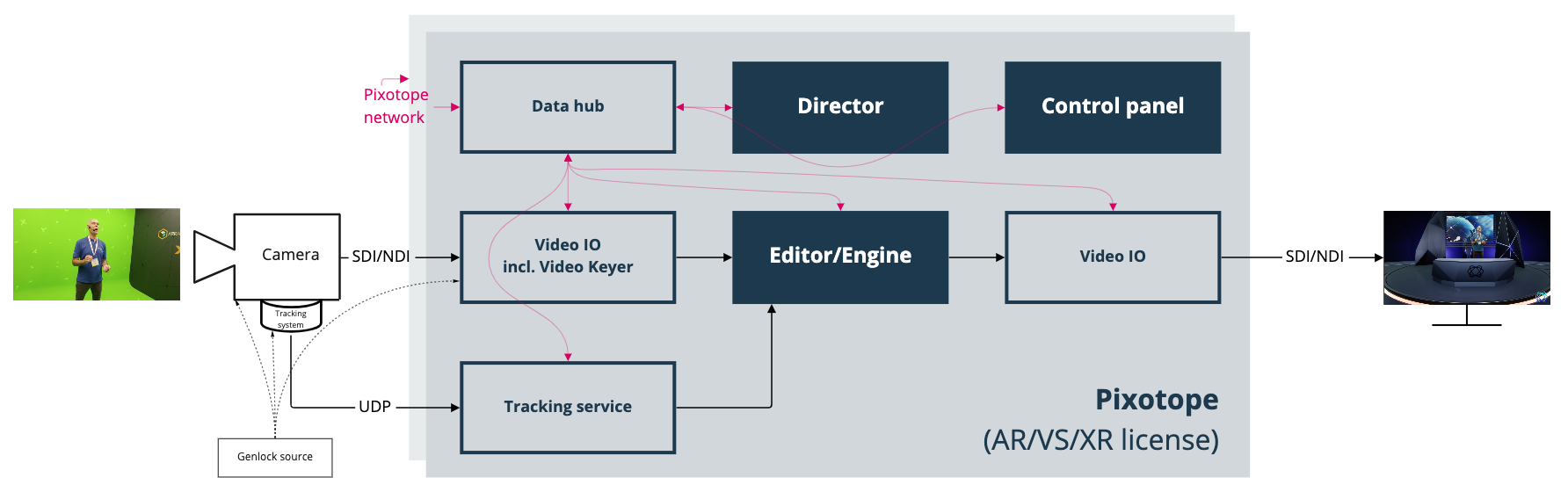
Schematic
-
Camera system
-
Camera
-
The captured video comes in via
-
SDI into the video card
-
or NDI through the network card - What is NDI?
-
-
Signal gets keyed or just passed through into the Pixotope Engine
-
-
Camera tracking system
-
Tracking data comes in through the network card
-
-
-
Tracking service translates the data and sends it to the Pixotope Engine
-
Pixotope Engine applies the physical camera conditions to the virtual camera
-
The rendered virtual scene gets merged with the real scene
-
The scene gets output through SDI or NDI
-
-
Pixotope Director is the main software you interact with for configuring, adjusting and controlling your show
-
It can be used locally or remotely
-
It controls all aspects of Pixotope
-
-
Pixotope Data hub
-
It handles the communication between all Pixotope services and all Pixotope machines. See multi-camera setup.
-
Example projects using Pixotope
Pixotope lets you merge the real and the virtual world, in real time and in perfect quality.
To see what Pixotope has made possible, visit pixotope.com
Or try it out yourself and download our example projects.
Checklist
-
The machine is set up
-
Network card(s) is/are installed and configured
-
Graphics and videoIO cards are installed and they use the required drivers - See system requirements
-
-
The physical camera is set up
-
The tracking system is set up
-
A user account with a valid AR/VS, XR license is available - Manage users and licenses
-
Pixotope is installed - Install Pixotope
Start Director
The Pixotope Director is the main interface for setting up, adjusting and controlling a Pixotope production.
-
Start Director
-
Log in
-
Choose a AR/VS, XR license
-
Choose a Stand-alone or Server role
-
Create a new show from an existing project or a template
Learn more about Starting Director, Create, open and manage shows and the Pixotope Director - Interface
Learn more about Roles - Stand-alone, Client or Server
Learn more about Show files - where your SETUP is stored
Set up your first show
Edit your show settings and configure and calibrate your camera systems, media in- and outputs and object tracker groups
-
Add a camera system
-
Configure camera tracking
-
Configure video inputs and outputs
-
Configure routing
-
Calibrate tracking
-
Calibrate syncing
Learn more about Setting up a show
Prepare a simple VS level
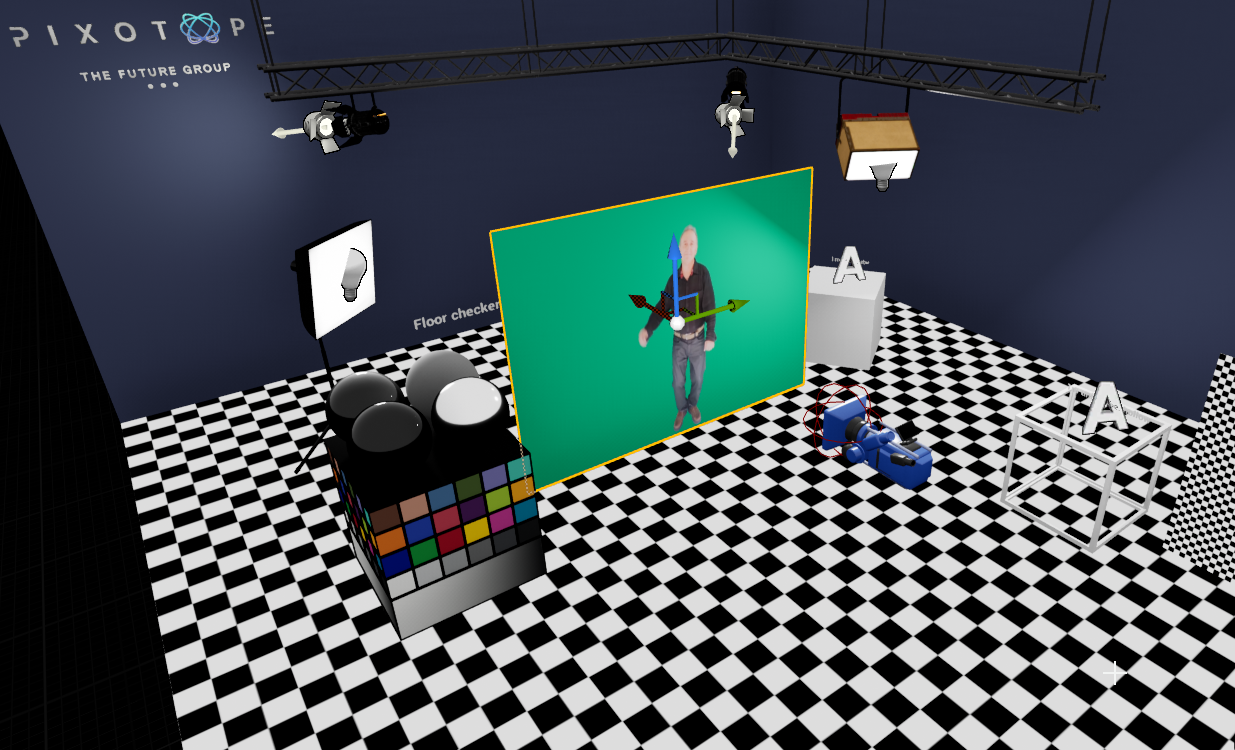
For a virtual studio, we need to place the talent in our 3D environment.
-
Film the talent with a tracked camera in front of a green screen
-
Position a compositing plane in the virtual studio
-
The video is projected onto the compositing plane
-
Learn more about how to Set up a VS level and more general Preparing levels in Pixotope Editor
Make adjustments
To perfectly composite video and 3D graphics, use Pixotope's adjustment panels.
Learn more about Making adjustments
Key video
Pixotope’s video keyer is an easy to use real-time chroma keyer which is used to key video inputs.
-
Select the camera system you would like to key
-
Initialize the key
-
Refine the key
Learn more about how to Use the video keyer
Adjust compositing
Adjust how video and 3D graphics are composited together.
Learn more about how to Adjust compositing
Adjust effects
Optionally you can add camera effects.
Learn more about how to Adjust effects
Adjust color grading
Adjust the color grading of your 3D graphics and video so the sources match. Optionally you can color grade the final output.
Learn more about how to Adjust color grading
Create a simple control panel
-
In the Editor: Expose the properties you would like to control
-
Create a new control panel
-
Create a trigger widget
-
Add a target action
-
Save your control panel
Learn more about Creating a custom control panel
Run live
-
Launch your level in LIVE mode
-
Use the control panel to control your level
Learn more about Running live production
Data integration and API
Use external data in your Pixotope levels or drive the production with external controls.
Learn more about Using the Pixotope Engine API
More
Find additional information here: