Introduction
The projects are intended to give an introduction into various use cases, and, for the curious, a view into how more advanced setups are created.
All the projects come with a Custom Control Panel specifically for the project. These are examples of how to trigger actions in your projects through a simple yet powerful control system.
The contents of these zip files are the full Pixotope projects, containing everything you need to run them and their control panels. They also contain all the assets that have been created by our team.
Please refrain from using any of the content in these examples for purposes other than demo and training. You are encouraged to experiment and dissect as much as you like. (Please send us your tests!)
No commercial use is allowed with these assets!
Get started
-
Log in to your user account page on the Pixotope cloud → https://login.pixotope.com
-
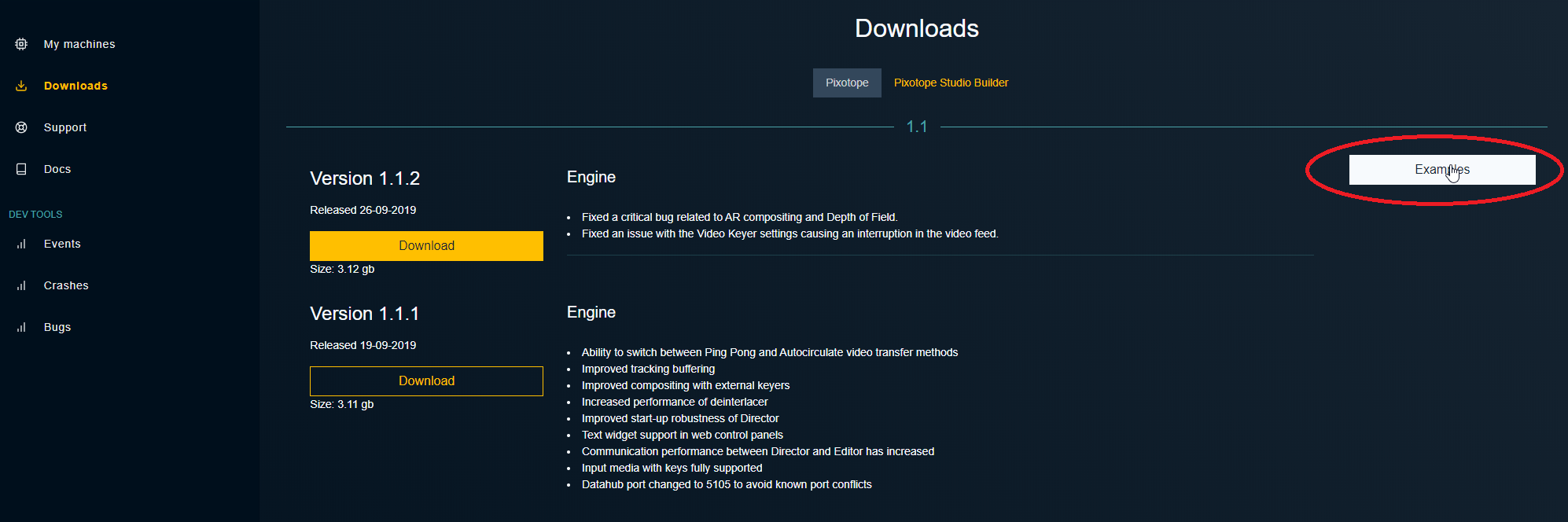
In the Downloads menu, click "Examples" for the appropriate Pixotope version (project files are not backward-compatible)
-
The projects can be downloaded individually (as zip files)

-
Extract the archives in a folder of your choice, e.g.
[My drive]:\[My Pixotope Projects]\PixotopeMascot -
In Director: Click "Create new show" on START > Storage > Shows
-
Choose "from existing project"
-
Click "Select" and select the .uproject file of the project which should be linked
-
Optionally edit the name for the show (file)
-
Confirm by clicking on "Create new show"
-
-
After the show has been added, it will show up in the list of shows
-
Hover over the show and click "Open show"
-
You are redirected to SETUP > Show > Launch
-
-
Hover over the level you want to launch and click “Launch in EDITOR”
Launching a level for the first time can take longer, as shaders and other elements have to be prepared.
The control panels
With the included control panels you are able to control the actions set up in the level. We made them colorful and clear. Feel free to edit the panels and move things around to your liking, or even use them from your phone, tablet, laptop or similar by copying the URL from the hamburger menu, top left in the control panel page (you need to be on the same network).
-
Open the control panel directly from the launch panel in Director by clicking the “Open panel” button
Some actions in the control panel only work in Preview Live or LIVE mode. Learn more about how to Run levels in Edit, Preview Live and LIVE mode
Description of projects
PixotopeMascot
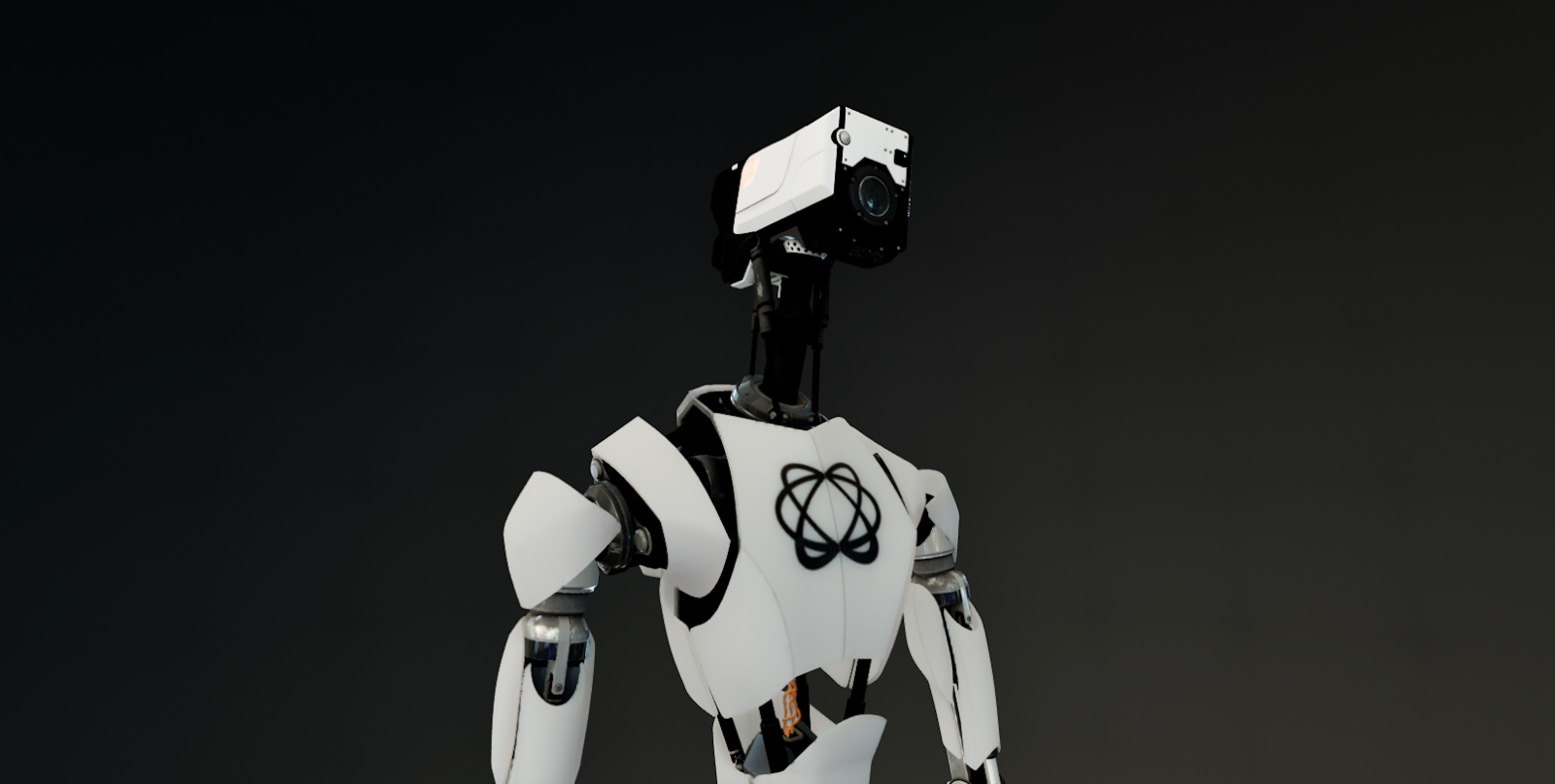
Starring our beloved mascot character Dot, this project gives a good overview of how an animated AR character can be set up, as well as how it ticks.
Please let us know if you wish to drive him with live motion capture as well.
Level contents
-
Fully rigged and textured AR character
-
4 extra animations
-
Ready-made control panel
Technical details
-
Rigged to Epic skeleton (tested with XSense mocap suit)
-
Example animations:
-
Walking
-
Juggling
-
Chest animation
-
Head animation
-
Triangle count: 578,695
Texture resolution: 4,096
PixotopeMascot controls
-
“Enter” will bring Dot center stage by walking him in and now start playing

PixotopeStudio
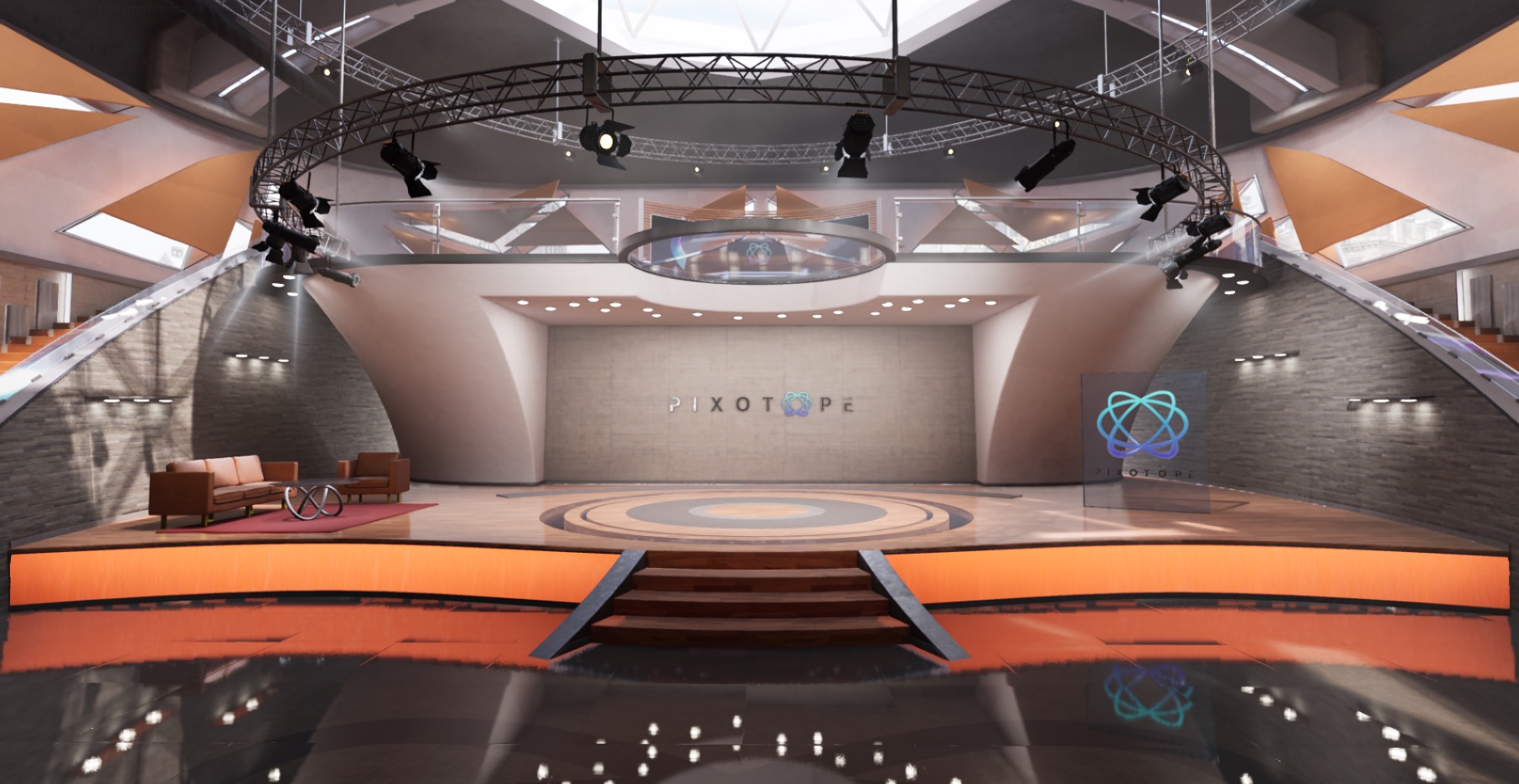
A virtual studio set environment. This project shows how to run a virtual studio, with a control panel to show color changes, virtual monitors with live inputs and virtual camera moves. This studio utilizes baked illumination for more rapid rendering as an example.
Level contents
-
Fully functional Virtual Interior Studio
-
Virtual camera moves and animated elevator for talent, with the option to raise and lower monitors
-
Ready-made control panel
Technical details
-
The camera moves are set by a rail and are adjustable in the Editor
-
The tracked camera is attached to the pillar socket in BP_PillarElevationAnim and will raise with the elevator
-
Monitors waiting to receive Media Input
Triangle count: 1,530,998
Texture resolution: 4,096
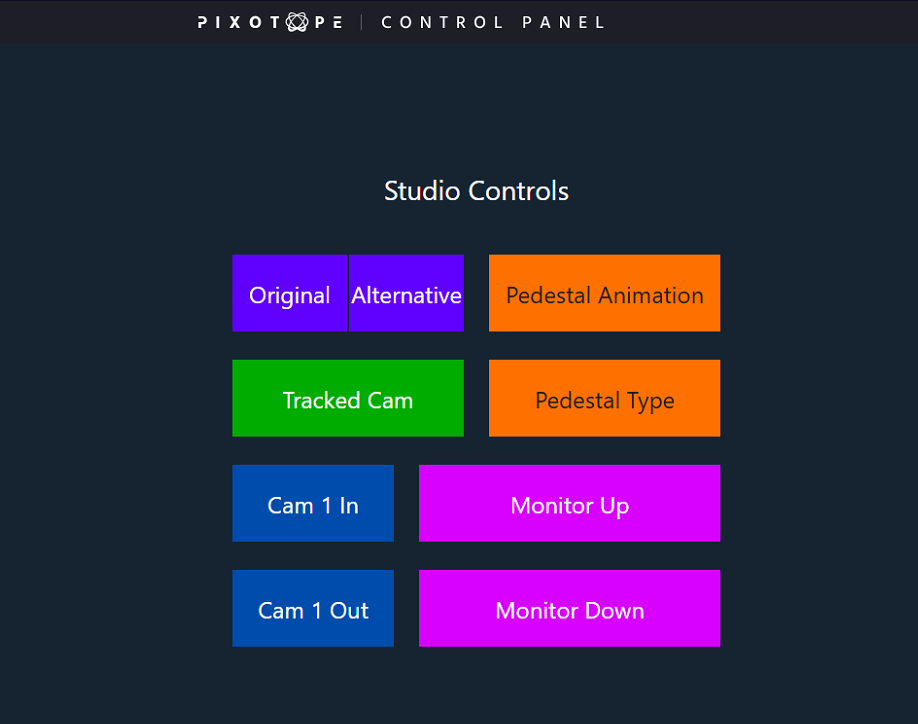
PixotopeStudio controls
-
A few triggers for various actions.
PixotopeExterior
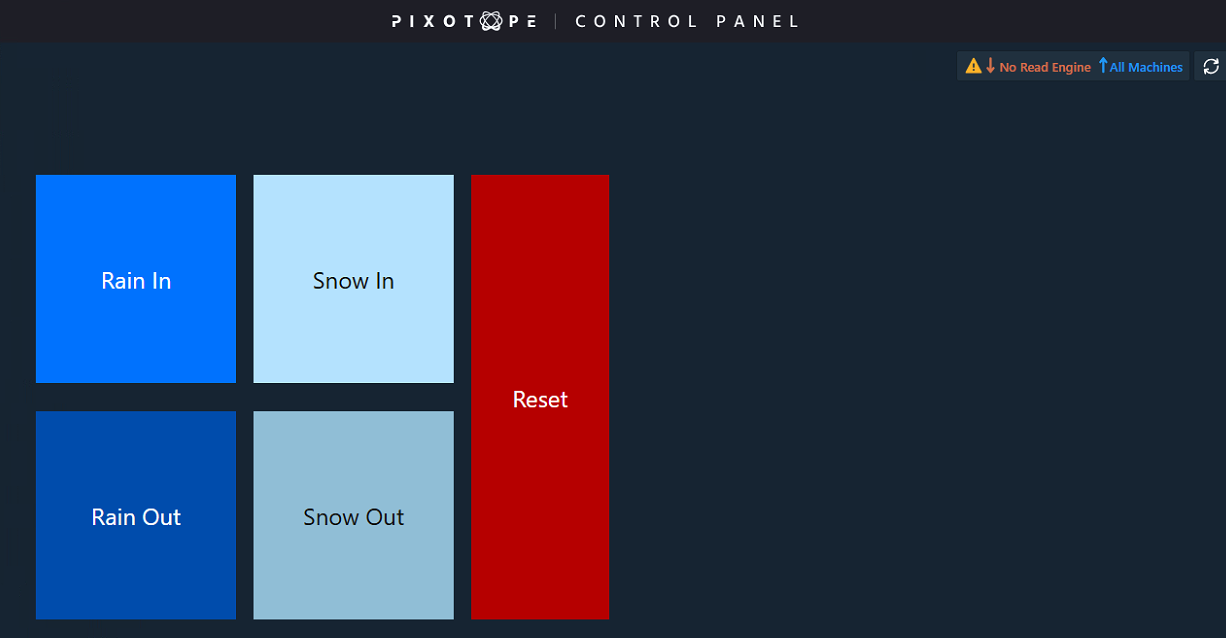
An advanced exterior scene based on photogrammetry techniques and advanced material setups. This also comes with controls that will change weather and seasons.
This exterior uses fully dynamic lighting.
Level contents
-
Functioning exterior virtual environment with weather effects
-
3 weather states
-
Ready-made control panel
Technical details
-
Rain and snow effect using cascade particle systems
-
Weather states
-
Sunny with clouds
-
Rain with fog
-
Snow with frost
Triangle count: 220,046,958
Texture resolution: 4,096 and 8,192
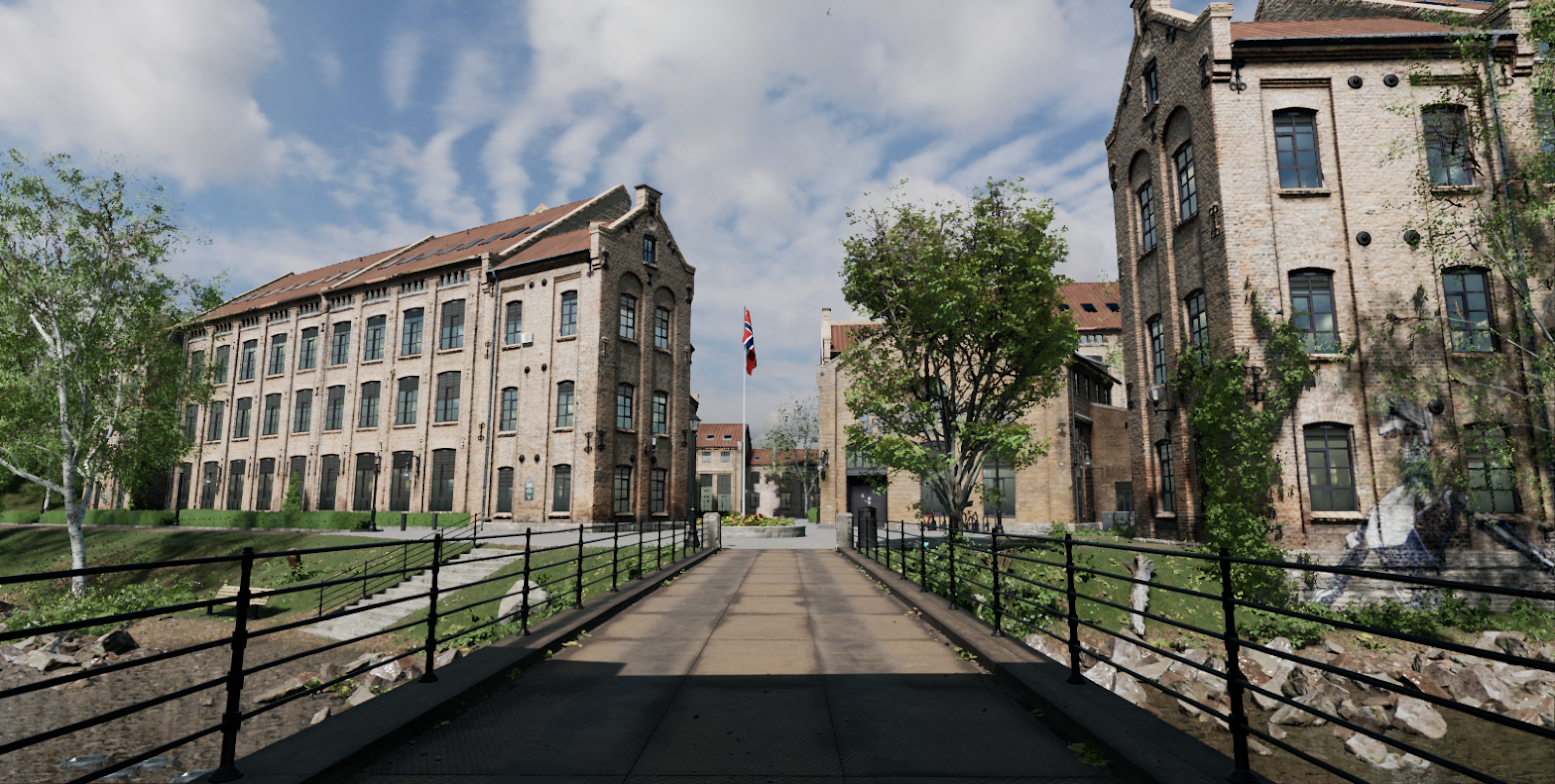
PixotopeExterior controls
-
A few ways to change the weather and mood. Try making your own!
PixotopePond
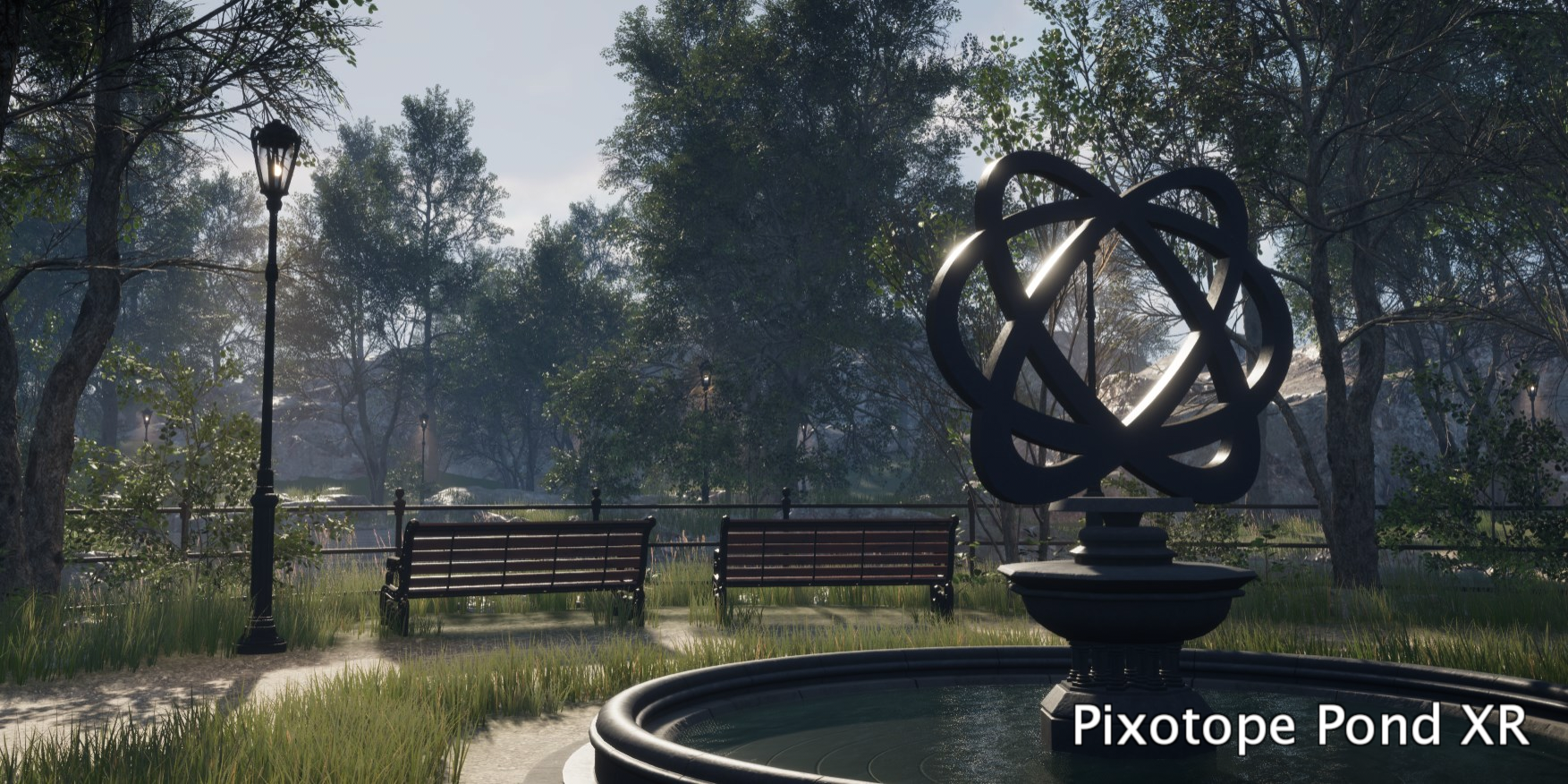
This scene contains:
-
Exterior XR/AR scene with dynamic day/night lighting
-
XR/AR alignment calibration grid
-
Color chart for color matching calibration
PixotopeLivingPhoto
Description
-
Fully functional showcase scene for Pixotope Living Photo
-
Includes imported Light Field files with interactive settings, demonstrating the realism and versatility of Living Photo technology
Learn more about how to Set up Pixotope Living Photo
Technical Details
-
Light Field files are imported and displayed within the scene, you just need to link Light Field file path
-
Scene allows for interactive camera movement to demonstrate parallax effects
-
Configurable parameters for Index Offset, Unjittered Projection, Pitch Sensitivity, and more
.png?cb=52357325d7a77e17189e4030be3dbc58)
PixotopeDMX
This example level contains 4x4 different types of light fixtures, all mapped, working, and patched to DMX universes. Blur the line between real and virtual worlds!
Learn more about how to Set up DMX lights
Level contents
-
Send and receive to any universe
-
4 moving head fixtures
-
4 static fixtures
-
4 moving mirror fixtures
-
4 strobe fixtures
Technical details
-
Support for DMX Art-Net and SACN
Texture resolution: 4,096

PixotopeBodyPoseEstimation
Description
-
VS project using the new BodyPoseEstimation feature
-
A variety of different dynamic assets to play around with
Technical Details
-
Greenscreen video file for use without camera input
Texture resolution: 4096
Pixotope Fly - Ski jump
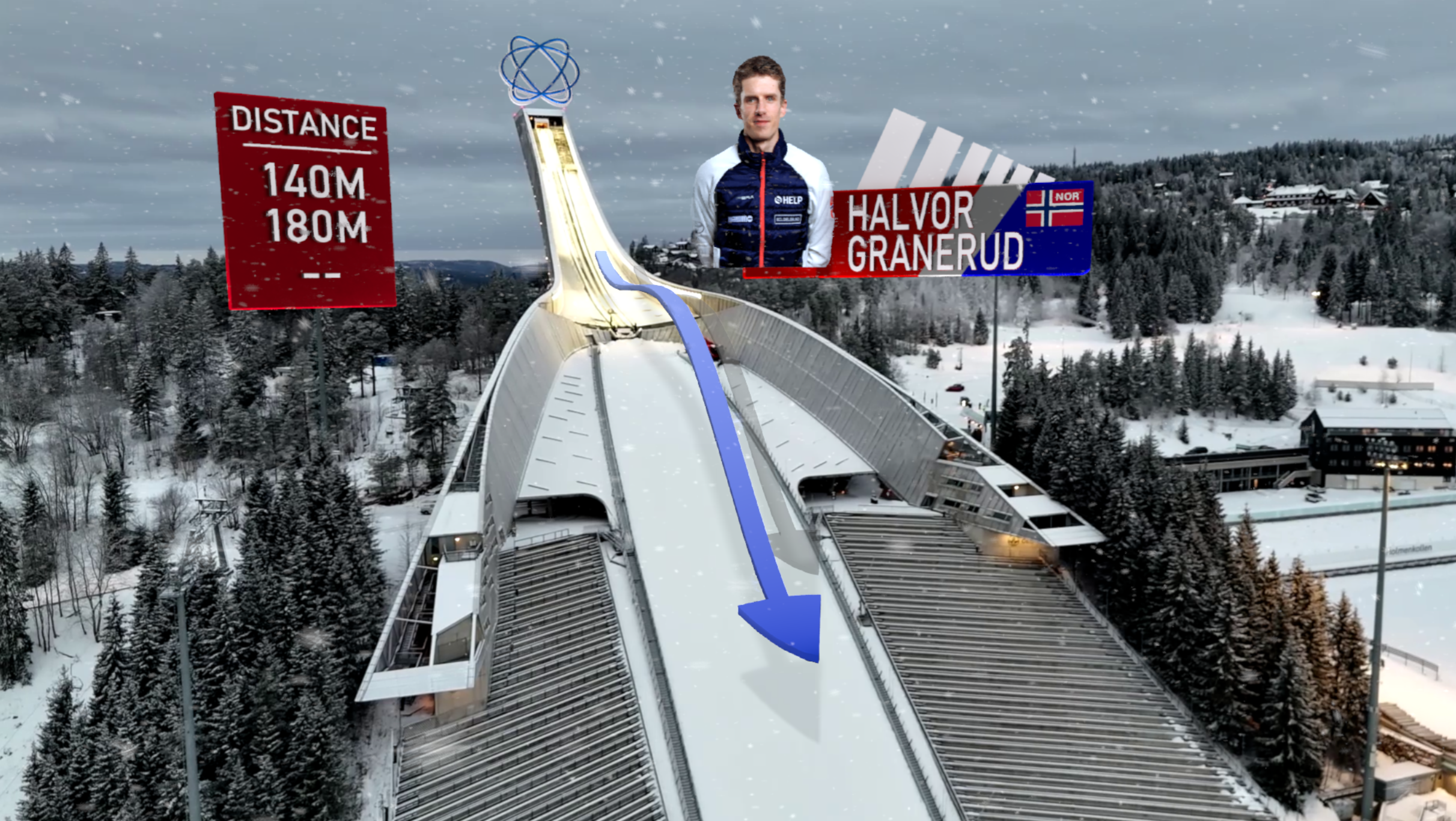
An AR sample package that showcases Pixotope Fly tracking, as well as the ability to play back a recorded video plate with embedded tracking, from disk.
-
Pixotope Fly Tracking
-
Typical dynamic sports AR blueprints
-
JSON data ingestion example
-
Operated from a Pixotope Control panel
Learn more about Pixotope Fly - Ski jump