
The Ski Jump sample project requires an Artist Pro, VS/AR, or XR license.
Project overview
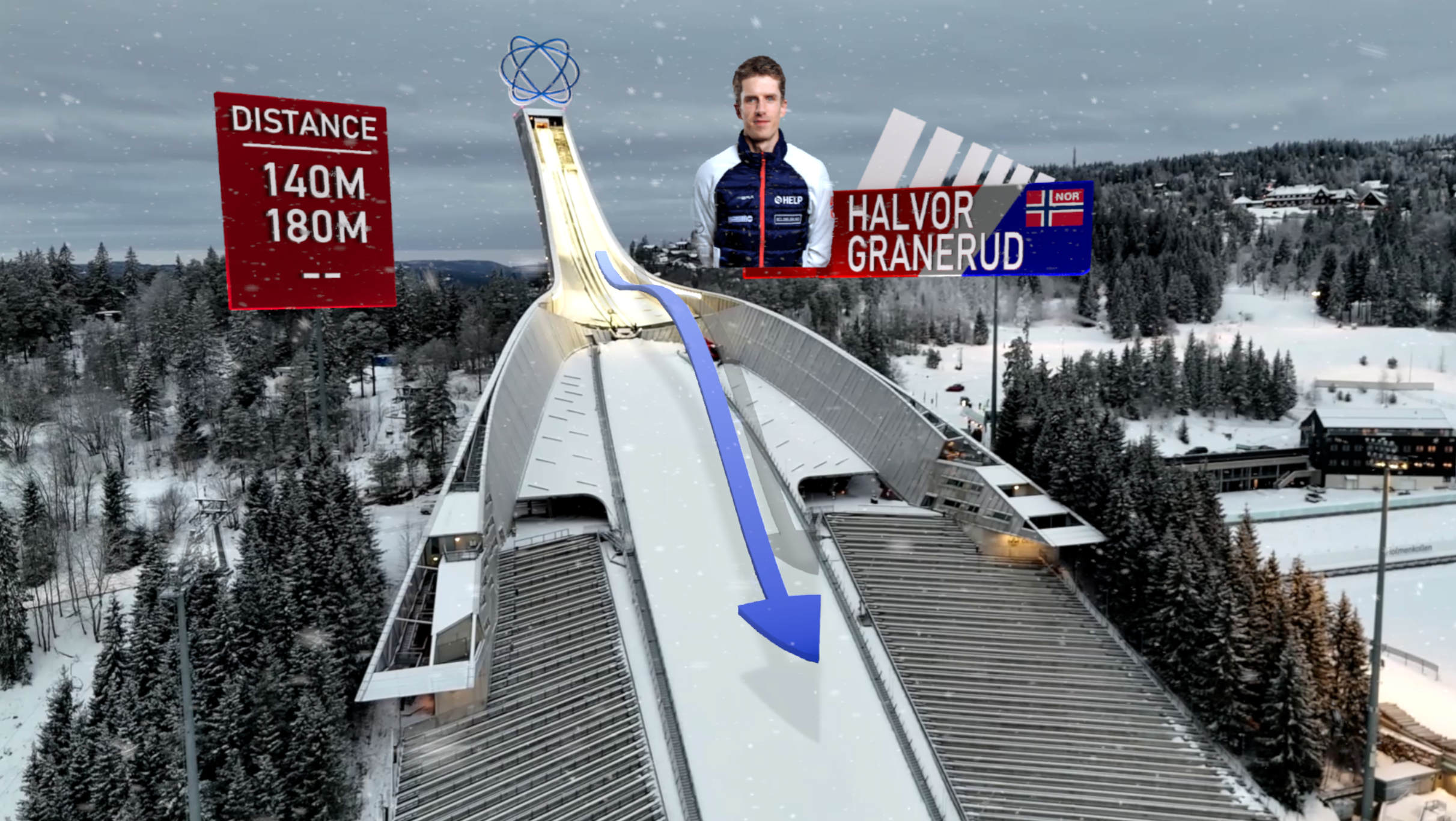
The Pixotope Fly - Ski jump sample project is a demo scene that showcases how Pixotope Fly can be used to track and record drone footage, in this case from an Olympic ski jump installation.
The video footage, with embedded tracking, is played out from disk, allowing further adjustment of graphics well after the day of recording.
The project also contains typical sports motion design elements built with blueprints, a control panel to drive these, as well as an example of live JSON data ingestion from blueprints.
All the graphics are set up as AR, and the scene utilizes complex Pixotope compositing, including a Shadowcatcher mesh generated from video photogrammetry.
Setup
-
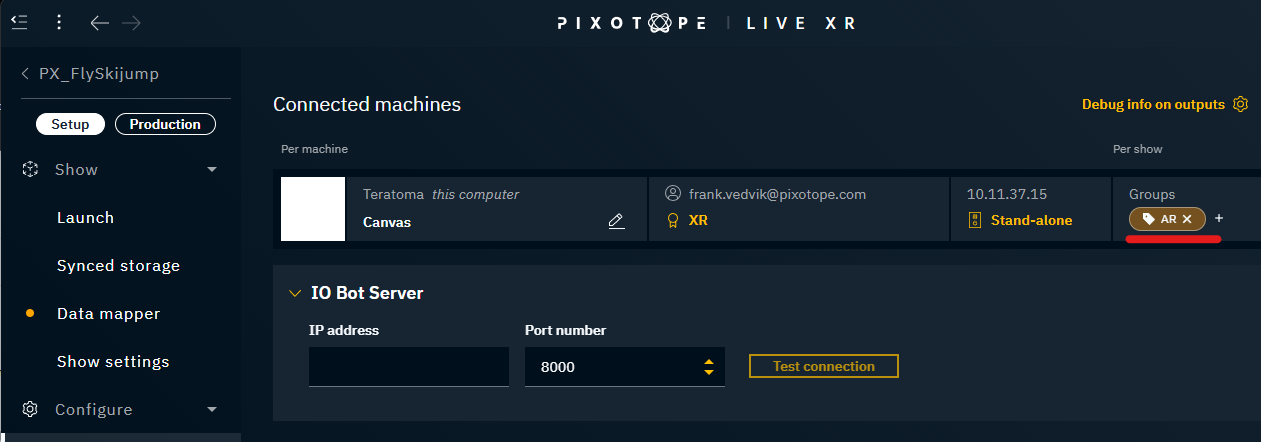
Assign the AR group to the render machine under Production > Configure > Machines
-
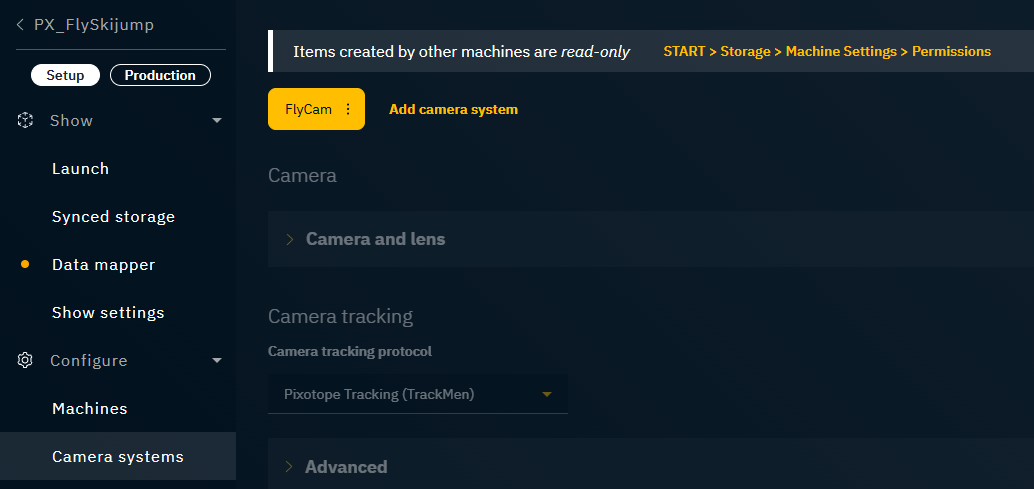
Create a camera system using the Pixotope Tracking protocol
-
This is required to access the tracking data embedded in the provided video plate recording
-
-
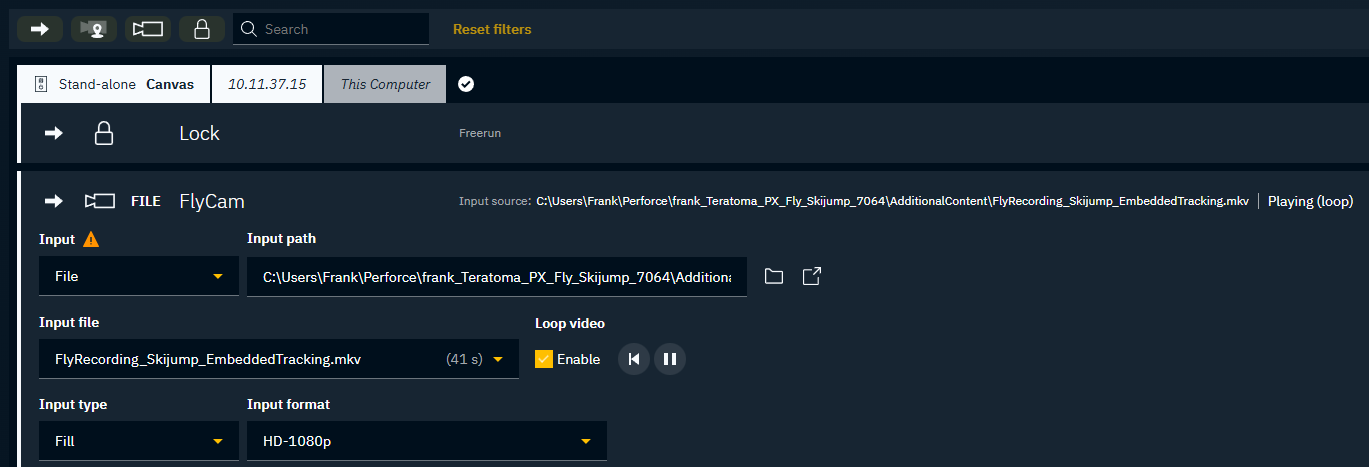
Set up the video input in the routing panel
-
Add the camera system
-
Change "Input" to "File"
-
Assign the video recording located underneath the project’s “Additional Content” folder
-
Make sure the file is set to play
-
-
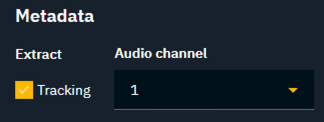
Enable "Extract Tracking" from audio channel 1
-
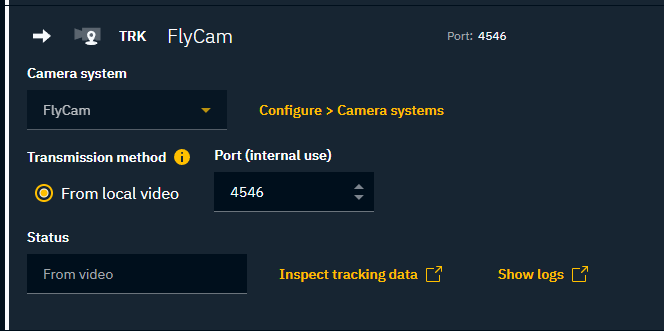
Under the camera’s tracking setup, confirm that we are receiving tracking data from video
-
-
From the Launch menu, launch “LVL_SkiJump” in LIVE mode

-
You should now see the ski jump playing out as a tracked video loop, and you may operate the provided graphics from the “CONTROLS” control panel, also located in the Launch menu.
Operating the project
The main level, LVL_SkiJump, can either be played out in LIVE or EDITOR. However, for any kind of demo, we strongly recommend launching the scene in LIVE mode.
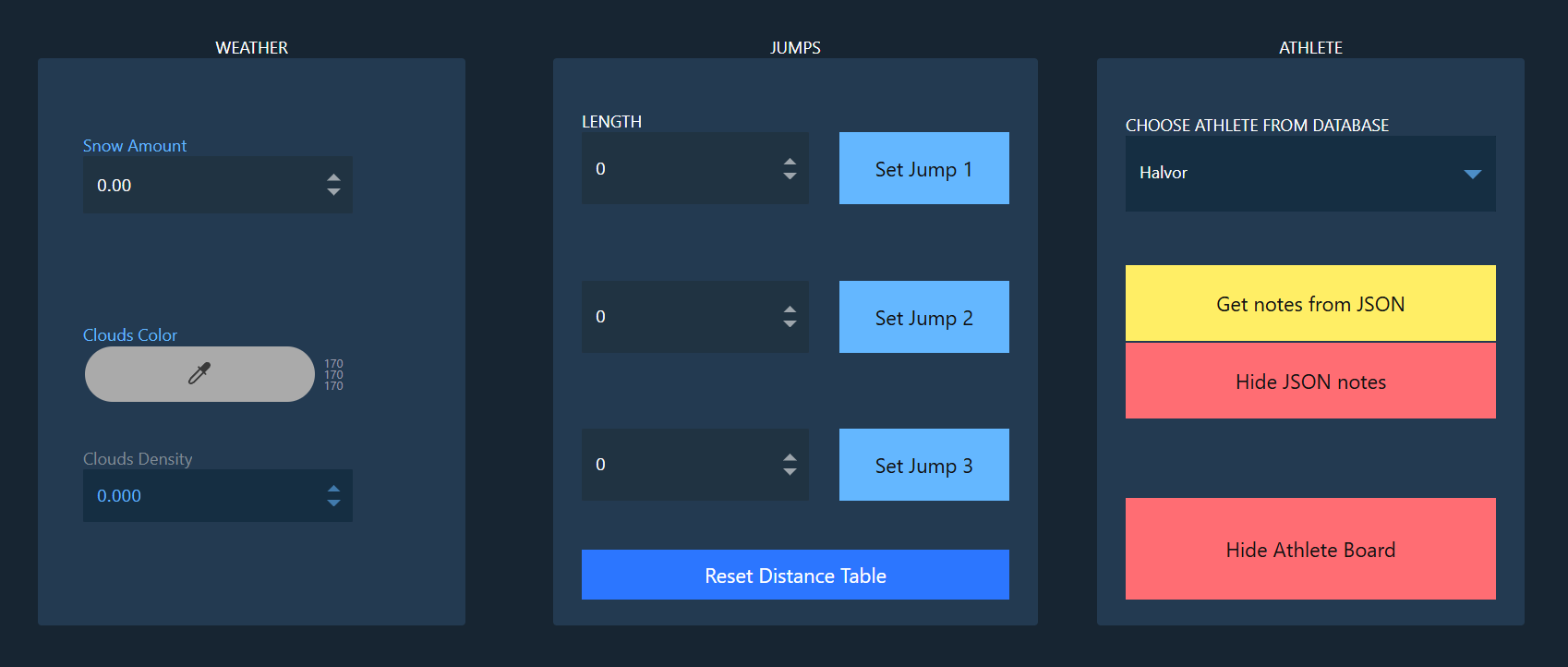
The control panel is very straightforward, and controls the following:
-
WEATHER - Control snow amount and cloud coverage. Note that very high snow amounts will cause performance issues, 5000 is a good starting point.
-
JUMPS - Allows entering up to three unique ski jump distances, which will be taken live the moment “Set Jump” is entered. An animating arrow visualizes the length, and a scoreboard off to the side keeps a tally. Click “Reset Distance Table” to clear the graphic.
-
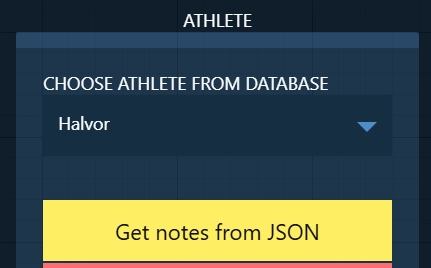
ATHLETE - Brings up a Norwegian ski jumper athlete board. The dropdown allows selecting one of four athletes, with information pulled from a data table located within the Pixotope project itself.
-
The “Get notes from JSON”, however, grabs EXTERNAL JSON data pertaining to the currently selected athlete. See the section below for more information.
-
JSON
The Skijump project showcases real-time data ingestion from JSON,
utilizing the Json Blueprint Utilities plugin.

We utilize these custom blueprint nodes to grab olympic athlete data on the fly, from an external JSON data source stored on disk.
Data flow
For our sample, we are simply using a hardcoded path referencing the JSON file stored next to the project folder, under:
/ProjectRoot/AdditionalContent/Skijump Data.json
This file contains a dataset pertaining to Norwegian athletes, and we identify them by checking for a first and last name match, in order to grab the NOTES field for the relevant match.
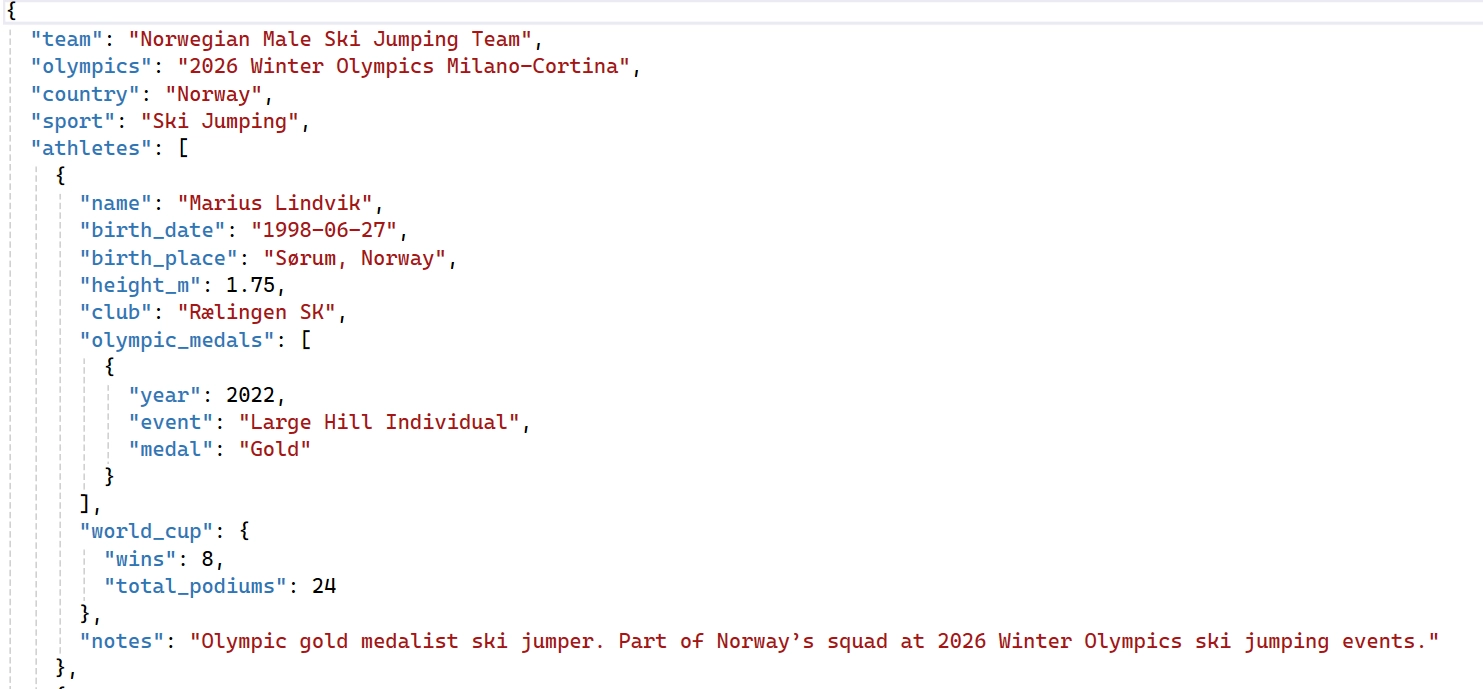
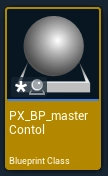
All of the JSON logic, including data parsing, happens within the blueprint PX_BP_masterControl, where the event PX_GrabJSONNotes is called the moment “Get notes from JSON” is clicked in the provided Pixotope control panel.
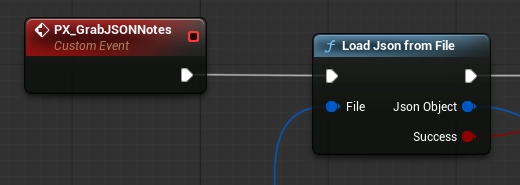
Although the field lookups in our sample here is hardcoded, it should act as a guide to how it could be done dynamically, as long as the Get Field calls are using user defined variables as input instead.
Blueprints
The project contains well structured and commented blueprints for all graphical elements. Although they should be well commented and easy to navigate, here is a handy primer on what they do:
Primary managers
-
PX_BP_masterControl - Controls the weather FX as well as the athlete billboard. This is also the blueprint that has the JSON parsing example.
-
BP_JumpMaster - Controls the jump arrows and scoreboard, as well as the length counter directly above the jump arrows themselves
Jump Score
-
BP_JumpVisualize - A single instance of a Jump arrow, with all animation self contained. Three exist in the scene, one for each jump attempt.
-
BP_JumpBoard - A text and data manager for the jump scoreboard. Wrangles all relevant text actors.
Athlete Infoboard
-
PXBP_InfoBoard - A more complex motion graphic element, wrangles all the data received from the masterControl BP, animating the athlete portrait and text fields in and out as needed. Also showcases the athlete notes if the JSON data is pulled