
Frame accurate syncing is essential in multi-machine setups.
Configure
-
Set up a primary timecode source
Learn more about how to Configure timecode (LTC) -
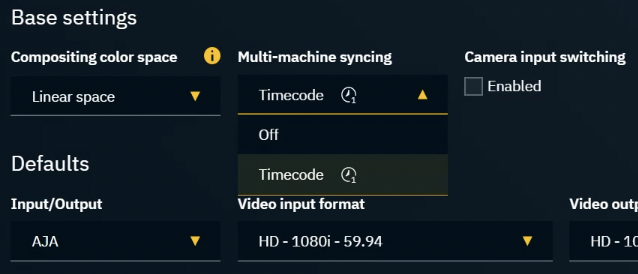
Set Multi-machine syncing to "Timecode" in SETUP > Show > Show settings > Base settings
-
Launch levels on all machines
-
Check if timecode is available on all machines, by clicking on “Get all timecodes” in the Status panel
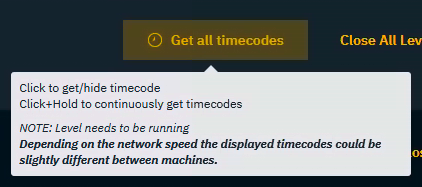

A level needs to be running as the timecode is reported by the engine.
In case Multi-machine syncing is enabled and NO timecode is available:
-
All messages will still be processed, but they will not be in sync
Calibrate for AR/VS
-
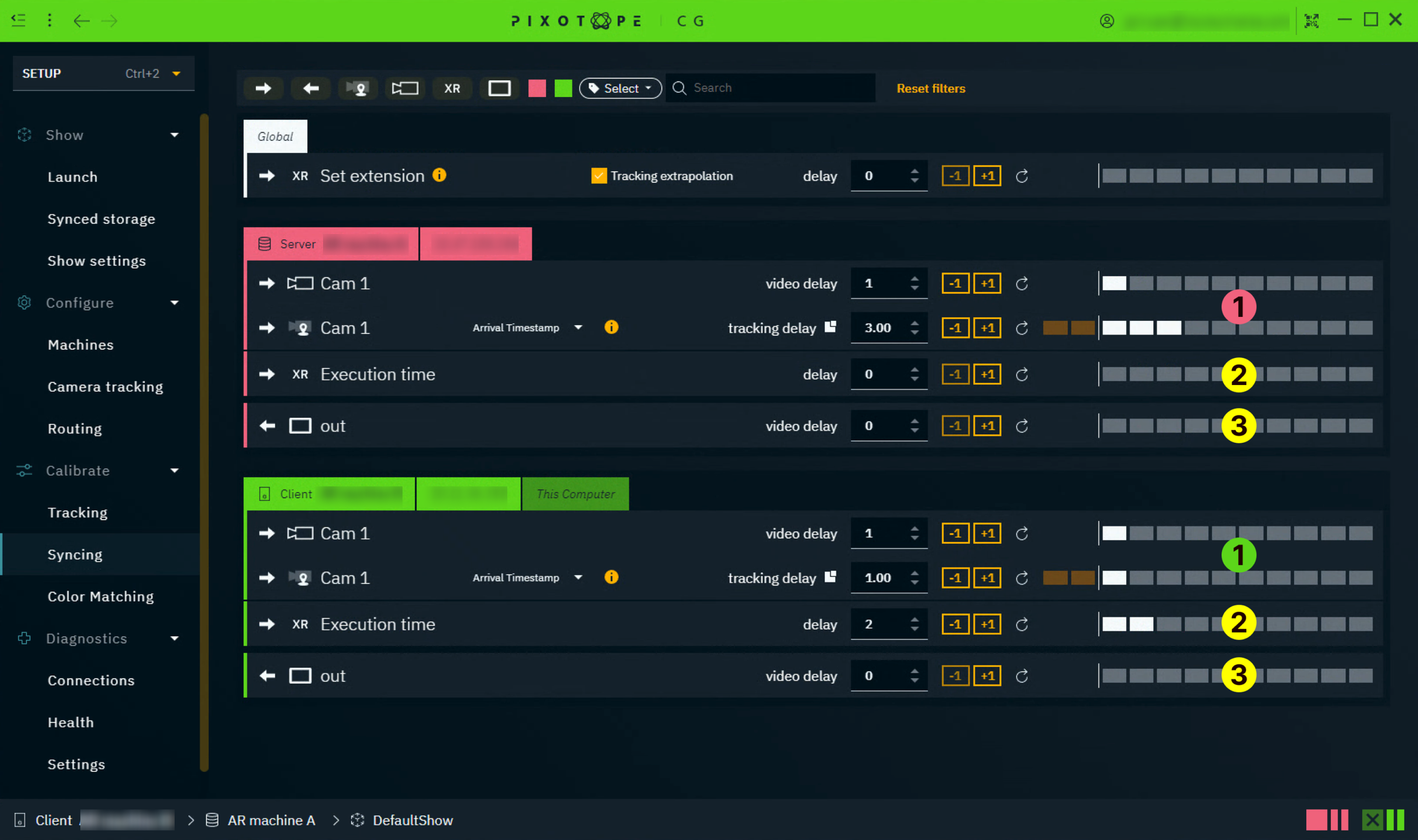
Go to SETUP > Calibration > Delays
-
Calibrate the camera systems video and tracking delay for every machine separately
-
Learn more about how to Calibrate delays
-
If using triggers, adjust the Execution time to sync the triggering across machines
-
Check if the output delays need to be adjusted
-
Hardware differences might require slightly different delays
-
For AR/VS with camera input switching
-
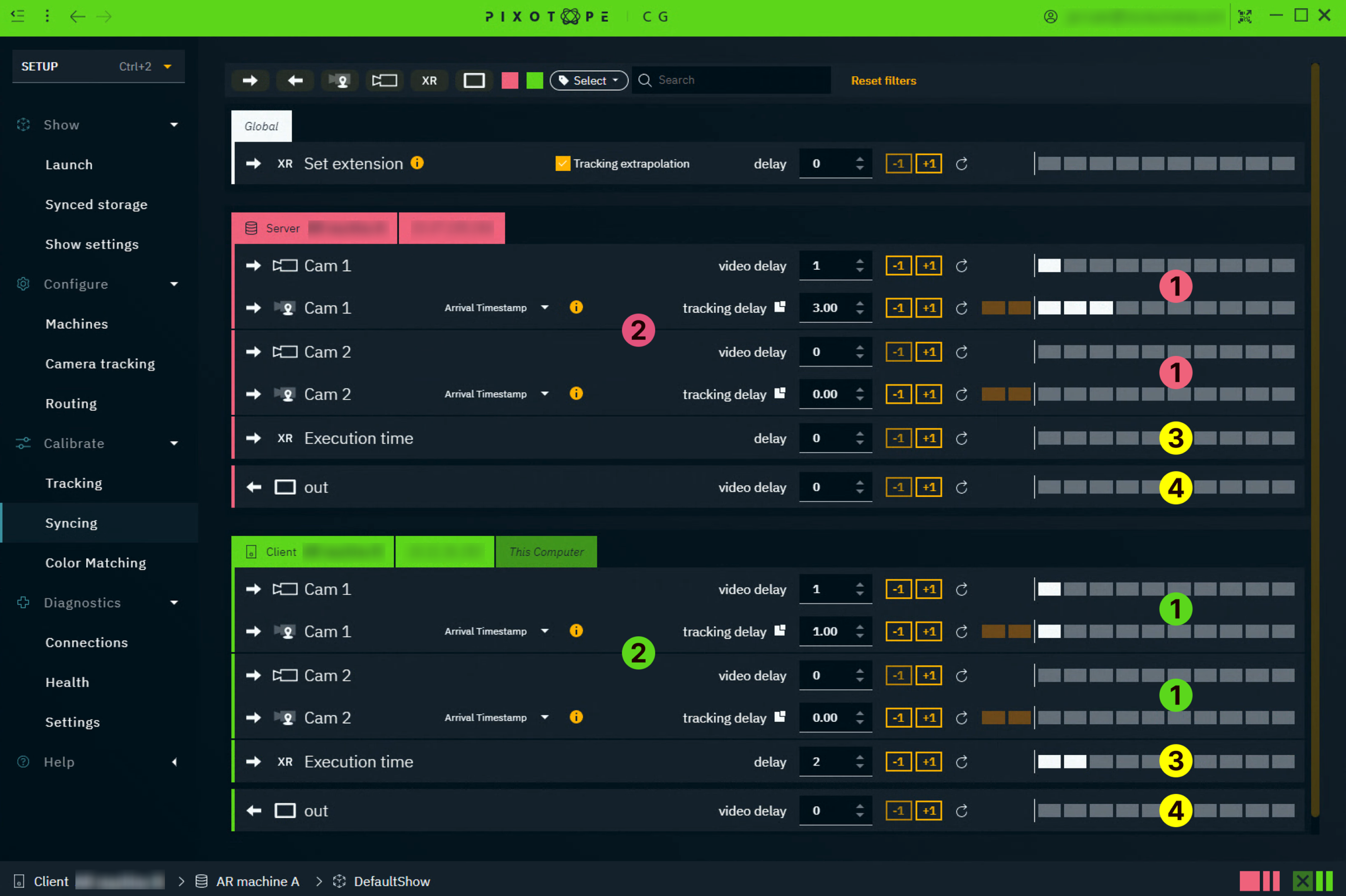
Calibrate each camera systems video and tracking delay for every machine
-
Learn more about how to Calibrate delays
-
-
Calibrate the camera systems between each other
-
Use a real or AR/VS frame counter and switch between the cameras to see that no frames are dropped or duplicated
-
If they are not in sync, on the faster machine increase both tracking and video delay the same amount until both machines are in sync
-
-
If using triggers, you might have to adjust the Execution time to sync the triggering across machines
-
Check if the output delays need to be adjusted
-
Hardware differences might require slightly different delays
-
Calibrate for XR with virtual set extension
When working with virtual set extensions, the time between filming the LED screen and displaying the rendered content should ideally be 0. As this is physically not possible we have to
-
reduce latency for XR machines
-
mitigate the remaining time difference between XR and set extension using a Set extension delay
This latency optimization has to be done in addition to calibrating delays.
-
Go to SETUP > Calibration > Delays
-
Calibrate the camera systems video and tracking delay on the AR machine
-
Use AR and the real world for calibration - DO NOT USE THE LED SCREEN!
-
Learn more about how to Calibrate delays
-
-
To reduce latency, decrease the delay
-
on the XR machines
-
tracking input
-
video output
-
-
on the AR machine
-
tracking input relative to the video input
-
-
-
Calibrate the Set extension delay to mitigate the remaining time difference
-
Learn more about how to Calibrate delays between AR and XR
-
Optionally, disable Extrapolation
-
-
If using triggers, you might have to adjust the Execution time to sync the triggering across machines
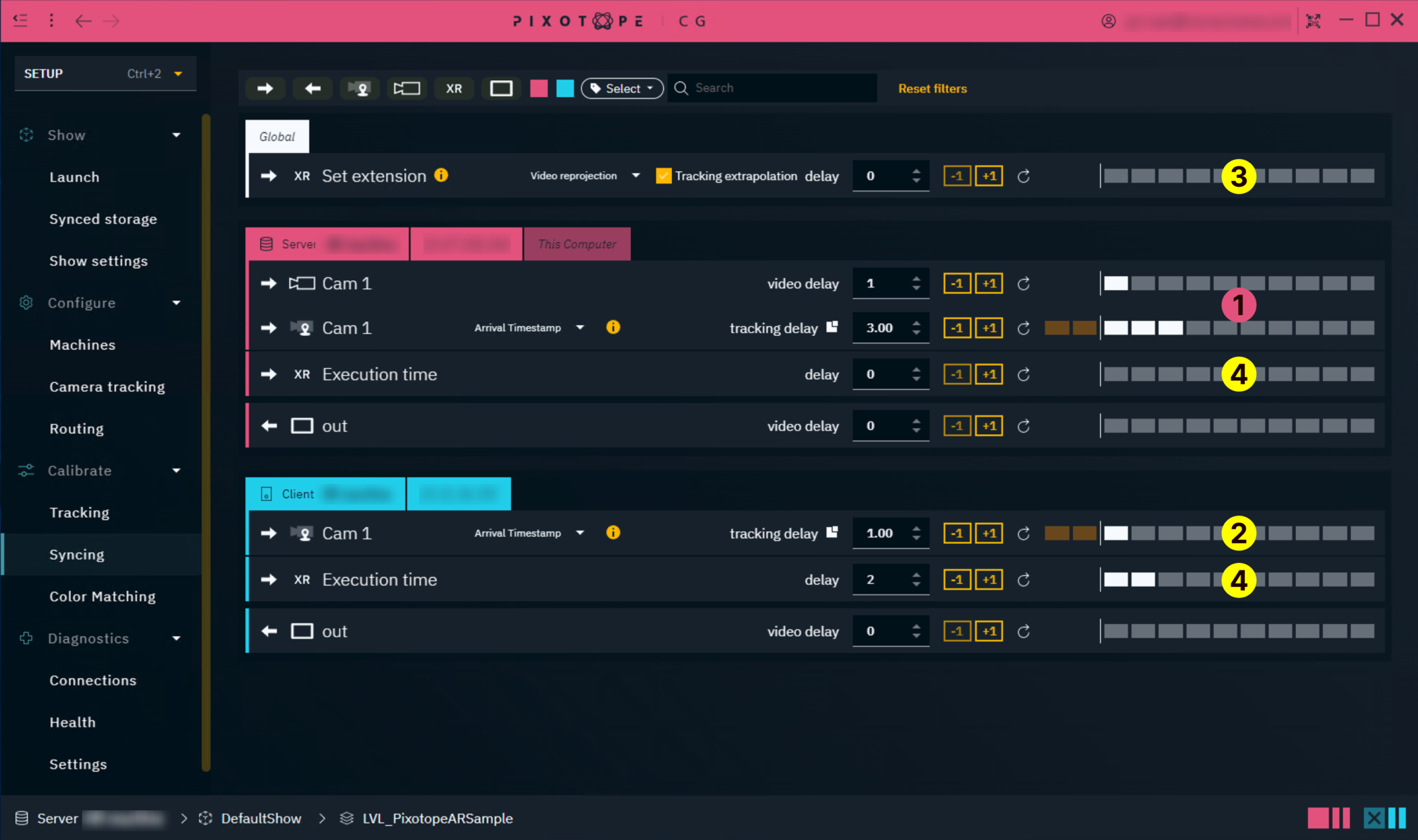
For XR with virtual set extension and camera input switching
-
Calibrate each camera systems video and tracking delay on the AR machine separately
-
Use AR and the real world for calibration - DO NOT USE THE LED SCREEN!
-
Learn more about how to Calibrate delays
-
-
Calibrate the camera systems between each other
-
Use a real or AR frame counter and switch between the cameras to see that no frames are dropped or duplicated.
-
If they are not in sync, on the faster machine increase both tracking and video delay the same amount until both machines are in sync
-
-
Add the relative difference of the camera’s tracking delays onto the XR machine
-
To reduce latency, decrease the delays relative to all delays
-
on the XR machines
-
tracking input
-
video output
-
-
on the AR machine
-
tracking input relative to the video input
-
-
-
-
Calibrate the Set extension delay to mitigate the remaining time difference
-
Learn more about how to Calibrate delays between AR and XR
-
Optionally, disable Extrapolation
-
-
If using triggers, you might have to adjust the Execution time to sync the triggering across machines. For AR machines, the correct value will usually be the same one set for set extension delay

|
Set extension delay |
Add a delay to compensate for the time difference between XR and set extension rendering. |
|---|---|
|
Extrapolation |
Extrapolates tracking to reduce the potential artifacts introduced by the latency compensation. |
For XR with virtual set extension and a separate AR/VS machine
When using an additional machine to render AR or VS, that machine should not use the Set extension delay. To achieve this:
-
Go to SETUP > Configure > Machines
-
Add the separate AR or VS machine to the NoDelay feature group
-
Learn more about Render, feature and custom groups
-
Then continue with the same steps for Calibrate for XR with virtual set extension as listed above
Set up timecode synchronized levels
Learn more about how to Set up timecode synchronized levels