Configure camera input switching
Learn more about how to Configure camera input switching
Set up routing
On SETUP > Configure > Routing: Camera systems and Media inputs & outputs are routed. For SDI signals (AJA and BMD) this means recreating the physical routing setup of your production.
Update the default settings of your show before you start routing.
Set up Lock/Genlock
Learn more about how to Configure lock/genlock
Set up Timecode
Learn more about how to Configure timecode (LTC)
Route items
-
Click on the
+icon in the top-right corner of a machine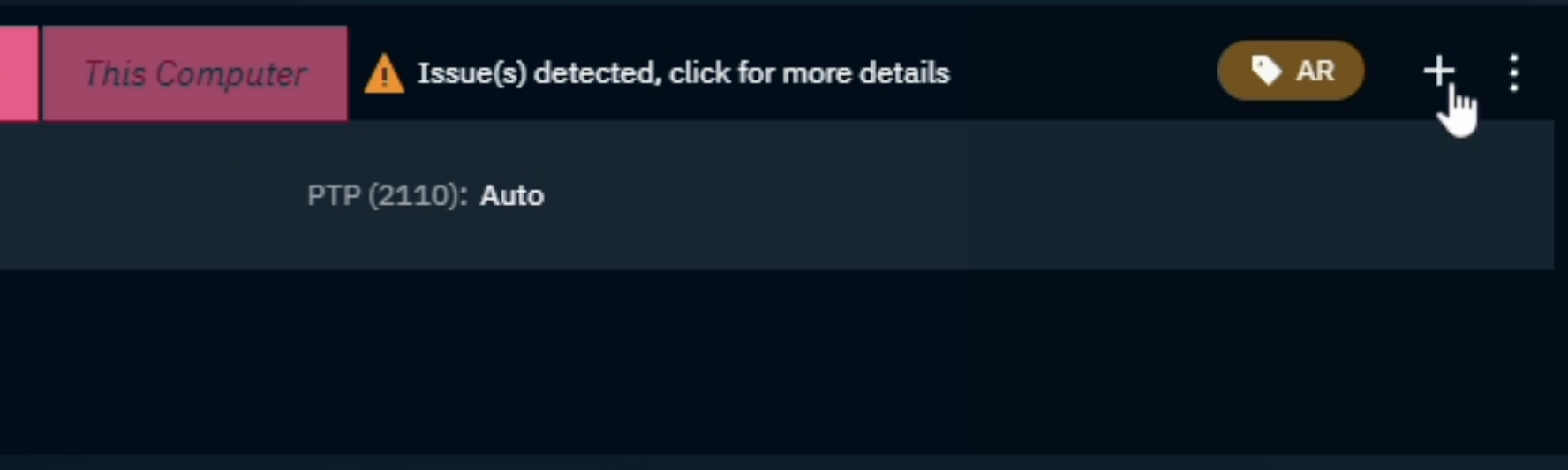
-
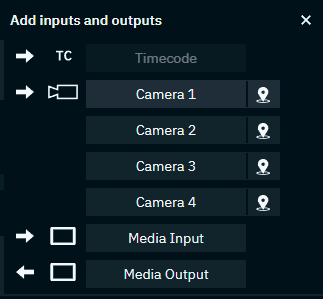
Click to add inputs and outputs
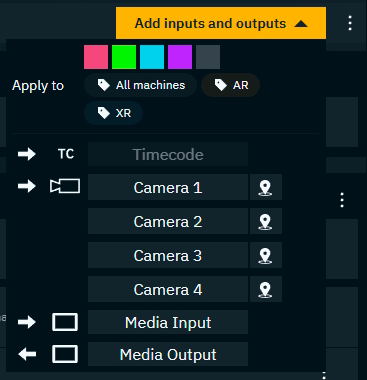
Route items on multiple machines
-
Click the "Add inputs and outputs" button
-
Select the machines or a group you want to add the inputs and outputs to
Route a camera system
-
Click on the camera system to route

-
A combined media and tracking input gets added
-
Click the media/tracking input row to expand

Unless camera input switching is enabled, only one camera system can be used per machine.
Alternatively, route Tracking only
In some cases, such as XR workflows, a video feed is not needed.
-
Click on the tracking icon of a camera system to route

-
A Tracking item will be added
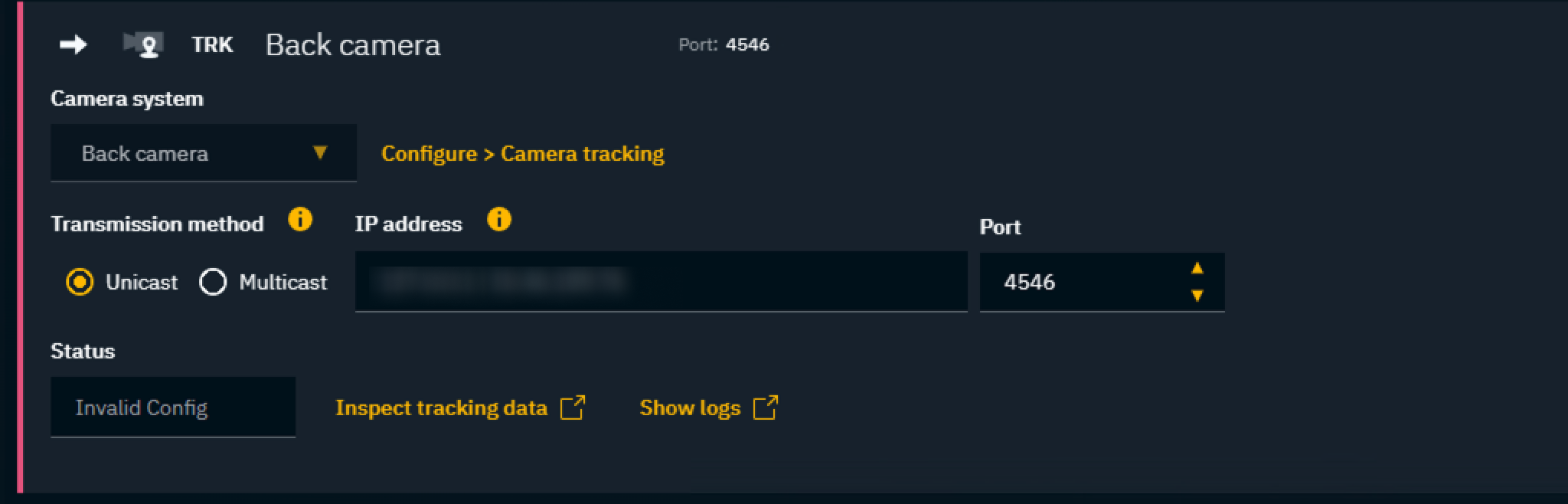
Update camera settings
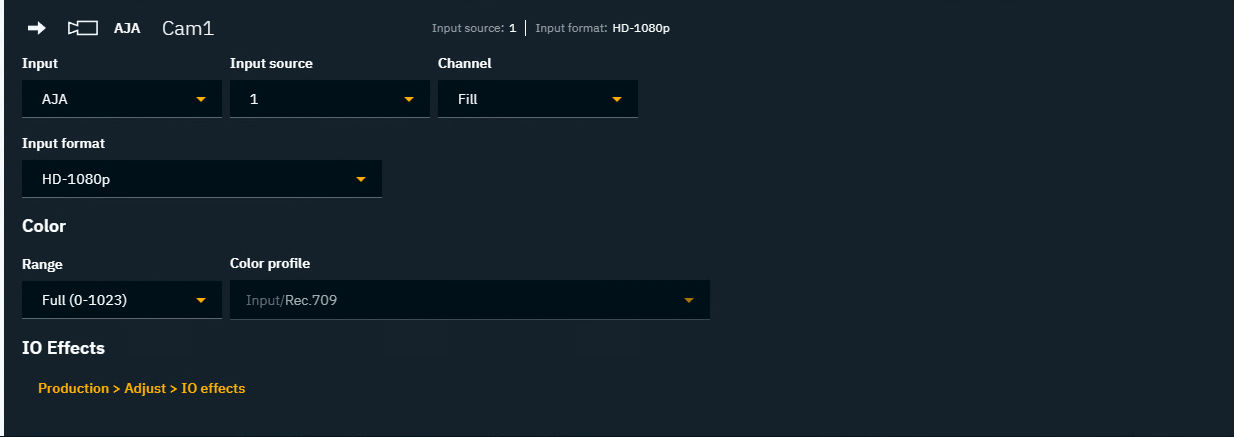
-
Change Input and Input format if needed
-
Change the default in SETUP > Show settings to avoid repeating this step for each input
-
-
Set the Input source and adjust their settings
Learn more about Supported input and output types
Update color settings
-
Optionally for SDI: Adjust the Color range
Learn more about SDI signal range
-
Optionally: Override the Color profile
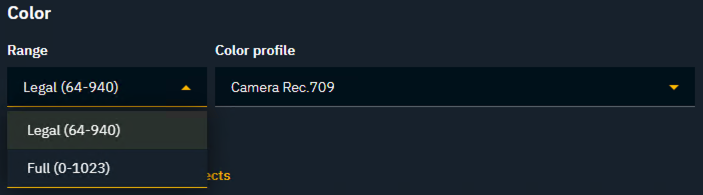
Learn more about how to Configure your color pipeline
Update camera tracking settings
-
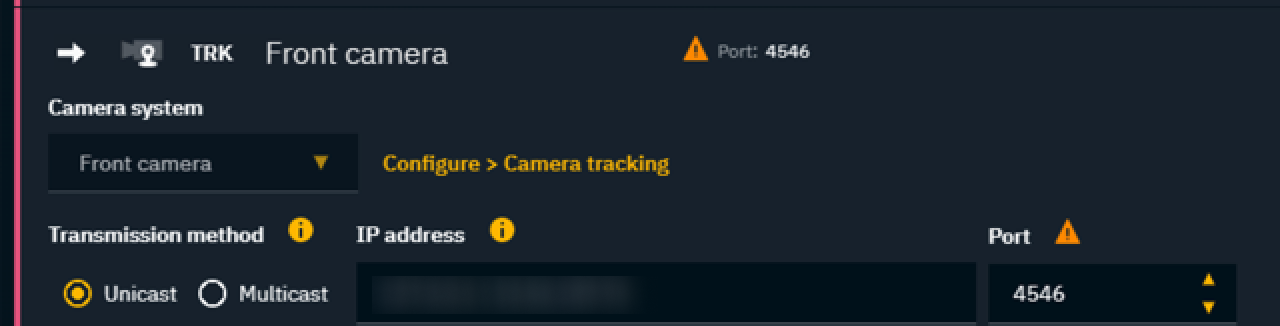
Choose the Transmission method
|
Unicast |
Send data from a single tracking source to a single tracking service. Recommended if you have a single tracking source per tracking service OR if your tracking system can send reliably to multiple IP addresses.
|
|---|---|
|
Multicast |
Send data from a single source to a group of interested tracking services in a single transmission. Recommended if your tracking system does not allow sending to multiple IP addresses. Most current IP stacks support the IP multicast routing protocol. Check the manual of your network hardware for details.
|
|
From local video |
Available only when extracting tracking data from video. Learn more about metadata support in Supported input and output types |
For Ncam SDK (TCP) tracking protocol:
Enter the Ncam’s server IP address. The port number cannot be changed.
Check tracking data status
Check the status field. It will either read:
-
xx Hz(incoming tracking data frequency)-
The setup was successful
-
-
No data-
No incoming tracking data detected. Check this item’s configuration.
-
Alternatively you can also
-
Inspect tracking data via the Tracking plotter
-
Show logs of the tracking service
-
in the Editor: check the Network status
Route additional media inputs
Add additional media inputs, if you need untracked video sources in your level (for example, the input for a virtual monitor).
-
Click on the top right
+ -
Click on "Media Input"

-
A media input with a default name gets added
-
Any additional click adds another media input
-
-
Follow the steps in “Update media input settings” above
Learn more about how to Add a virtual monitor or other video feeds
Route media output
-
Click on the top right
+ -
Click on "Media Output"

-
A media output with a default name gets added
-
Any additional click adds another media output
-
-
Change the Output format if needed
-
Change the default in SETUP > Show settings
-
-
Set the output destination and adjust their settings
-
See Supported input and output types for options
-
-
Optionally: Adjust the output type and format
Update color settings
-
Optionally for SDI: Adjust the Color range
Learn more about SDI signal range
-
Optionally: Override the Color profile
-
Optionally for SDI: Allow Super brights
-
By default super bright values are clamped, but can be allowed through for HDR workflows
-
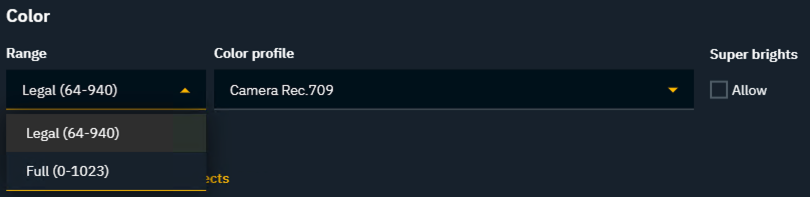
Learn more about how to Configure your color pipeline
Route more than one output per machine
When doing external compositing checkout Configure external compositing
Unless for external compositing, this features is only available when using an XR multi-wall license
In Director
-
Route 2 or more media outputs to the machine
-
In case one of the channels is a key, choose "Key" in Output type

In Editor
-
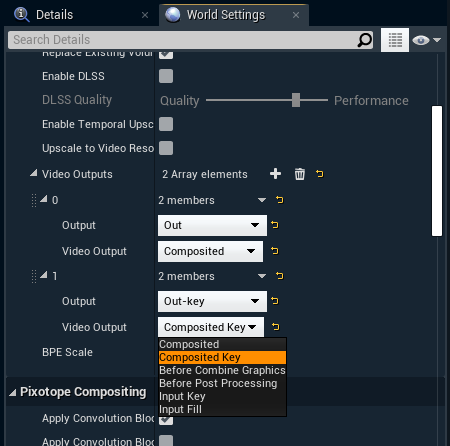
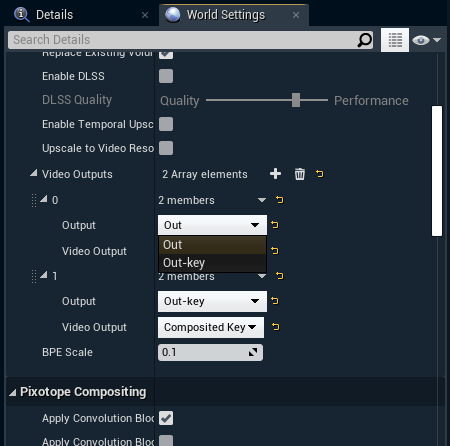
Add 2 output channels by clicking the + icon on Pixotope World Settings > General > Video Outputs
-
Under "Video Output" choose the channels you want to output
-
Choose to which "Output" this channel should be mapped
Manage routing
Filter on machines or types
Use the filter and search bar on the top to focus on
-
Specific machines
-
Inputs or Outputs
-
Type of routed items

Manage machines
Items routed on a machine can be managed from the overflow menu on the right side of the machine.
Copy/Paste/Remove all items
-
Select "Copy items" on the source machine

-
Select "Paste items" on the target machine

Manage items
Routed items can be renamed or removed from the overflow menu on the right side of the item.
Rename/Remove item
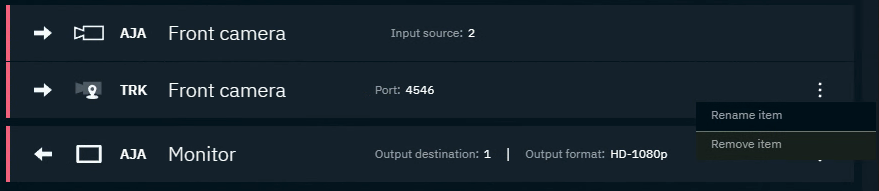
Camera systems are managed through the Tracking item.
Warning system
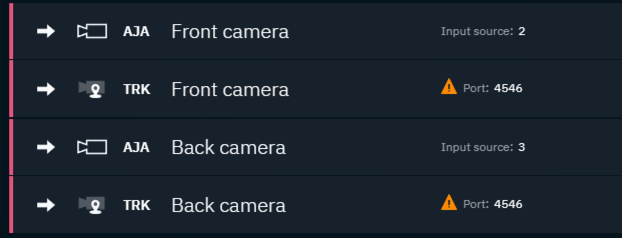
Routing is crucial to have properly setup. Any issues found within a machine’s routed stack will show a warning icon. Hovering over it will display the issue found including a suggestion on how to resolve it.

Machine header
Contains all issues found in the routed stack.

When there are no issues detected, the machine header shows a checkmark.

Row item - collapsed
Contains all issues found in this routed item.
Row item - expanded
Shows the found issue next to the field.