
The SETUP or PRODUCTION > Show > Launch panel displays a list of all levels and control panels of the linked projects in the open show. It allows you to
-
Launch levels in LIVE or EDITOR mode
-
Launch control panels in LIVE or EDITOR mode
-
Create a new control panel
-
View other machines' launch panel
-
Push and pull changes to linked projects
-
Push and pull changes to Common folder
Launching a level for the first time can take longer, as shaders and other elements have to be prepared.
Launch a level
-
Hover over the level you want to launch and click
-
"Launch LIVE"
-
With Ctrl-key "Launch LIVE locally"
-
-
"Launch in EDITOR"
-
-
The launch progress is shown in the status bar and the status panel

For Control license: If you are using a control license, Launch LIVE is the only available option.
Learn more about Launch LIVE and Launch in EDITOR
Is your project missing? Check the options below
Clicking Launch LIVE
-
The level is launched in LIVE mode on the selected machines
-
for Launch LIVE locally, the level is only launched on the local machine (this is the default, if there is only one machine)
-
If another level is already running in LIVE mode, the level will be swapped
-
Launch in EDITOR
-
The level is launched locally in the Editor
-
If another level is already running in the Editor, the level will be swapped
Restart instead of swapping?
To do a complete restart of the engine with the new level, the previous level needs to be closed first.
-
Open the status panel by clicking on the status bar on the bottom
-
Click on "Close All Levels" or "Close level" to close an individual level
Launch levels without local project files
-
Open the yellow dropdown and select another machine to launch levels from
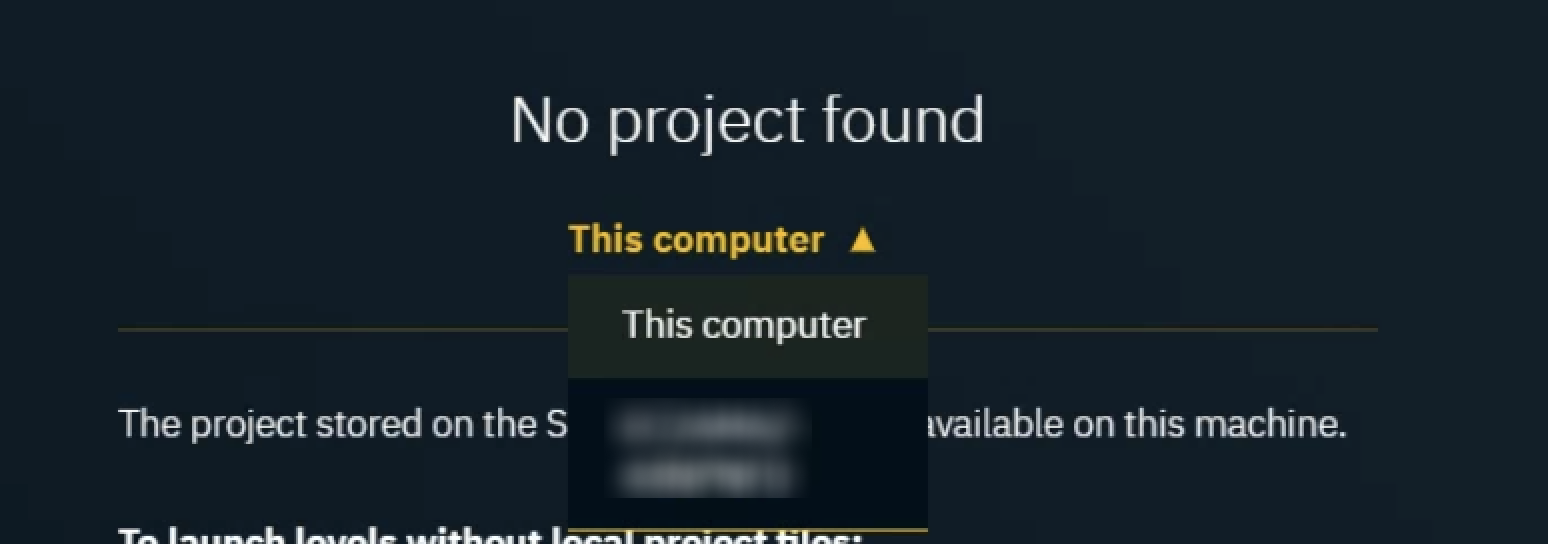
This can easily be changed later using the view dropdown in the top left corner.
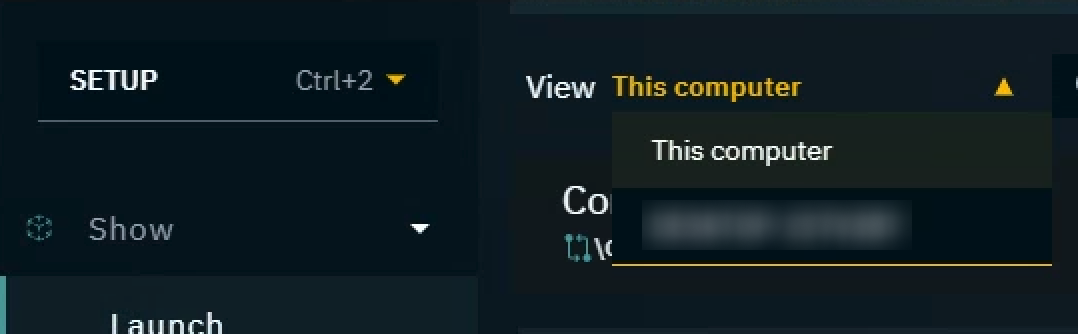
While viewing other machines you can
-
launch levels LIVE and in EDITOR
-
launch and edit control panels
-
enable Auto-pull
-
pull missing project
Asset Hub controls (push/pull) are hidden.
Not seeing your project?
If the project is synced via the Asset Hub
-
On the Server machine: Push changes
-
On your machine: Pull Asset Hub projects
If you have Synced projects in Show Settings that are Not found
-
Make sure the machine that added the project link has clicked Push changes
-
Go to SETUP > Show > Show settings

-
Open the overflow menu from the icon on the right
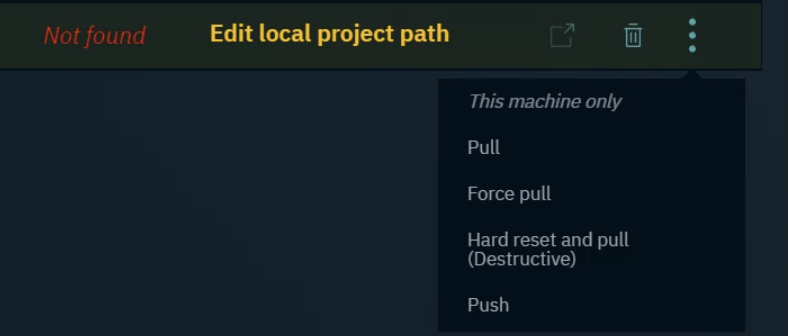
-
Click Pull
Learn more about how to Sync files using Asset Hub
If the project is stored locally (not synced via Asset Hub)
-
Make sure your machine’s local project path matches the Server machine’s project path
-
If not, Go to SETUP > Show > Show Settings

-
Click "Edit local project path" and select the project using the file explorer
-
Now the project will have a "-local override" added to the end

Open/Create a control panel
Learn more about Creating a custom control panel
Next step
Continue to Change show settings