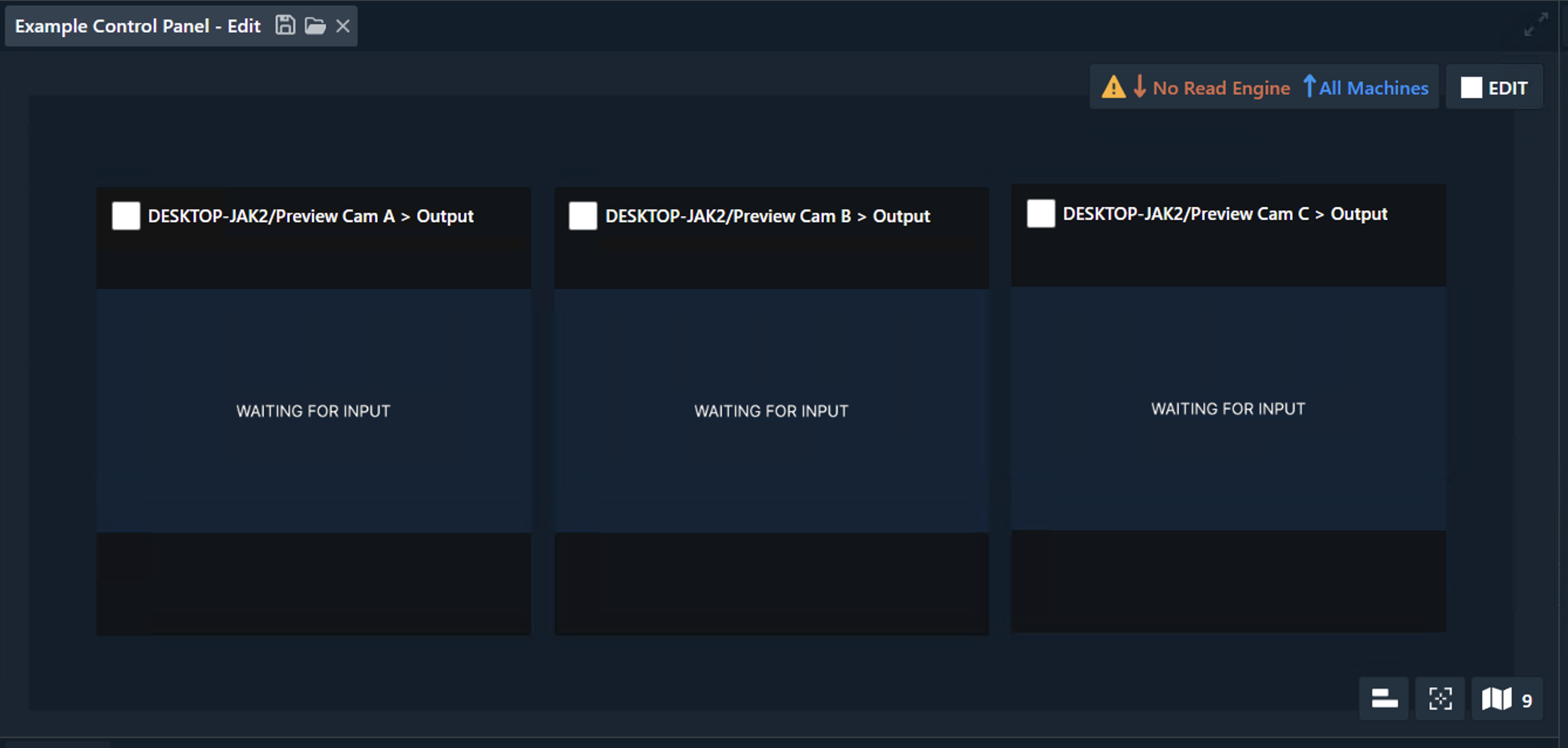
The multi-camera preview feature allows a single Pixotope engine to render up to 3 tracked cameras simultaneously, providing directors with preview capabilities for all cameras in a production without the cost of dedicated engines for each camera. While the preview outputs may have reduced resolution or frame rate compared to the main program output, they provide sufficient quality for shot preparation and camera switching decisions.
Multi-camera preview is not supported for XR.
Enable multi-camera preview
To enable the multi-camera preview feature:
-
In Director, go to SETUP > Configure > Machines
-
Click on the
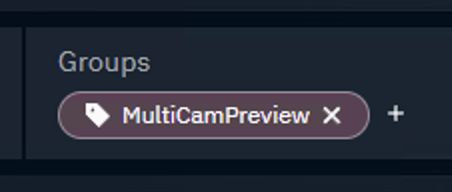
+icon in the groups section of the machine you want to use for preview -
Add the
MultiCamPreviewfeature tag
Learn more about Render, feature and custom groups - AR, VS, AR+VS, XR
Configure multi-camera preview routing
Add cameras
-
In SETUP > Configure > Camera systems, add your cameras (up to 3)
Learn more about how to Configure camera tracking
Route cameras and add preview outputs
Once the MultiCamPreview tag was added to the machine, you can route individual camera previews to different outputs:
-
Go to SETUP > Configure > Routing
-
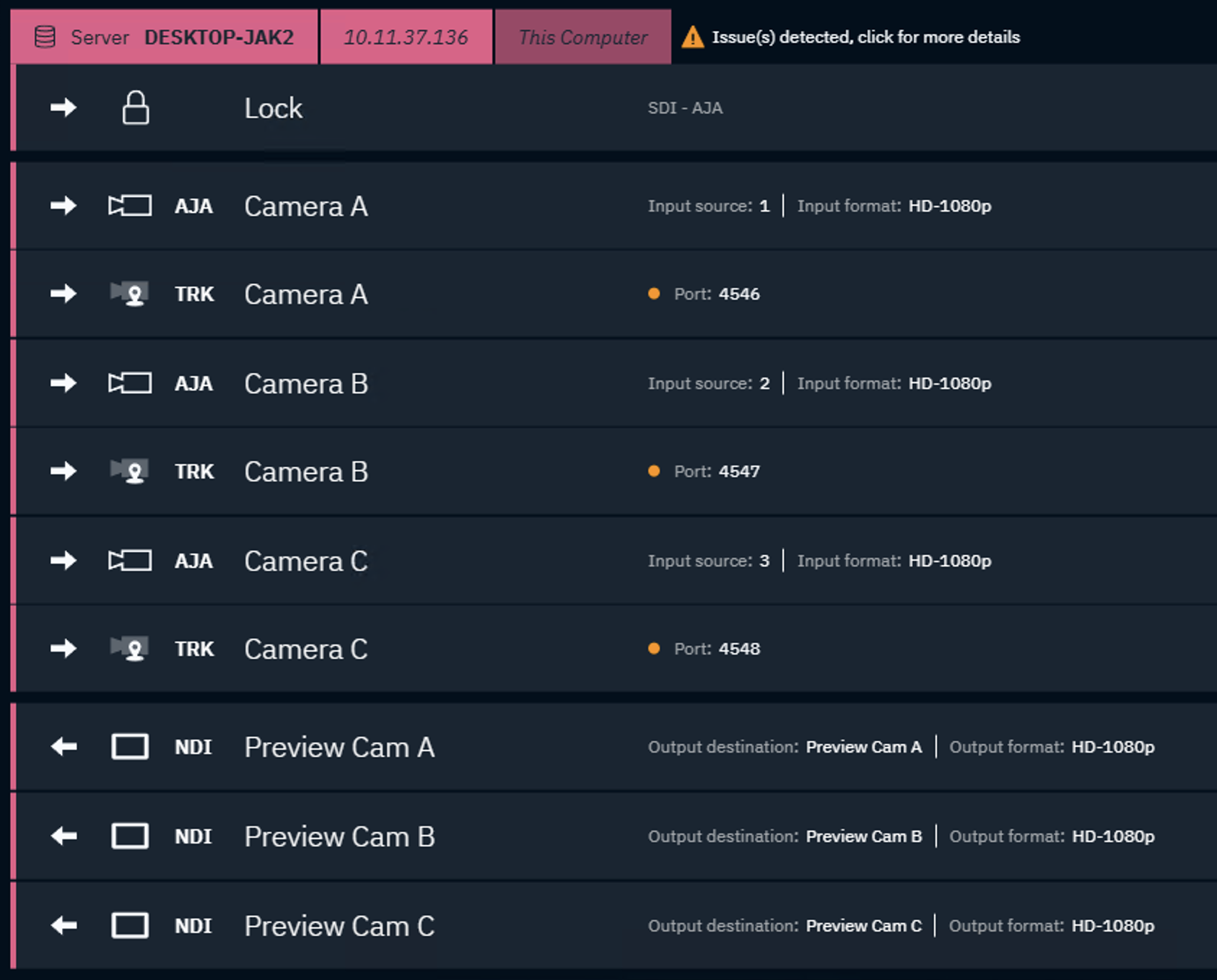
Route the created cameras to the preview machine
Learn more about how to Configure routing
-
Add a Media output for each camera
-
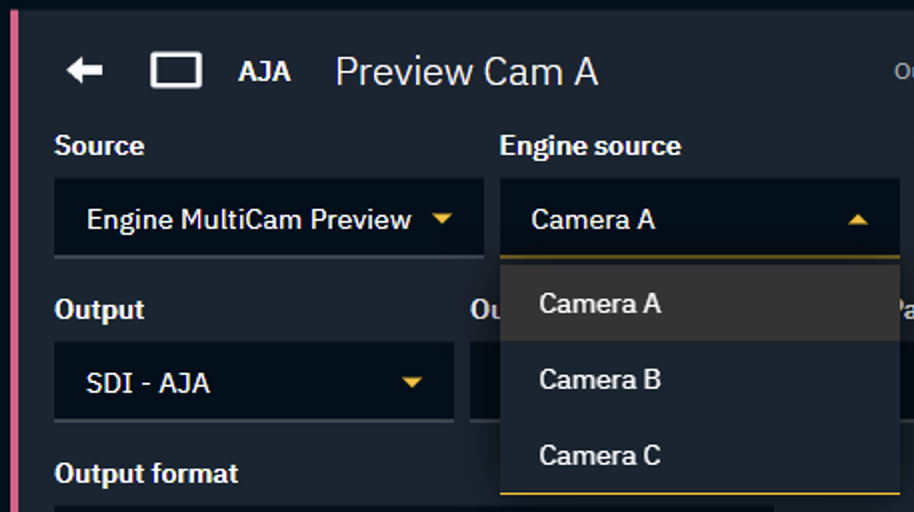
Select "Engine MultiCam Preview" in the Source dropdown
-
Select the camera to preview in the Engine source dropdown
-
Choose for example "NDI" in the Output dropdown
-
If you are using the control panel to grab frames, then there is no need to have physical outputs routed
-
-
Repeat above steps for all preview outputs
Example routing with 3 camera previews
Create a multi-viewer in control panel
With a Snapshot widget you can grab frames from in and outputs directly inside the control panel.
-
Create a new control panel
-
Add a Snapshot widget
-
Right click the widget and click the 3 dot menu on the right of the Node property

-
Select the input/output you want to preview
-
a snapshot will be shown at a given interval
-
-
Repeat these steps for all preview cameras
Learn more about Creating a control panel - PRODUCTION