
Doing more advanced composites in an AR/XR Setup where you have an element in both the AR scene and XR scene that overlap can be challenging. For opaque objects, but even more so for translucent ones.
To make the objects behave seamlessly we have added a set of tools. It will essentially hide any material in the XR world that is in front of a holdout.
Add XRARTransferOpacity to material
-
Create a new material
-
Add a MaterialFunctionCall node
-
Open the Material Function dropdown
-
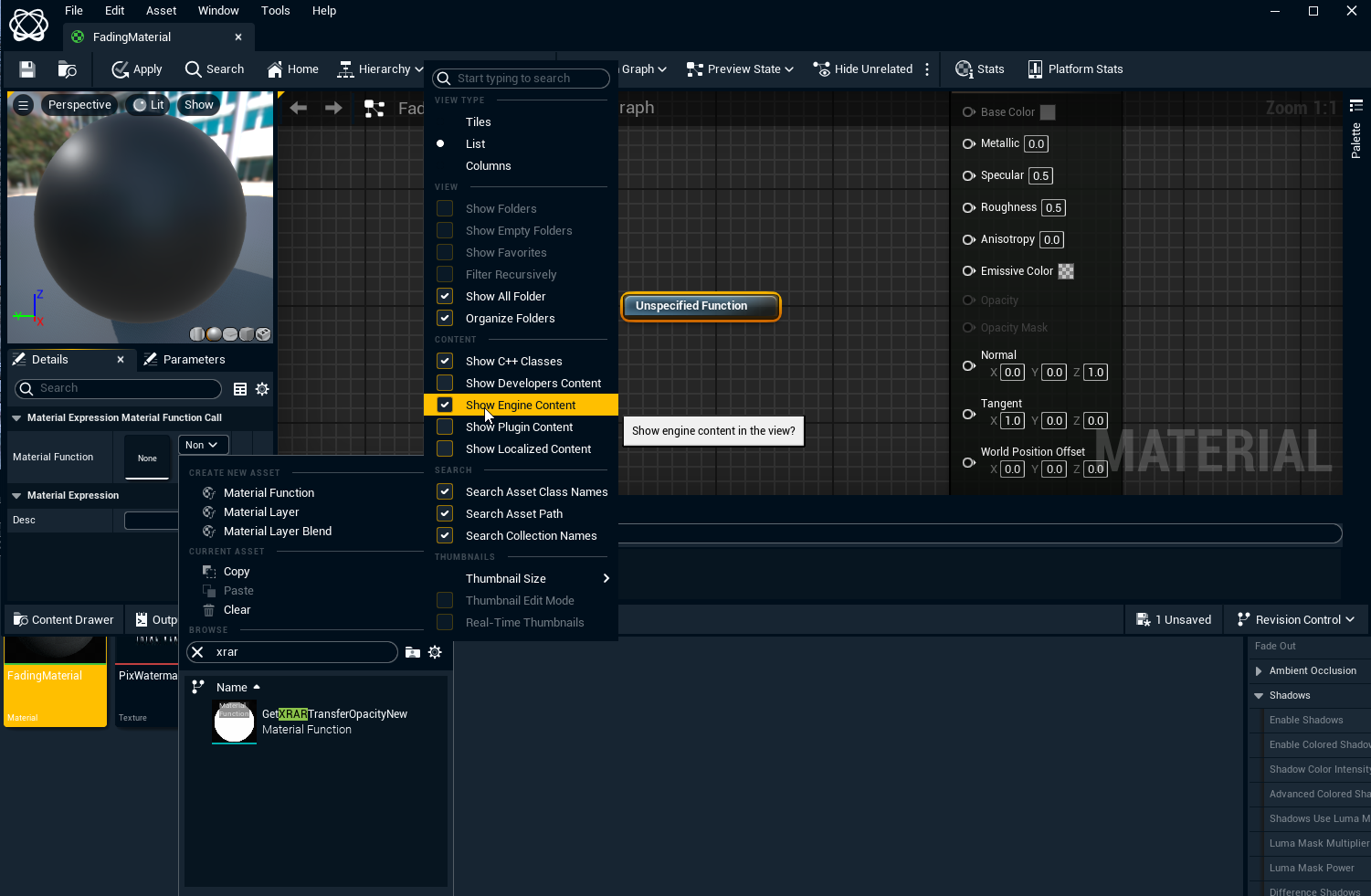
Select the Settings icon and Enable Show Engine Content
-
-
Search for/Select the GetXRARTransferOpacityNew material function
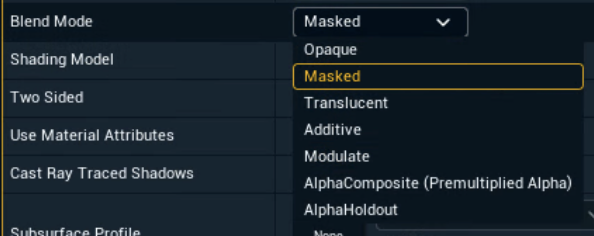
We recommend using either Masked or Translucent Material/Blend Mode.
-
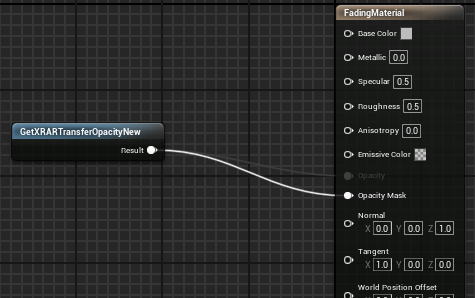
Plug it into Opacity or Opacity Mask depending on the Blend Mode
Test the setup
-
Open an XR level
-
Place your object with this material in the scene in front of the XR walls
-
You should see that
-
in XR - the object is culled when in front of the wall
-
in AR - the object is unaffected
-
Run the level in Live, Preview Live or WYSIWYG mode for this to look correct. Learn more about how to Run levels in Edit, Preview Live and LIVE mode