From Director you can launch a level in 2 different modes:
Launch in LIVE mode
Launches the level without a user interface.
-
can be done remotely
-
renders the level to
-
the specified render output(s) (SDI/NDI/etc.)
-
and a preview to the desktop
-
-
has full quality and performance
-
has no direct editing capabilities, but you can make adjustments from Director
-
Learn more about Adjusting levels from Director
-
Use this mode for performance testing
F10 - toggles locking/unlocking to the tracked camera, to allow free movement
Launch in Editor
Opens the level in the Pixotope Editor with its user interface.
-
allows viewing the level in
-
Edit mode
-
WYSIWYG mode
-
Preview Live mode
-
Rendering is done at the resolution of your viewport and then scaled to the output resolution. This might cause unwanted artifacts, especially with interlaced input material.
For Preview Live mode you can enable "Upscale to Video Resolution" in Pixotope World Settings > General > Advanced to render in the output resolution.
Do not use any of the following modes to judge final output quality and performance.
Edit mode
-
has full editing capabilities
-
has no video preview
Edit mode with WYSIWYG enabled
-
full editing capabilities
-
renders the level to
-
the specified render output(s) (SDI/NDI/etc.)
-
and a preview in the viewport
-
Learn more about the WYSIWYG broadcast workflow
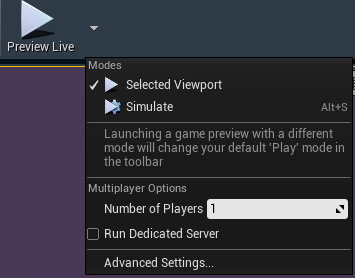
Preview Live (Simulated)
-
has some editing capabilities
-
access the Editor's tools to modify the scene and its contents; even place new Actors. For the changes to persist right-click the updated actors and select "Keep Simulation Changes" → https://docs.unrealengine.com/en-US/Engine/UI/LevelEditor/InEditorTesting/KeepSimulationChanges
-
-
renders the level to
-
the specified render output(s) (SDI/NDI/etc.)
-
and a preview in the viewport
-
-
runs Blueprint functions/simulations
F8 - toggles between the two Preview Live modes
Preview Live (Selected Viewport) - aka PIE
-
has no direct editing capabilities, but you can make adjustments from Director
-
Learn more about Adjusting levels from Director
-
-
renders the level to
-
the specified render output(s) (SDI/NDI/etc.)
-
and a preview in the viewport
-
-
runs Blueprint functions/simulations
-
locks the view to the tracked camera
F10 - toggles locking/unlocking to the tracked camera, to allow free movement
You will find the Preview Live button at the top of the Editor, with a drop-down menu to access the different modes: