
Check out the following examples:
-
LVL_PixotopeVSSample level in the PixotopeCalibration project included in the installer
-
Pixotope example projects, which can be downloaded from the Pixotope cloud → login.pixotope.com
For functionality specific to the Unreal Editor and some in-depth knowledge, check out https://docs.unrealengine.com/en-us/Engine/Editor.
-
Learn how to set up and control Pixotope's virtual cameras using Blueprints. This tutorial walks through the entire process, including configuring virtual cameras, creating Blueprints, setting up controls, and implementing logic for smooth camera movements.
Example setup
-
See the level Blueprint of the level LVL_PixotopeVSSample of the project PixotopeCalibration
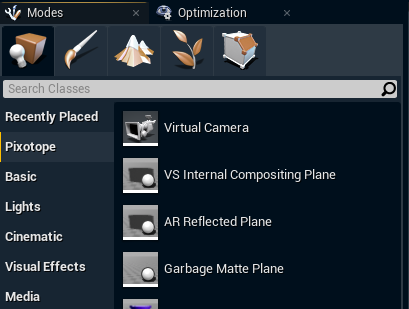
Create a virtual camera
Create a virtual camera in your level:
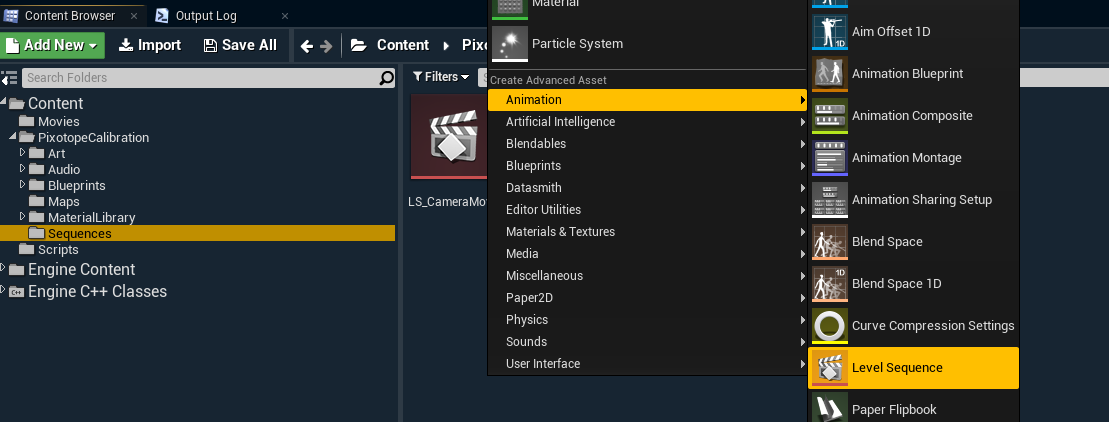
Create level sequence
Create a new level sequence:
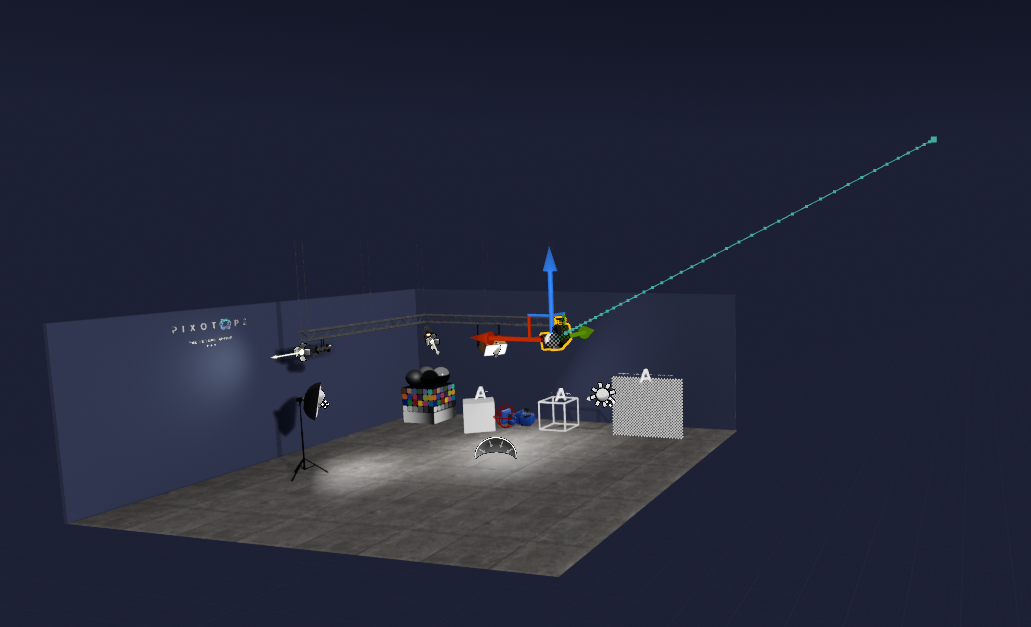
Animate virtual camera
Animate the virtual camera in the sequence:
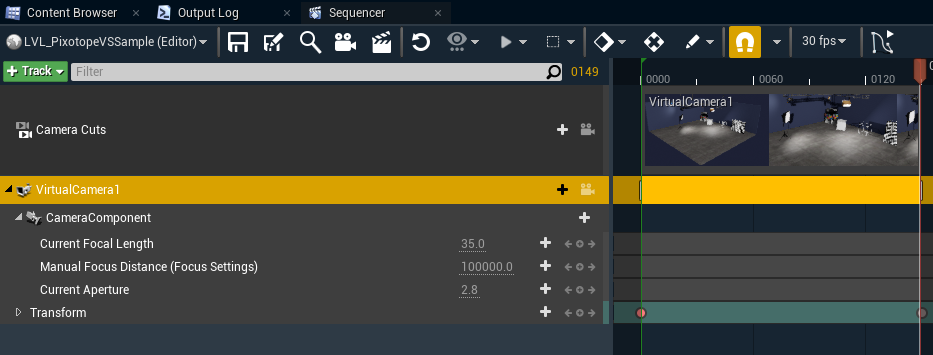
Delete the Camera Cuts track
Remove the cut track, as we will be blending, not cutting to our virtual camera:

Create Blueprint logic
Create Blueprint logic for triggering the sequence:

Create Blueprint logic for going back to the tracked camera:
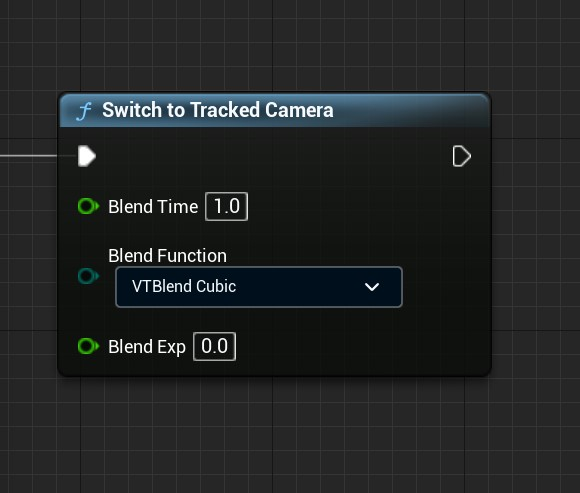
Create triggers in the control panel
Create triggers in the control panel and link them to the 2 Blueprint functions to trigger the animation between the virtual and the tracked camera from the control panel:
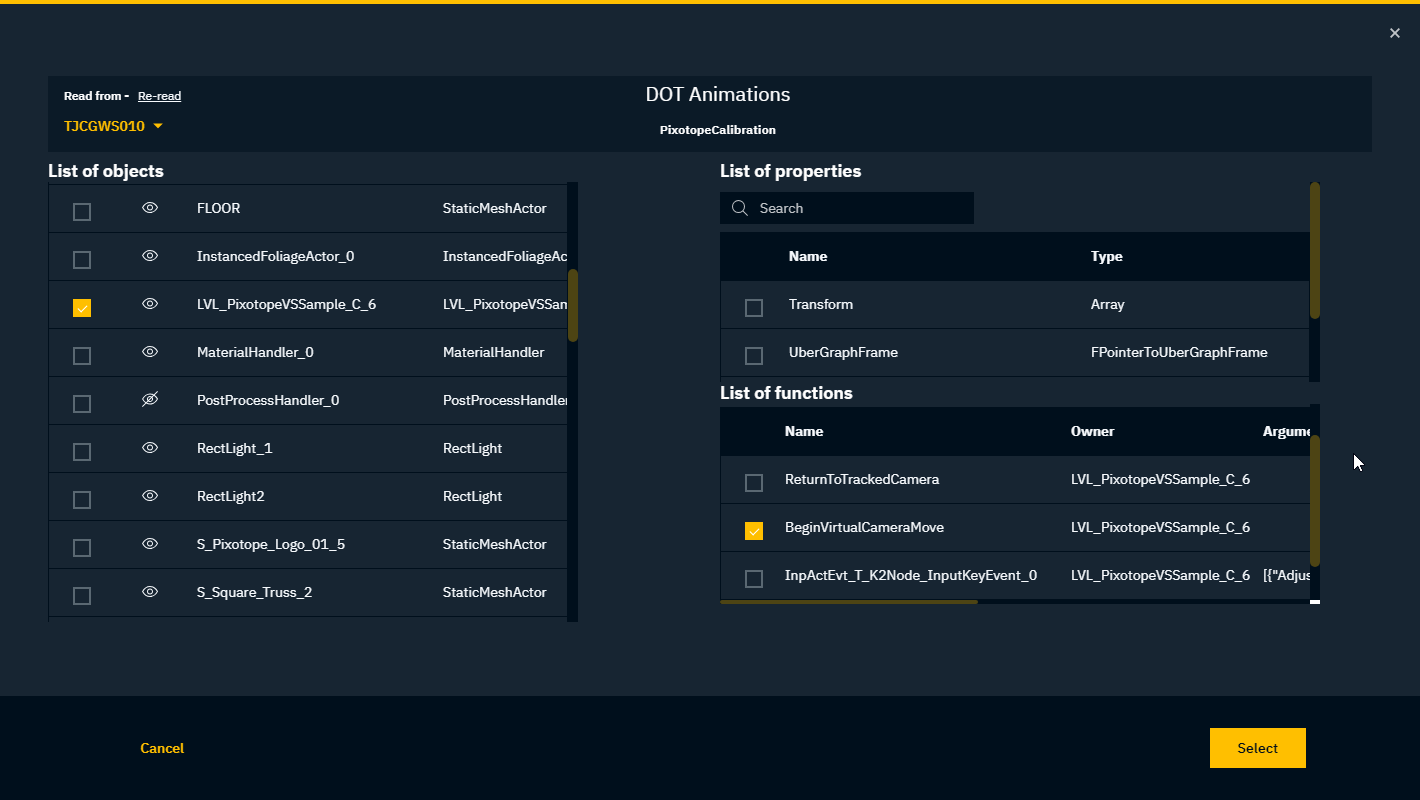
Check out the following examples:
-
LVL_PixotopeVSSample level in the PixotopeCalibration project included in the installer
-
Pixotope example projects, which can be downloaded from the Pixotope cloud → login.pixotope.com
For functionality specific to the Unreal Editor and some in-depth knowledge, check out https://docs.unrealengine.com/en-us/Engine/Editor.