
Remote editing gives artists the ability to broadcast changes to multiple machines at once while working in the Editor.
Reposition objects, adjust lighting and see those changes reflected in real-time across every connected machine. What you see in the Editor is exactly what appears on every output, everywhere, instantly, allowing set designers and visual artists to iterate freely without leaving their creative environment.
Want to do targeted tweaks without opening the Editor, learn more about Making adjustments
Which changes are broadcasted?
|
Broadcasted |
Any change which is logged as Live changes |
|---|---|
|
Not broadcasted |
Even though the above changes are not broadcasted and can therefore not be viewed in real time on all machines, you can still save the changes to the level and then sync them to the other machines using the Save/Bake and sync buttons. |
Preparation
Make sure that on all machines you want to control remotely
-
the same level is running in LIVE mode
-
Auto-pull is on and the project is in sync
Start broadcasting
-
Open the Editor
Changes are broadcasted to all machines in LIVE as well as in Edit mode
When someone is working on the same level in the Editor and wants to "opt out" of receiving broadcasted changes, they need to leave that Pixotope network (switch to Stand-alone).
-
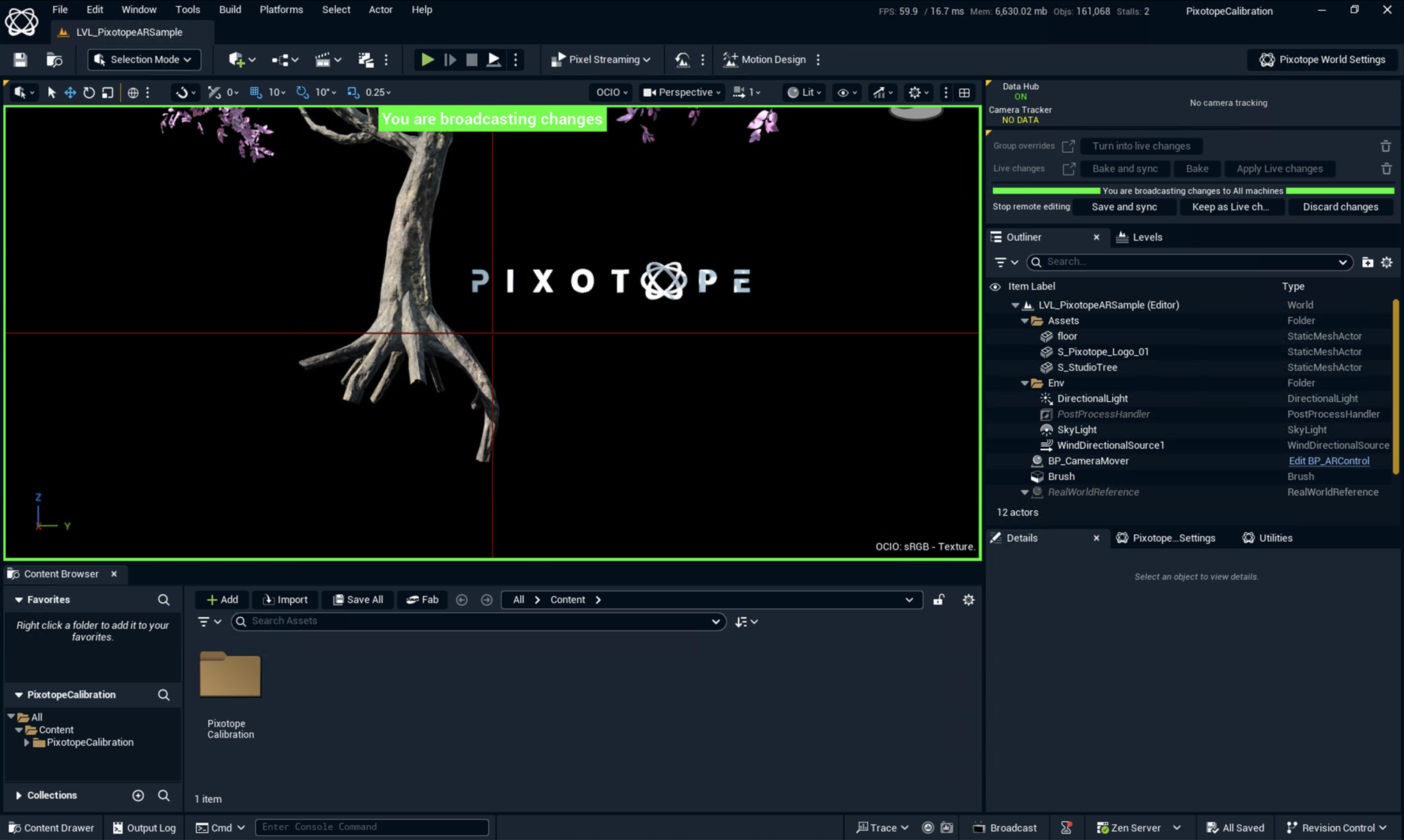
Click "Broadcast changes" in the Adjustments tab on the top right
-
The viewport gets a green outline indicating that changes will now be broadcasted
-
Changes are now
-
Broadcasted to all connected machines
-
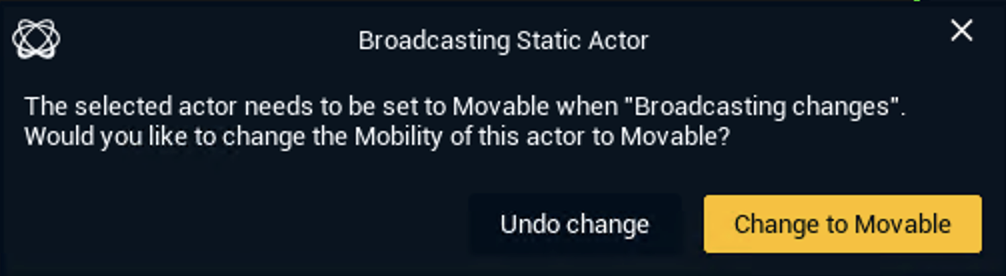
When moving a Static actor one is reminded to switch Mobility to Movable
-
Any machine joining later or restarting in-between, will have the latest changes only after broadcasting was finished using Save and sync.
Stop broadcasting
When done broadcasting, there are 2 options to exit:
-
Save and sync
-
Discard and reset
Save and sync
-
Saves all changes* to the level
-
Syncs the level
-
Restarts the level on all machines
* This also includes changes which could not be broadcasted. See above which changes are broadcasted.
Discard and reset
-
Discards all local changes
-
Resets the level on all connected machines
Multiple users broadcasting
It is possible for multiple users to enable Broadcasting changes.
Start broadcasting
-
Same as above
-
The viewport outline changes based on below states
Broadcasting states
|
Green outline |
1 broadcasting Editor |
You are broadcasting |
|---|---|---|
|
Blue outline |
2+ broadcasting Editors |
You and others are broadcasting |
|
Red outline |
2+ broadcasting Editors |
Others are broadcasting |
Stop broadcasting
When more than one Editors are broadcasting, the Discard and reset option is replaced by Discard, which just discards all local changes without sending a reset command to anyone else.
When editing the same property from different machines, the last broadcasted change persists.