
We use Bink Video for Unreal Engine for media playback because of its high performance. Read more about Bink → https://docs.unrealengine.com/en-US/bink-video-for-unreal-engine/
Convert video to bink
-
Open the
Bink2ForUnreal.exein...\Pixotope\[Version number]\Pixotope Engine\Engine\Binaries\ThirdParty\Bink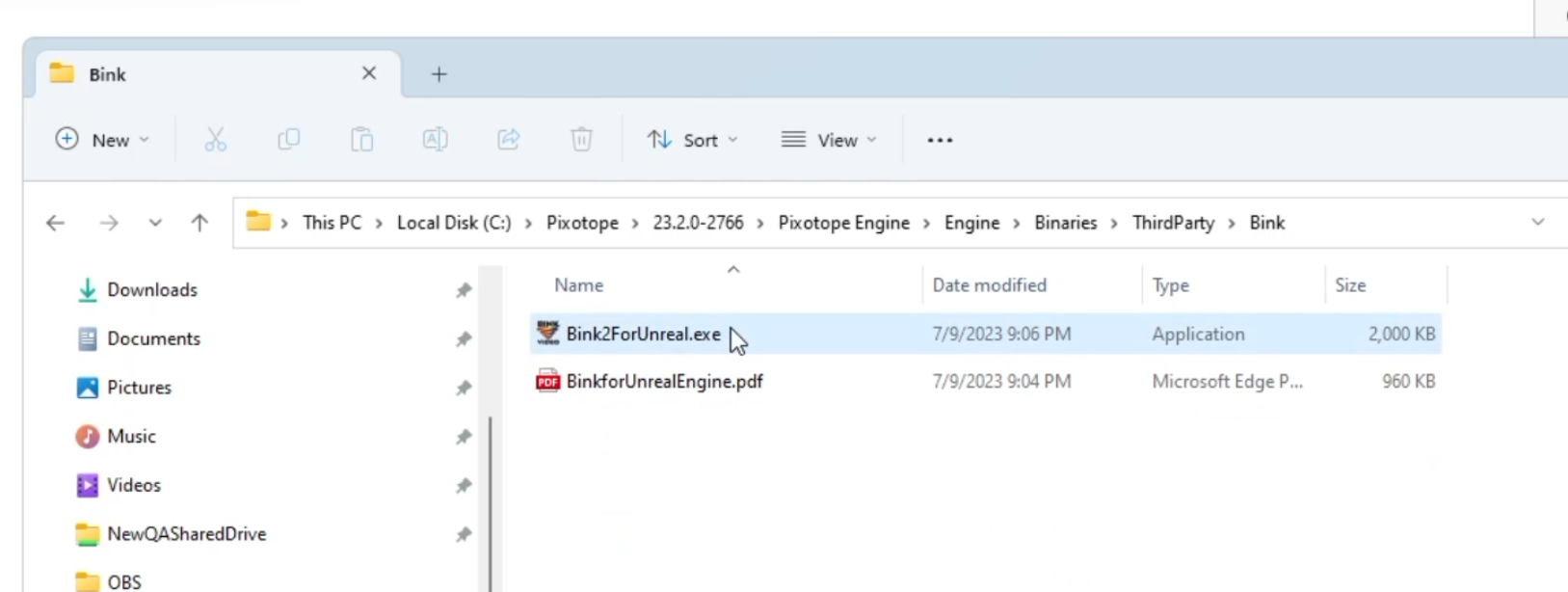
-
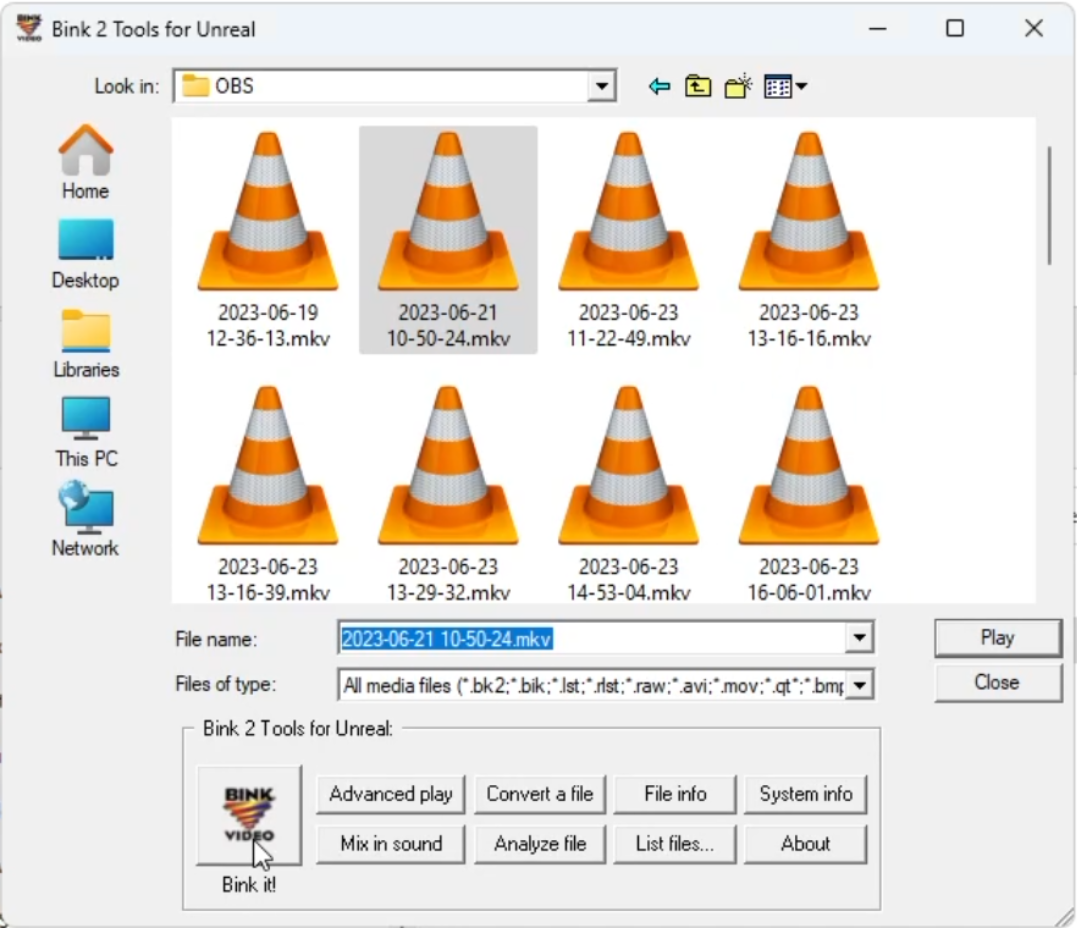
Select a video file and click "BINK VIDEO"
-
Specify the encoding options
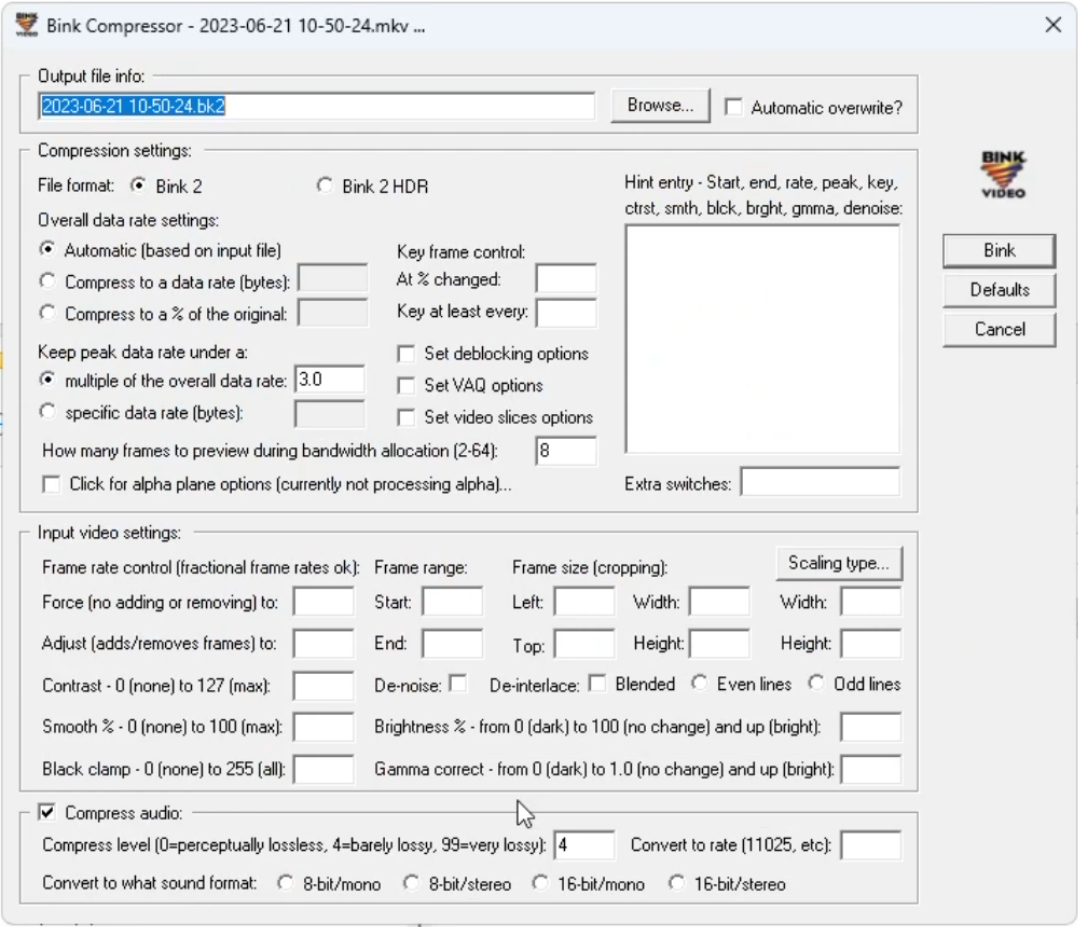
We had good results with
-
Overall data rate > Automatic
-
Peak data rate > Specific data rate: 9 999 999 (max value)
-
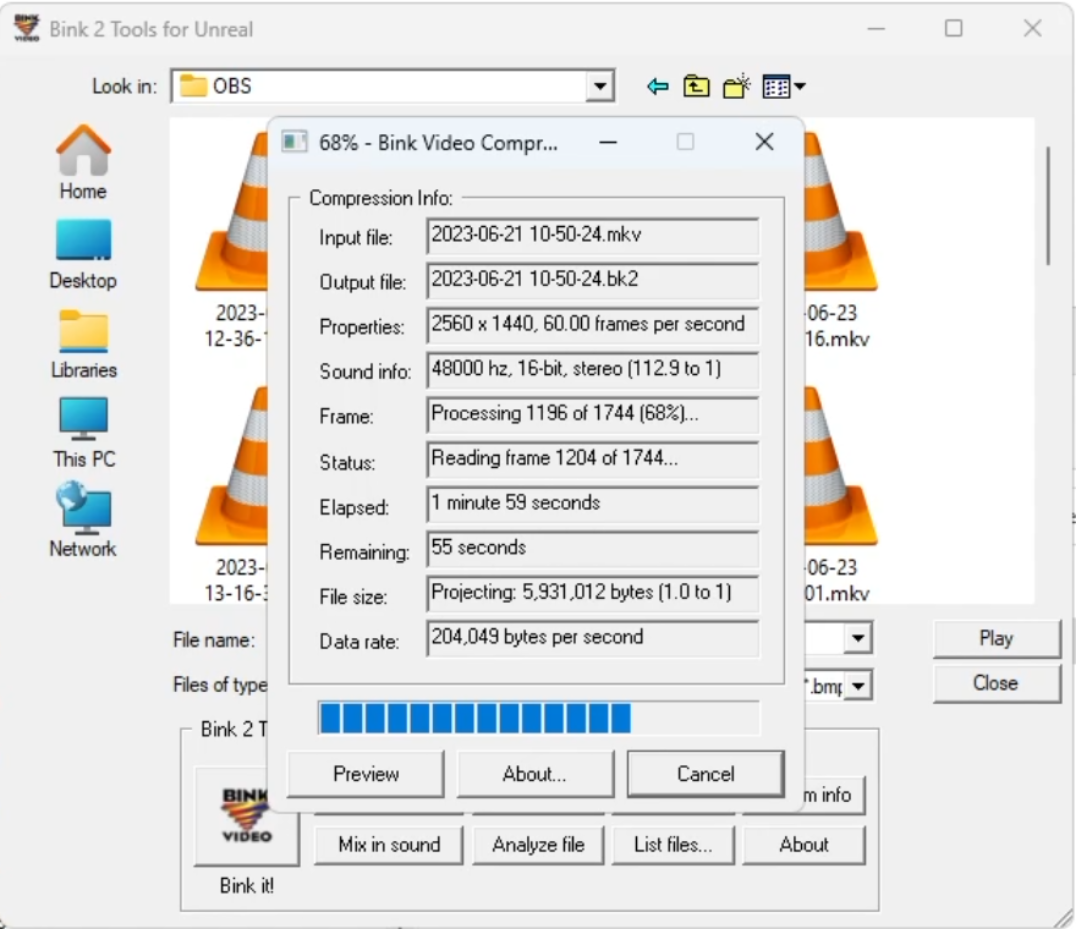
Click "Bink” to start the encoding
Copy to content folder
-
Create a
Moviesfolder in[Linked project]\Content\ -
Copy the video to into this folder
Create Bink Media Player
-
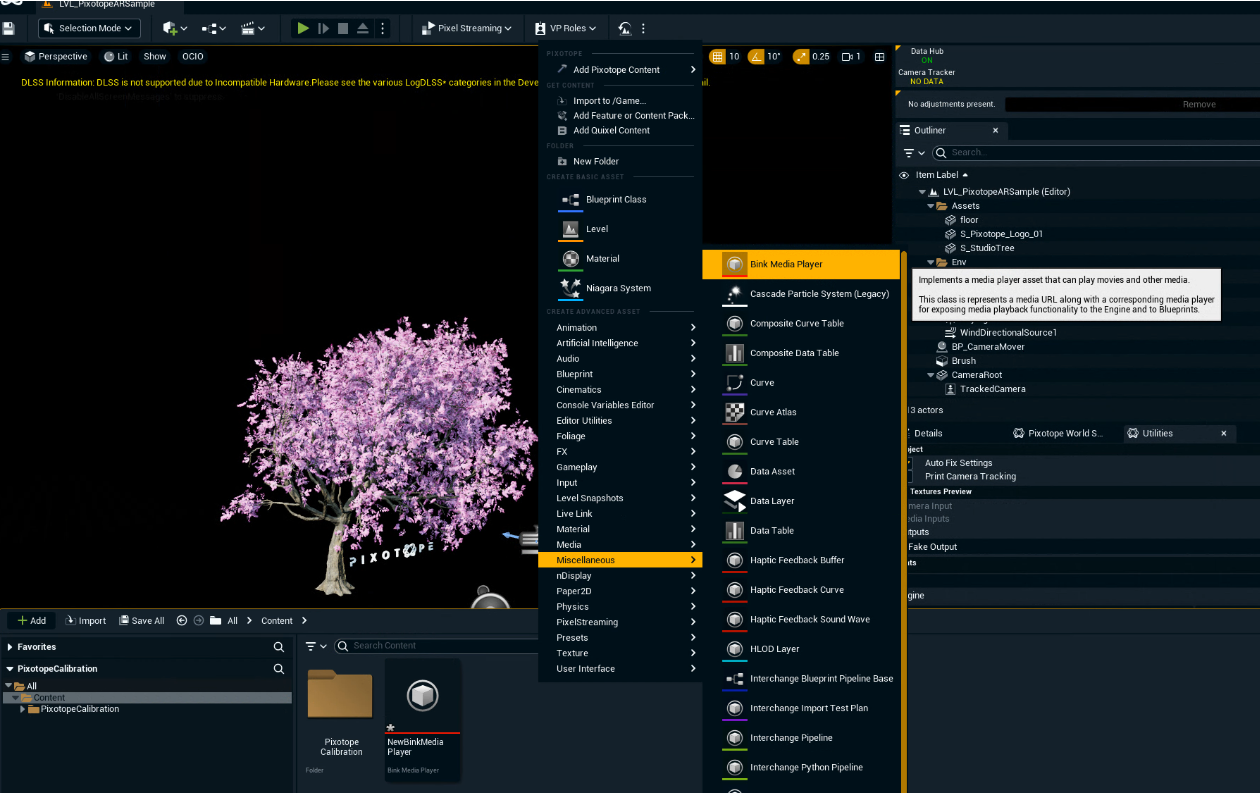
Right click in the Content Browser
-
Create a Miscellaneous > Bink Media Player asset
-
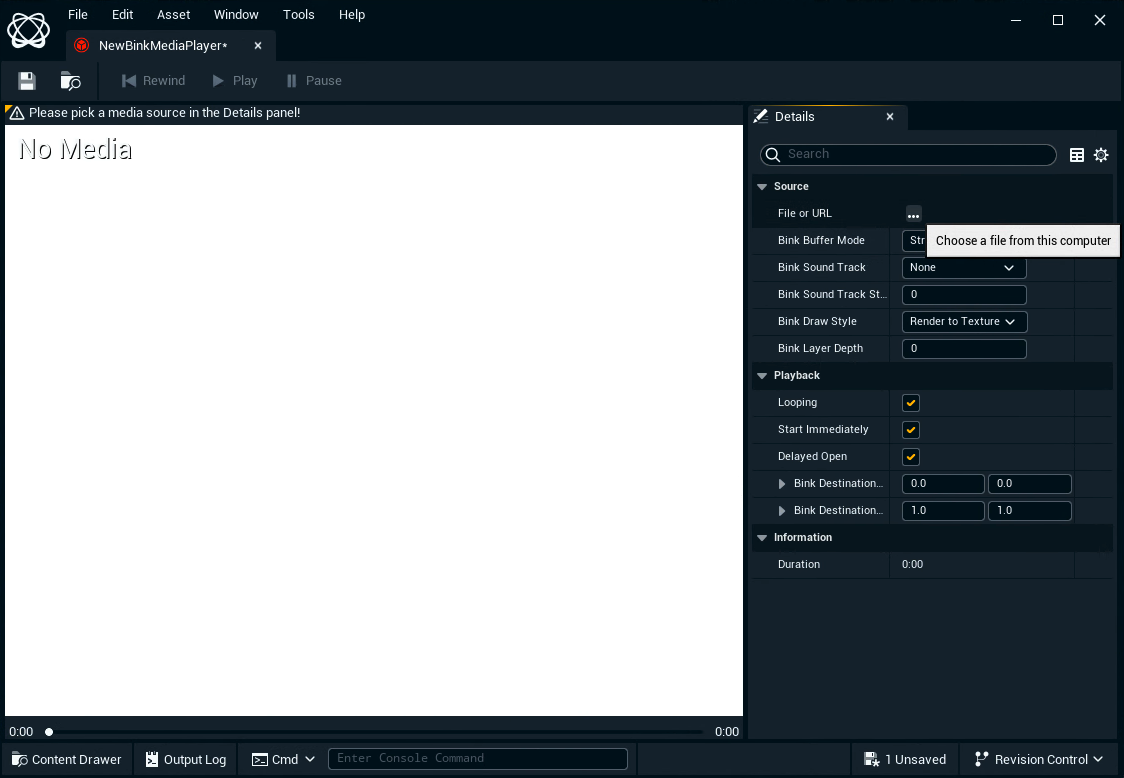
Open the asset and choose the created file as your source
-
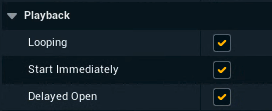
For later Blueprint control make sure Start immediately and Looping are checked
-
you need to have "start immediately" checked and then pause it
unchecking it will not make it work in a blueprint
-
You need one player per video stream.
Create Media Texture
-
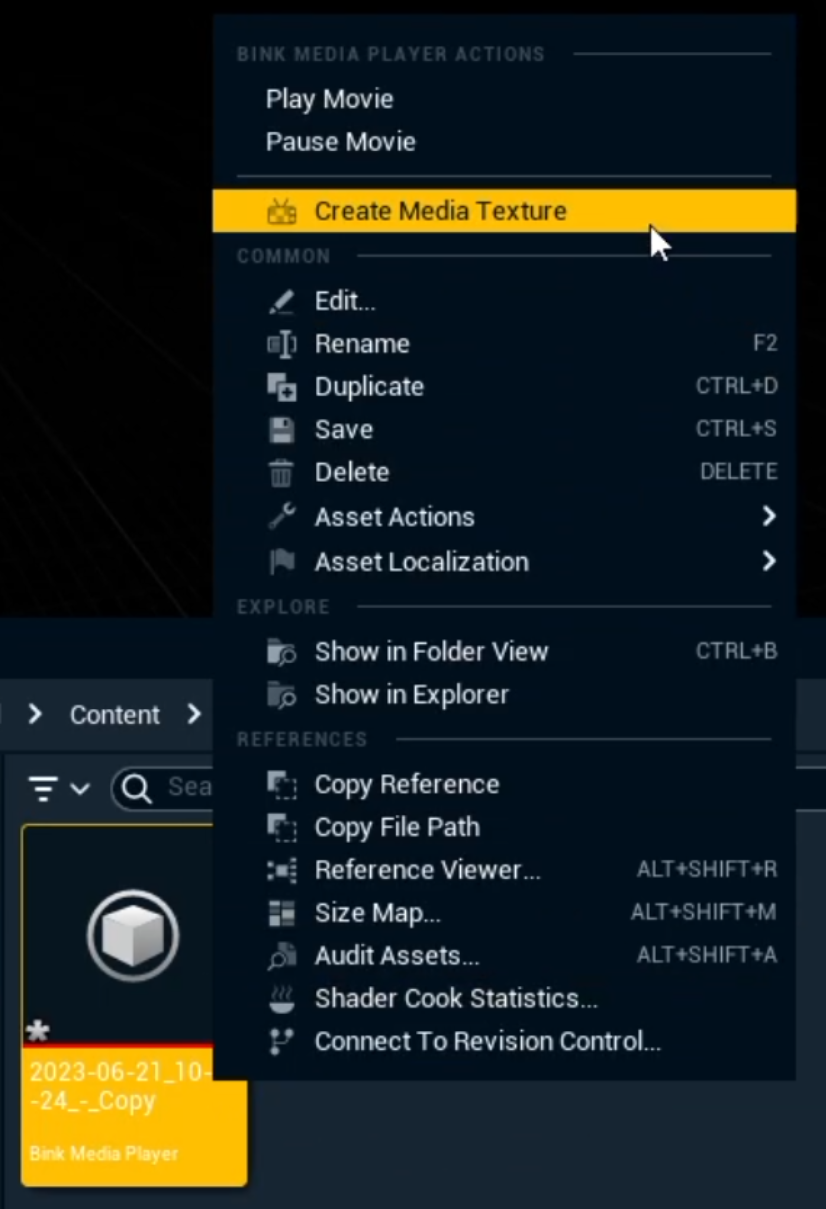
Right click the Bink Media Player asset in the Content Browser
-
Click "Create Media Texture"
-
Drag the created Media texture onto your object
-
Double click the material to open the Material Editor
-
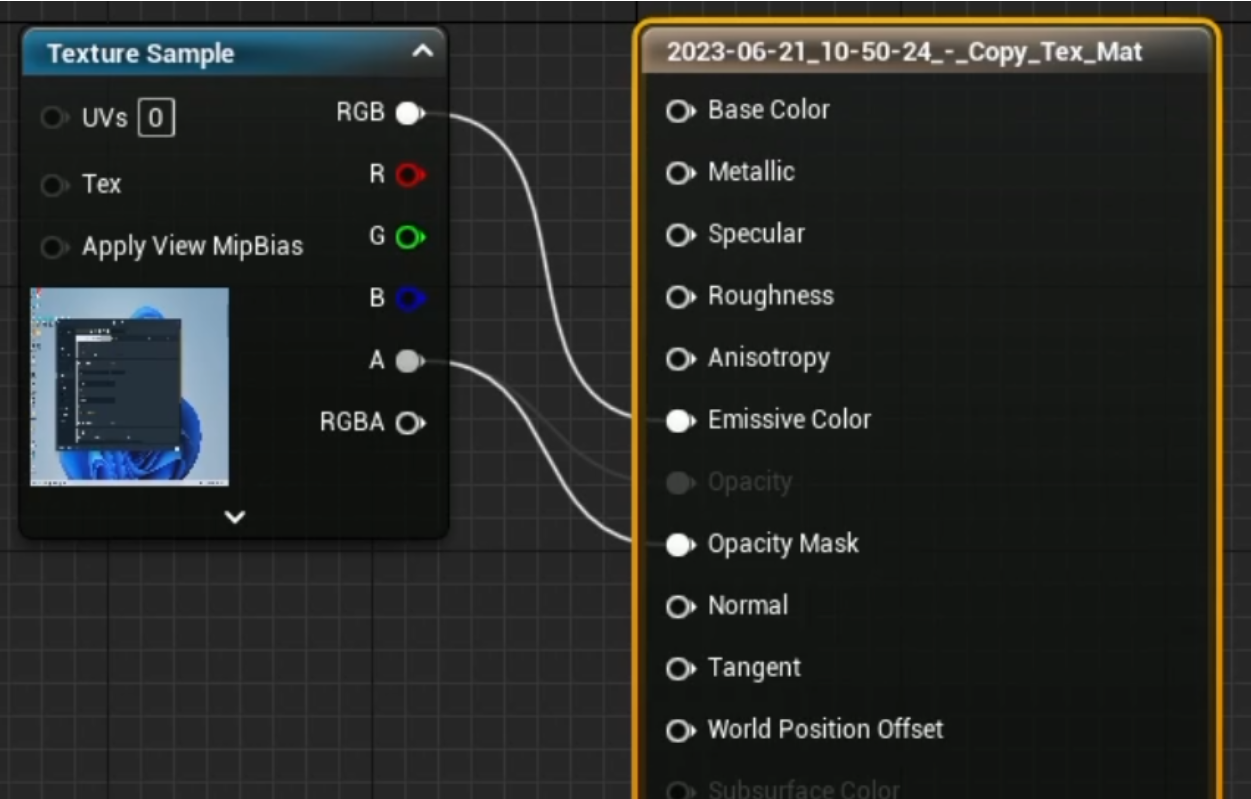
Plug the RGB texture output into the Emissive Color to simulate an actively lit display
-
Correct the scaling of your object to fit the video’s aspect ratio
Create a blueprint
-
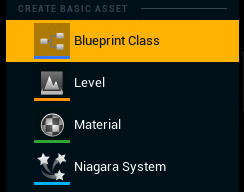
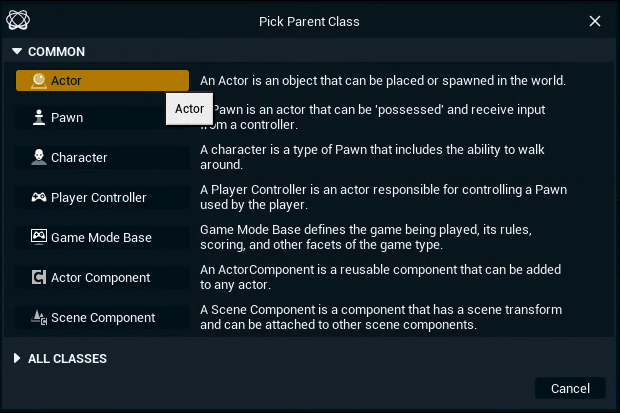
Create an Actor based Blueprint Class by right clicking in the Content Browser and selecting Blueprint Class and name it for example BP_bink
-
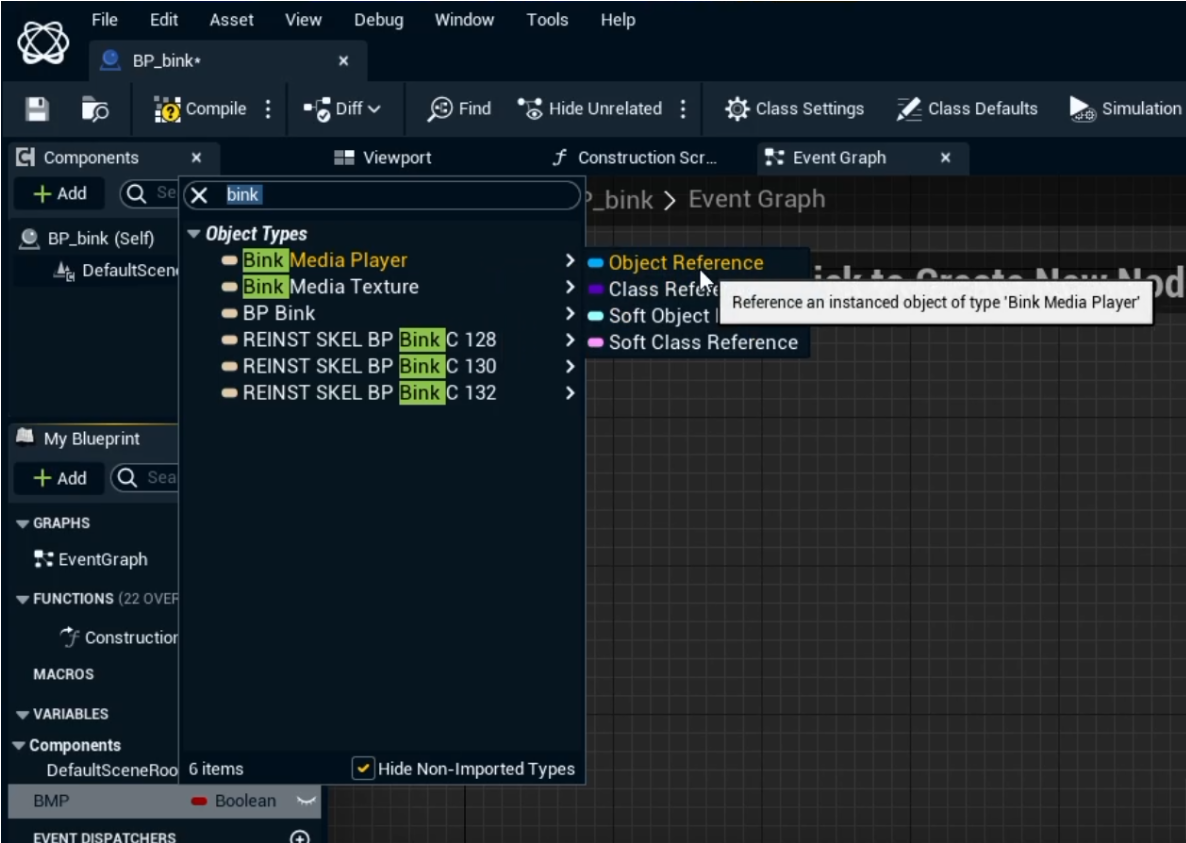
Create a Bink Media Player > Object Reference variable
-
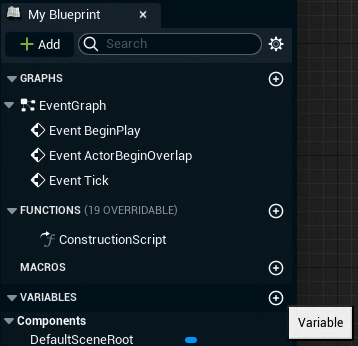
Create a new variable by clicking on the + icon
-
Select Bink Media Player > Object Reference as the variable type
-
Click the Eye icon and then "Compile" to expose it to the Details panel
-
Drag it into the level
-
-
Link the Bink Media Player asset to it
-
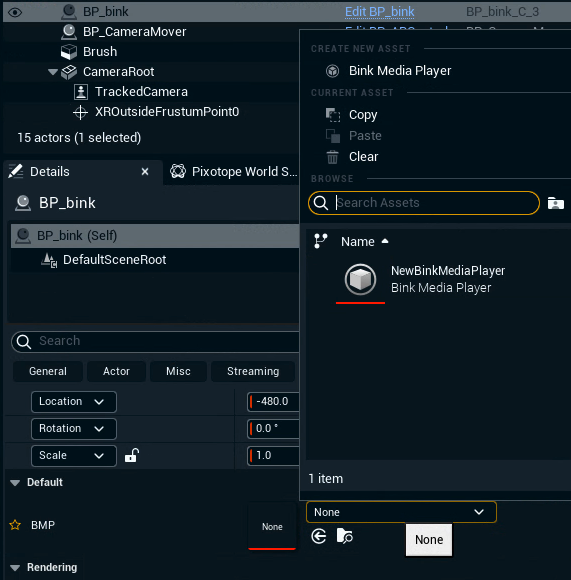
Select the blueprint in the level and go to the Details panel
-
Select the Bink Media Player asset you had created before
-
Add blueprint events
-
Go to the Event Graph of the blueprint you added
-
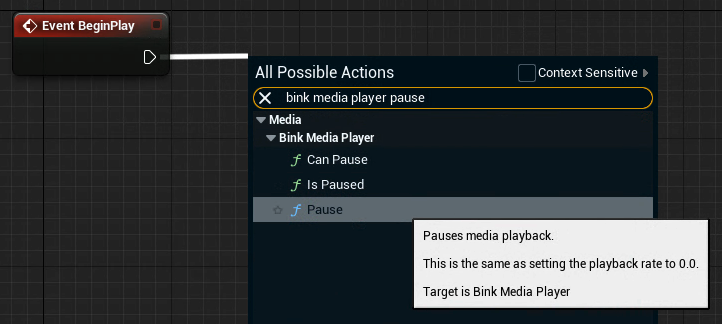
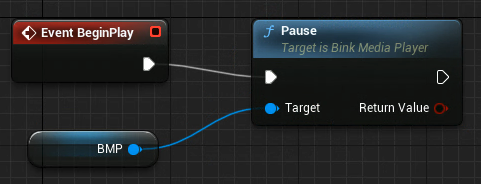
Add Bink Media Player > Pause function on BeginPlay using the Bink Media Player Object Reference as a target
-
Add a Play control
-
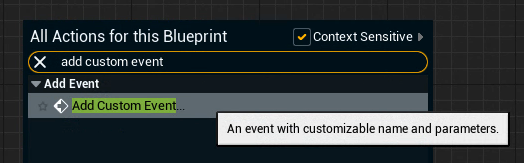
Right click to search for Add Custom Event, add it and name it "Play"
-
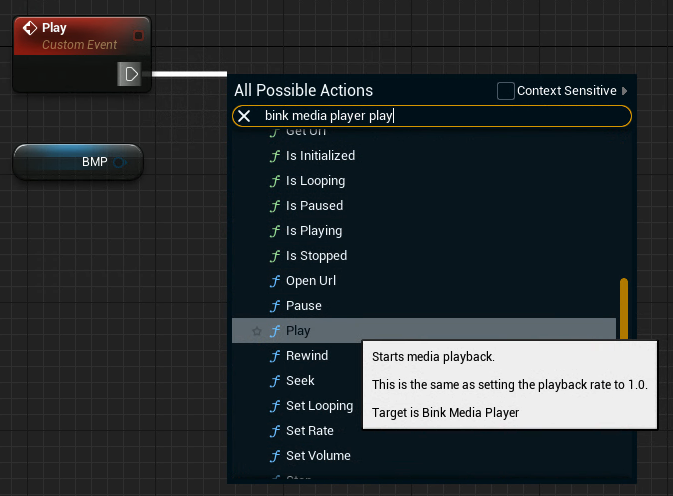
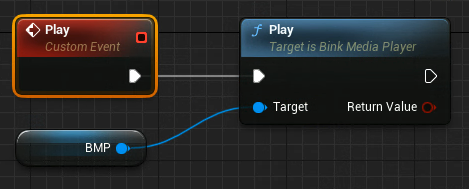
Add a Bink Media Player > Play function and add the Bink Media Player Object Reference as a target
-
You can also use Set Rate for Pause and Play
-
Rate = 0.0 → Pause
-
Rate = 1.0 → Play
Example blueprints for more advanced controls
Checkout the example blueprints for more advanced controls like
-
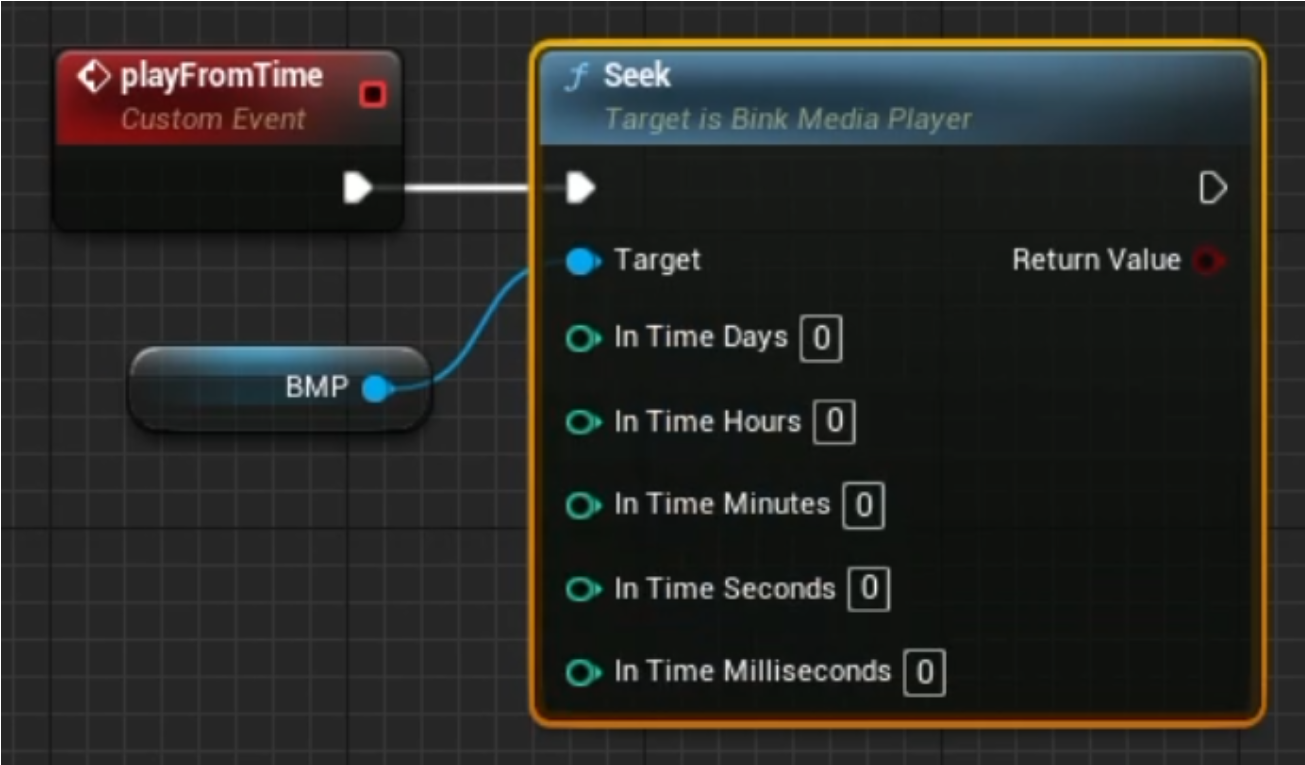
Play from a specific time
-
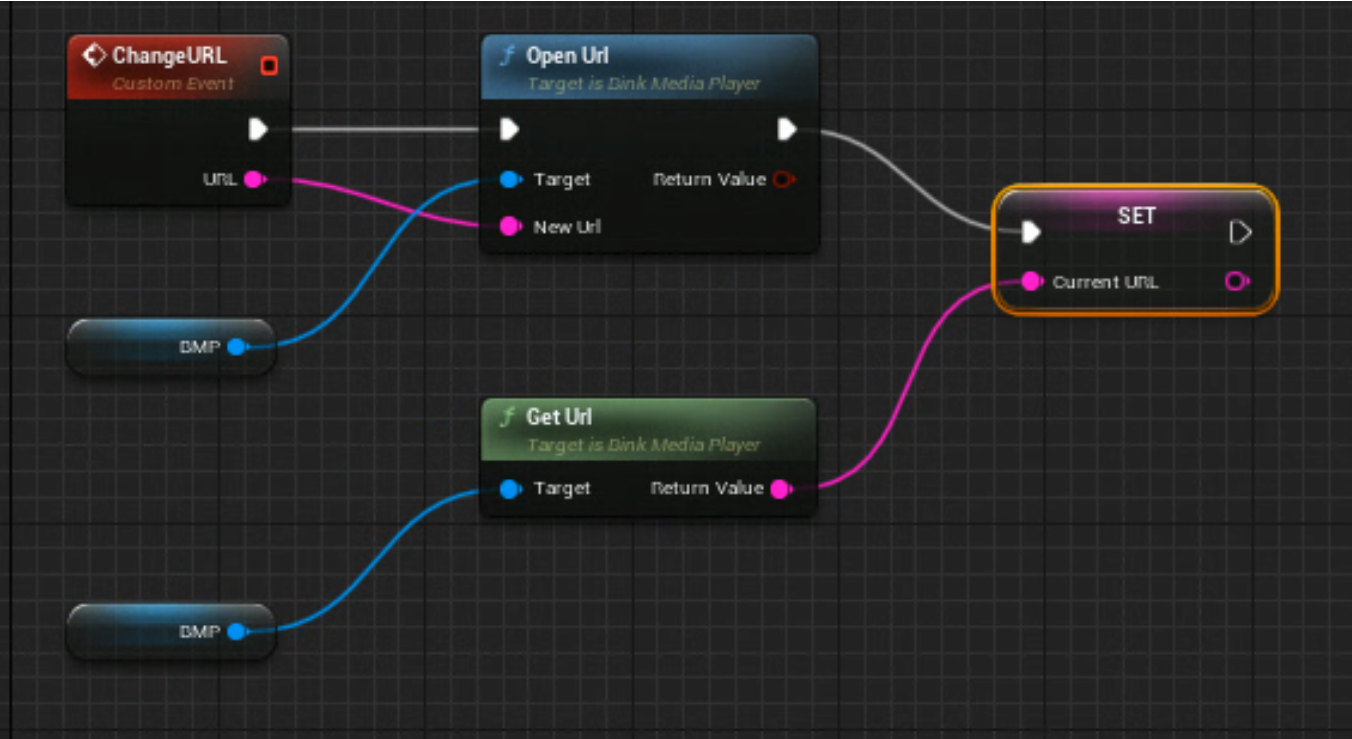
Change the video source URL
Click to expand...
Play from time
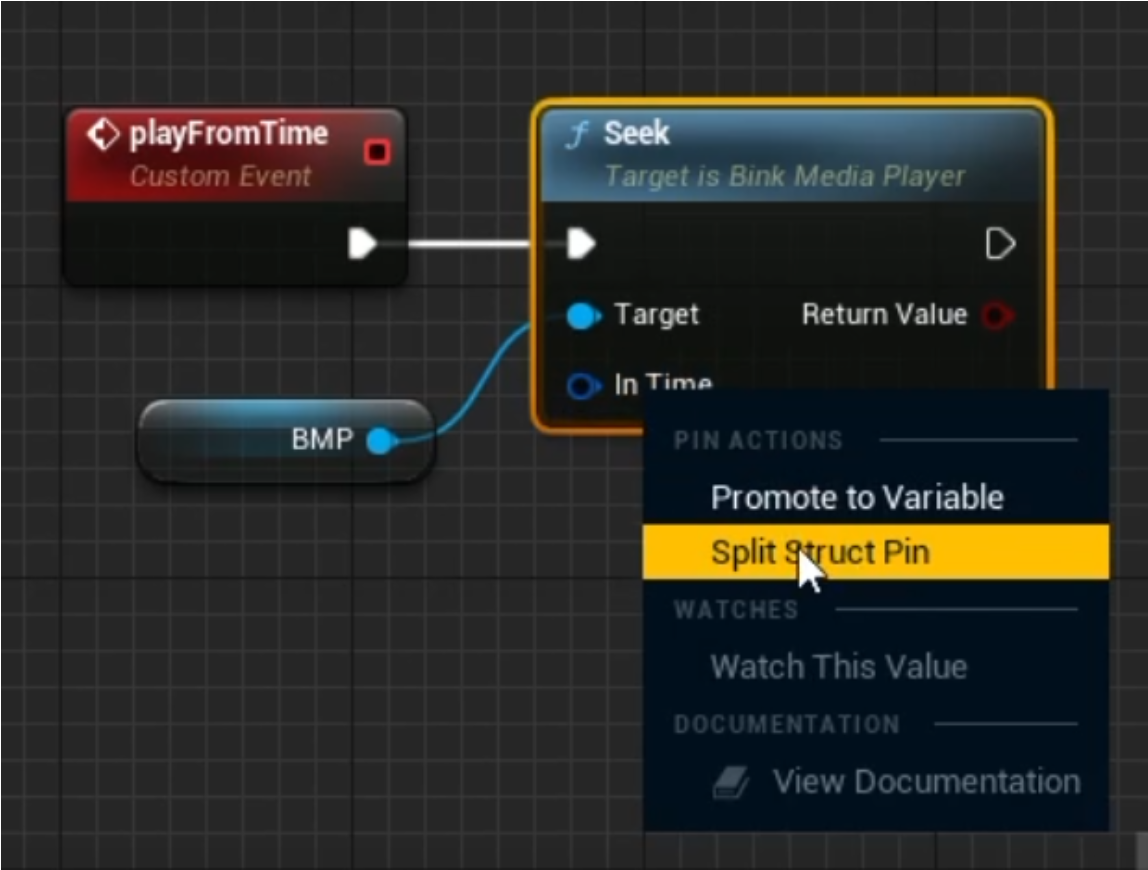
Change the video source URL
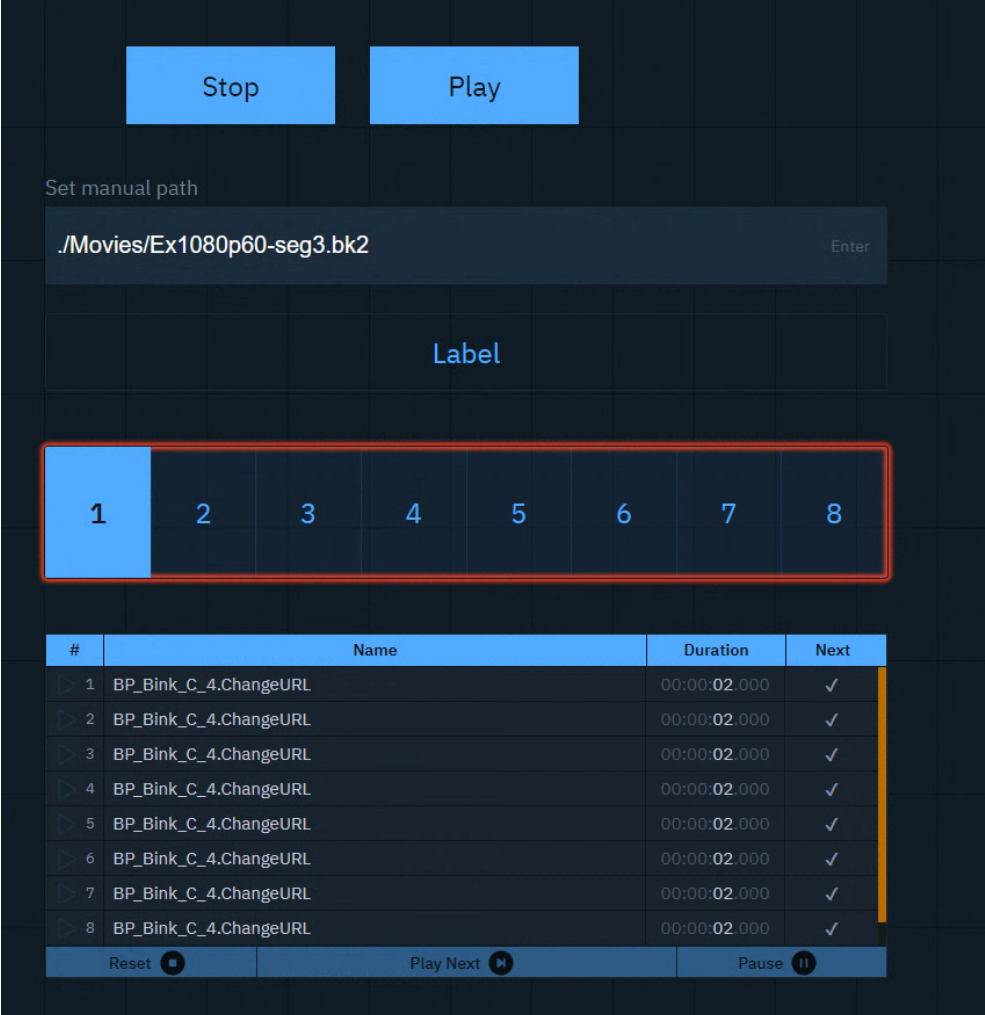
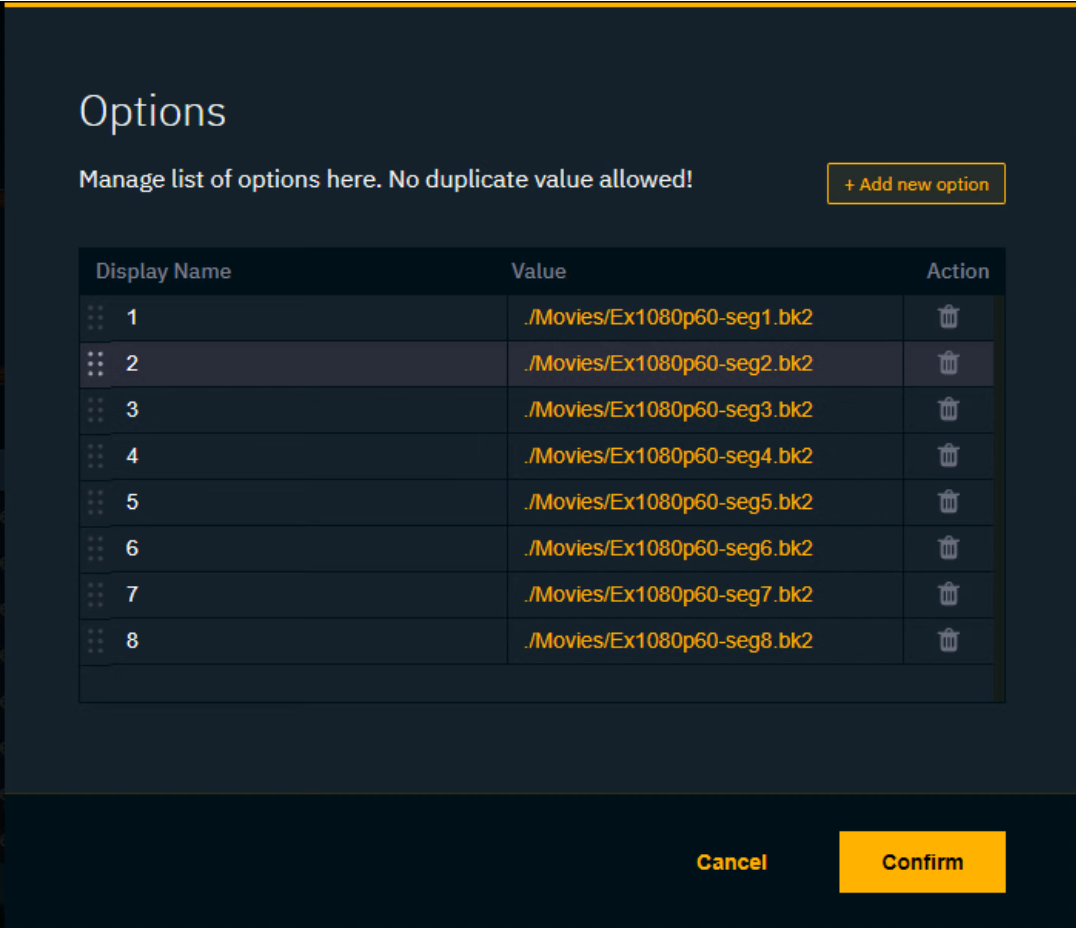
This function can be used in combination with a Tab, Dropdown or Playlist widget inside the Control panel.
Control the video playback via a control panel
-
Create a new control panel
-
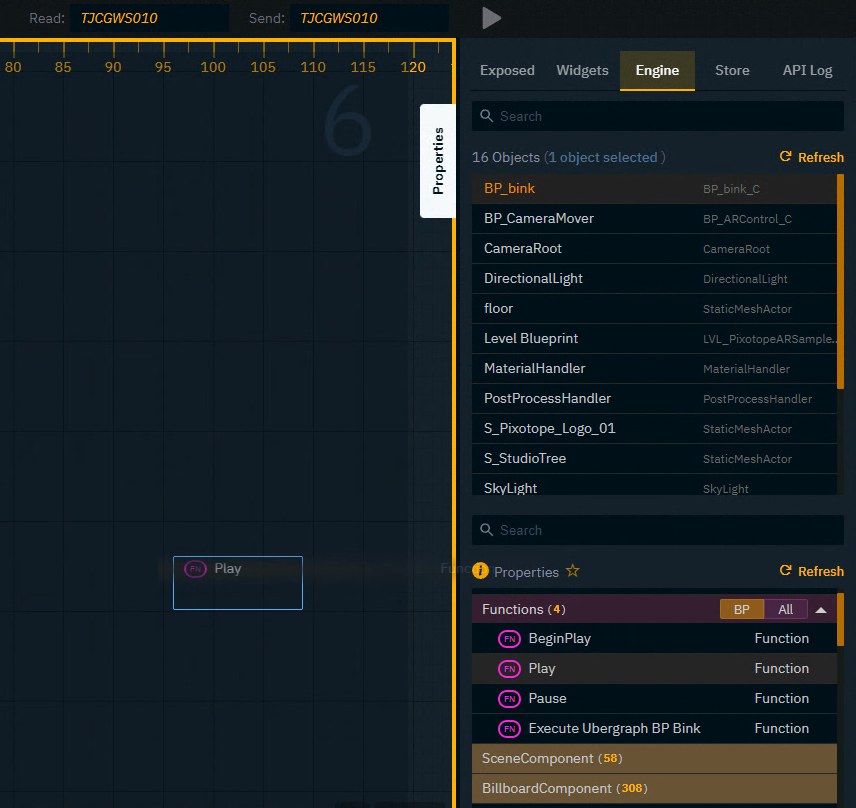
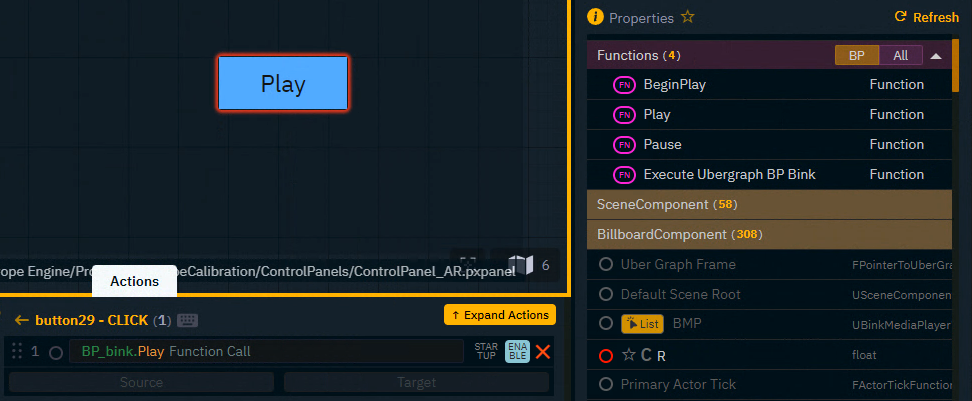
Select the BP_bink object in the Engine tab
-
Drag the function to control onto the canvas and select a Trigger widget
-
Repeat this step with other control functions you have created
Learn more about Creating a control panel - PRODUCTION
Set up synchronized video playback
Learn more about how to Set up synchronized video playback