
Introduction
We use Bink Video for Unreal Engine for media playback because of its high performance.
This works well on its own, but it is a challenge to make sure that the playback is synchronized across all machines in a multi-machine setup. Starting them at the same time is a good start, but because of frame drops or restarts, they might go out of sync.
To solve this, we provide a SyncedMedia asset that will make Bink media stay in sync across a Pixotope network.
Set up video playback
Learn more about how to Set up video playback
Set up synchronization
Setup in Editor
-
In the Content browser go to
Engine Content/PixotopeTools/MediaSync
-
Drag the SyncedMedia asset into your scene
-
Select the SyncedMedia actor in your scene and go to the Details panel
-
In Synced Medias, add all Bink Media Player objects that you wish to sync
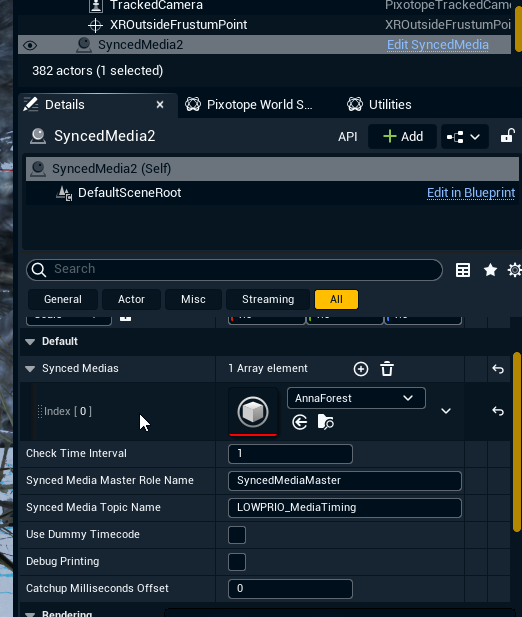
For testing, there is an example Bink Media Player asset in [Installation folder]\Pixotope Engine\Engine\Content\PixotopeTools\MediaSync\ExampleContent\
You might need to update the path in the Bink Media Player manually for it to work.
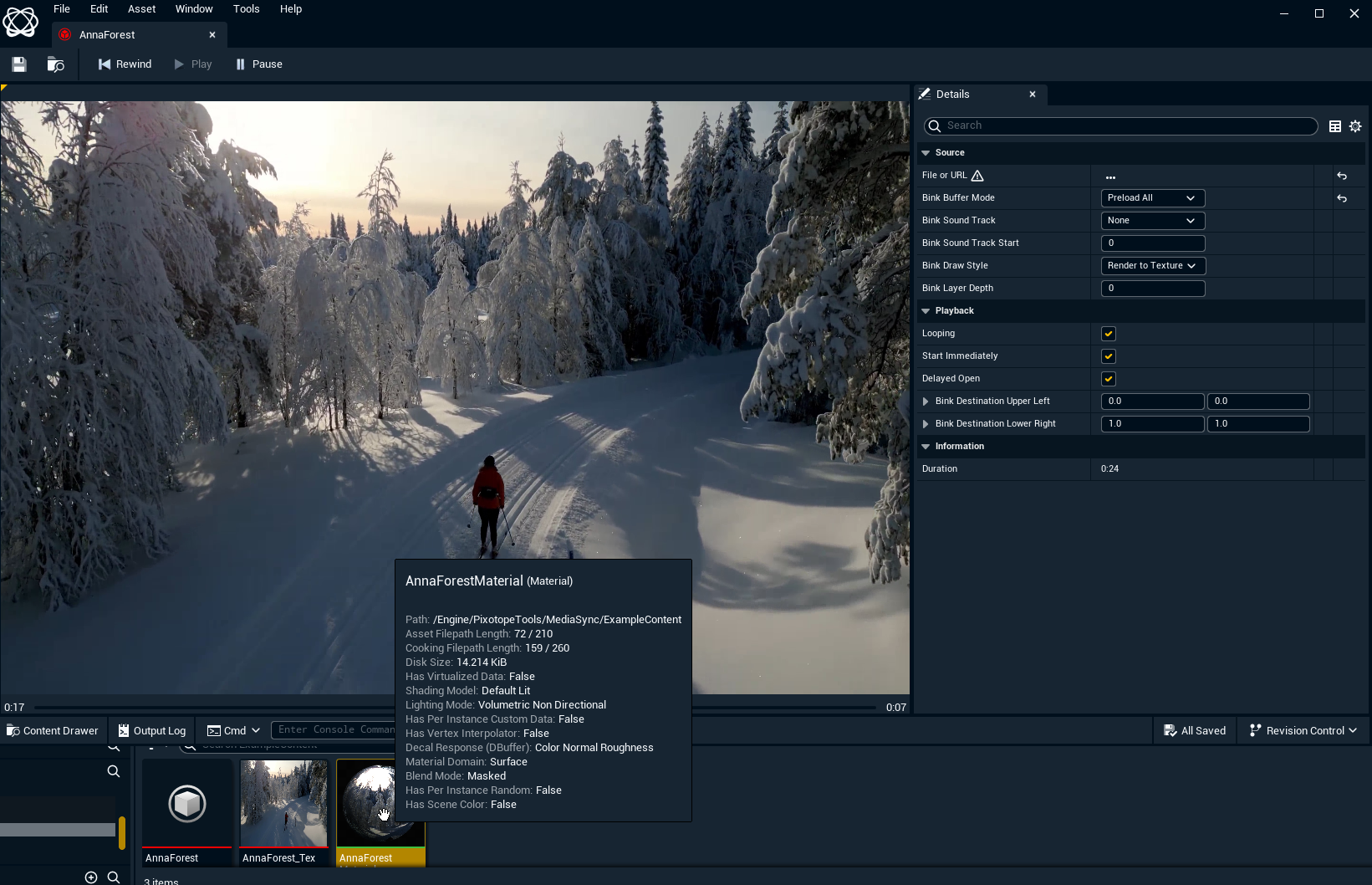
-
Place an actor in your level with a material that is based on the Bink Media Player
Setup in Director
Designate a machine as the "Source of truth" for the media playback timing. All other machines will adapt to where the video is on this machine
-
Make sure all video, tracking and set extension delays are correctly set up, so all machines are in sync
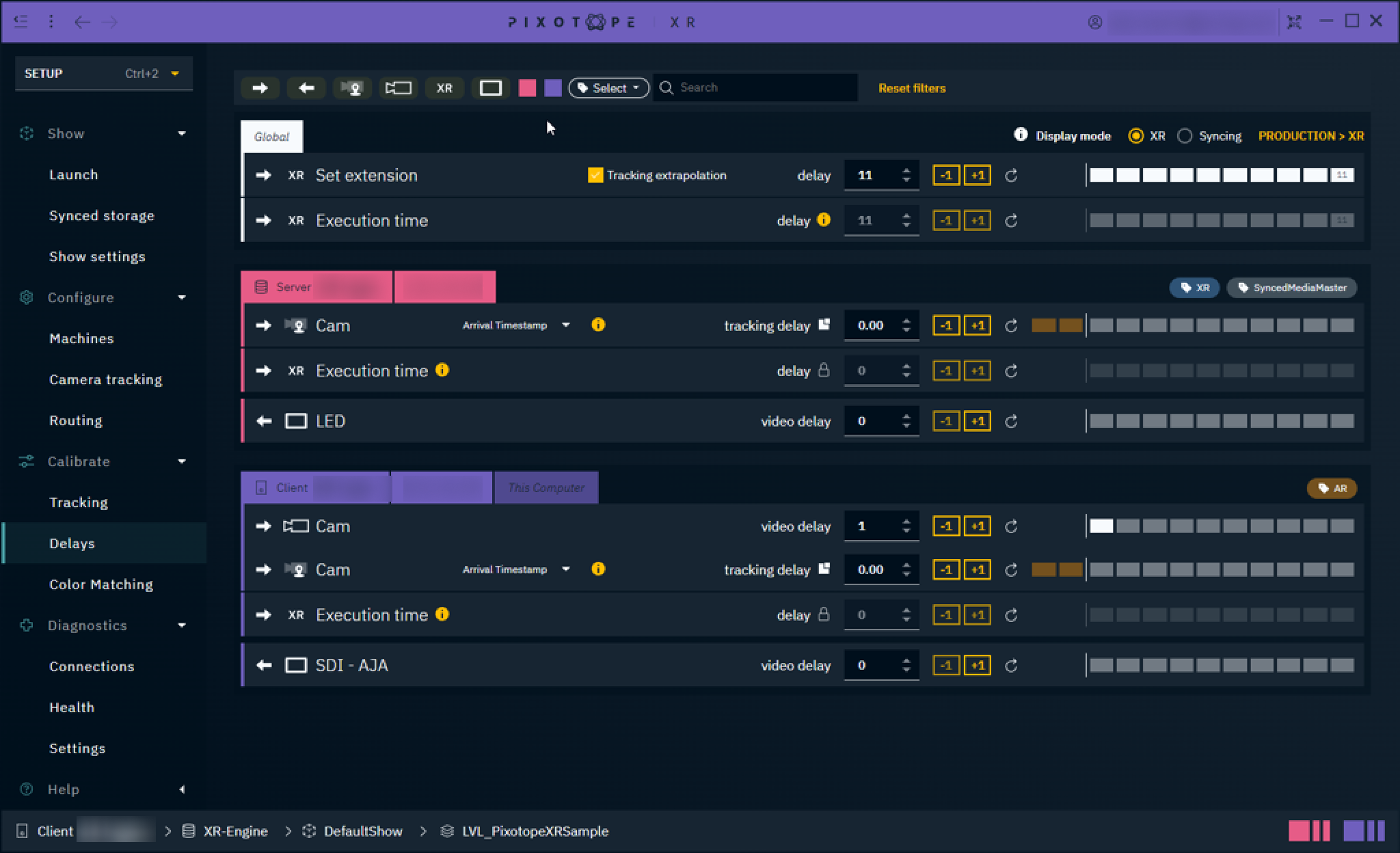
-
Go to SETUP > Configure > Machines
-
On the designated machine, click on Groups and add a custom group named
SyncedMediaMaster
(or another name of your choosing, as defined in Synced Media Master Role Name on the SyncedMedia actor)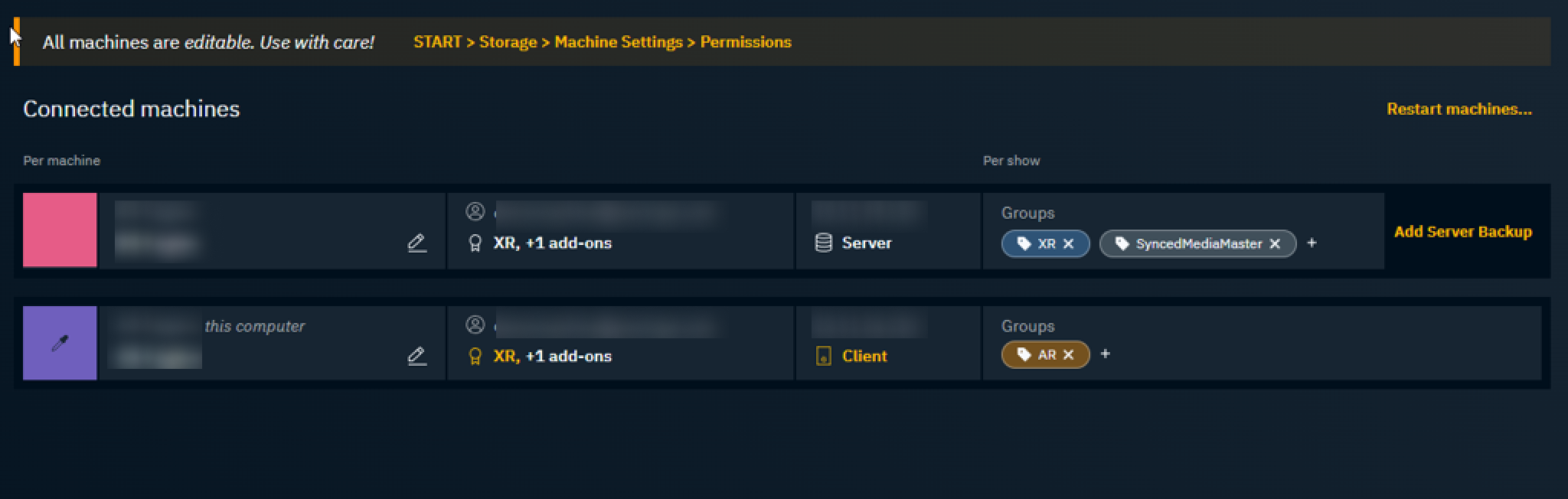
-
The playback of all machines are now directed by this designated machine