
Reflections
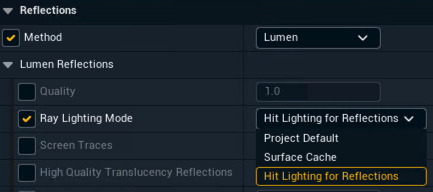
Hit Lighting for Reflections
-
Recommended for better results, though more demanding
-
PostProcessHandler > Lumen Reflections > Ray Lighting Mode
-
Enable "Use Hardware Ray Tracing when available" in Project Settings > Rendering > Lumen
-
When using a VS Internal Compositing plane and
-
Hardware Raytracing is enabled
-
Lumen is used for reflections
-
Ray Lighting Mode is set to Hit Lighting for Reflection
-
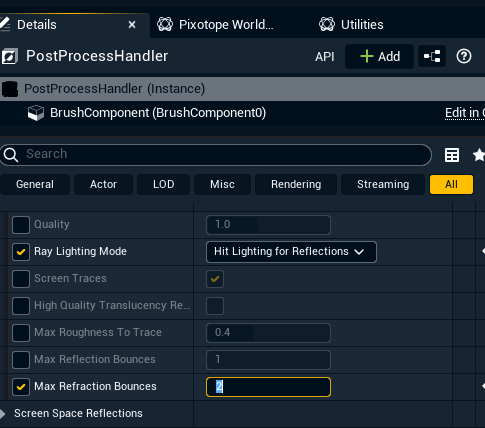
Max Refraction Bounces is above 0
-
and its reflections are flickering
enable its "Disable Scene Capture Mesh" option. This disables a problematic submesh that interferes with virtual set reflections.
Max Refraction Bounces
-
For VS, use 2+ bounces
-
Use more if you have overlapping comp planes
-
PostProcessHandler > Lumen Reflections > Max Refraction Bounces
Global Illumination
-
When using Lumen for reflections, we recommend using it for Global Illumination as well

Skylight
-
When using Lumen for Reflections and Global Illumination, include a Skylight in the level
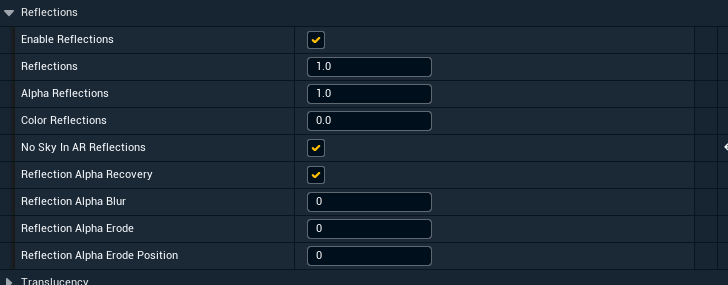
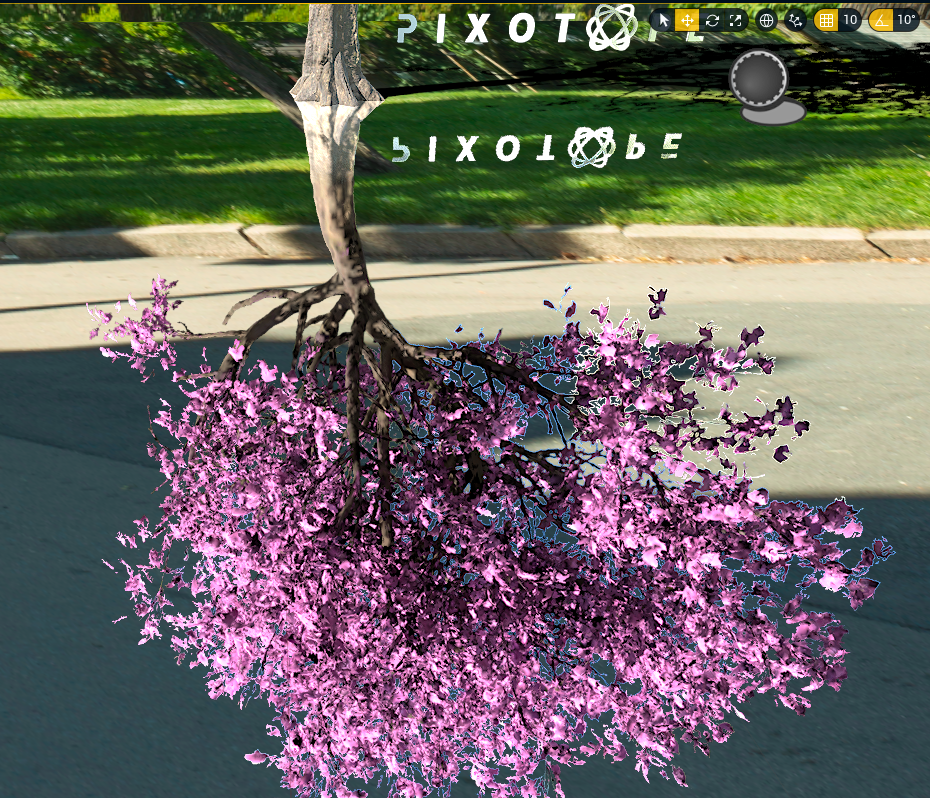
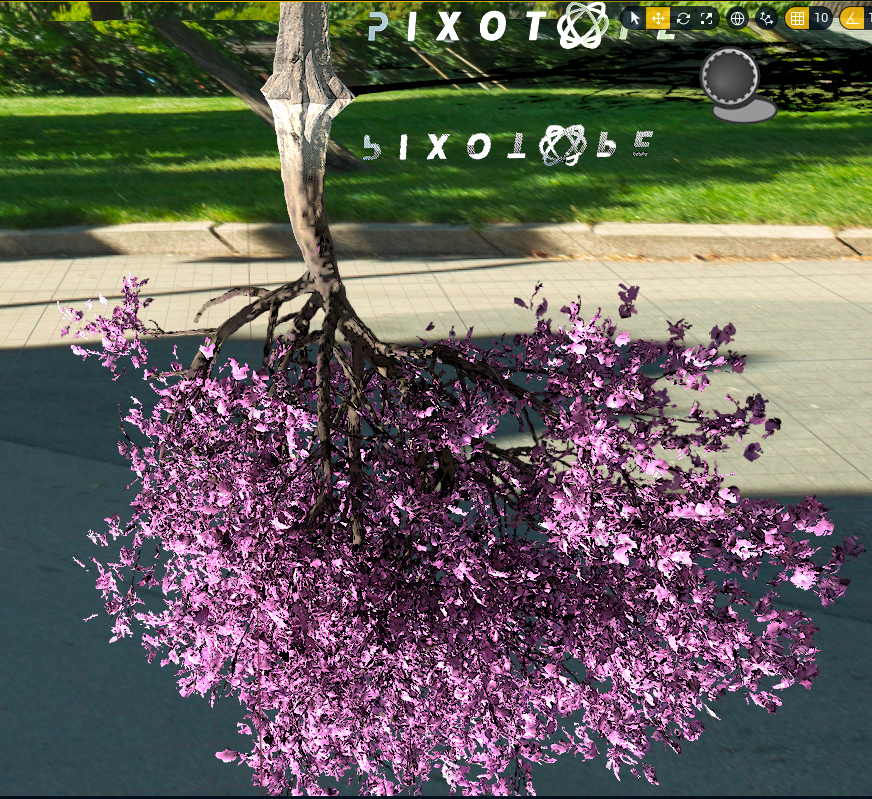
No Sky in AR Reflections
-
Enable this in Pixotope World Settings to avoid sky haloing around reflections
-
This costs some performance
-
Alternative: Use the erode setting (cheaper, but visually less appealing)
|
|
|---|
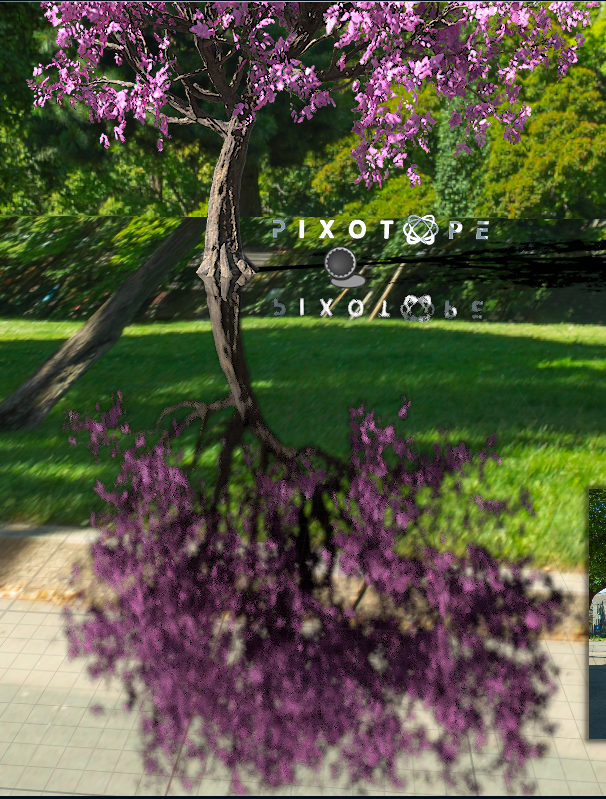
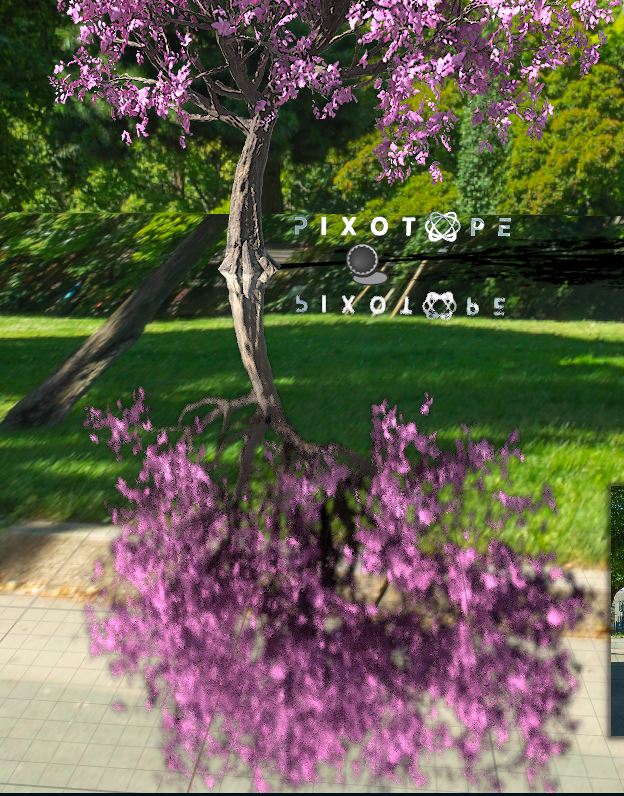
Adjusting Reflection Brightness
-
If reflections are too dark, use the console command:
r.Lumen.Reflections.SpecularScale-
Try values between
1and8
-
-
Especially useful if your materials have high roughness values
|
|
|---|
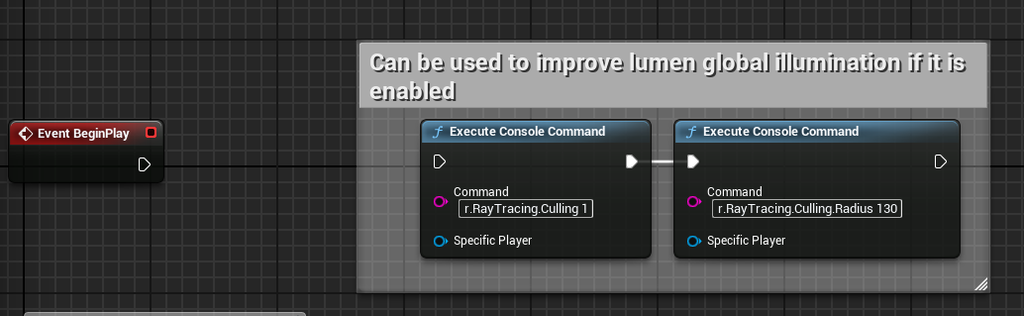
Raytraced Lumen GI for Dark Areas:
-
Adjust culling settings to reduce small "flickers"
-
More aggressive light culling can help
Shadows
-
Shadows are generally easier to manage than reflections
-
Pixotope World Settings for shadows should work as they do without Lumen
Learn more about Pixotope World Settings
Ambient occlusion
-
With Lumen, ambient occlusion is part of the Global Illumination calculation, not a separate pass
-
Material Ambient Occlusion can be enabled with Lumen for enhanced effect
Learn more about Material Ambient Occlusion → https://dev.epicgames.com/community/learning/tutorials/bOEy/material-ambient-occlusion-ao-in-unreal-engine-5
Lumen reflections - technical
Lumen uses at least three reflection "layers", each producing a
-
reflection color (float3)
-
hit distance (float)
-
representing distance from reflected object
-
distances are encoded as negative, positive means no hit
-
-
Screen Tracing
-
Similar to screen space reflections
-
Results in position of reflection and scene sample
-
-
Voxel Tracing
-
Not currently in use
-
-
Ray Tracing
-
Surface Cache Ray Tracing
-
Produces a light/color atlas and samples it
-
More complex process
-
-
Direct Ray Tracing
-
Simpler at its core
-
Works well in Pixotope and is recommended
-
-