
Broadcast Graphics packages typically require creating dependencies between templates, so templates can react or behave differently based on another template’s state.
By default, the Transition Logic tree provides basic In/Out/Change, but can easily be adapted for complex Transition Logic customized to your graphics package’s needs.
The following step-by-step guide will focus on an example with two graphic assets:
-
Lower Third - placed in the LowerThird layer
-
Side bar - placed in the SideBar layer
And the following dependencies:
-
When the Lower Third is taken in/out alone, it is animated in an “extended view” with more information
-
When the Lower Third is taken in/out alone while the Side Bar is on air, it is animated in using a “collapsed view” with less information
-
When the Side Bar is taken in/out while the Lower Third is on air, it will cause the Lower Third to transition between “extended view” and “collapsed view”
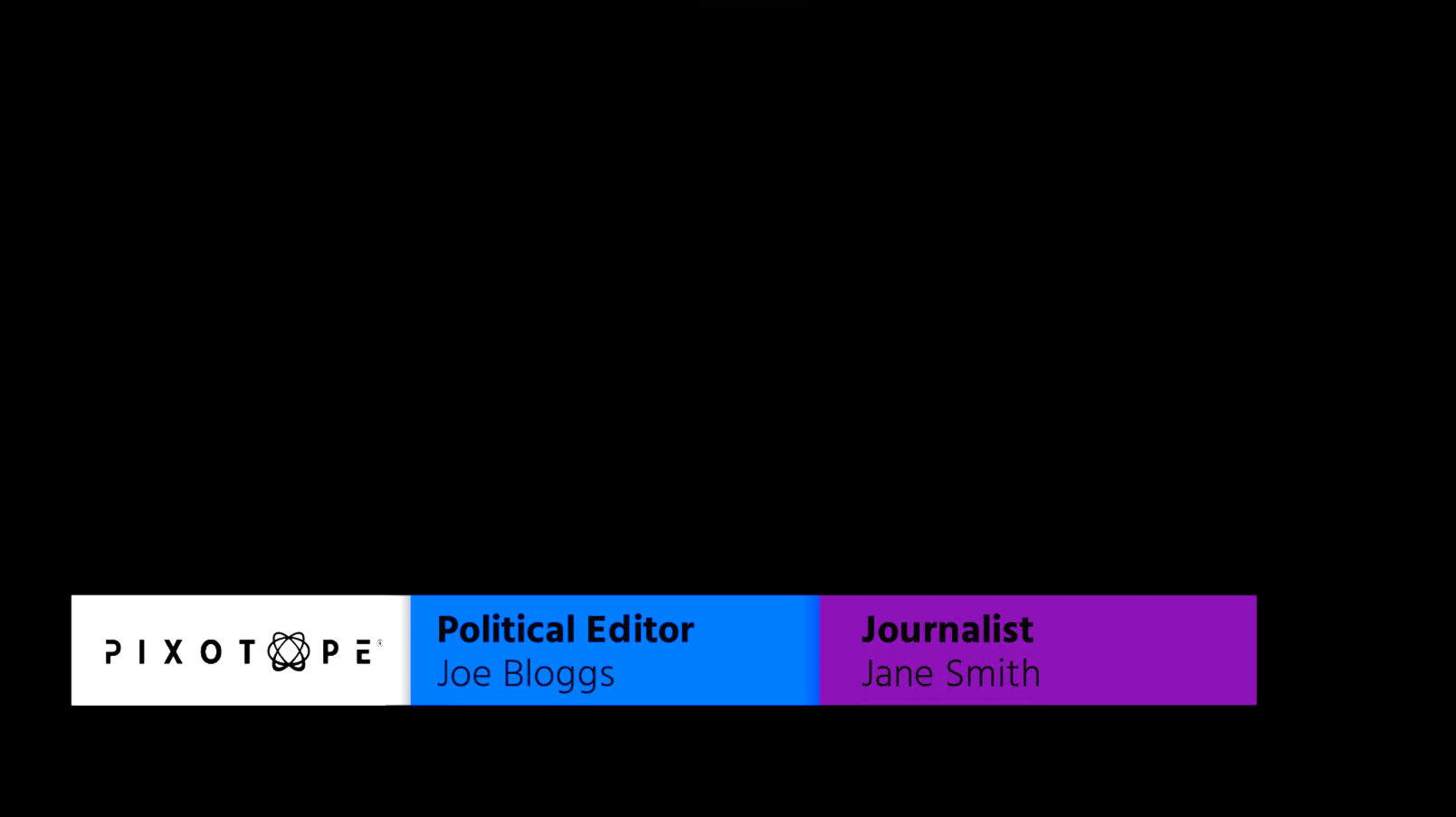
|
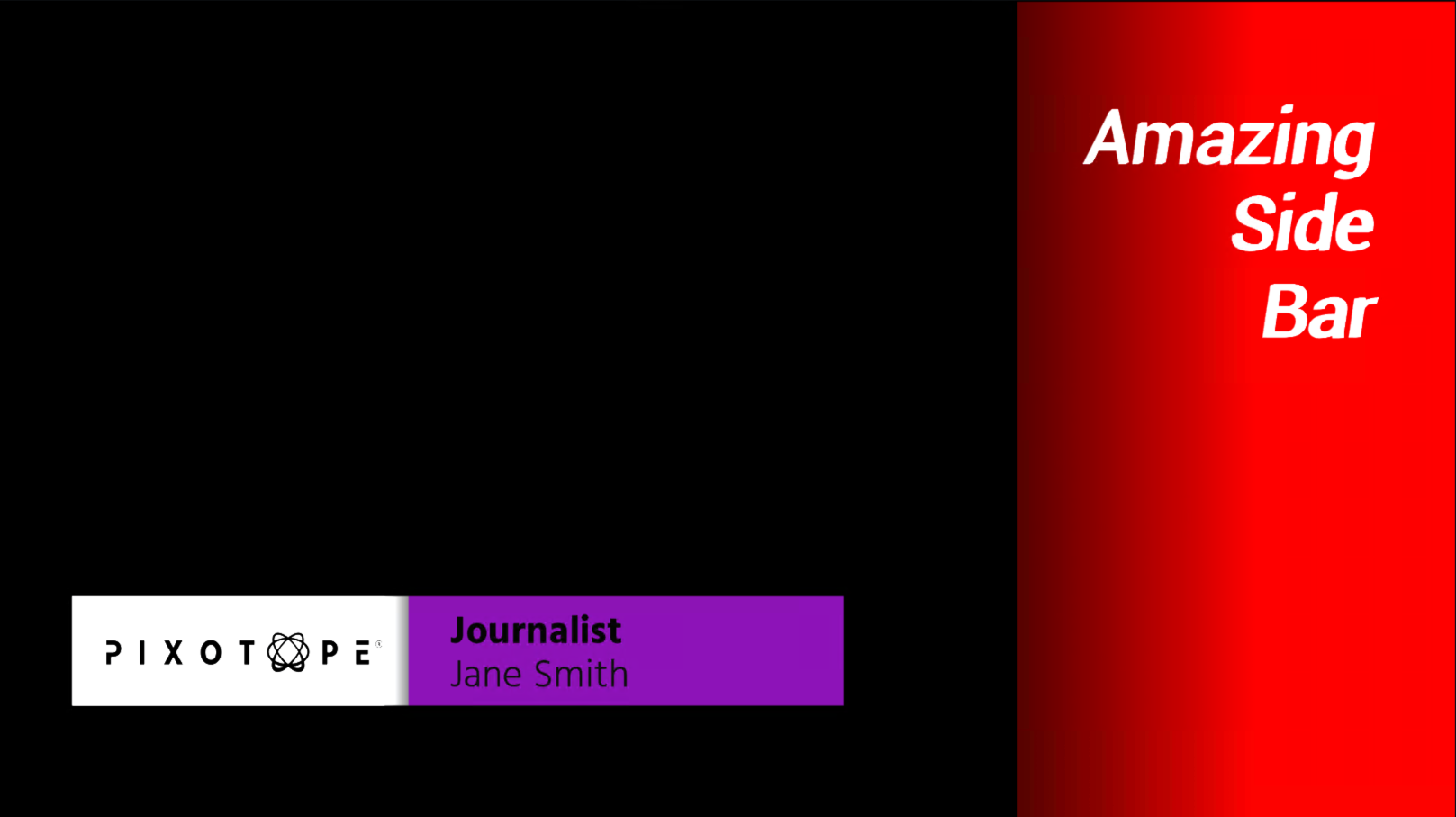
|
Identify States
Based on the desired behaviour, you need to identify what states each asset can be in. These states are added to a States Tag Collection and used as Tag Attributes in the Transition Logic tree.
What are Tag Attributes?
Tag Attributes can represent a scene's state and enable inter-template dependencies. One scene can add or remove Tag Attributes based on conditions (e.g., being taken in or out), while other scenes can check for these attributes and respond accordingly.
Tag Attributes are defined in Motion Design Tag Collections, the same mechanism used for Layers.
We recommend creating a dedicated collection for States to keep them distinct from your Layer tags.
States
Based on the example above, we will need the following states:
|
Scene |
State |
Enters state when |
Leaves state when |
|---|---|---|---|
|
Side Bar |
|
Taken in |
Taken out |
|
Lower Third |
|
Taken in while Side Bar is out
|
Taken out
|
|
|
Taken in while Side Bar is in
|
Taken out
|
Create Tag Collections
A Motion Design Tag Collection is an Unreal Engine asset that can be created
-
from the Content Browser
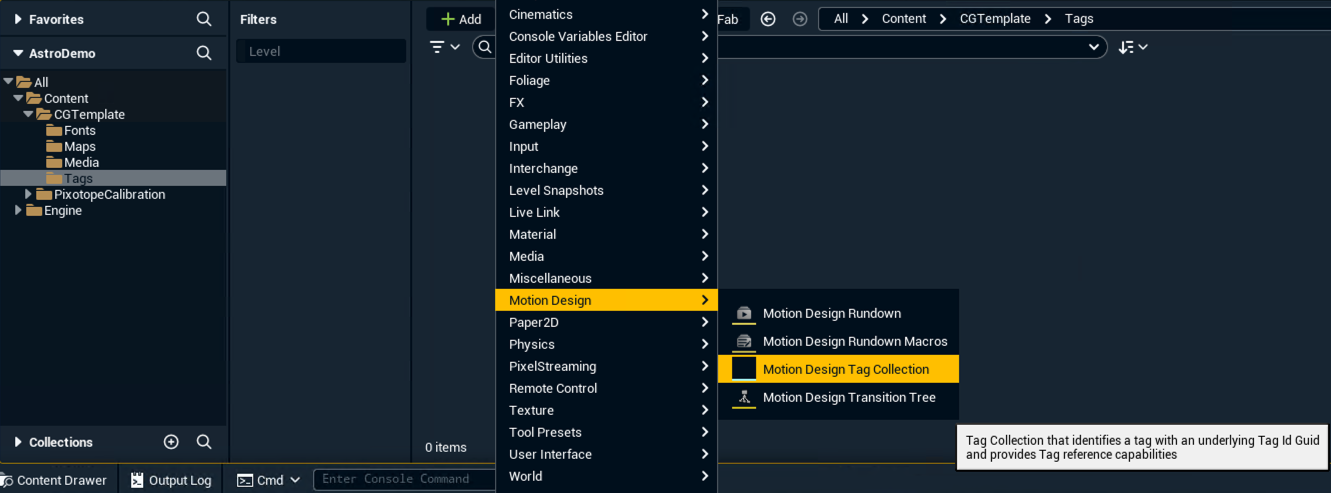
-
OR the Transition Logic menu
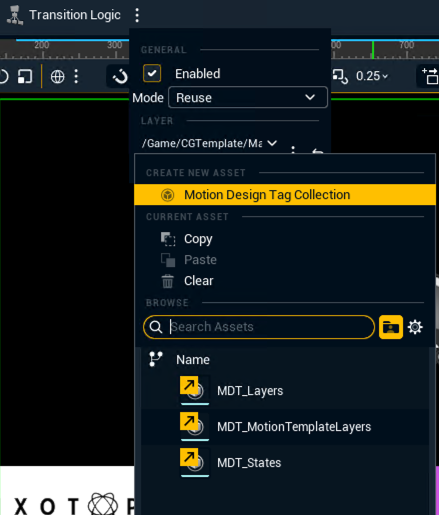
For our example, please create the following tag collection assets:
|
MDT_Layers |
MDT_States |
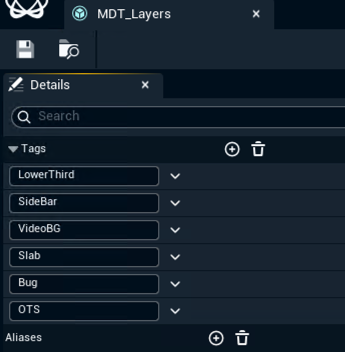
|
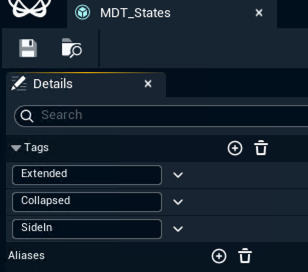
|
|
Used in the layer selection in the Transition Logic menu (also available in the Transition Logic window) 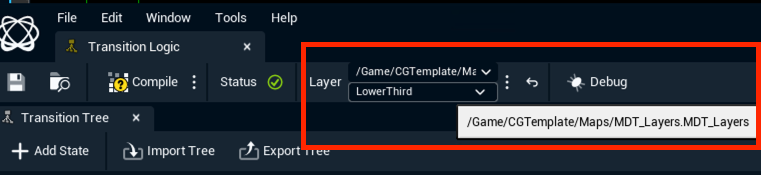
Make sure that both scenes have selected this Tag Collection for the Layer, and the corresponding Layer has been assigned to each of the assets. Learn more about how to Assign a layer |
Used in the Transition Logic tree, when the Add/Remove tag attribute to this scene action is used. |
Create Sequences for Each State and Transition
In our case, we will need the following animations for the Lower Third asset:
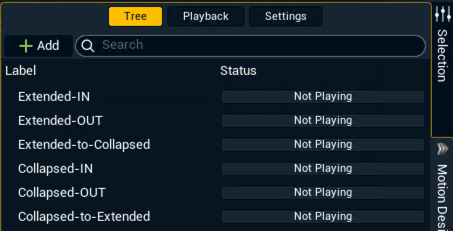
Learn more about how to create Per-child change animations
Structuring the Transition Logic tree
When building custom Transition Logic, add actions as child nodes under IF statements rather than attaching them directly. This ensures actions can execute sequentially.
The default tree attaches some of the actions directly to IF statements as seen here on the Play tag ‘Out’ and Play tag ‘In’ actions on the bottom:
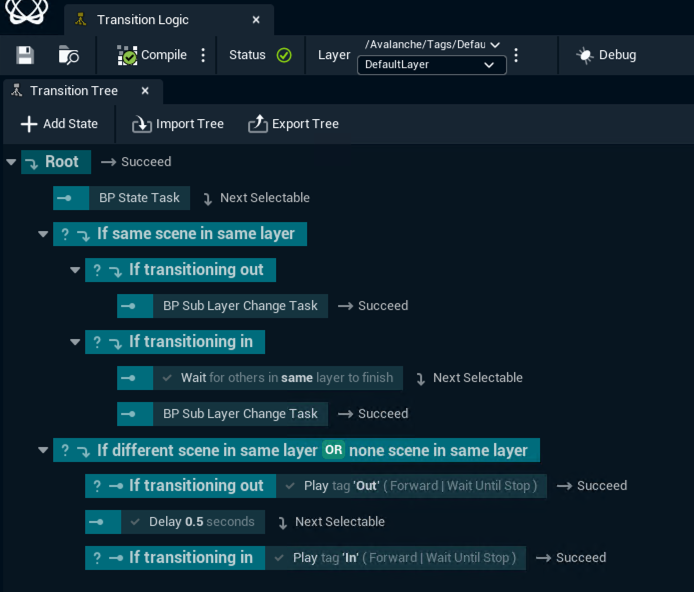
This works for simple cases, but for complex logic with multiple actions, restructure it using child nodes:
-
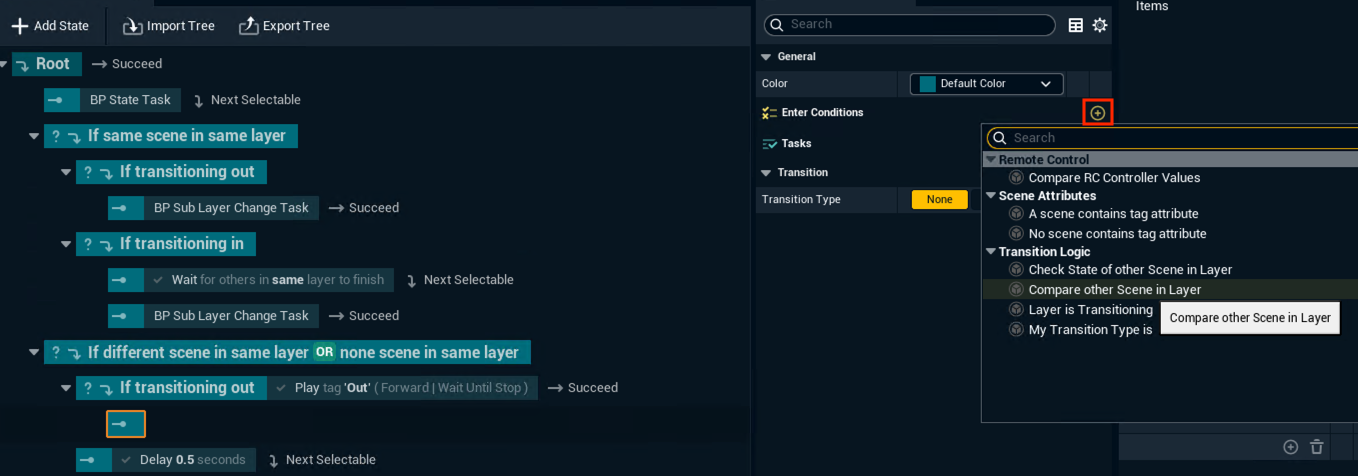
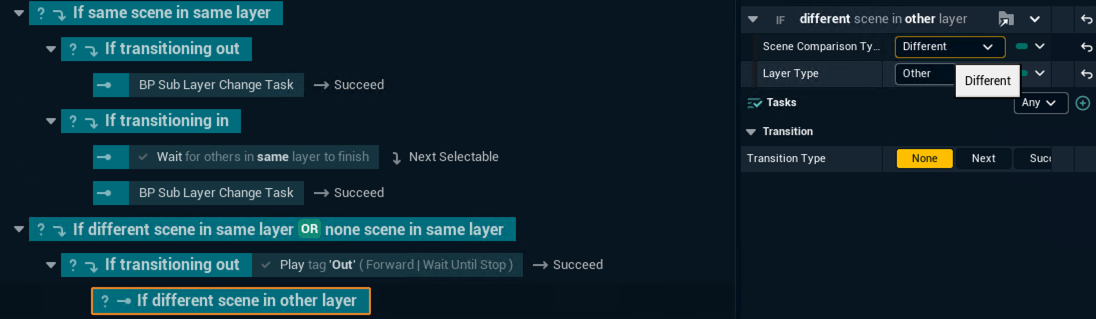
Right-click the IF statement and click Add State > Add Child State
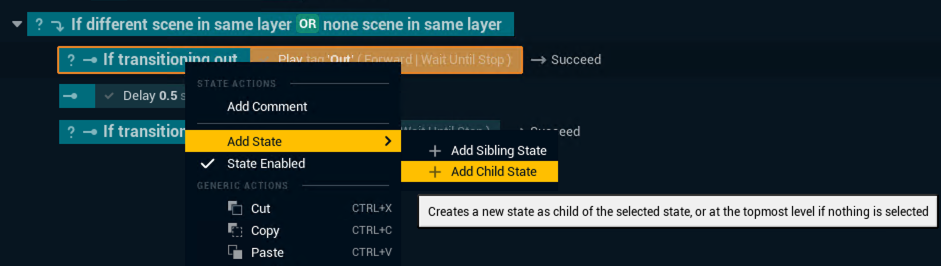
-
Click the new node to add a task (right panel), or add a condition to nest IF statements
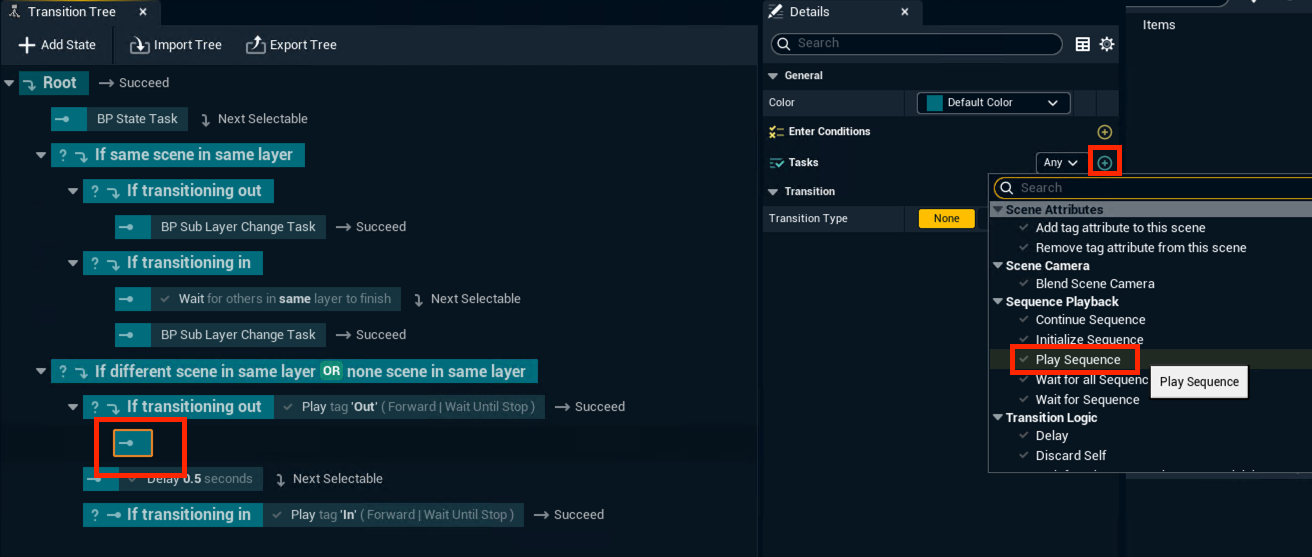
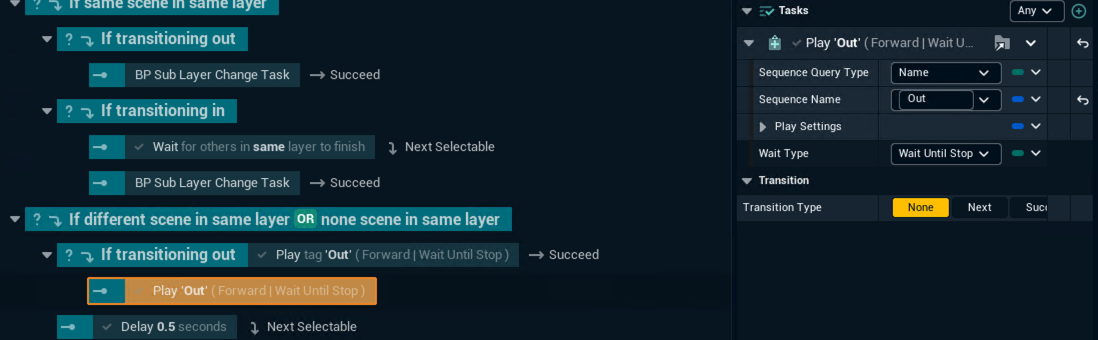
Setting Transition Types
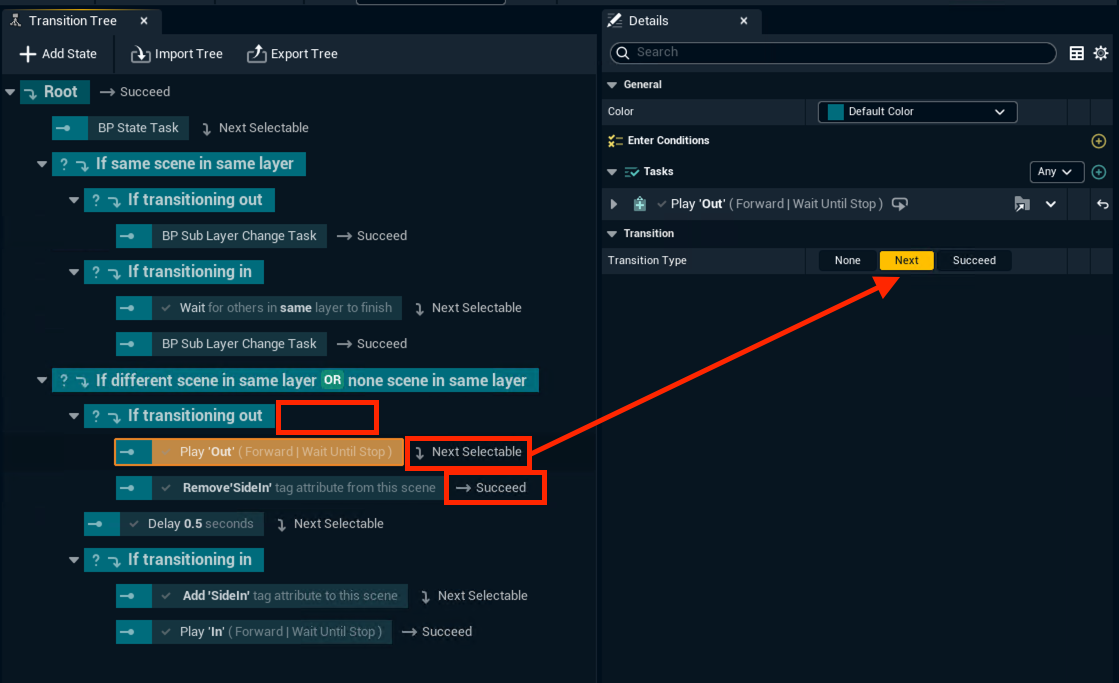
For child nodes to execute in sequence, set the Transition Type on each node:
|
Node |
Transition Type |
|---|---|
|
IF statements |
None |
|
Intermediate child nodes |
Next (Next Selectable) |
|
Final child node |
Succeed |
Adjust logic for Side Bar
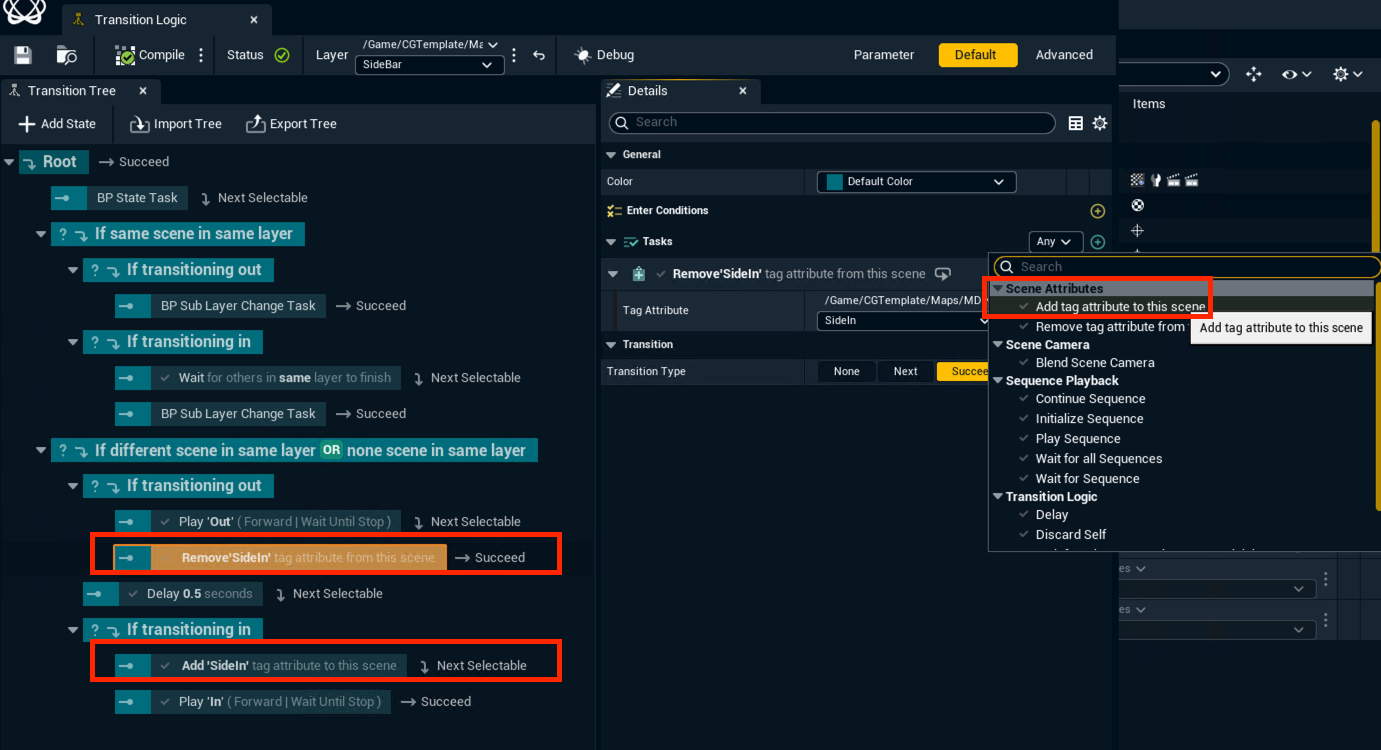
The Side Bar needs to signal its state to other templates. Add a child node under each IF statement to manage the SideIn Tag Attribute:
|
Condition |
Action |
Scene Attribute |
|---|---|---|
|
Taken in |
Add SideIn Tag Attribute |
Add tag attribute to this scene |
|
Taken out |
Remove SideIn Tag Attribute |
Remove tag attribute to this scene |
Use the Add tag attribute to this scene task for both.
Adjust logic for Lower Third
The Lower Third has three logic blocks based on Side Bar's state:
|
Block |
Condition |
Behaviour |
|---|---|---|
|
1 |
Side Bar is out |
In/Out/Change in Extended view |
|
2 |
Side Bar is in |
In/Out/Change in Collapsed view |
|
3 |
Side Bar transitions while Lower Third is in |
Animate between views |
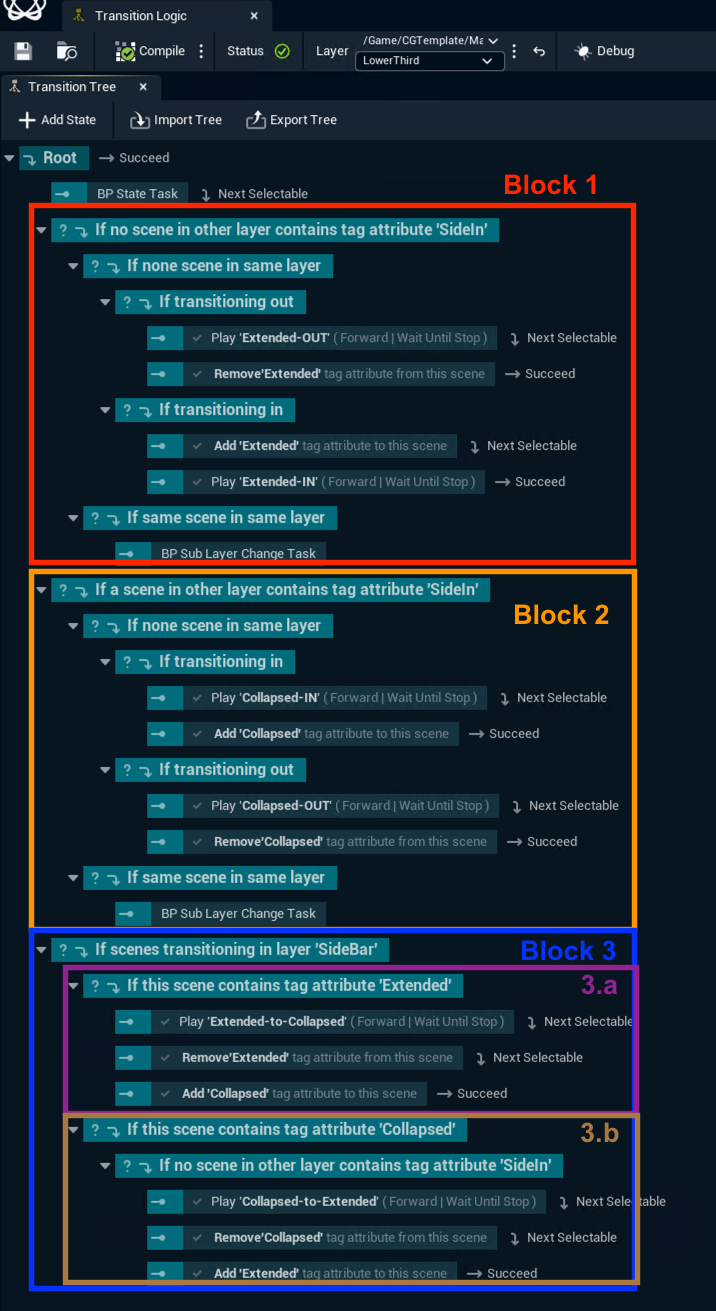
Block 1
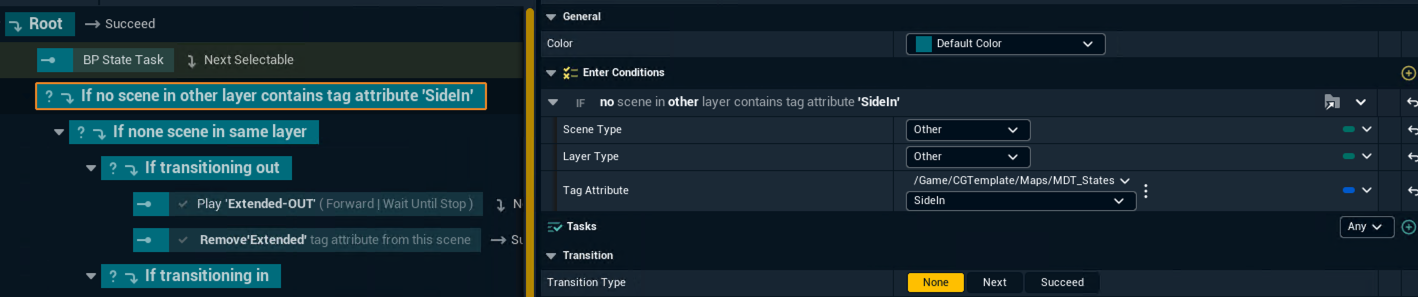
IF condition: No scene in any layer contains SideIn

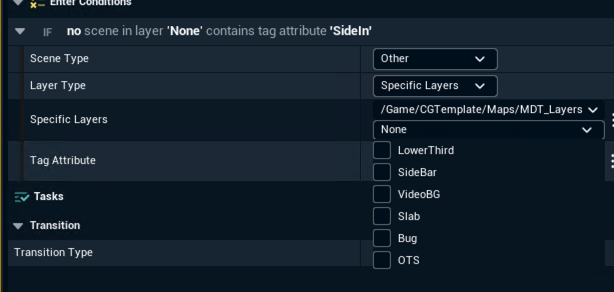
For more granular control, you can specify which layers to check using MDT_Layers.
Actions
|
Transition |
Play sequence |
Update tag attribute |
|---|---|---|
|
Out |
Extended-OUT |
Remove Extended |
|
In |
Extended-IN |
Add Extended |
|
Change |
Handled by BP Sub Layer Change Task Learn more about how to handle Change transitions |
- |
Block 2
Same structure as Block 1, but:
-
IF condition: A scene in another layer contains SideIn
-
Sequences: Collapsed-IN/Collapsed-OUT
-
Tag Attribute: Collapsed instead of Extended
Block 3
IF condition: A scene is transitioning on the SideBar layer
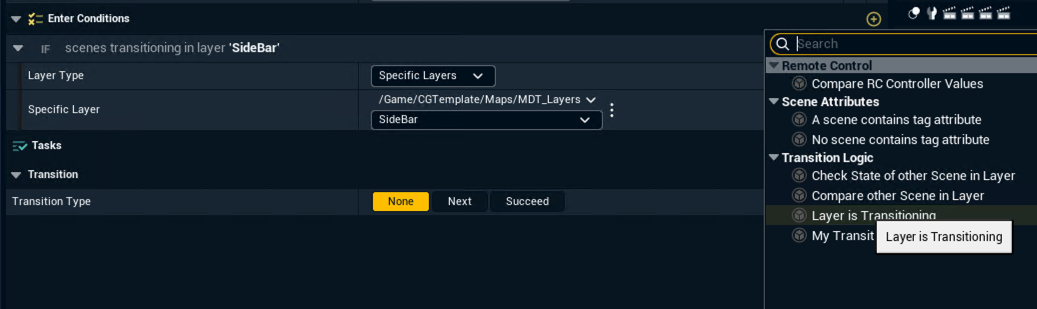
This condition doesn't indicate in or out, so add nested checks:
Block 3a: Side Bar is coming in
IF condition: This scene (Lower Third) contains Extended
|
Play sequence |
Update tag attribute |
|---|---|
|
Extended-to-Collapsed |
|
Block 3b: Side Bar is going out
IF condition: This scene contains Collapsed AND no scene in another layer has SideIn
|
Play sequence |
Update tag attribute |
|---|---|
|
Collapsed-to-Extended |
|
Why the extra check in 3b?
Checking for Collapsed alone isn't enough, it would also match when Side Bar is doing a Change (updating while on-air). Adding the SideIn check confirms Side Bar is actually leaving.
Next step
Continue to Import templates into Erizos Studio