
The control panel can itself be controlled by third party applications via HTTP requests using the Remote Call widget.
Learn more about the Remote Call widget options
Setup remote control
After you have created the action logic in control panel
-
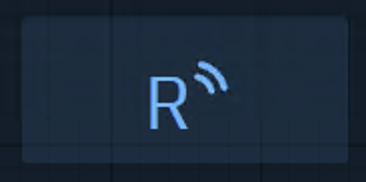
Add a Remote Call widget to the canvas
-
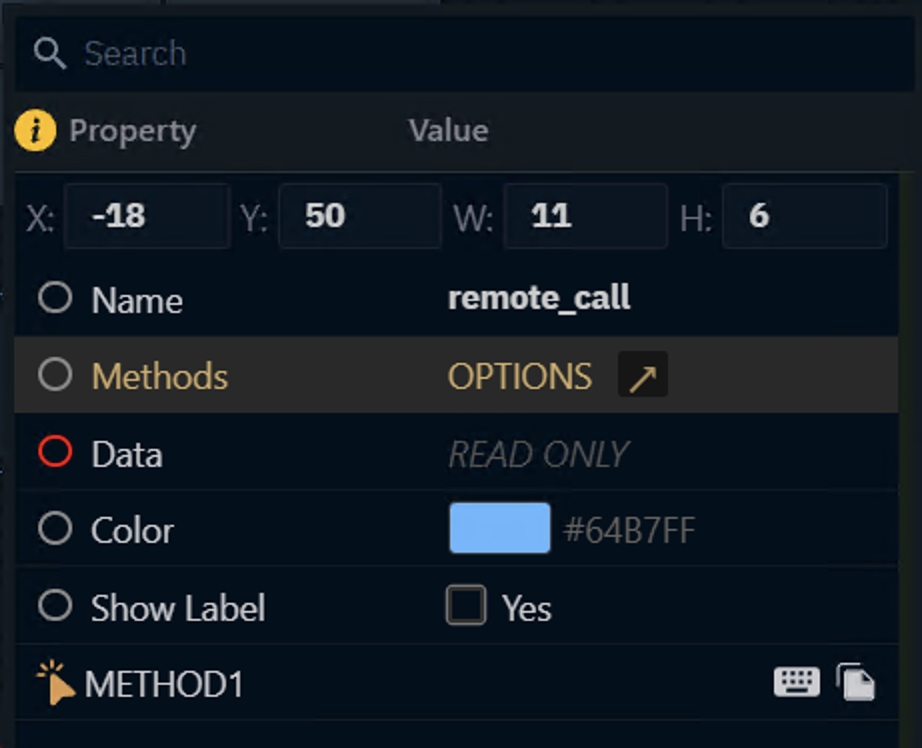
Right click the widget and click on Methods > OPTIONS
-
Add method names for all actions you need to trigger from outside Pixotope
-
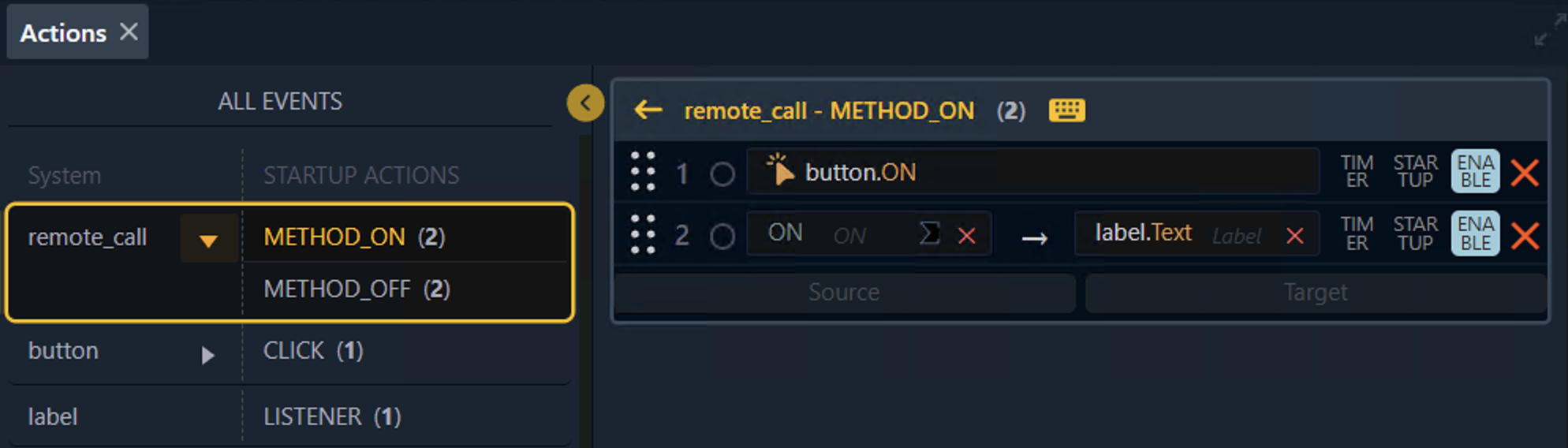
Double click the Remote Call widget to focus its actions
-
In the Actions section, select the first method and add the action which should be triggered
Learn more about how to Add widgets and actions
-
Repeat this for all created methods
Test remote control
-
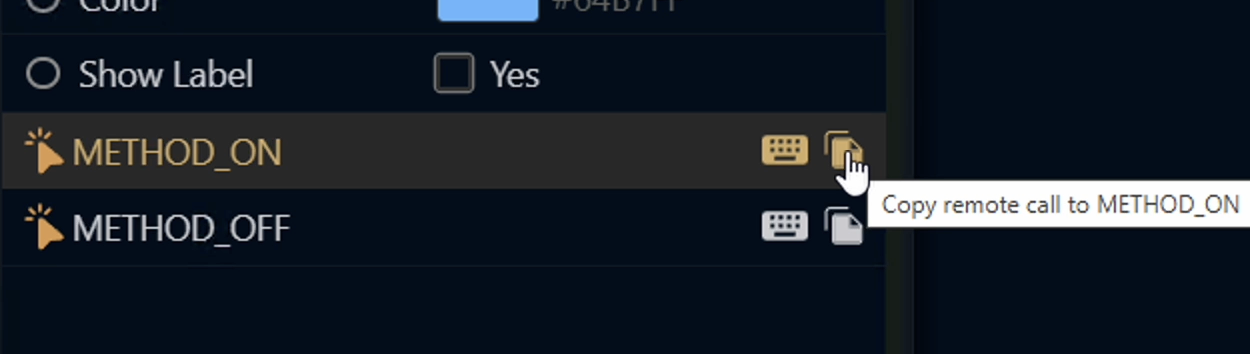
Right click the Remote Call widget and click the Copy icon next to the method name
-
Open a web browser of a machine which is in the same network
-
Paste the copied URL into the the URL bar and hit enter
http://localhost:16208/gateway/latest/publish?Type=Update&Target=ControlPanel&Method=METHOD_ON -
The method mentioned in the URL (METHOD_ON) is triggered
If receiving an error like below, check if the method name and all other parts of the URL are correct.
{"Error":"Timed out waiting for Data Hub response."}
URL Breakdown
|
|
Establishes communication with the Pixotope Gateway on the specified version and port. |
|
|
Specifies that this is a Call-type request, resolving with the first matching CallResult from Data Hub. |
|
|
Defines the Control Panel as the recipient of the method call. |
|
|
Invokes the method previously defined within the Remote Call widget. |
Learn more about How to use Pixotope Gateway