
The Control panel library allows to access control panels across projects.
Open available control panels
-
Go to the Launch panel in Director
-
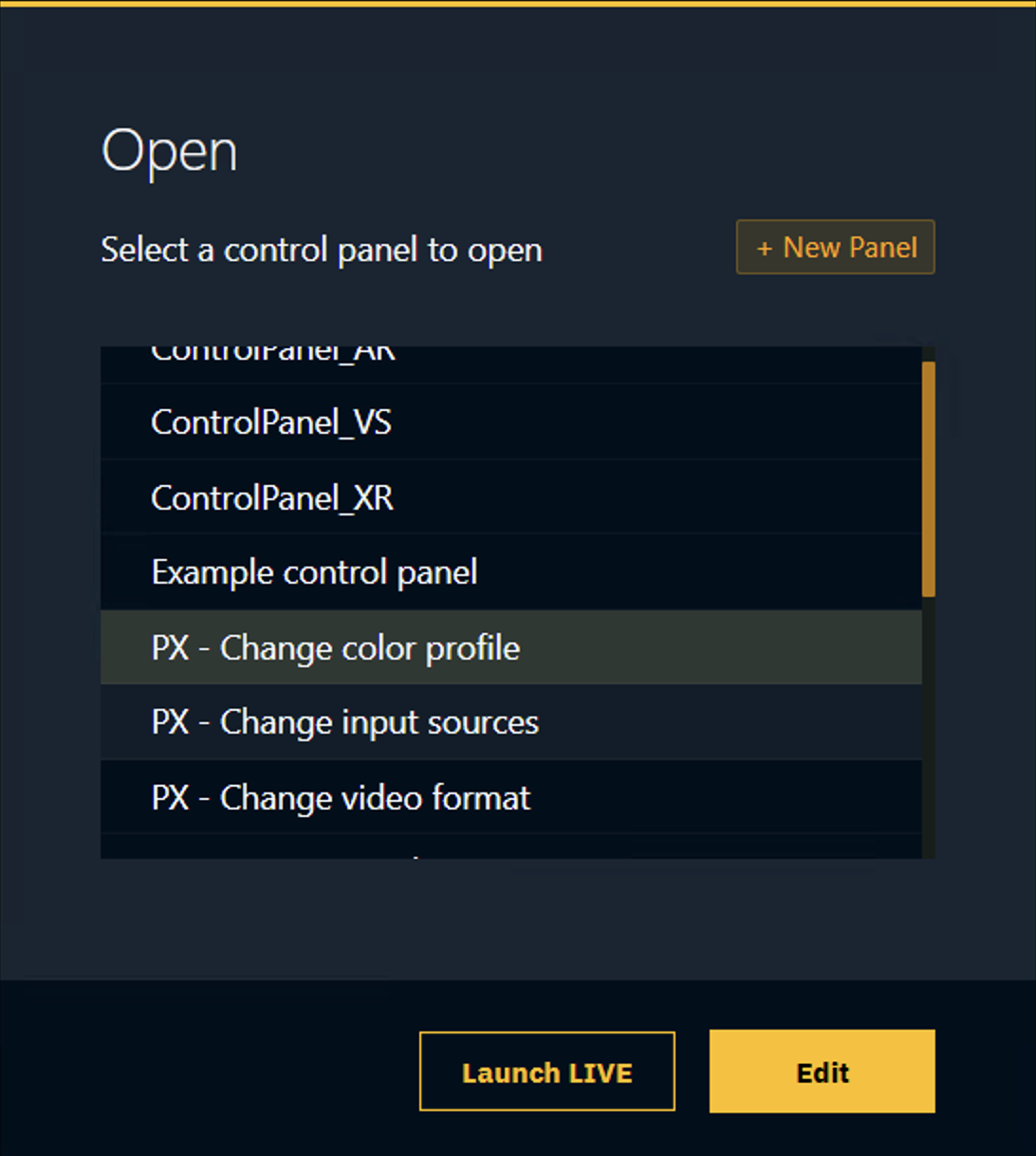
Click the "Open control panel" button on the top right
-
Select a control panel to open
-
The Control panel library panels are listed below all project panels
-
-
Click "Launch LIVE" or "Edit"
The Control panel library is stored in the Local Storage folder on every machine. To access another machines library
-
Go to the Launch panel
-
Change which machines content you view using the dropdown on the left

Add custom control panels
-
Open a file explorer
-
Navigate to
[Current Pixotope version]\Synced Config\Control Panelsof the machine you are viewing in the Launch panel -
Copy your control panel(s) into that folder
Migrate custom control panels in the library
The Control panel library is stored inside Local Storage which is a version specific folder.
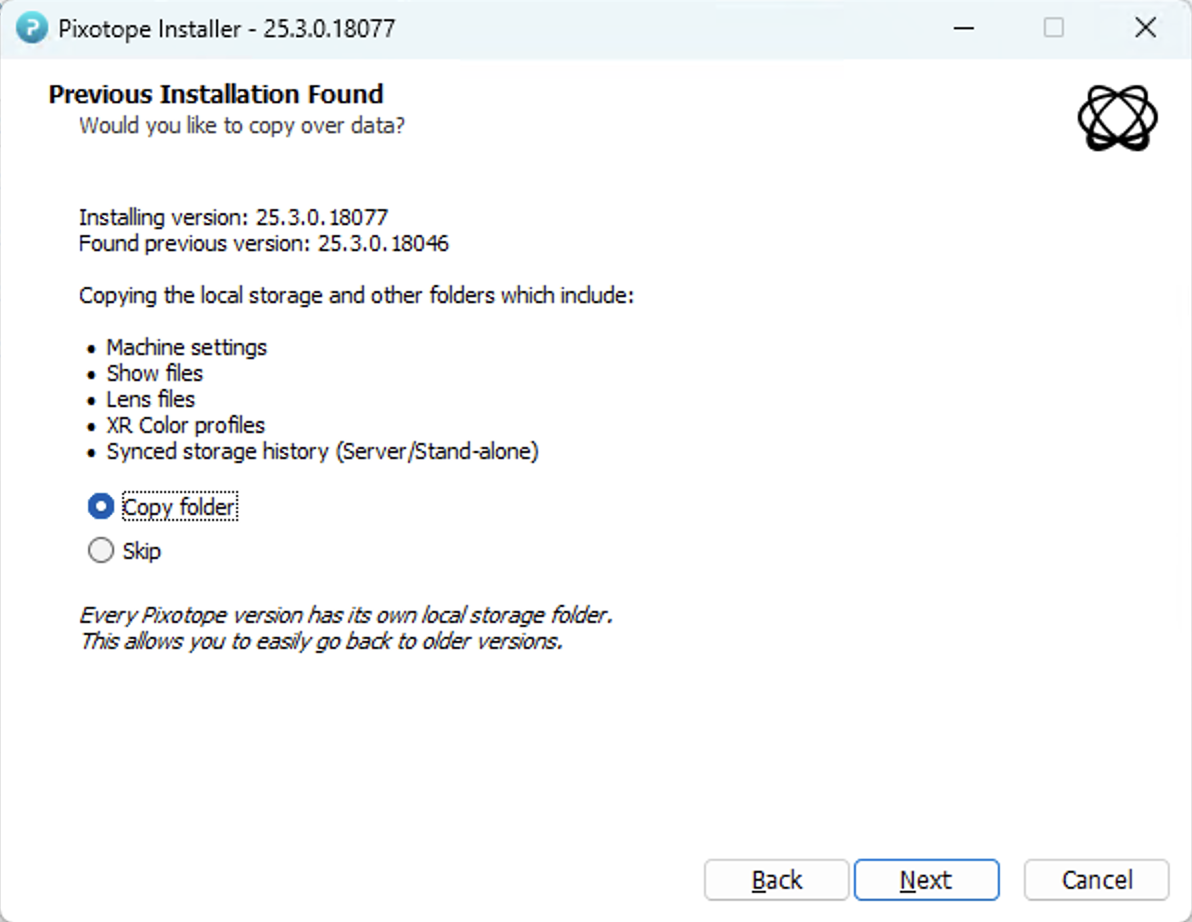
To carry over your added control panels to the next version of Pixotope Graphics
-
Select "Copy folder" in the Previous Installation Found dialog when you install a new version or copy them in manually
List of shipped control panels
|
Name |
|---|
|
PX - Change color profile |
|
PX - Change input sources |
|
PX - Change video format |
|
PX - IOBot example |
|
PX - Launch levels |
|
PX - Network install |
|
PX - Preview inputs or outputs |
|
PX - Record and playback |
|
PX - Remotely configure machines to start headless |
|
PX - Toggle visibility of streamed levels |
|
PX - View multiple panels |