
General
Pixotope can be used in single or multi-camera productions
Every Pixotope production needs:
-
1 x AR/VS or XR license per render machine
Learn more about License types - AR/VS, XR, Control, Artist and more
-
1 x machine with a server role (when using multiple machines)
Learn more about Machine roles - Stand-alone, Client or Server
The Director from any machine can be used to configure, calibrate, adjust and control a show.
Director uses display colors to identify the different machines in a multi-machine setup.
Best practices
The following best practices are recommendations. However, a different setup might fit your specific production better.
Let us know about your setup via feedback.pixotope.com
Single-camera production
Single-camera, single-machine setup
-
Licenses needed: 1 x AR/VS or XR
-
Machine role: Stand-alone (or Server)
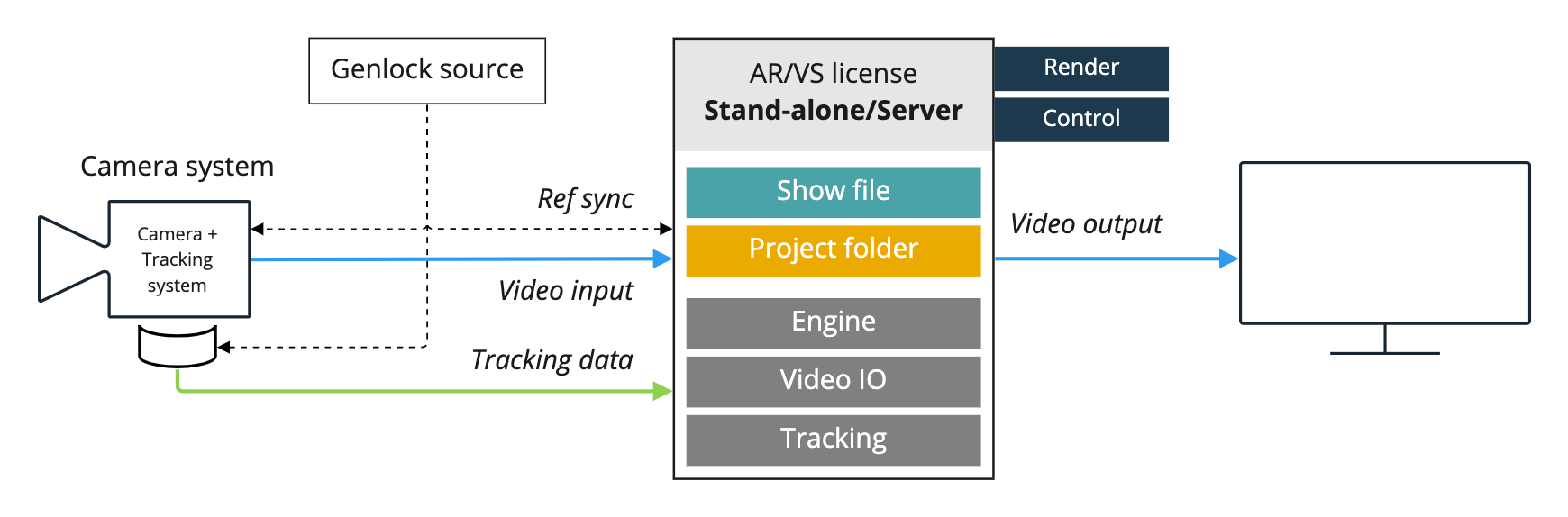
Single-camera, multi-machine setup
For control or redundancy, more machines can be added. When using more than one machine, Client and Server roles are needed.
Learn more about Machine roles - Stand-alone, Client or Server
The Unreal project folders have to be synced manually between machines. This can be done using a version control system such as Perforce.
Single-camera, separate control
-
Licenses needed
-
Render machine: 1 x AR/VS or XR
-
Controlling machine: 1 x Control (or AR/VS, XR)
-
-
Machine role
-
Render machine: Client
-
Controlling machine: Server
-

Single-camera, separate control and backup render
-
Licenses needed
-
Render machine: 1 x AR/VS or XR
-
Controlling/Backup machine: 1 x AR/VS or XR
-
-
Machine role
-
Render machine: Client
-
Controlling/Backup machine: Server
-
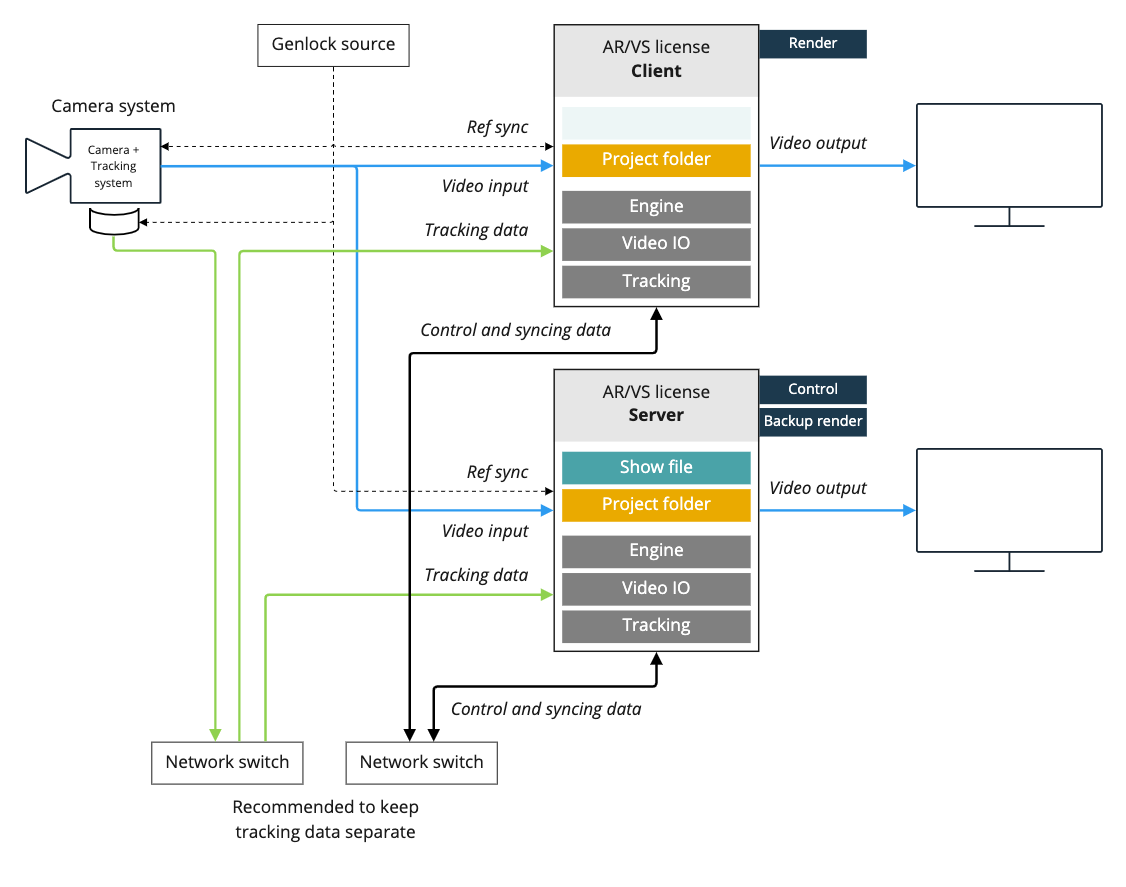
Multi-camera production
When using more than one machine, Client and Server roles are needed.
Learn more about Machine roles - Stand-alone, Client or Server
The Unreal project folders can be synced between machines via Asset Hub. Learn more about how to Sync projects and other files in Synced storage
General
SETUP - Configure and Calibrate
There are 2 main ways of setting up a multi machine production:
-
Parallel setup
-
Configure and calibrate each camera system locally on the respective machine
-
-
Central setup
-
Configure and calibrate each camera from a single machine
-
The setup data is stored in a single file (the show file) on the server.
PRODUCTION - Adjust and Control
Adjust and control of each machine is usually done centrally from a single machine.
Parallel setup
The camera setups are made locally on each machine. This way the work can be done in parallel to speed up the process.
-
Choose which computer should take on the Server role
-
Can be a separate machine
-
Owns the show file
-
-
Choose the client role for all other machines and connect to the Server
-
Do the setup (configuration and calibration of each camera system) locally on each machine
-
Route the local camera system to the local tracking server
-
You can choose any machine to adjust and control your production from.
Central setup
-
Choose which computer should take on the Server role
-
Can be a separate machine
-
Owns the show file
-
-
Choose the client role for all other machines and connect to the Server
-
Choose the machine you want to do the setup from
-
On this machine, set the "Permission level for Client and Server role" to 3 to allow to edit all machines. Find the setting under START > Storage > Machine settings > Permissions
-
-
Do the setup (configuration and calibration of each camera system) from the chosen machine
-
Route the local camera system to the local tracking server
-
You can choose any machine to adjust and control your production from.
Examples
2-cameras, separate control
-
Licenses needed
-
Render machine: 1 x AR/VS or XR each
-
Controlling/Backup machine: 1 x AR/VS or XR
-
-
Machine role
-
Render machine: Client
-
Controlling/Backup machine: Server
-
