
This setup is based on the Recommended Motion setup
Learn more about Erizos Studio → https://docs.erizos.tv/userguide/studioComponents/
Pixotope CG - Import and Playout
-
This video covers how to import, organize, and playout you templates in Erizos Studio.
Open Erizos Studio Client
You can open Erizos Studio Client in multiple ways
Via the browser
From the Erizos Studio machine
-
Go to http://[IP address of Control and Preview engine]:5550
-
From the Erizos Studio machine you can use: http://localhost:5550
-
Via the Desktop app
Install the app
-
Run the same Erizos Studio installer used for the Erizos Server
-
Select Client during installation
Start the app
-
Open the Erizos Studio Desktop app
-
Point to the Server IP address
-
From the Erizos Studio machine you can use localhost or 127.0.0.1
-
Set up Erizos Studio
-
Go to settings by clicking on the cogwheel icon on the top right
-
Enable Pixotope in the Live Local Preview menu

-
Unlock advanced settings
-
Default user/password is admin/admin
-
-
Enable Pixotope in the Renderers menu
-
Select "Projects Folder" and point it to your
Synced Storage\Projectsfolder-
Default:
C:\Pixotope\Synced Storage\Projects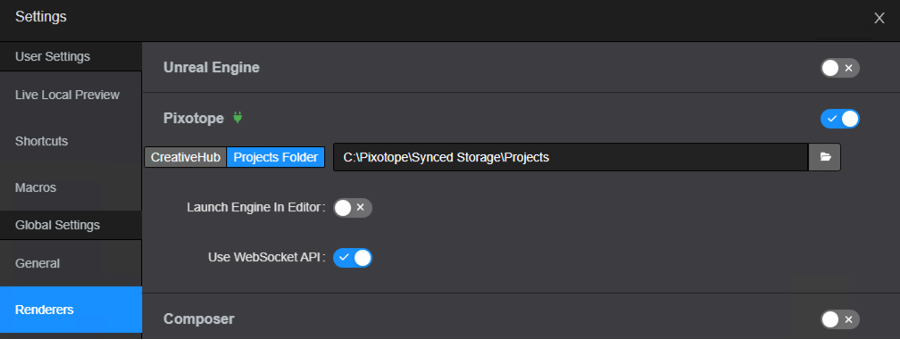
-
If you are accessing Erizos Studio Client via the browser
-
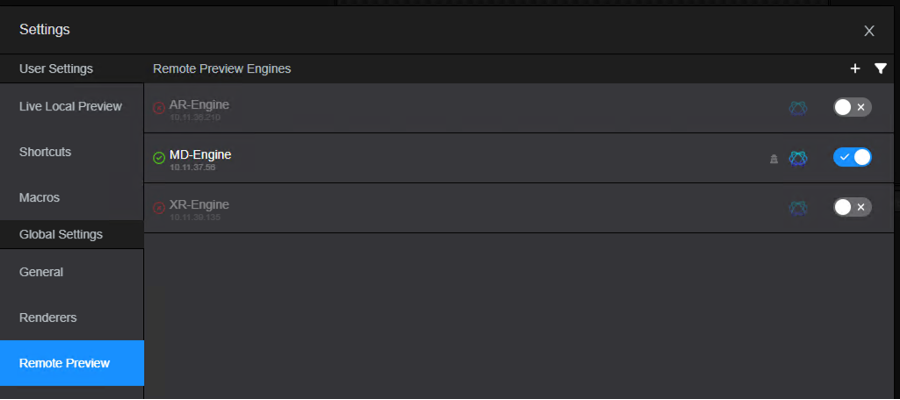
Go to Remote Preview menu
-
Click on the + to add a new engine
-
Enter the Control and Preview engine’s IP address
-
This will enable taking snapshots from the engine to be presented as frames in the Erizos Studio Client Local preview window
-
Create a studio profile
-
Click on "Edit Profiles" on the bottom-left corner
-
Create a new profile
-
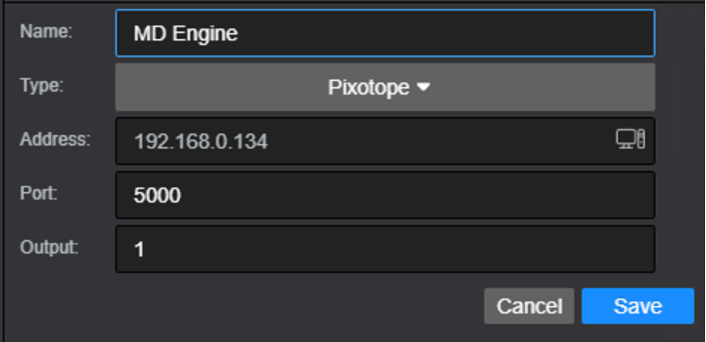
Under Outputs on the right hand side, add your Playout engine
-
Type in a name (e.g. MD Engine)
-
Select Type: Pixotope
-
Port: 5000
-
Output: 1
-
-
Drag and drop this engine into Program

Import templates
-
Go to the Pixotope Editor of the Control and preview engine
-
Click the Play button to go into Play In Editor (PIE) mode
-
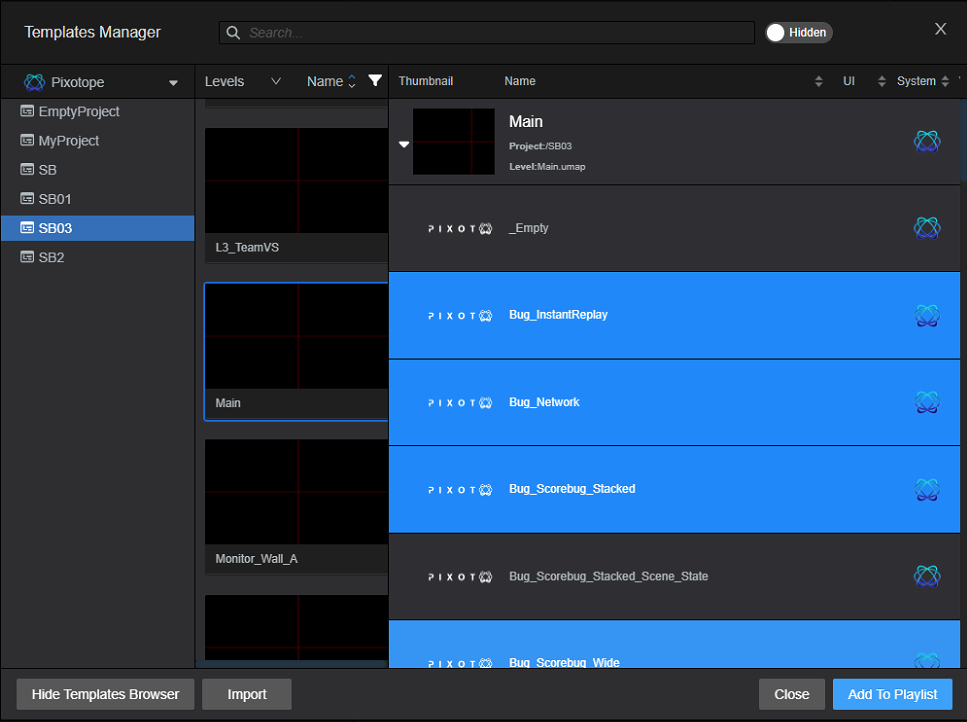
In Erizos Studio, click on the "Import" icon (second on the top left) to open the Templates Manager
-
Click on "Show Templates Browser" on the bottom left and navigate to your project
-
Select your project from the available projects list
-
Choose the Main level and click on "Import"
-
The templates will be listed under the Main icon
-
-
Expand the list and click on the templates to add them to your playlist
What are playlists, pages and forms/UIs?
-
A page is an instance of a template in the playlist
-
Each page can contain different data
-
-
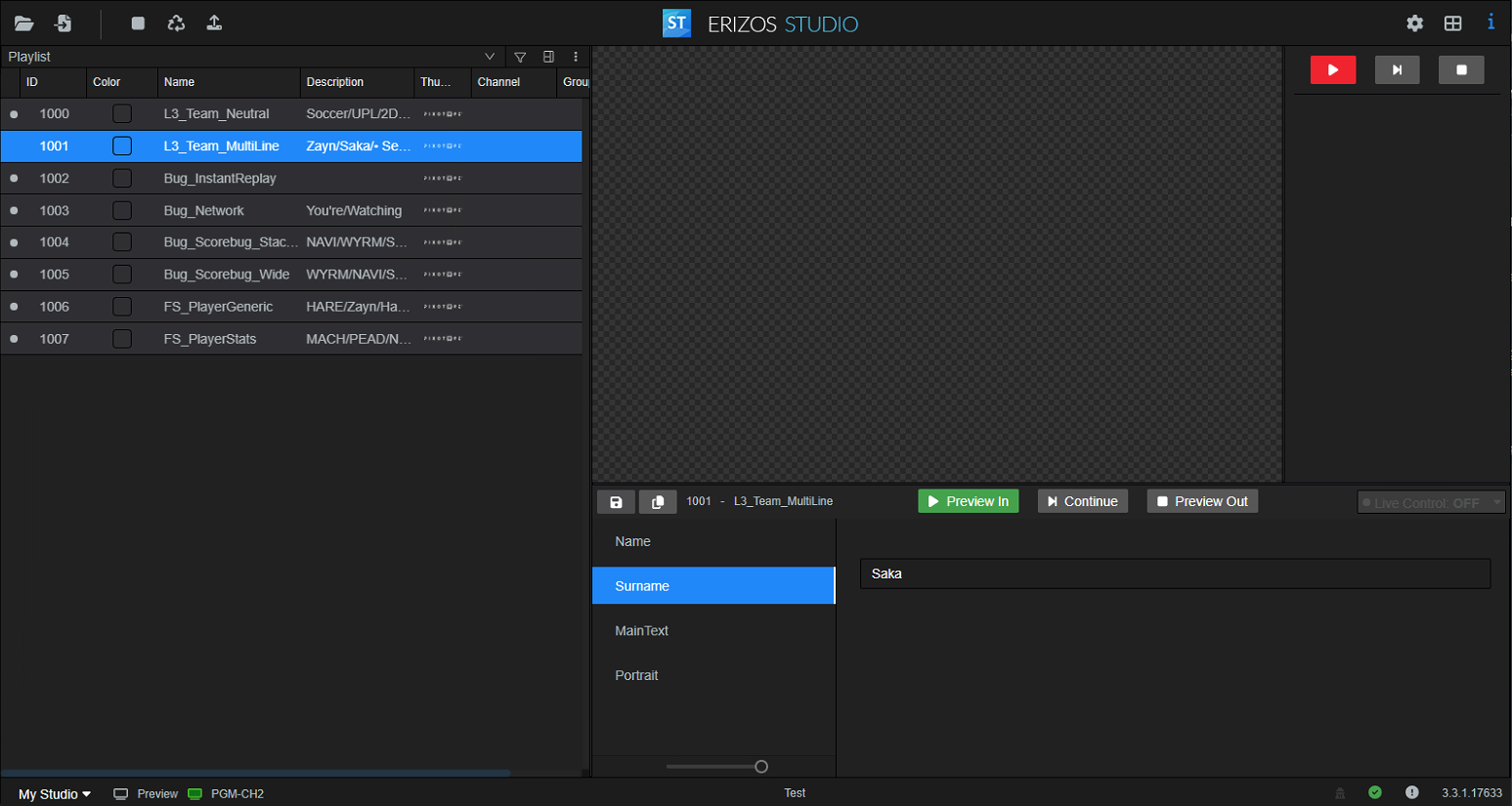
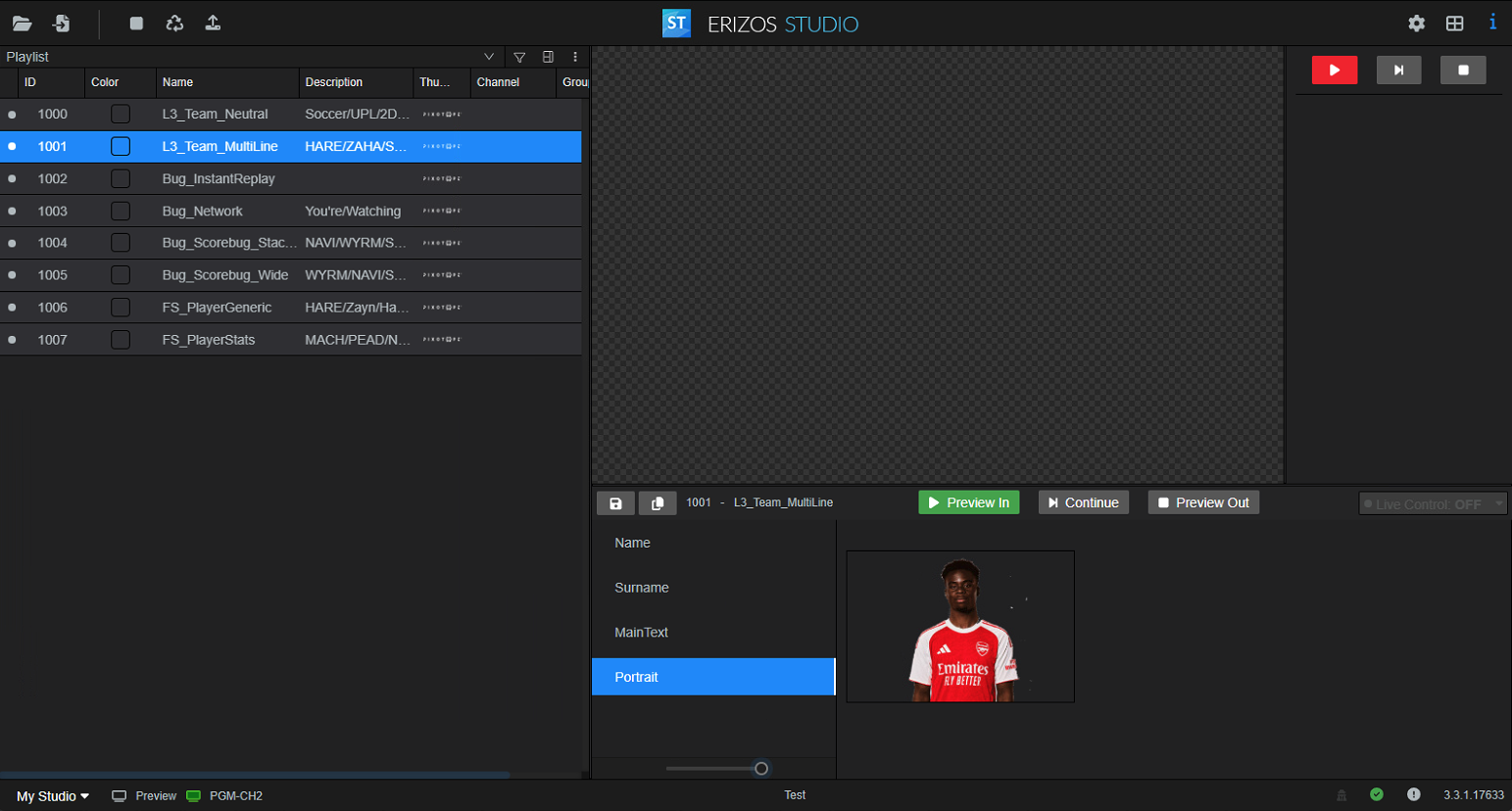
Every template has its own form (UI) into which the data is entered
-
After importing a template a default form is created, which contains input widgets for all exposed parameters (based on their type)
-
To create customize forms/UIs use → Erizos' UI Builder
Preview and playout the pages
Preview the pages on the Control and preview engine
In the Erizos Studio Client, Local Preview (area above the page form/UI) allows the operator to preview the page they have selected when navigating the playlist.
Using Erizos Studio desktop app
-
Select a page in the playlist
-
An Engine in Live mode is launched and its output is shown in the Local preview area
-
Using the Erizos Studio Client desktop app? Make sure you DO NOT have the engine running on that machine!
Using Erizos Studio in the browser
-
Make sure you configured the Remote Preview engine in Settings
-
Select a page in the playlist
-
An Engine in Live mode is launched and a snapshot of the preview will be presented in the Local preview area
-
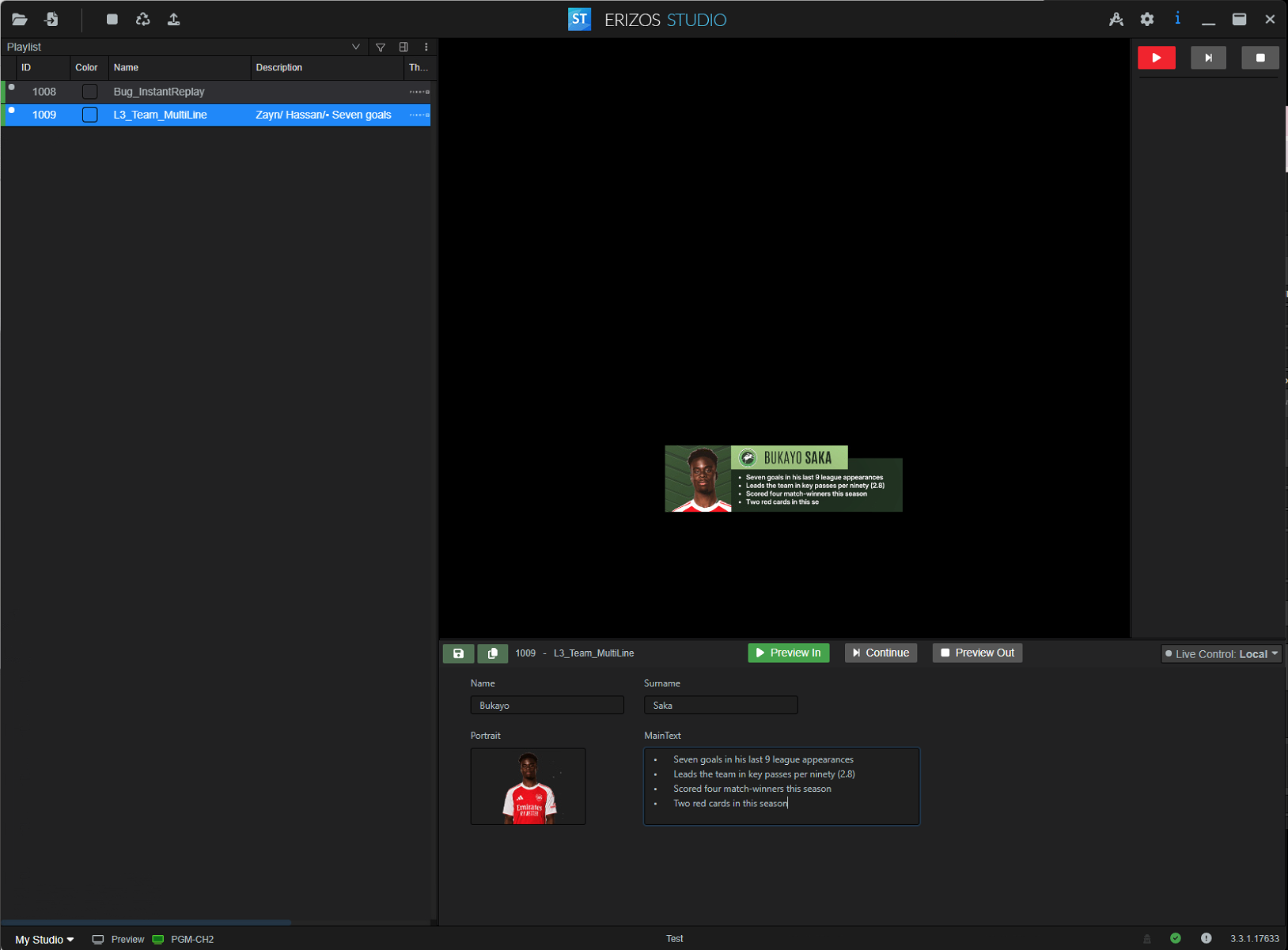
Make changes while previewing
-
Set the dropdown at the right of the form/UI area to Live Control: Local
Learn more about → Preview Types in Erizos Studio
Play out the pages on the Playout engine
-
Ensure your studio profile is active
-
Use the playout controls on the top right (Take in / Take out) to send templates to the configured program output (Playout engine)