
Pixotope Motion provides two optimized rendering options designed for different production needs using Motion Design tools.
Rendering options
|
|
2D option |
3D option |
|---|---|---|
|
Optimized for |
Traditional broadcast graphics, text, logos, lower thirds, and fine line rendering. Allows for pixel-perfect anti-aliasing for the cleanest possible edges. |
Complex 3D scenes, virtual sets, AR graphics, and XR production. Allows for complete access to all rendering effects, post-processing, and performance optimizations |
|
When to use |
Use it when sharp edges and text clarity are critical.
|
Use it if you need full features and optimal performance.
|
|
Limitation |
Limitation: Some advanced 3D effects are unavailable in this mode |
Limitation: Minor temporal artifacts possible on fast-moving edges |
|
Applied settings |
|
|
Switching options (Forward Shading) during a live production is not possible as it requires a restart of the Engine.
If a compromise between 2D and 3D options is not possible, you can render a 2D layer on a separate machine and use it as video layer with 3D graphics.
Feature Availability by options
Choose an option
-
Choose an option before starting your project
-
Test both modes if unsure
-
The visual difference is immediately apparent
-
Prerequisite for both
-
Click on Edit > Project Settings
-
Go to Pixotope > General > Video
-
Enable the Unpremultiply Output checkbox
-

Choosing 2D option
If you created a Show from the Motion template, this option is set by default.
-
Open the Project Settings in the Editor
-
Search for "Forward" in the search bar and enable "Forward Shading”

Changing this requires a restart of the Editor. When done the first time, shaders might have to recompile as well.
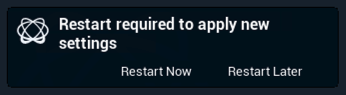
-
Search for "MSAA" and select "8x MSAA" in the MSAA Sample Count dropdown
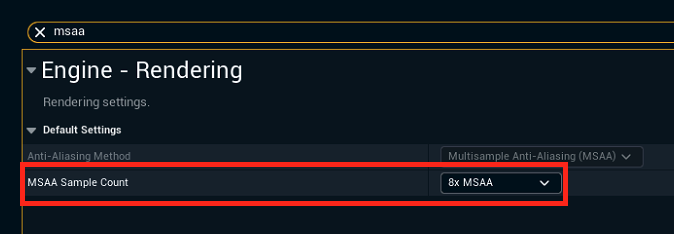
-
Back in the Main level go to Pixotope World Settings
-
Select "MSAA" in the Anti-Aliasing Method dropdown
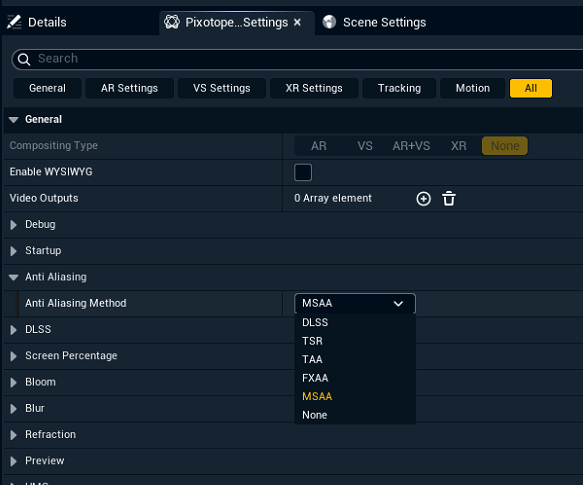
-
Save changes in the Main level
Choosing 3D option
-
Open the Project Settings in the Editor
-
Search for "Forward" in the search bar and disable "Forward Shading”
-
Changing this requires a restart of the Editor. When done the first time, shaders might have to recompile as well.
-
Back in the Main level go to Pixotope World Settings
-
Select "DLSS, TSR or TAA" in the Anti-Aliasing Method dropdown based on which method gives the best results for your 3D assets
-
Save changes in the Main level
Next step
Continue to Create a template