
Prerequisite
You need to have the license assigned to your Pixotope user account. This is done by your Pixotope admin.
Learn more about how to Manage users and licenses
For a machine with temporary internet access
Activate license
If your Pixotope machine is able to get temporary internet access, you can easily switch your license from Online to Offline mode (maximum 60 days) from within the Pixotope Director.
To take a machine offline for more than 60 days, check out the method For a machine with no internet access below.
-
Enable internet access
-
Log in to the Director and choose an assigned license
-
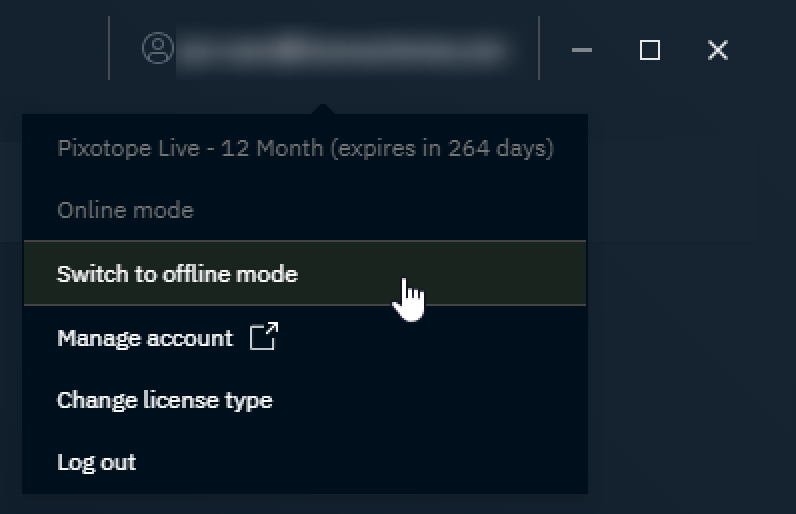
Go to the User menu in the top right-hand corner and click "Switch to offline mode"
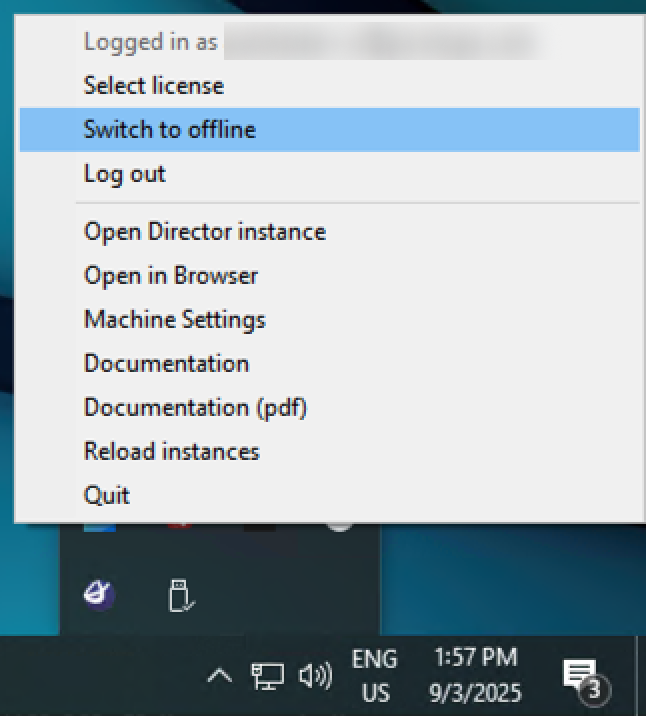
OR the Pixotope tray menu on the bottom right
-
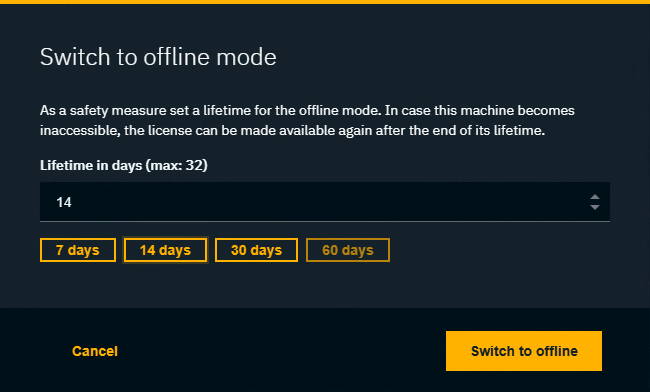
This opens the Switch to offline mode tab (Pixotope Access) in your default browser
-
Choose the duration of the offline mode (max 60 days or until the end of the license period)
-
Your machine can now go offline
Release license
Before lifetime ends
-
Enable internet access
-
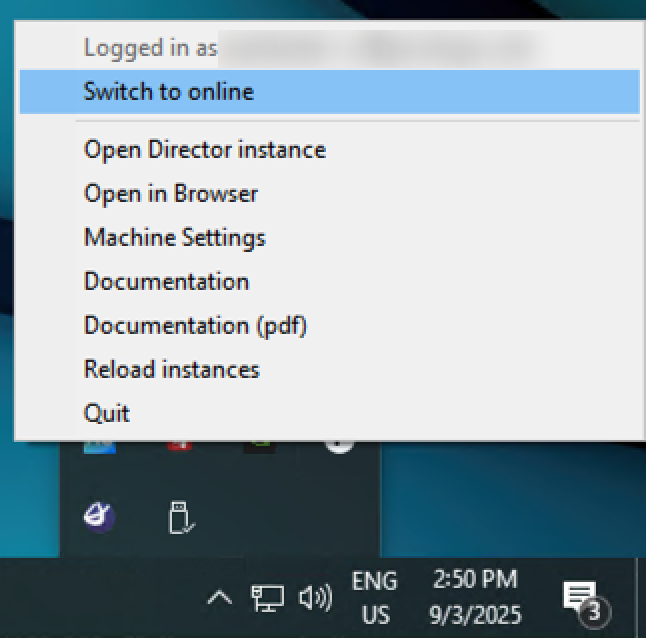
Go to the User menu in the top right-hand corner and click "Switch to online mode"
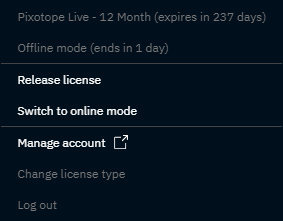
OR the Pixotope tray menu on the bottom right
-
Do one of the following:
-
Click "Log out" in the User menu
-
OR Click "Change license type" and choose a different license
-
OR Log in to your Pixotope cloud account → login.pixotope.com
-
Then go to "My licenses" and click "Release" next to the license in use on this machine
-
-
-
The license has been released and can now be used on another machine
After lifetime ends
-
The license is automatically switched to online mode and can be released the same way as above
-
To continue working, this machine need to have internet access
-
Learn more about license modes
For a machine with no internet access
Activate license
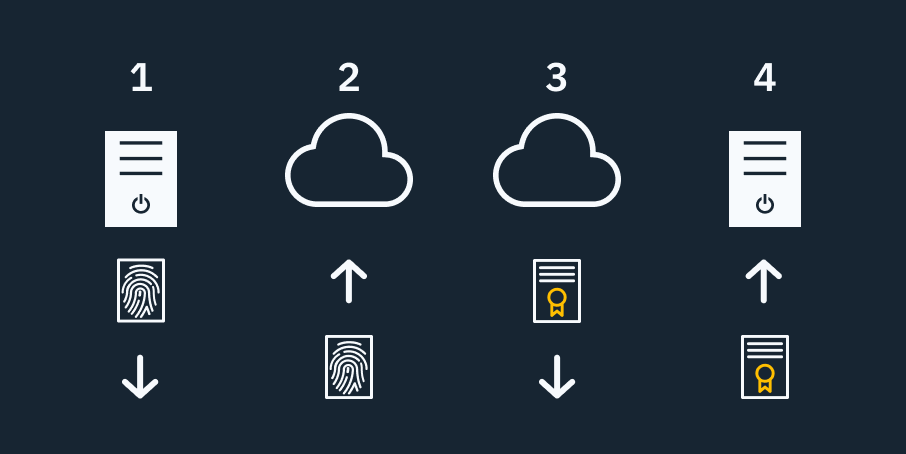
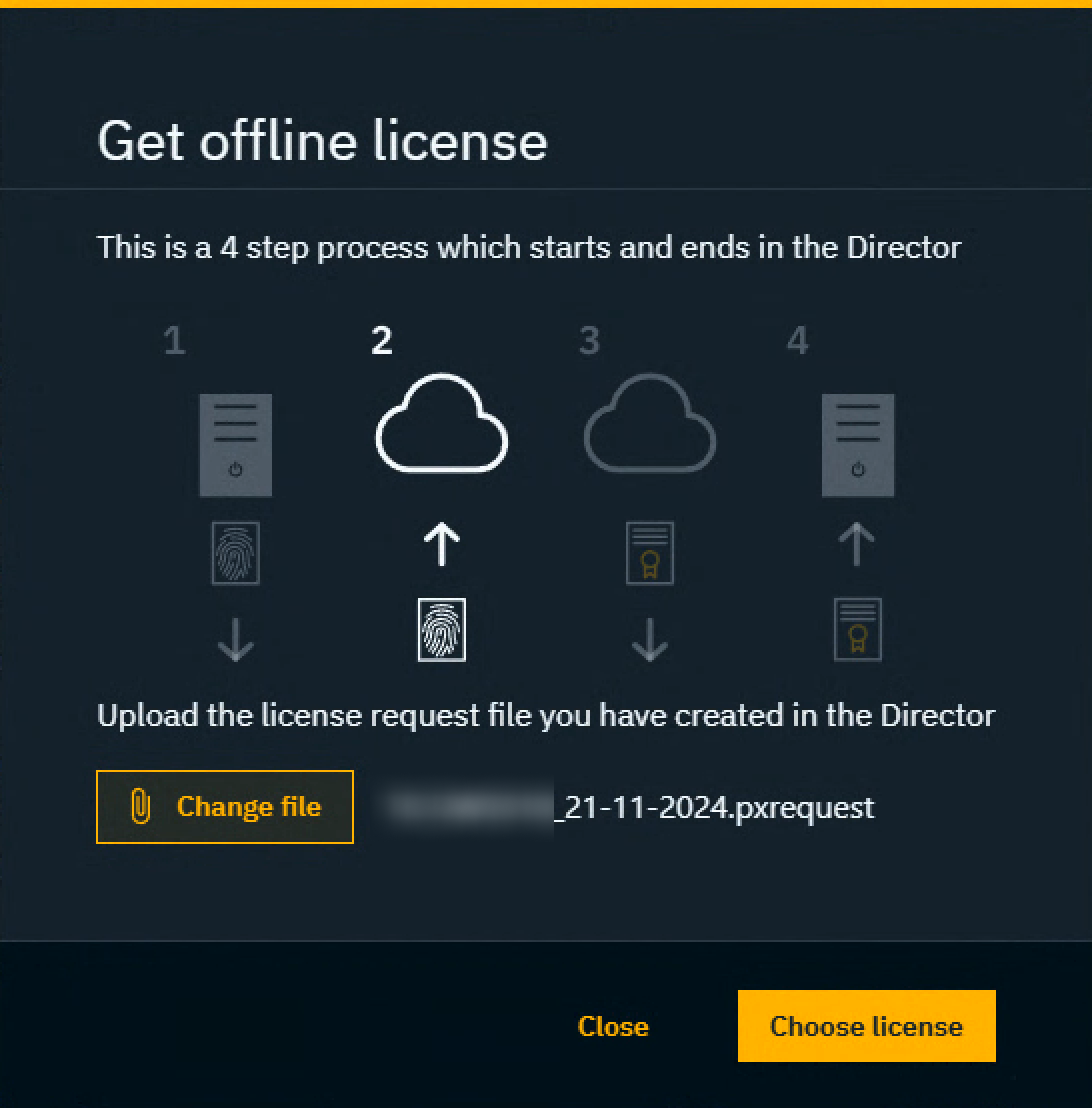
This is a 4-step process
-
Generate a license request file on the offline machine
-
Upload the license request file to the cloud
-
Checkout and download the license file from the cloud
-
Apply the license file on the offline machine
These steps must be carried out without any restart of Pixotope!
Generate a license request file on the offline machine
-
Start Pixotope
-
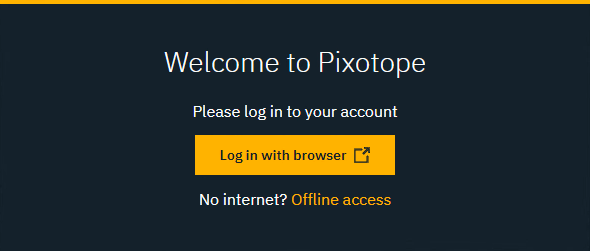
Click "Offline access"
-
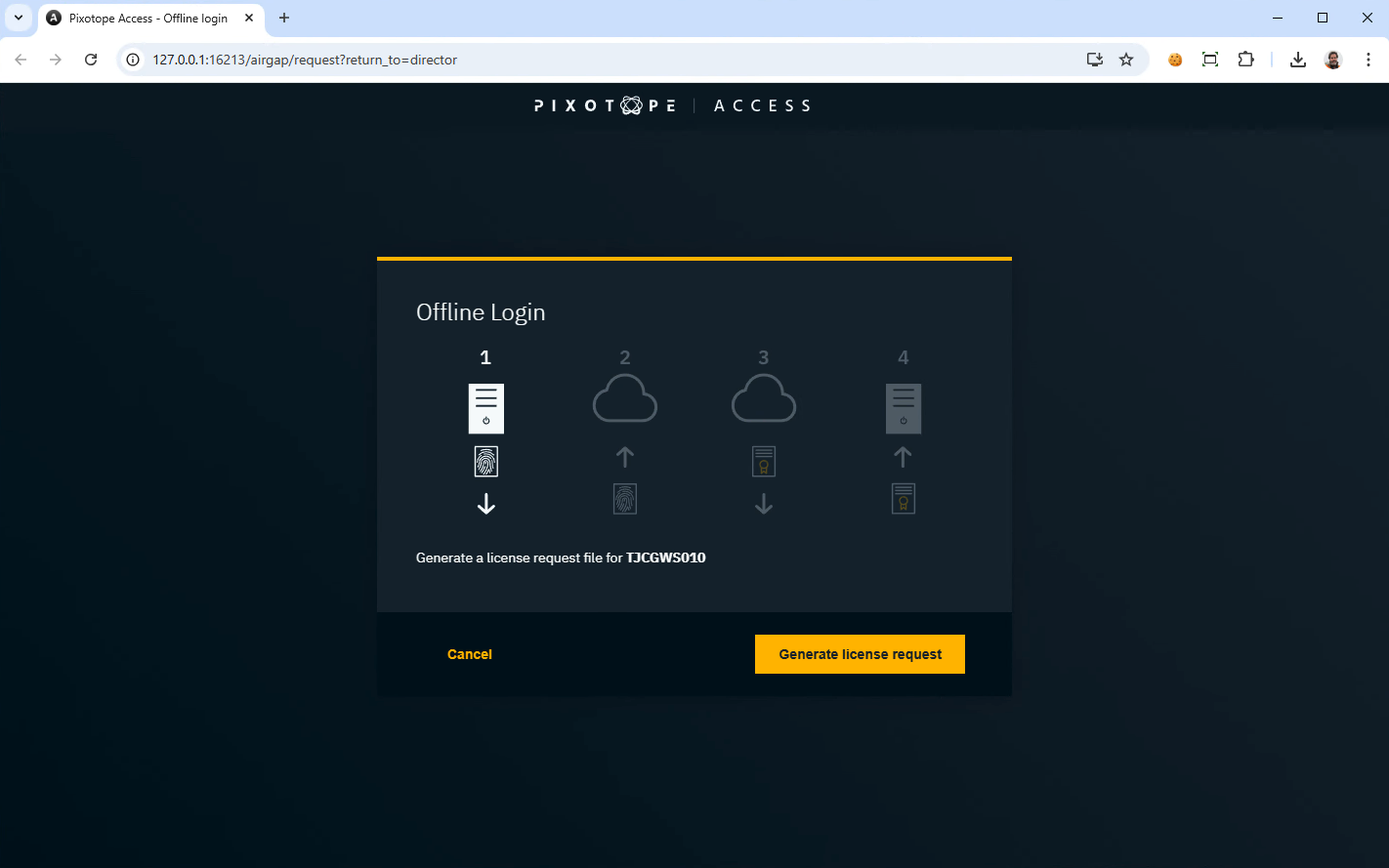
This opens the Offline access tab (Pixotope Access) in your default browser
-
Click "Generate license request" and save the license request file
.pxrequest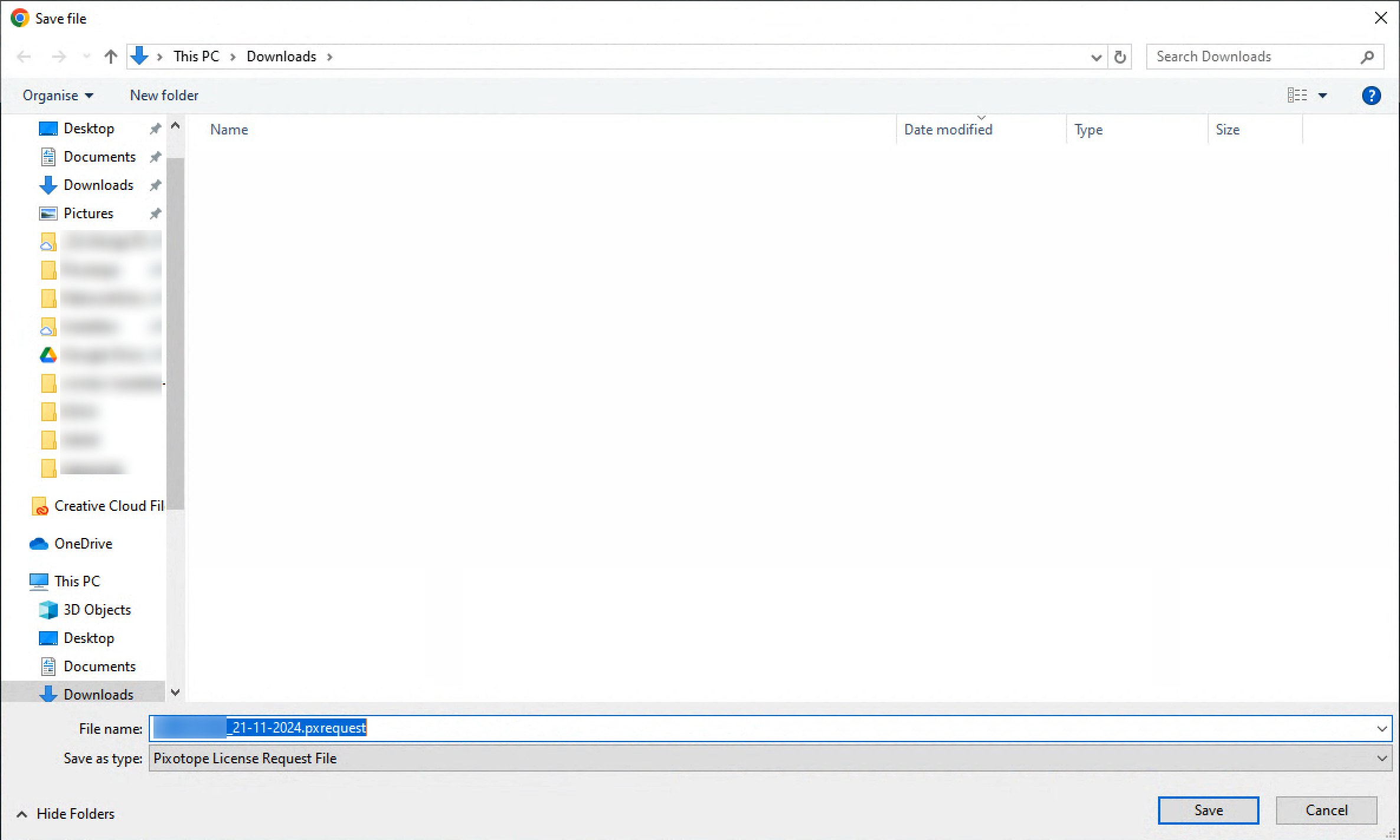
Upload the license request file to the cloud
-
Switch to a machine with internet access
-
Log in to your Pixotope Cloud account → login.pixotope.com
-
This can also be done on your behalf by your admin
-
-
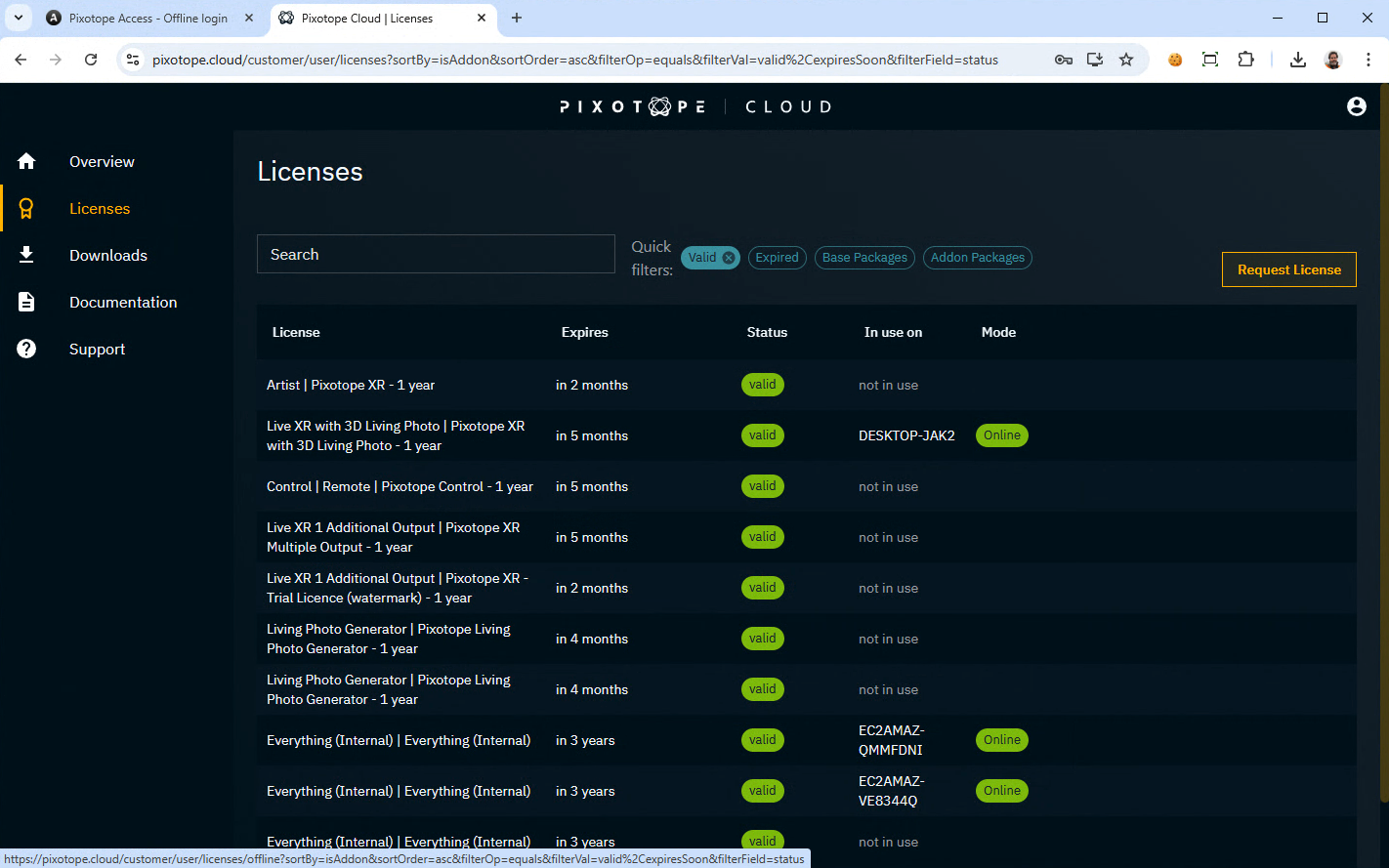
Go to Licenses
-
Click "Request license" on the top right
-
Click "Select a request file"

-
In the file browser select the previously generated license request file
.pxrequestand click "Open"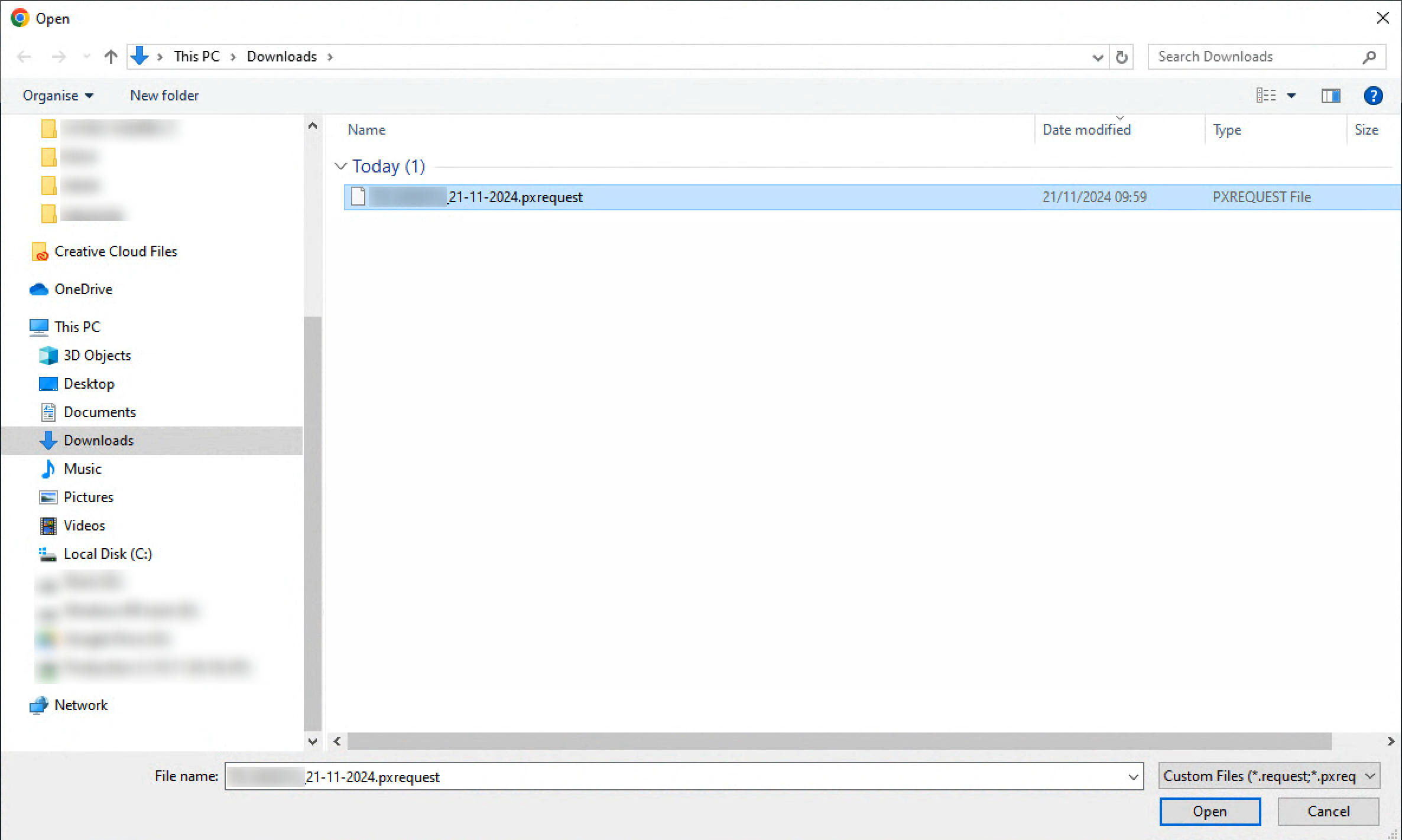
Checkout and download the license file from the cloud
-
Click "Choose license"
-
Select the licenses and add-ons you would like to use and click "Confirm"

-
The license is now locked to the offline machine
-
The license mode is now set to offline
-
-
Click "Download license" to save the license file
.pxlicense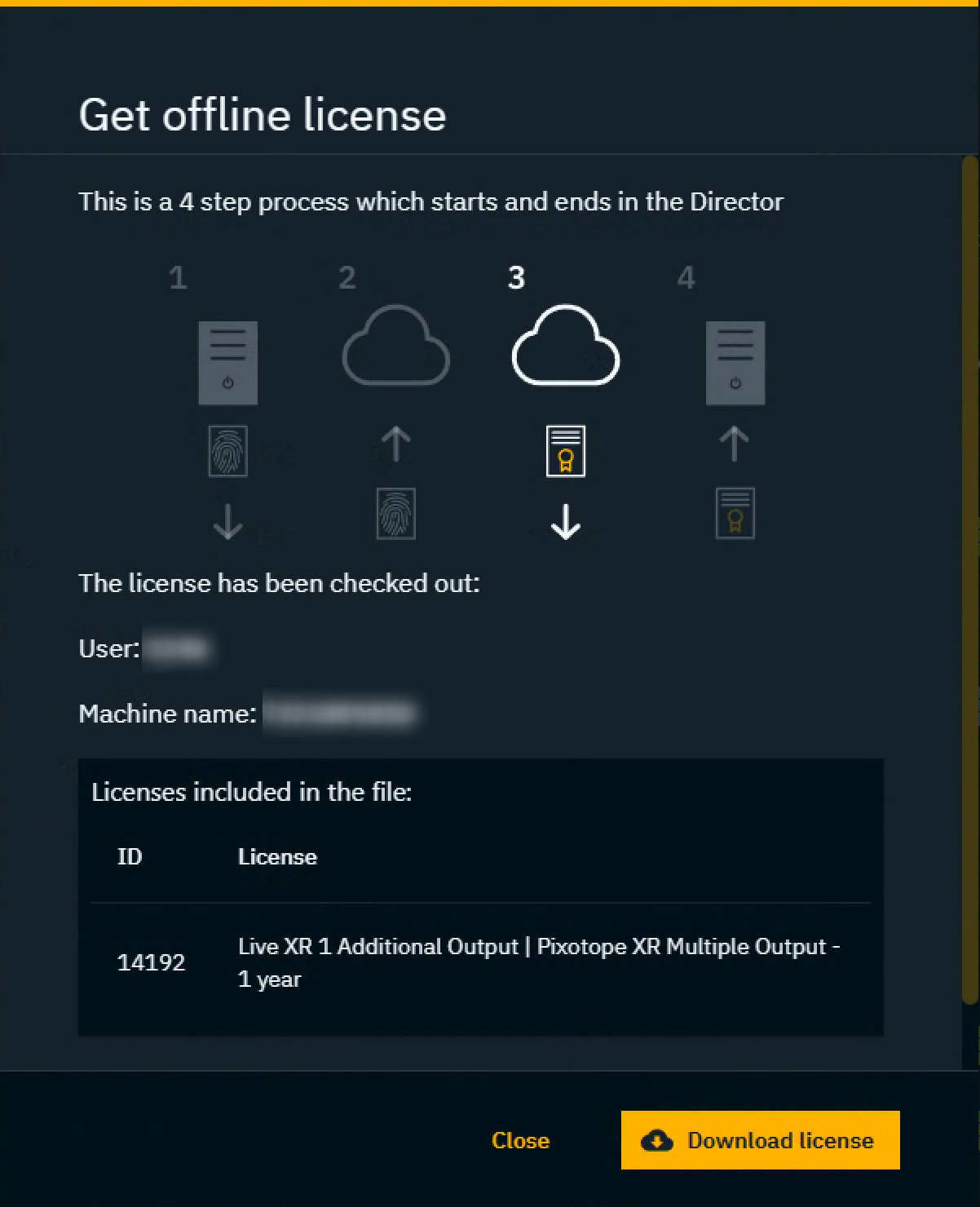
The file is saved into the default Download folder of your browser.
Apply the license file on the offline machine
-
Go back to the Offline access tab (Pixotope Access) in your default browser
-
Click "Apply license"
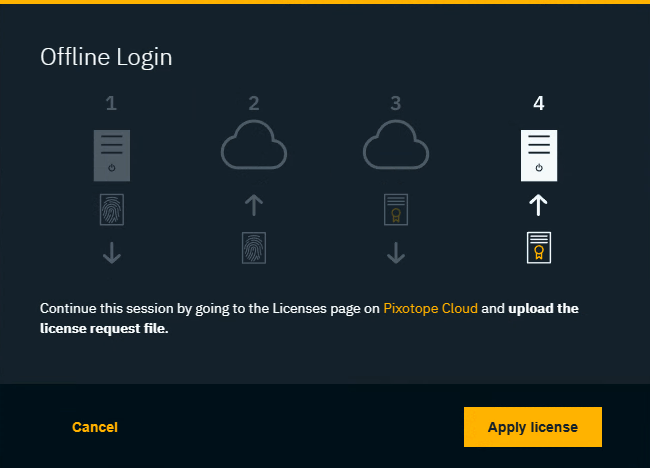
-
In the file browser select the previously generated license request file
.pxlicenseand click "Open"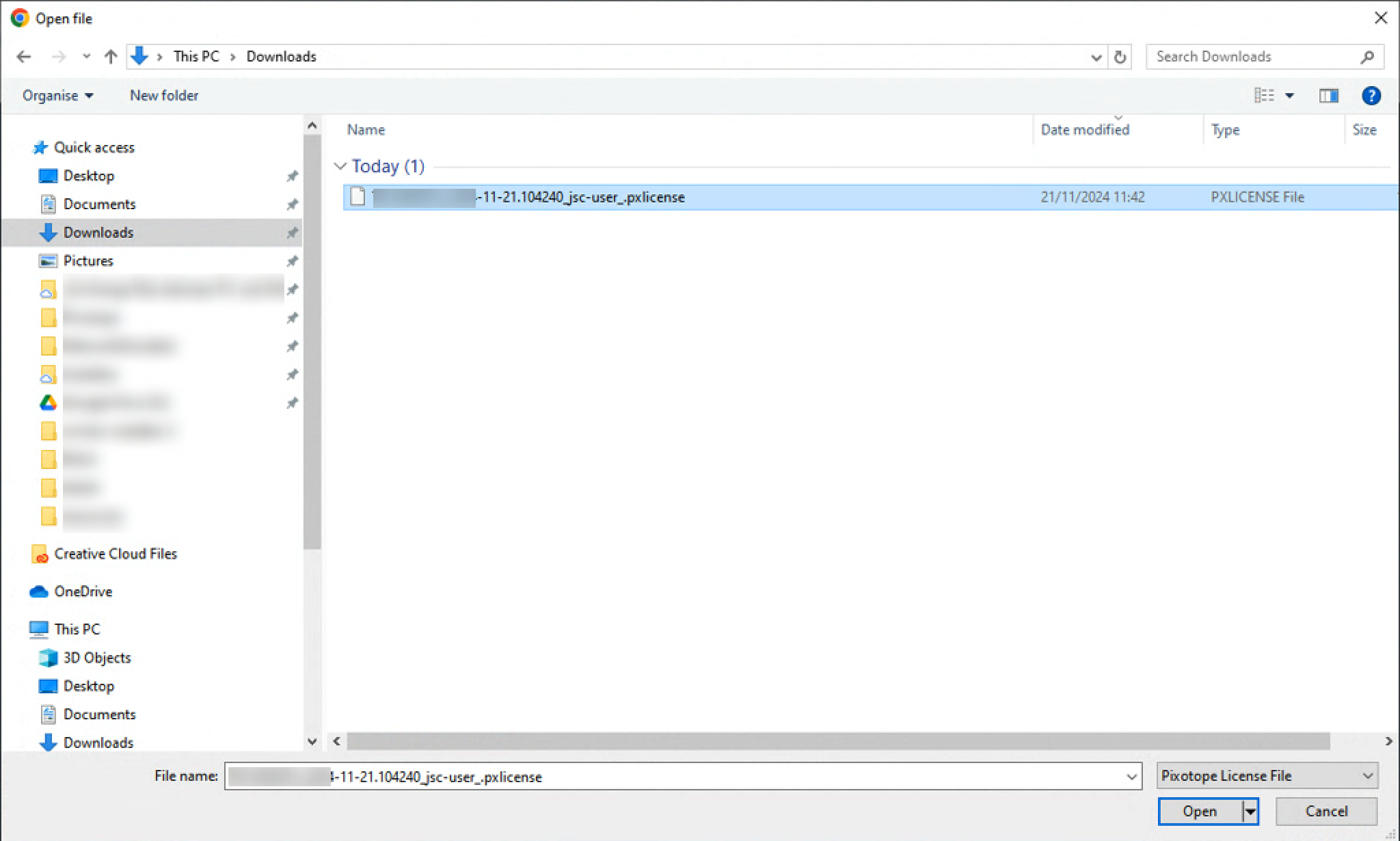
-
You are now logged in and redirected back to the application
Release license
This is a 2-step process.
-
Remove the license and generate release request file on the offline machine
-
Upload the release request file and release the license in the cloud
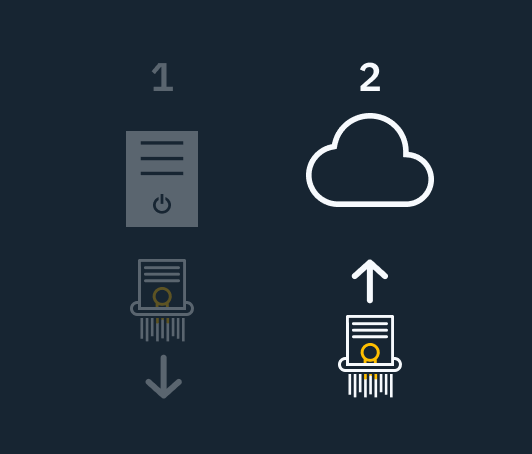
Remove the license and generate release request file on the offline machine
-
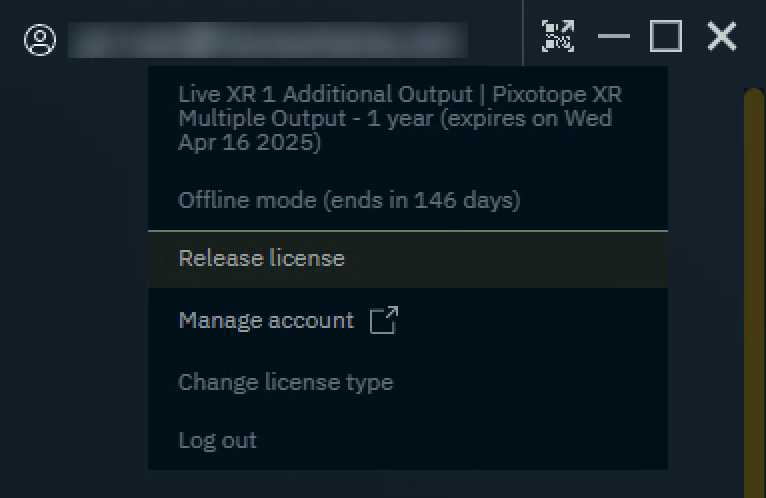
Click "Release license" in the User menu (Director - top right)
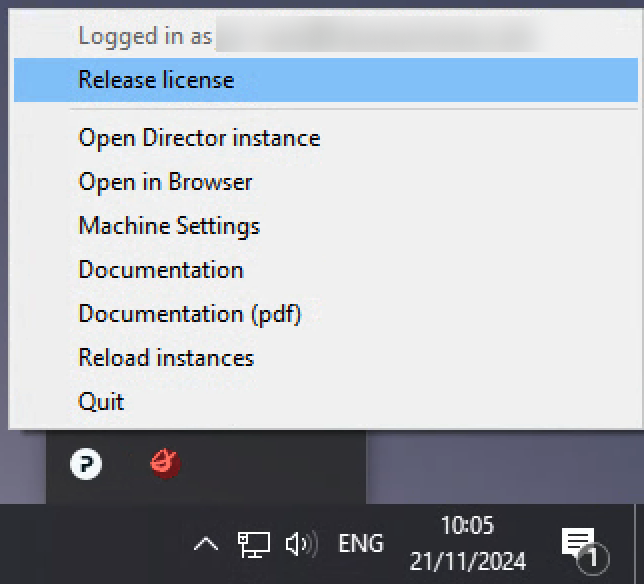
OR via the Pixotope tray menu (Windows - bottom right)
-
The Release license tab (Pixotope Access) is opened in your default browser

-
Note down the following details
-
the user account email address
-
the machine name
-
and the license type
-
-
Click "Remove license and generate release request". This:
-
logs you out of Director
-
closes the Editor/Engine
-
makes this machine inaccessible to other Pixotope machines
-
Saves the release request file
.pxrelease
-
Upload the release request file and release the license in the cloud
-
Switch to a machine with internet access
-
Log in to the Pixotope Cloud user account of the user this license is linked to → login.pixotope.com
-
This can also be done on your behalf by your admin
-
-
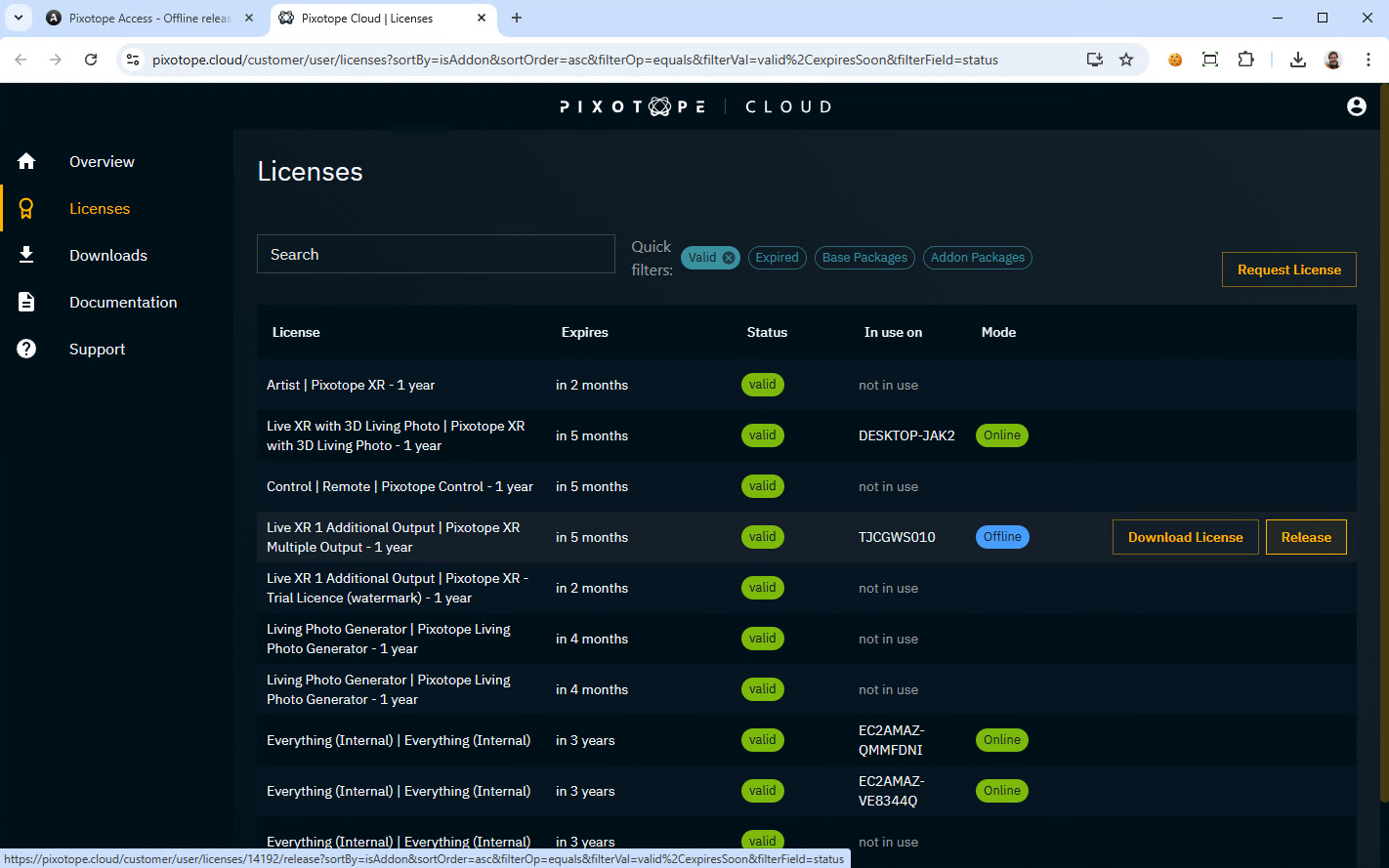
Go to Licenses
-
Click "Release" on the license linked to the offline machine
-
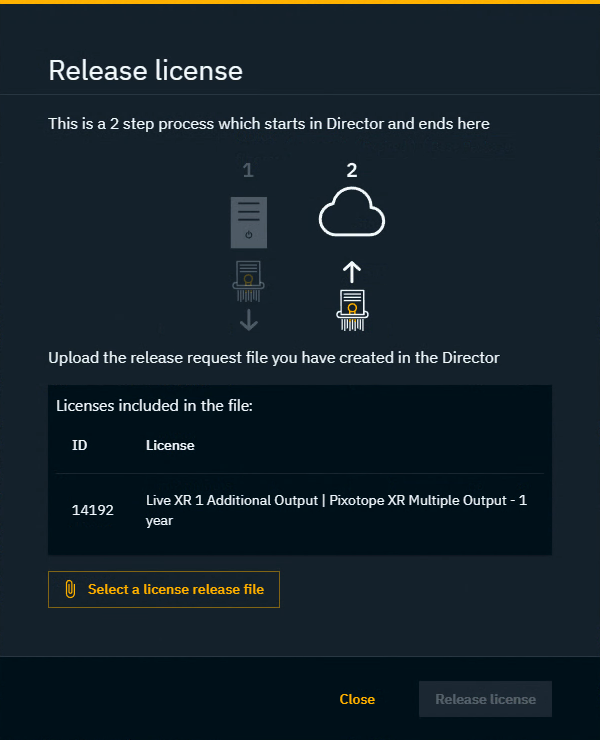
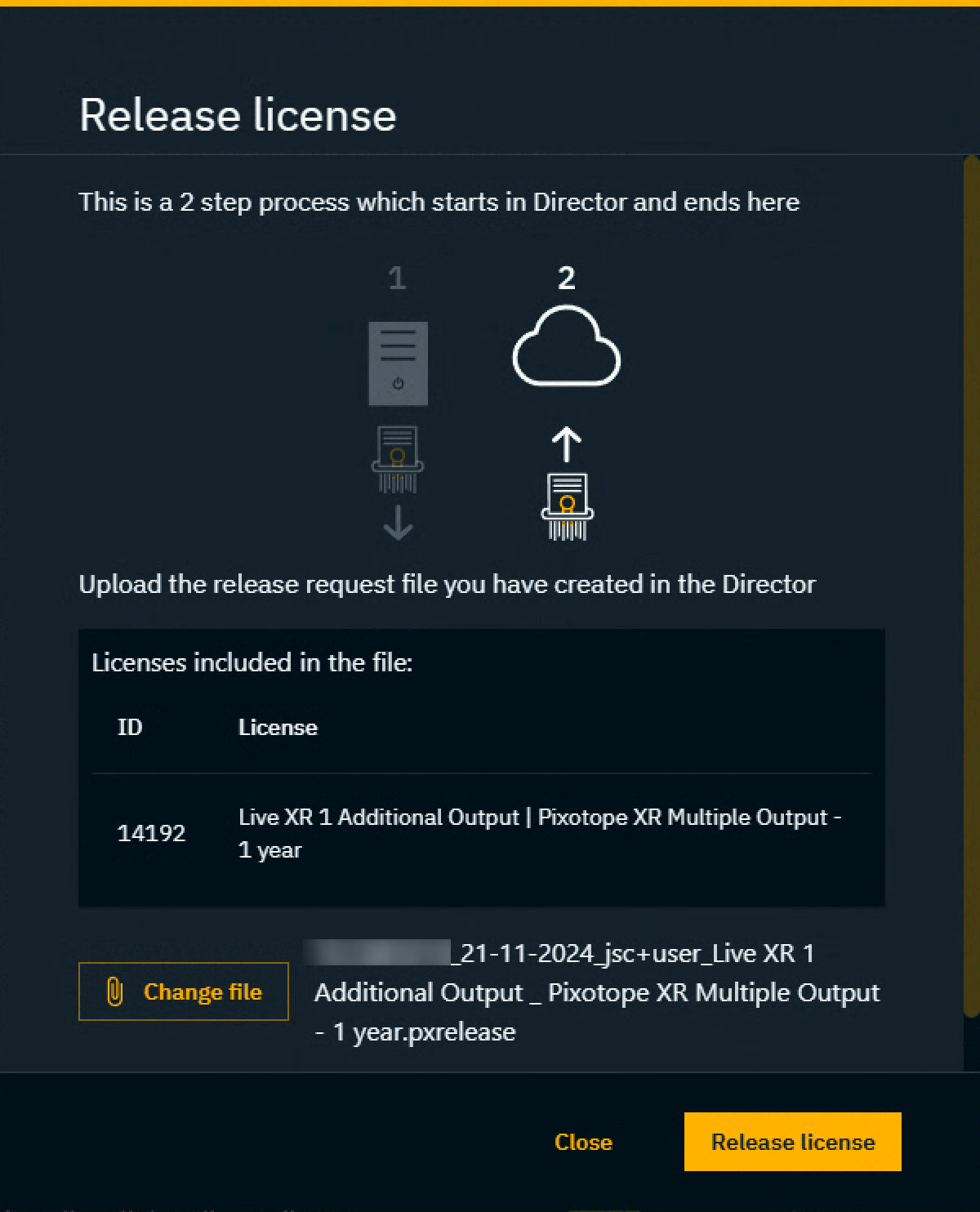
Click "Select a license release file"
-
Choose the license release file and click "Open”

-
Click "Release license”
-
The license has been released and can now be used on another machine
Be aware that if the date or time is changed (specifically, to an earlier one) on the machine running the Director after the first launch of the Editor, our DRM system will recognize this as tampering and will prevent the launch of the Editor. Changing time zones is still respected and will not result in the Editor being shut down.