
Any render machine is liable to failure. To limit this risk, we recommend pairing a Backup machine for each render machine group (Main) using a video router (or optionally via API).
Supported video routers:
-
Blackmagic Videohub
In Pixotope, you set the router spigots of your machine pairings in the Backup groups panel. Monitor the machines' stability and switch between them in the Health panel
Learn more about Monitoring machine health - PRODUCTION
To set up a backup for your Server machine see Use Backup Server (failover)
Configure Videohub router
-
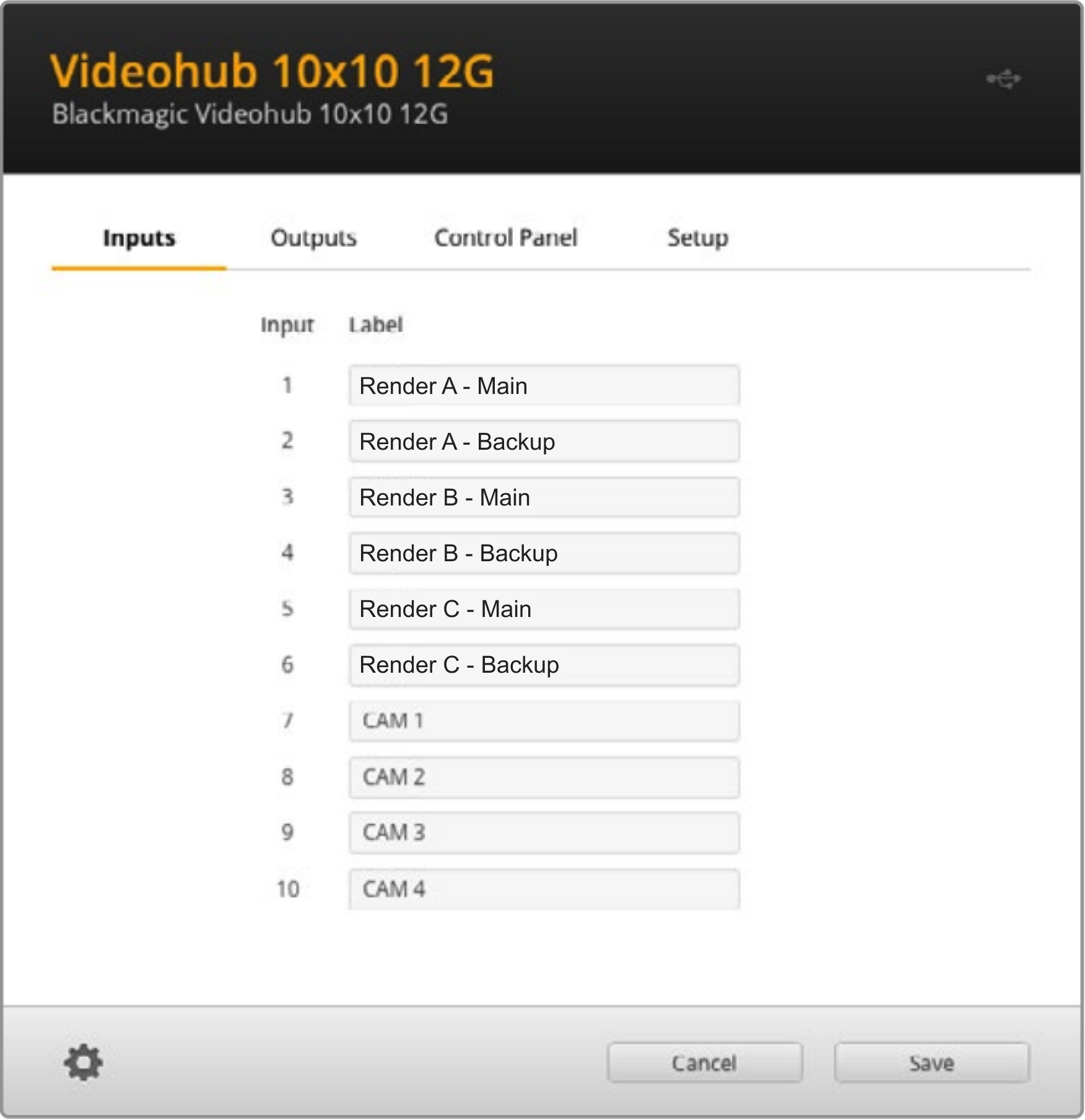
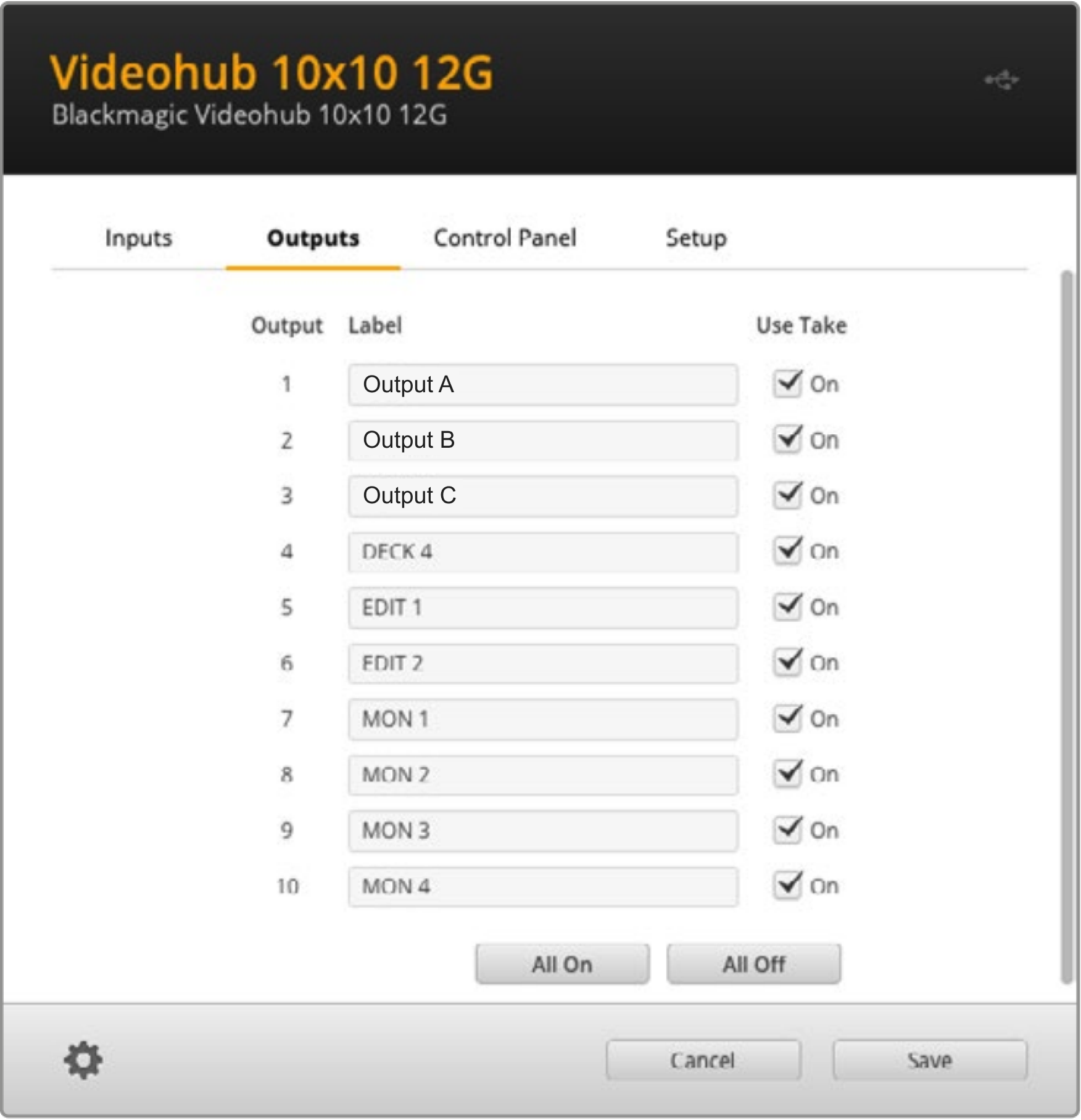
Physically route the outputs of the Main and Backup render machines on the Videohub router
-
Optionally, change their labels in the Videohub setup utility
Make sure the routed inputs and outputs are not locked!
Example routing
Inputs
Outputs
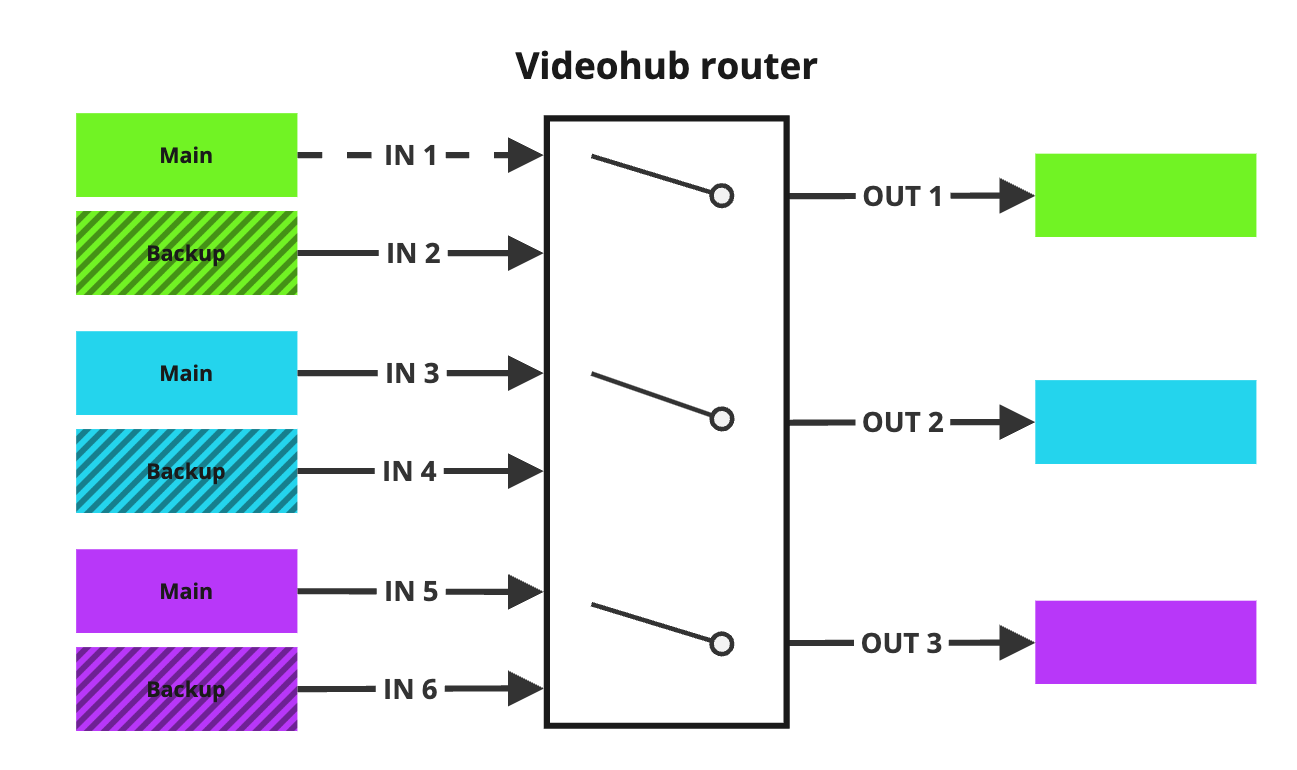
|

|
|---|
Set up backup machines
Connect Videohub (optional)
-
Enter the IP address of your Videohub
-
it connects immediately but you can also click "Test connection"
-
-
Click "Enable Videohub connection"
Create backup group
-
Go to SETUP > Configure > Backup groups
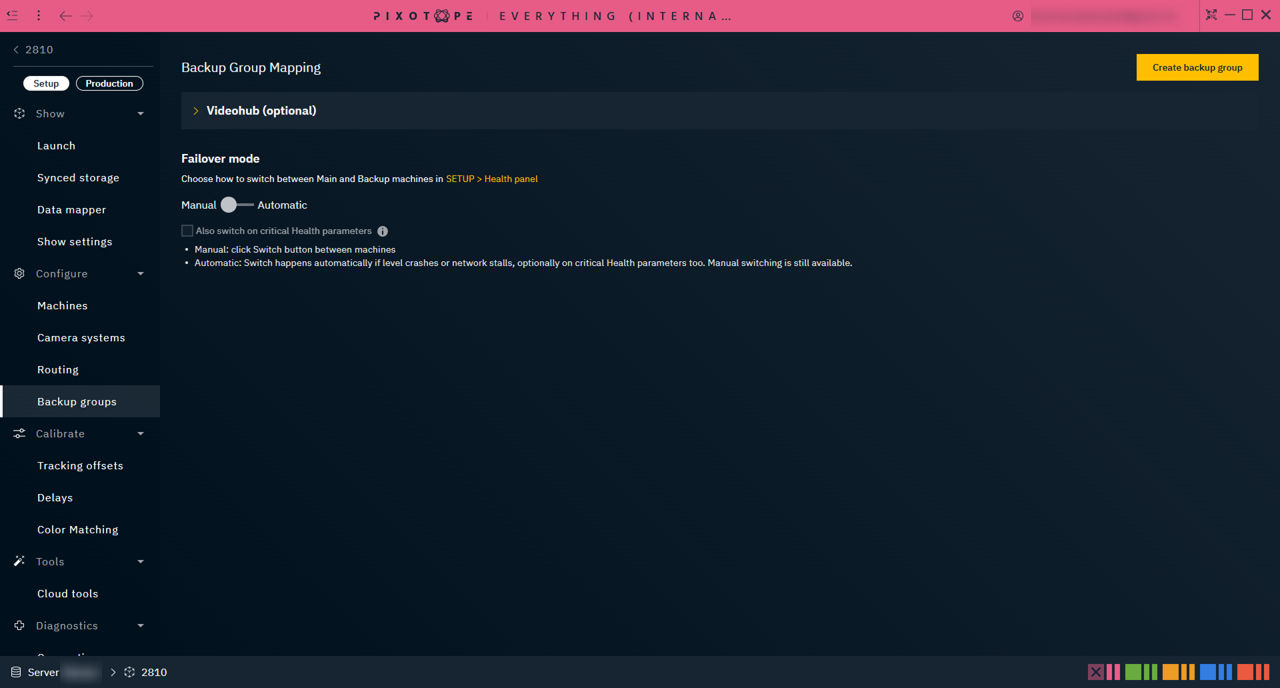
-
Click "Create backup group" in the top right

Do the routing of all machines beforehand. Multiple outputs are supported per machine, but both the Main and Backup machines in the group need to have the same amount of outputs.
Eg. if the main machines have up to 2 outputs, then the backup machine must also have 2 outputs.
Learn more about how to Configure routing
Route backup machines
-
Click "Add Main Machines" and select which machines you want

-
Click Add Backup Machine and select the machine you want
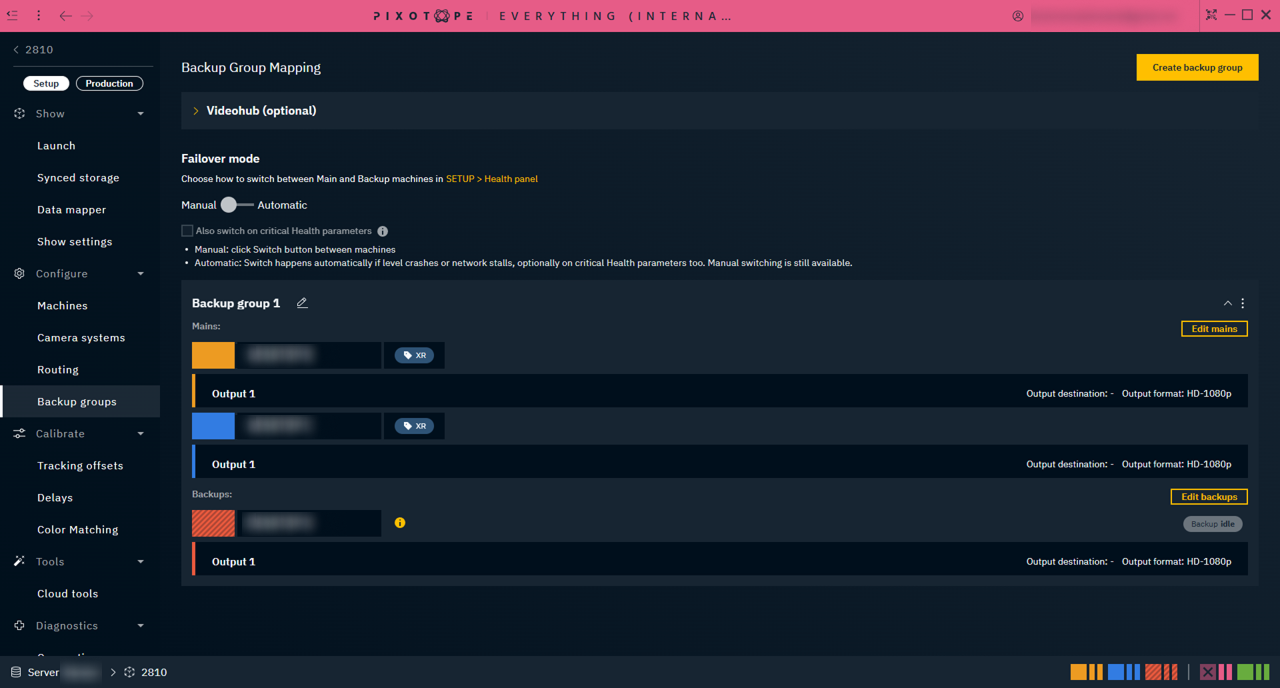
-
Select the Videohub source and destination values
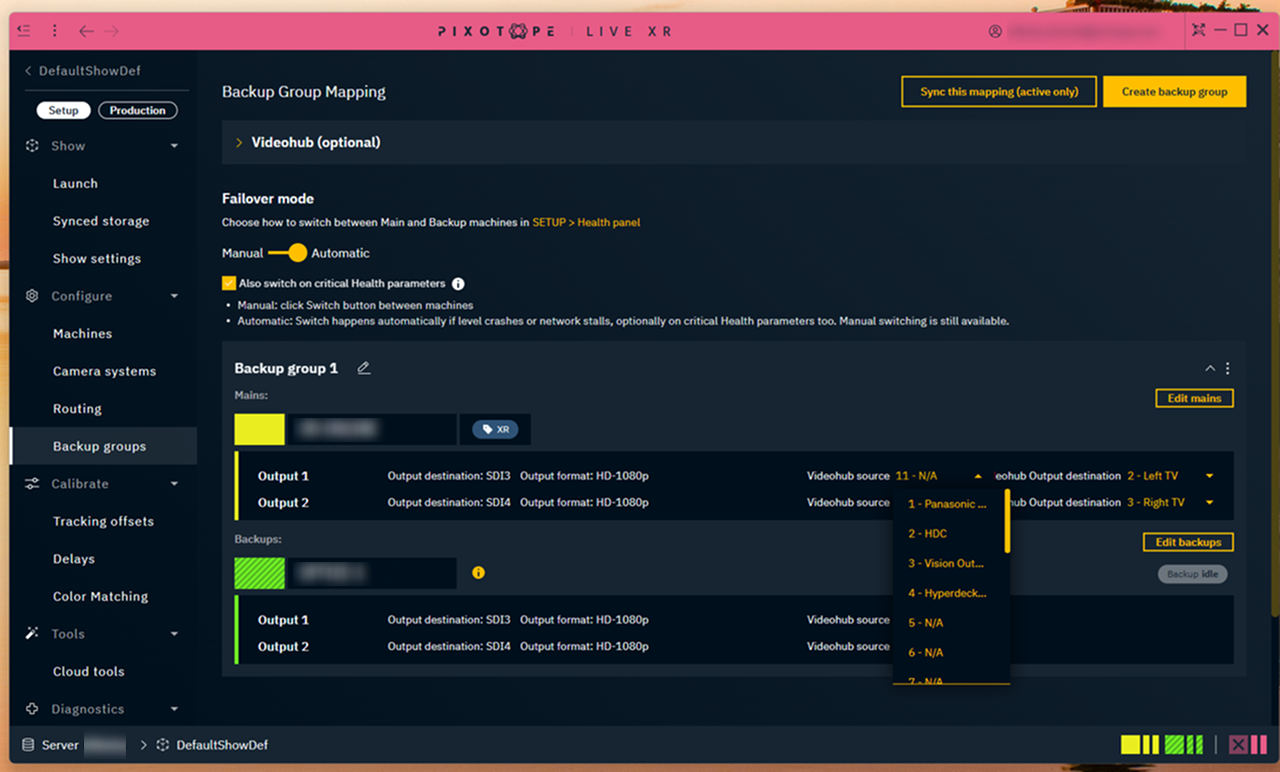
Choose failover mode
-
Set your preferred Failover mode using the toggle

-
If choosing Automatic, optionally enable the Also switch on critical Health parameters checkbox.

When switching on Health parameters:
-
Run Local Diagnostics on all main and backup group machines
-
Manage the Health parameters' warning and critical values
Both can be done in SETUP > Diagnostics > Settings
Learn more about how to Set up health monitoring
Failover triggers
|
Failover mode |
Trigger |
Failover time1 |
|---|---|---|
|
Manual |
Switch button in the Diagnostics > Health panel |
~1 frame |
|
Automatic Manual switching is also possible. |
Engine failure2 (No level running will also count as Engine failure) |
max 1 second |
|
VideoIO failure2 |
max 1 second |
|
|
Network failure2 |
max 1 second |
|
|
Any critical Health parameter (optional) |
max 1 second |
1 Total time it takes from detection of an issue until the Videohub switched to the other machine
2 Service becomes unresponsive and does not answer
Only enable Automatic failover after your levels are finalised and launched in LIVE mode.
View setup in Machines panel
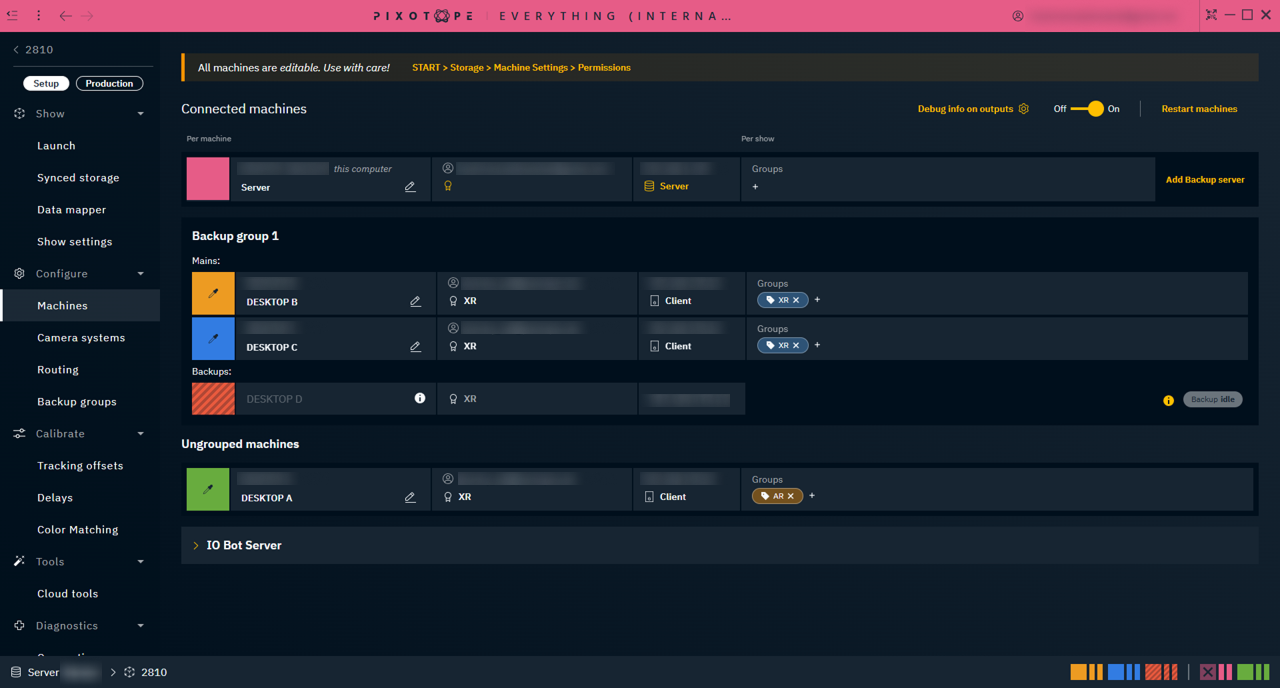
Monitor automatic/manual switching
-
Go to Diagnostics > Health
-
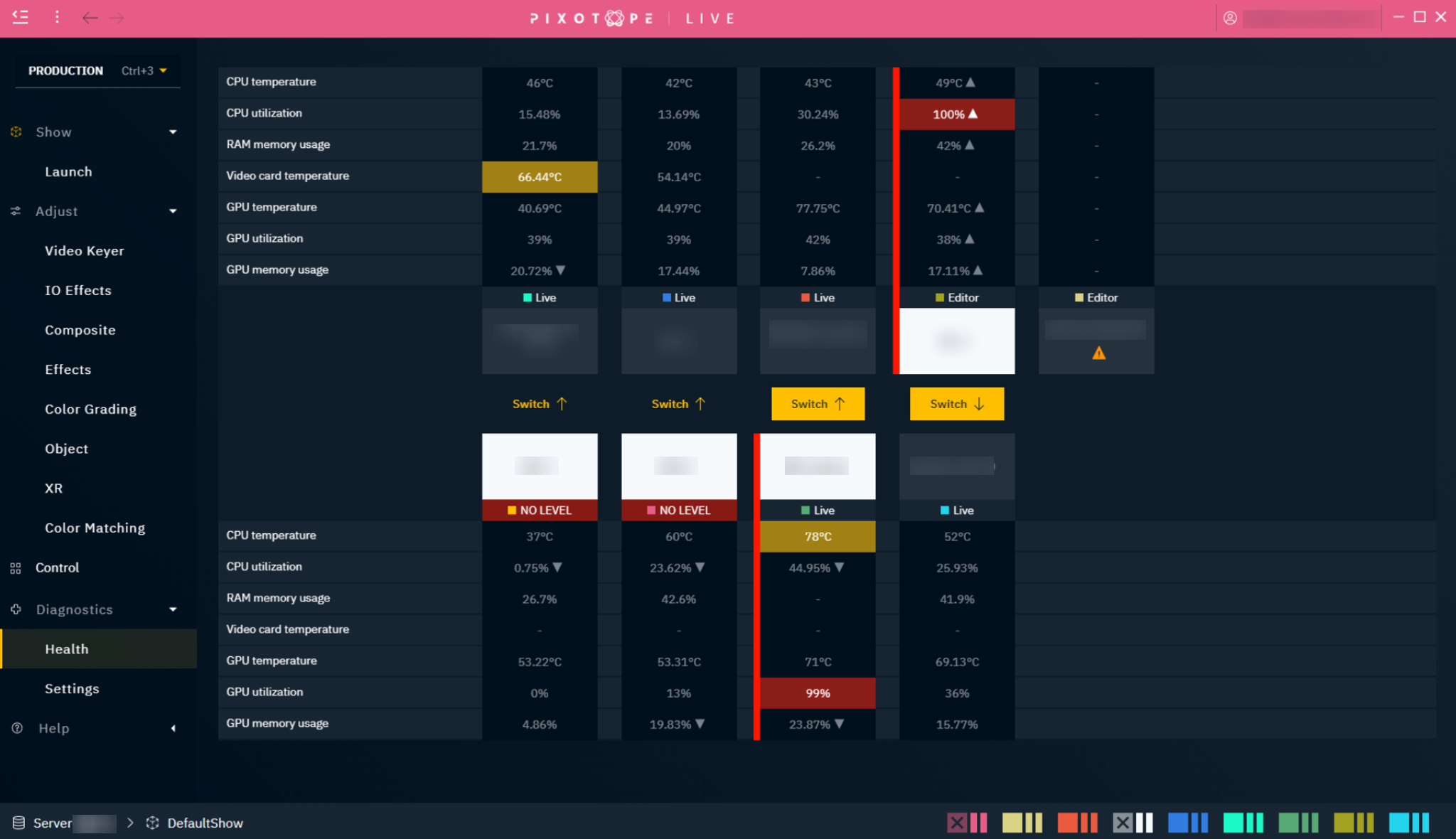
Main machines are on the top, backup machines are on the bottom
-
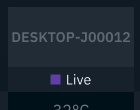
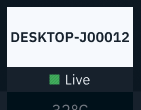
In any pairing, the machine with a white background is active
-
Manually switch between Main and Backup machine
-
Click the "Switch ↑/↓" button to activate the machine the arrow is pointing towards
When a parameter of a machine in a pairing reaches the critical state, the Switch button becomes more prominent.
Automatic switching
If one or more of the failover triggers are reached, Switch will happen automatically.
Automatic switching happens regardless of which panel or application is in focus.
Failover state
Keep track of which machine is active, sending its feed to the output, from the Health panel.
|
|
Idle |
Active |
|---|---|---|
|
Machines, Routing, Delays, Connections and Status panel |

|

|
|
Health panel |
|
|