
This setup is based on our Recommended Motion setup outputting fill and key channels.
One channel per engine. For multiple channel configurations, please go to the Multi-Channel Configuration section at the end of this guide.
Add Motion feature tag
-
In Director go to SETUP > Configure > Machines
-
For each machine
-
Click the Groups
+button on the right to show the available groups -
Select the "MOTION" feature tag to add the machine to that group
-
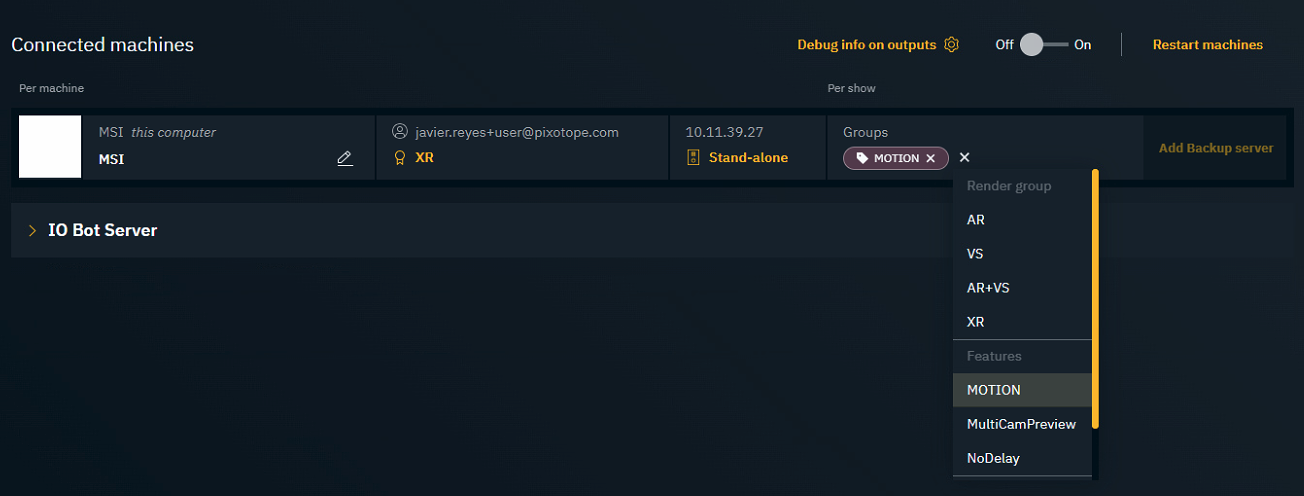
Learn more about Render, feature and custom groups - AR, VS, AR+VS, XR
Set up routing
For each machine:
-
Make sure that the Lock is configured properly
Learn more about how to Configure lock/genlock
-
Add two Media Outputs
-
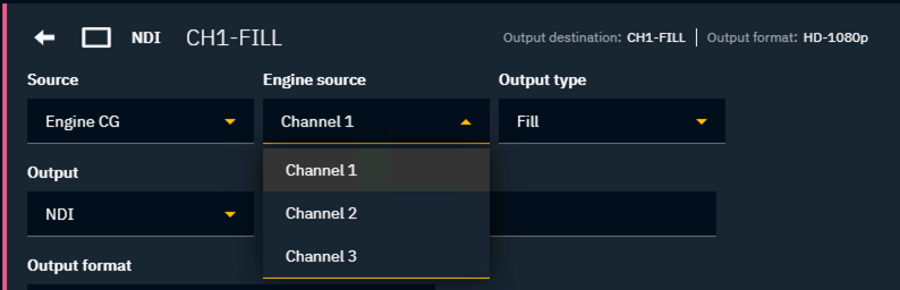
Set the Source to "Engine Motion"
-
Set the Engine Source to "Channel 1"
-
-
For the first output: Set the Output type to "Fill"
-
For the second output: Set the Output type to "Key"
-
and set up their outputs correctly
Learn more about how to Route media outputs
Set up synced storage
Every time you are making changes to the project, make sure
-
to push changes on one machine
-
and that the other machine has Auto-pull enabled so the changes are merged automatically
Learn more about how to Sync projects and other files in Synced storage
Next step
-
Launch any of the levels in your project in Editor
-
Continue to Prepare project for Motion