
The Machine settings panel (START > Storage) allows you to change the settings of that specific machine.
General
Want to change startup settings remotely?
Open the PX - Remotely configure machines to start headless control panel from the Control panel library
Launch Pixotope on startup
Launches Pixotope automatically when starting the machine.
This overwrites autostart of any other Pixotope version. As a reminder, there is a warning shown to indicate which Pixotope version is currently autostarted.
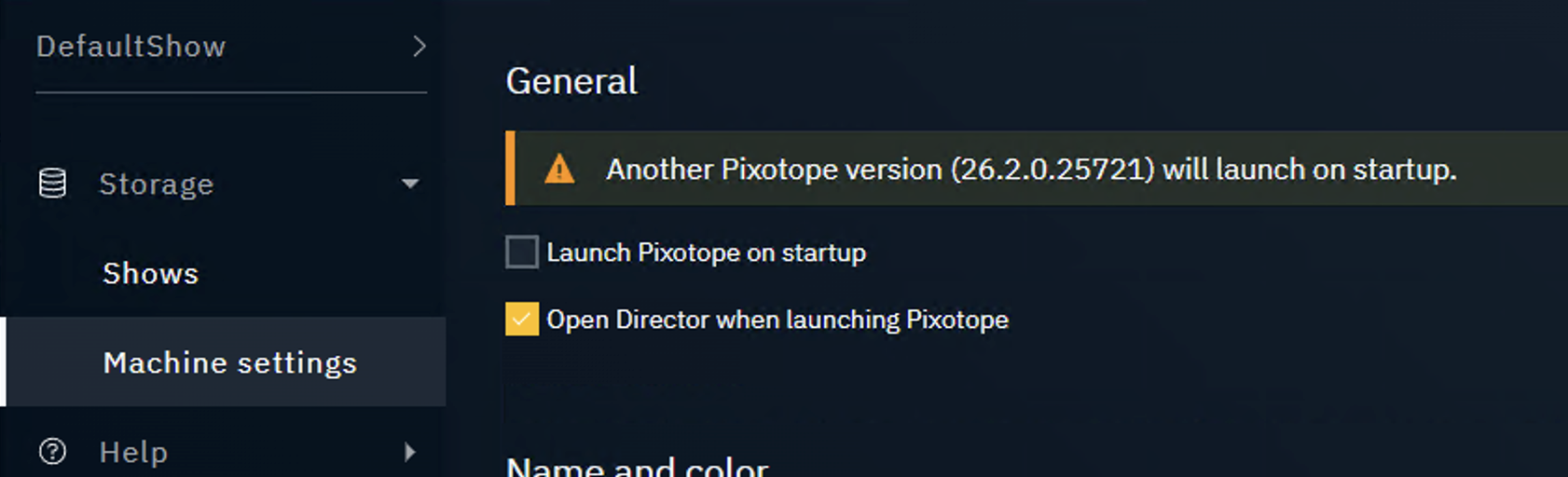
Open Director when launching Pixotope
By default Director is opened each time Pixotope is launched. If unselected, Pixotope will in the background the next time it is launched.
Learn more about Running Pixotope in the background
Name and color
Display name
Set a display name for this machine. The windows machine name is used if nothing is set.
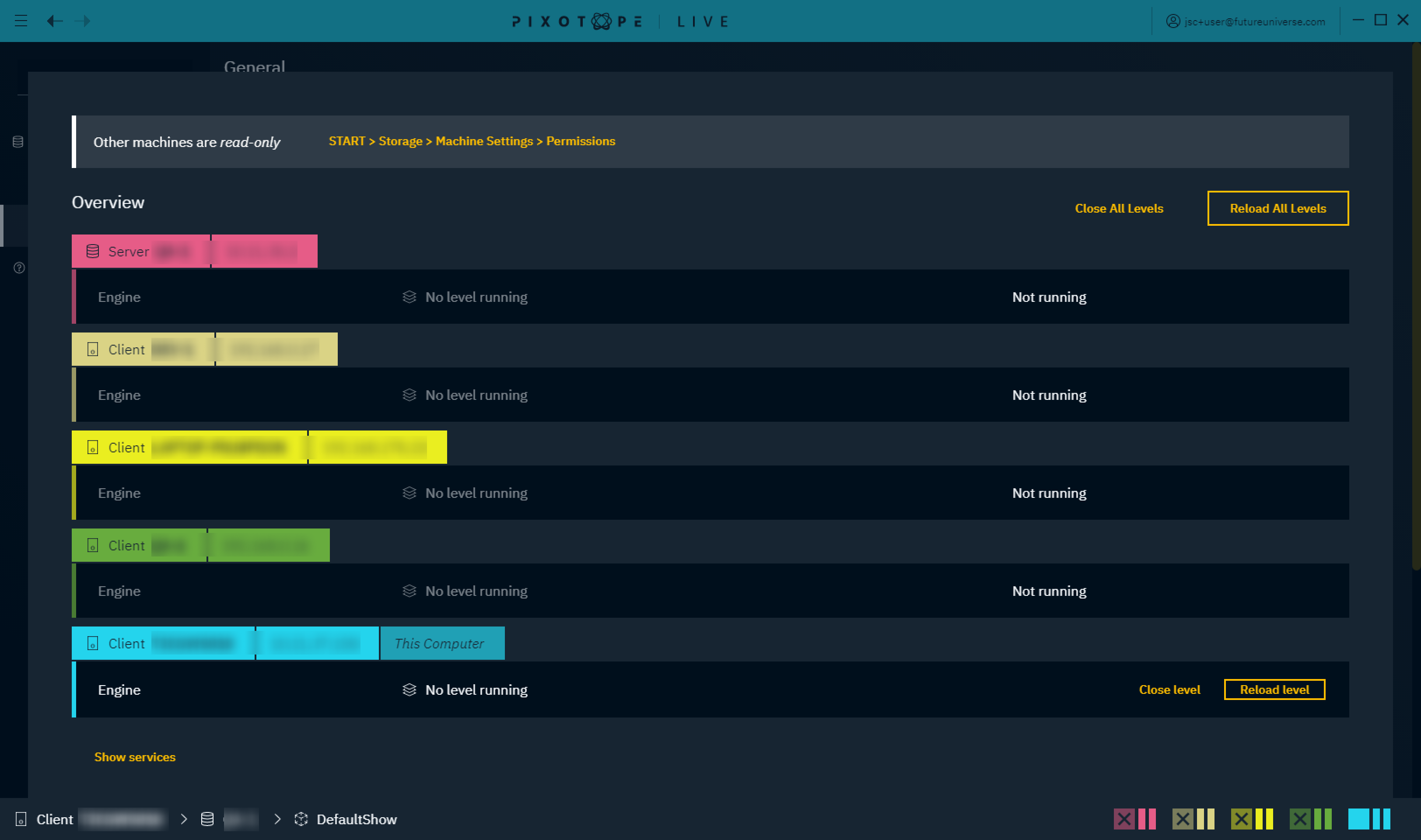
Display color
To better differentiate the different machines in a multi-machine setup, display colors are set for each machine.
-
The display color for a Client machine can be overridden
-
The display color for a Server machine can, for consistency reasons, not be changed (pink)
Display colors are only used in multi-machine setups.
Network adapter
This network adapter is used for communication between Pixotope machines (only Server role).
Learn more about Single- and multi-machine example setups
Local storage
The show files of this machine are stored in the local storage folder. When running as a client, the local storage/shows are not in use.
Learn more about What is stored where
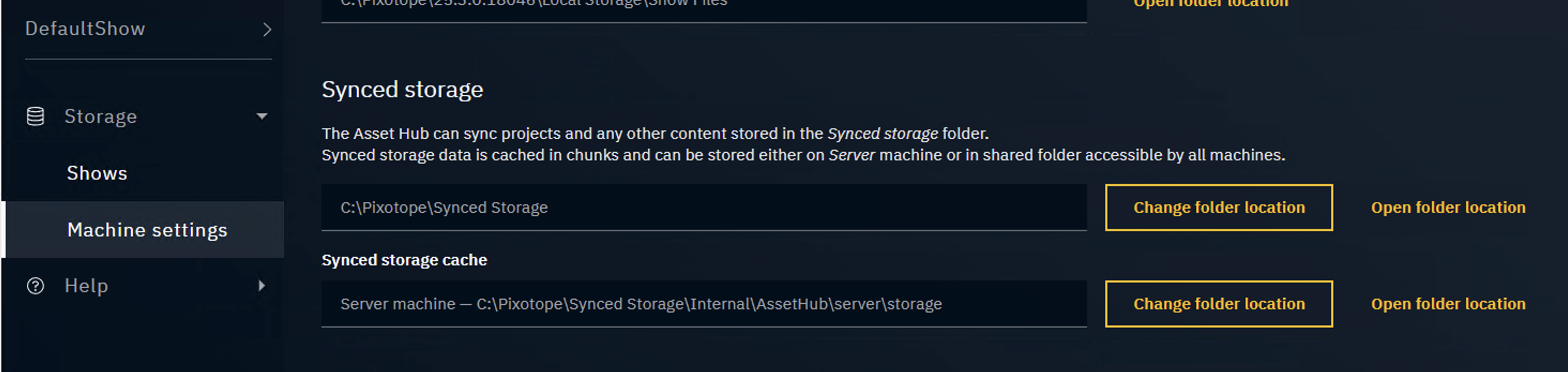
Synced storage
View and change the path of Synced storage as well as the Synced storage cache.
Learn more about Synced storage and Synced storage cache
Role
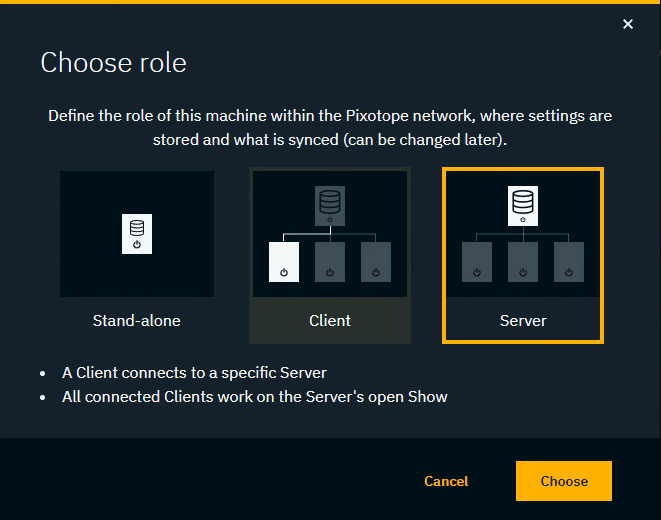
The role defines which show this machine can work on and how it functions with other machines.
-
Click "Change role"
-
Select a role and click "Choose"
-
For Client: Choose a server to connect to
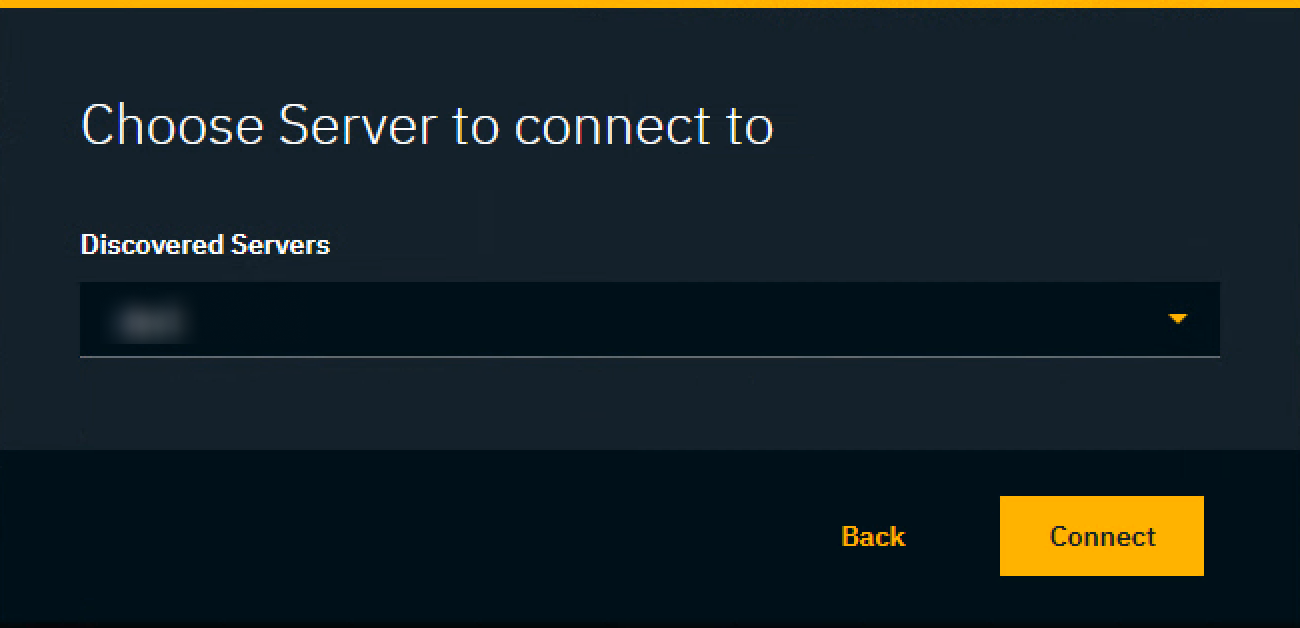
Learn more about Roles - Stand-alone, Client or Server
Encryption
For connections via a public network, we encourage you to encrypt your Data hub communication.
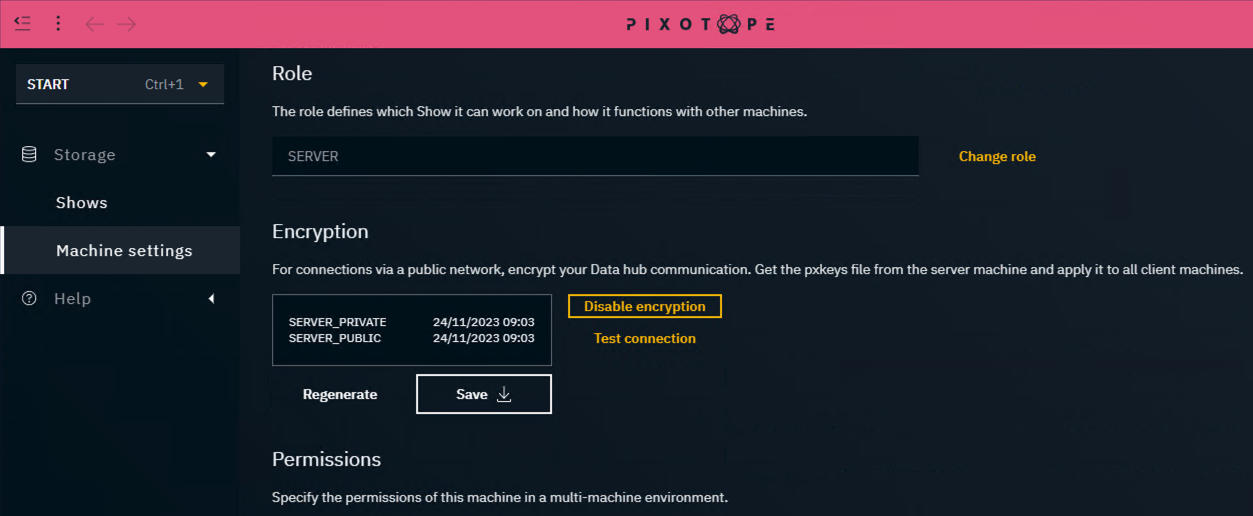
On the server machine
-
Click "Enable encryption". This
-
generates a
.pxkeysfile and -
enables encryption
-
-
Manually copy the file to all client machines
On the client machines
-
Before connecting:
-
Drag and drop the
.pxkeysfile into the drag and drop area
OR click "Select pxkeys" and navigate to the.pxkeysfile -
Click "Enable encryption"
-
-
Connect to the server machine
-
Click "Test connection" to check if the communication to server is now encrypted and working
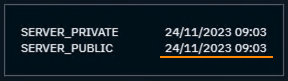
If you are running into issues, use the timestamp to identify that you are using the same encryption keys across all machines.
|
|
Applied key files on Server and Client |

|
|
Restrictions when using Encryption
-
Pixotope Gateway is not available
-
Sending Digital Twin pattern data from Pixotope Tracking is not possible
Permissions
Specify the permissions of a machine in a multi-machine environment based on their role.
Learn more about Permissions - affecting SETUP
Matrox > PTP 2110
Learn more about how to Configure ST2110 - Matrox
Experimental
Language (Director)
Select the language to be used inside Director.
This does not affect the language selection of Pixotope Editor.