This is a special-case setup. Make sure you have already followed Set up a virtual set extension with translucent holdouts before continuing.
By default, any object in the 3D scene that is in front of the Digital Twin (the XR walls) is rendered as AR. This is intended to support not only set extension, but also AR elements placed next to or in front of the talent on the LED volume.
This page describes how to prevent specific objects to render as AR inside the LED volume area. These selected objects should only become visible where the camera sees the set extension (outside the holdout), and stay hidden behind the holdout everywhere else.
To achieve this, two things need to be configured: a global compositing setting, and a per-actor setting on any actor that should never appear as AR.
Enable set-extension-only compositing
-
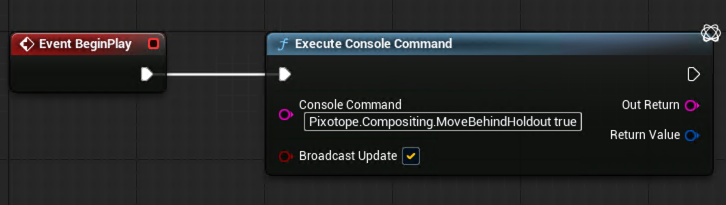
At runtime, set the console command:
Pixotope.Compositing.MoveBehindHoldout true
This is normally set from a Blueprint using an Execute Console Command node connected to BeginPlay, so it is applied automatically every time the level runs.
Enable Custom Depth in Project Settings
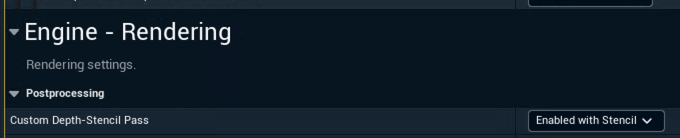
The Vanilla Unreal Engine Custom Depth pass must be enabled:
-
Go to Edit > Project Settings
-
Search for Custom Depth-Stencil Pass and select Enabled with Stencil
Configure actors that should never render as AR
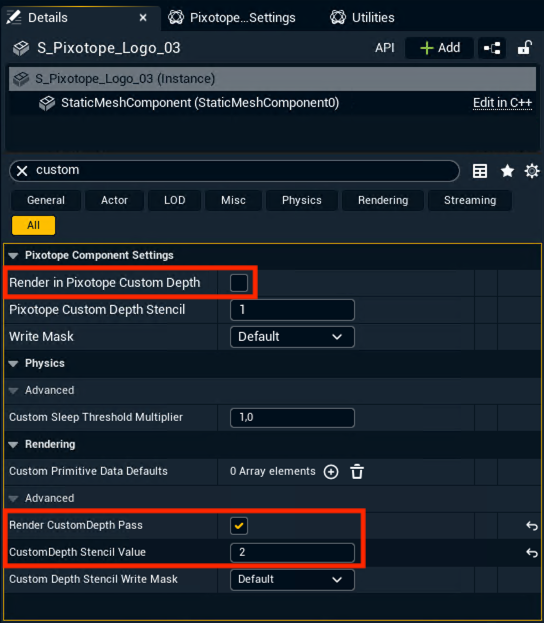
For any actor that should never be presented as AR, even in the set extension area next to or in front of the talent, configure it individually:
-
Select the actor in the Outliner
-
In the Details panel:
-
Disable Render in Pixotope Custom Depth
-
Enable Render CustomDepth Pass
-
Set CustomDepth Stencil Value to
2
-
Learn more about how to Set up an XR level (virtual window)
Learn more about how to Set up a virtual set extension with translucent holdouts