
Introduction
When running Pixotope across multiple machines, video playback started at the same time on all machines can gradually drift out of sync due to frame drops, restarts, or timing differences between nodes. To solve this, Pixotope provides the Pixotope Media Player plugin, an experimental plugin that extends the Electra Media Player with timecode-based synchronisation, keeping video playback locked across all machines in the Pixotope network.
Pixotope Media Player is currently in Beta. It is functional and recommended for synchronized playback use cases, but its API and behaviour may change in future releases.
Set up video playback
Before setting up synchronization, make sure you have completed the standard video playback setup. Learn more about how to Set up video playback
Enable the Pixotope Media Player plugin
The Pixotope Media Player plugin must be enabled in addition to the standard Electra Media Player plugins.
-
Open the project in the Pixotope Editor
-
Go to Edit > Plugins
-
Search for Pixotope Media Player and enable it
-
Restart the Editor when prompted

Unlike standard Media Player assets, Pixotope Media Player objects cannot be created as assets in the Content Browser. They must be constructed dynamically at runtime via Blueprint. The setup below describes how to do this.
Set up the Blueprint
Create variables
In your playback Blueprint (e.g. BP_VideoPlayer), create the following variables:
-
Add a variable of type Pixotope Synced Media Player > Object Reference - name it, for example,
PxMediaPlayer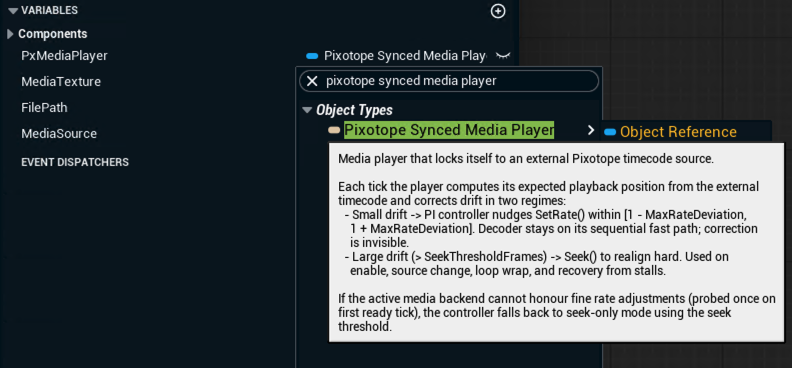
-
Add a variable of type Media Texture > Object Reference - name it, for example,
MediaTexture-
Click the eye icon to make each variable instance editable, then Compile
-
-
Add a variable of type File Media Source > Object Reference - name it, for example,
MediaSource-
Click the eye icon to make each variable instance editable, then Compile
-
-
Add a variable of type String - name it, for example,
FilePath-
Click the eye icon to make each variable instance editable, then Compile
-
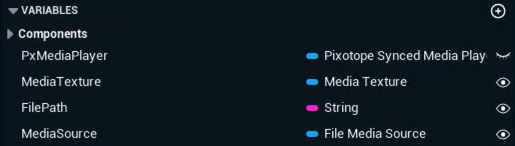
Media Texture and File Media Source assets are still created in the Content Browser as described in Set up video playback. Once the Blueprint is placed as an actor in the scene, assign from the Content Browser to its corresponding variable in the Details panel.
Construct the Pixotope Media Players on BeginPlay
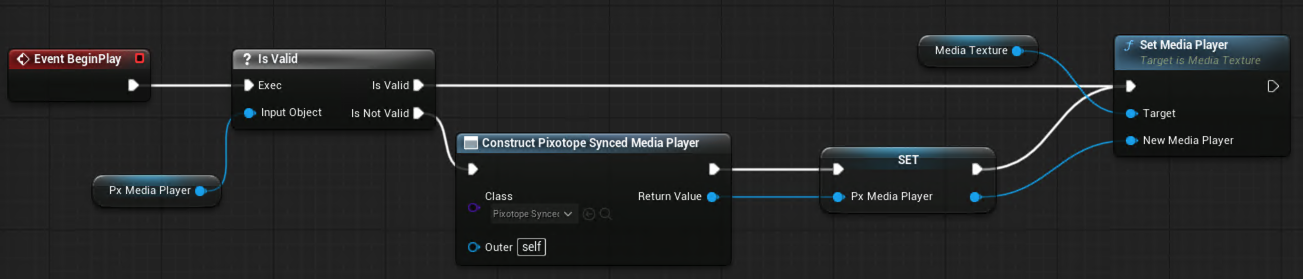
Because Pixotope Media Player objects must be created at runtime, use the Event BeginPlay graph to construct and initialise them.
-
From Event BeginPlay, add a Sequence node to handle multiple players in parallel
-
Add an Is Valid node targeting the corresponding
PixotopeMediaPlayervariable -
On the Is Not Valid output, add a Construct Object from Class node:
-
Set Class to Pixotope Synced Media Player
-
Set Outer to
self
-
-
Wire the Return Value of the Construct node to a SET node targeting the
PixotopeMediaPlayervariable -
After the SET node, add a Set Media Player node (Target is Media Texture):
-
Wire the Target pin to the corresponding
MediaTextureMedia Texture variable -
Wire the New Media Player pin to the
PixotopeMediaPlayervariable
-
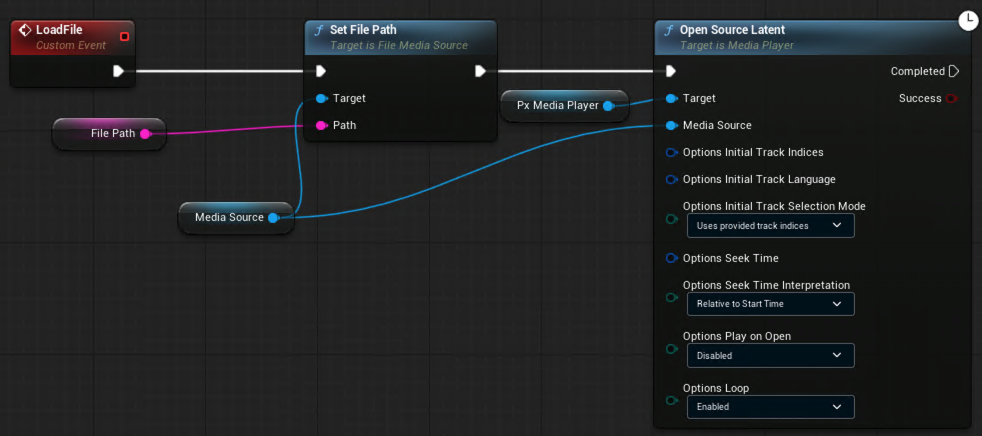
Add a Load File custom event
Follow the same steps as in Set up video playback > Load a video file at runtime, but wiring the PixotopeMediaPlayer variable to the Target pin of the Open Source Latent node instead
Synchronised playback
The SynchronousPlay function
To achieve frame-accurate synchronised playback, a Pixotope Media Player must reset its sync state before playing. This is done by calling Disable Sync followed by Enable Sync immediately before Play. This sequence forces the player to re-lock to the timecode reference on every play command.
We recommend encapsulating this pattern into a reusable Blueprint function called SynchronousPlay:
-
In the My Blueprint panel, create a new Function named
SynchronousPlay -
Add an input parameter of type Pixotope Synced Media Player > Object Reference - name it
Pixotope Media Player -
In the function graph, wire the input pin through the following chain:
-
Disable Sync (Target:
Pixotope Media Player) → -
Enable Sync (Target:
Pixotope Media Player) → -
Play (Target:
Pixotope Media Player)
-

Create the Play custom event
Replace the standard Play custom event with one that calls the SynchronousPlay function, passing the Pixotope Media Player variable as input:
-
In the Event Graph, add a Custom Event named
Play -
Call
SynchronousPlay:-
Set Target to
self -
Wire the corresponding
PixotopeMediaPlayervariable to the Pixotope Media Player input pin
-
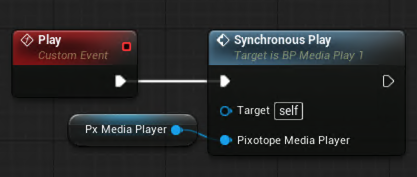
This Play custom event replaces the standard Electra Media Player Play node for synchronized use cases.
Control synchronized playback via a control panel
Once the Blueprint is set up, the Play and Pause events can be driven from a Pixotope control panel in the same way as standard video playback.
-
Create a new control panel
-
Select the
BP_VideoPlayerobject in the Engine browser tab -
Drag the
Playfunction onto the canvas and assign it a Trigger widget -
Repeat for any other control functions
Learn more about Creating a control panel - PRODUCTION