
We do not recommend that you upgrade your Pixotope machines in the middle of a production or pre-production phase.
When choosing to upgrade, we recommend that you back up your existing Pixotope projects, so that you will be able to go back if you need to.
Engine
Custom Depth Stencil
|
In Pixotope 26.2 we are creating our own separate Pixotope Custom Depth Stencil. This way we do not interfere anymore with Unreal Engine’s Custom Depth Pass. Learn more about Pixotope’s Custom Depth Stencil Default value
All Pixotope specific actors will automatically start using the new stencil system. Their default Pixotope Custom Depth Stencil is The global default can be adjusted in the Project Settings 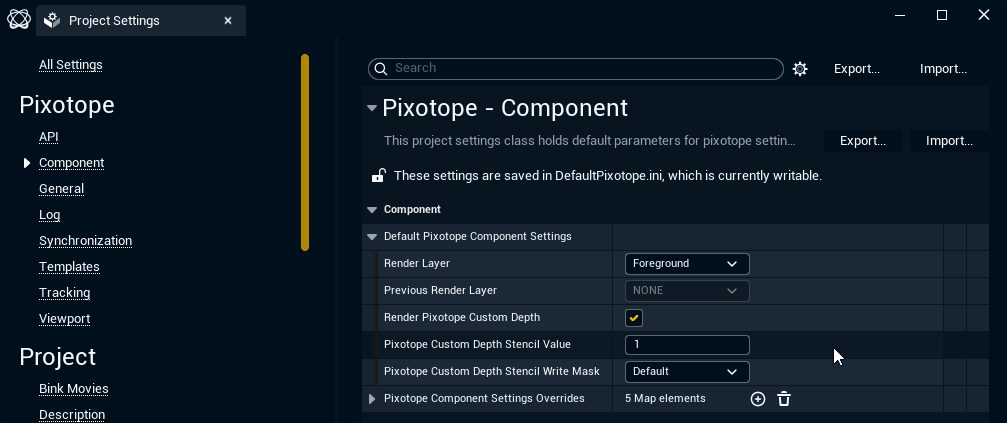
We no longer have Where to set
Pixotope Custom Depth Stencil can be found on the actor in Pixotope Component Settings. 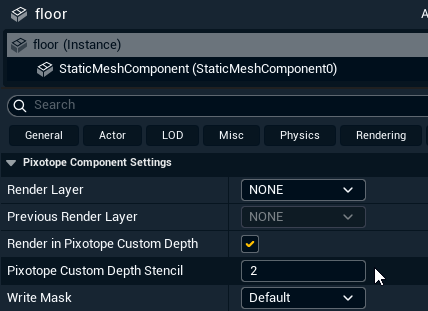
In Blueprints
Pixotope Custom Depth can be adjusted in plugin using the Pixotope Component Settings Manager. It should be done on construction or begin play. Avoid using it every tick. Avoid adjusting Pixotope Custom Depth settings in Details for Components in Blueprints. Use blueprint nodes as shown below. 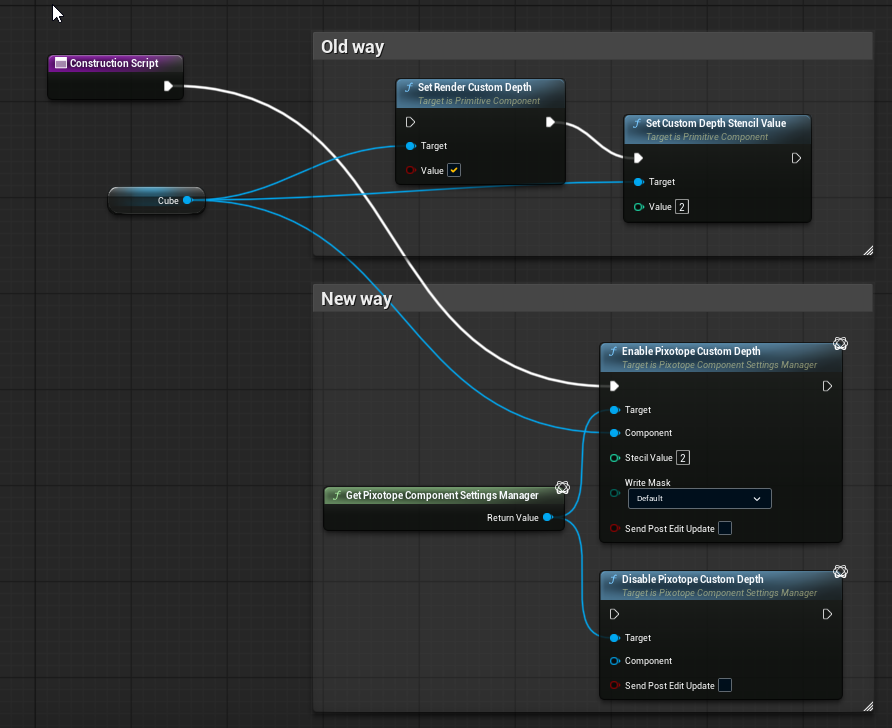
Migration
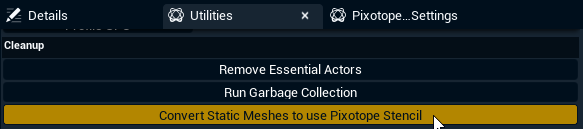
All actors that were converted before will need to be reconverted or will need stencil adjustments. To ease conversion of projects that used multiple actors with Pixotope specific stencils we provide a one click conversion:
Only Static Meshes are converted. Other mesh actors like the Skeletal Mesh Actor have to be converted manually. Visualize Pixotope Custom Depth Stencil
To confirm the stencils are correct, change Debug > Visualization Mode to
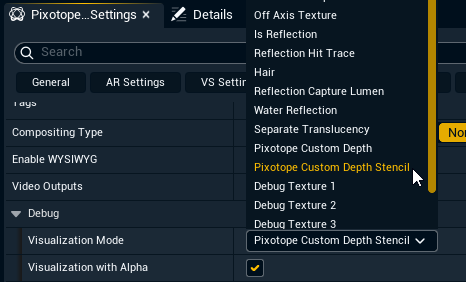
Disable for XR without inputs
Pixotope Custom Depth is enabled by default and needed for most of our compositing pipeline. It can be disabled if needed (Ex. XR without any inputs) with |
|---|
Artist license
Using an Artist license now allows to route inputs and outputs. However, in that case a watermark will appear. Without routing the viewport/outputs no watermark will be shown.
Learn more about the different License types - AR/VS, XR, Control, Artist and more
Collisions
Collisions are now disabled by default on all newly created meshes. Existing geometry is not affected.
This can be changed in the Project settings
AR Shadow, Reflection & Light Catcher
The Shadow/Light catcher material now uses the AR video as Base Color.
Learn more about AR Shadow, Reflection & Light Catcher
Director
Camer input switching
Camera input switching Groups are now called Sets.
Learn more about how to Configure camera input switching
Setup > Adjust > XR > Angle correction
Sliders have been swapped.
Learn more about how to Calibrate color matching
Migrating show files
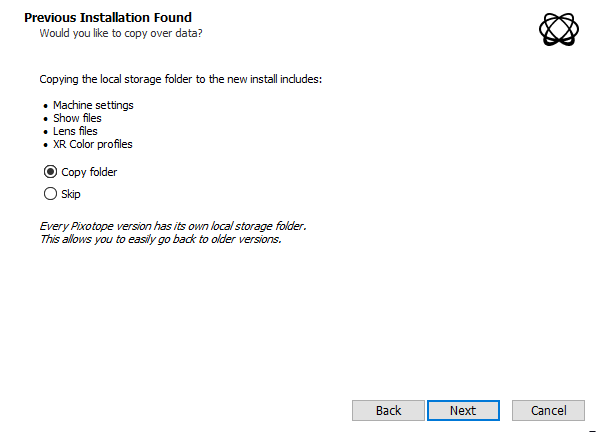
To carry over show files and machine settings from an old installation, you can
-
Click "Copy folder" at the start of the installation
-
OR manually copy the files into the Local storage folder of the new installation
Learn more about Show files and where they are stored
Migrating projects
When opening a project from Unreal or an old Pixotope version:
-
When prompted in the Editor, click "Update"
-
This will update your .uproject file

-
-
Restart the Editor
Unreal projects can be used in Pixotope right away and do not need any migration steps.