
Switching camera video and tracking inputs externally (upstream)?
You only need to make sure that your tracking systems send unique Ids for the different cameras. Check CameraId support in Supported Tracking Protocols
You can switch active camera systems (video and tracking source) for different target groups independently.
Learn more about Camera Switching for XR/LED Workflows: A Practical Guide
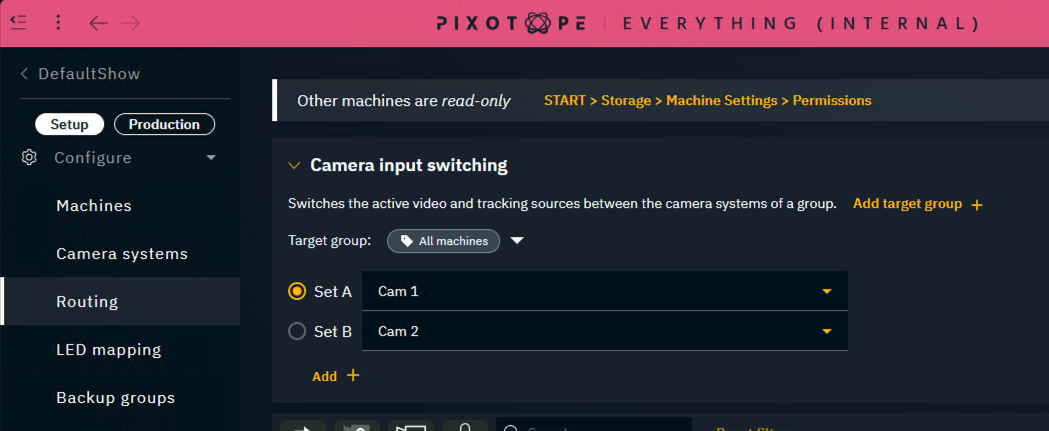
Enable camera input switching
-
Enable “Camera input switching" in SETUP > Show > Show settings

Assign camera systems to sets
-
Per machine: Route the camera systems which should be switched between
-
Select the first camera systems to be in Set A
-
Select the second camera systems to be in Set B
Add/remove sets
-
Click on "Add +" to add an additional set
-
Click on the Trash icon to remove the set
Add target groups
Target groups allow to switch sets independently by controlling which machines are targeted.
-
Click on "Add target group +" to add an additional target group
-
Select the target group containing the machines which should be controlled separately
Specific target groups always take precedence over All machines. However a machine should NOT belong to more than one specific target group!
Want to target machines which are not part of any existing group? Create a custom group.
Learn more about Render, feature and custom groups - AR, VS, AR+VS, XR
Change target group
-
Click on the target group and select a different target group
Remove target group
-
Click on the Trash icon to the right of the target group
-
Click "Delete" to confirm its deletion
Switch between sets
When using camera input switching in an XR setup with set extension, checkout
Sync an XR wall with a virtual set extension
Using Director
-
Switch using the Set A/Set B radio button of the different Target groups in the Routing panel
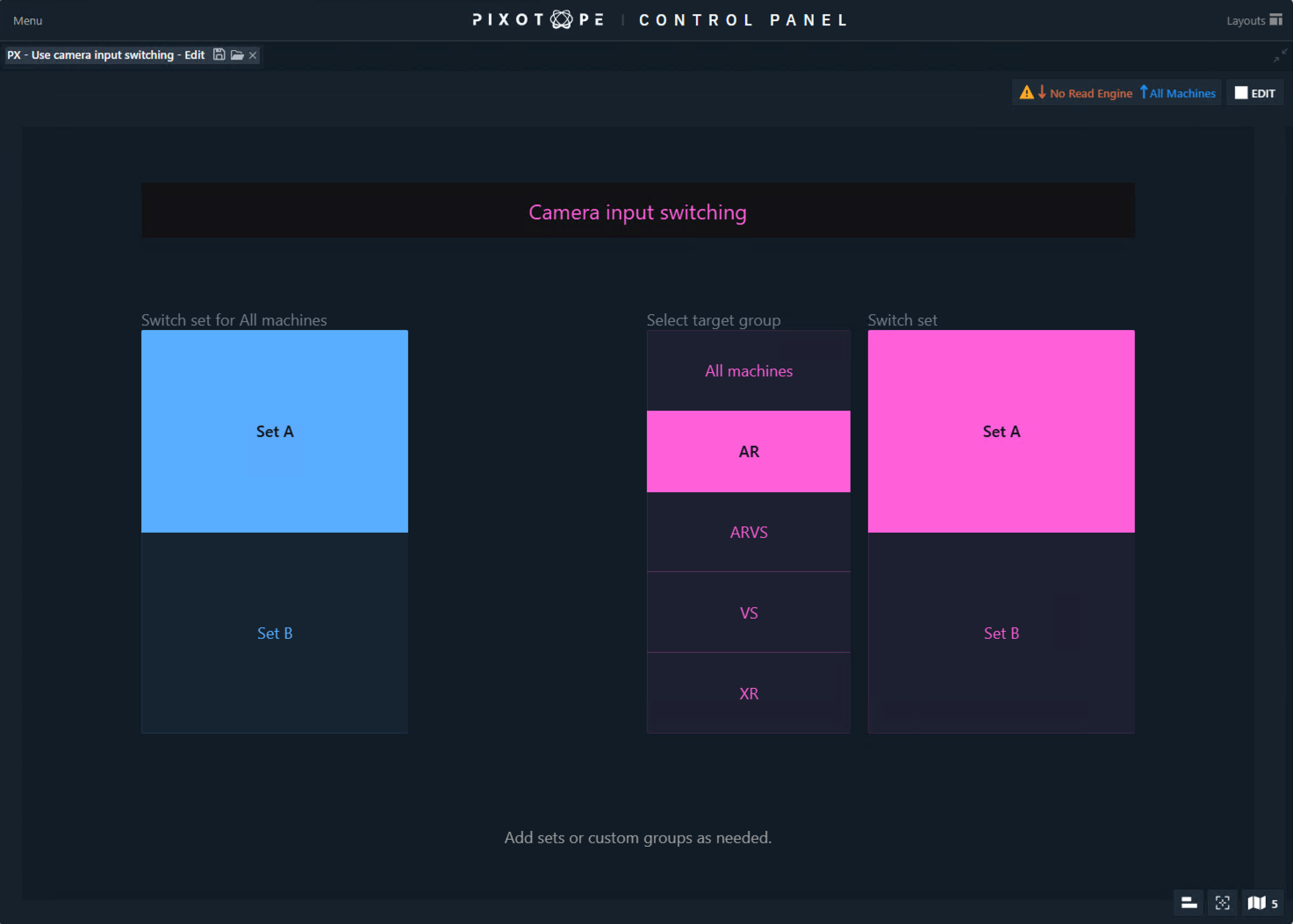
Using the Control panel
-
Go to the Launch panel in Director
-
Click the "Open control panel" button on the top right
-
Open the PX - Use camera input switching panel
Using a URL ( HTTP request)
Use a URL only HTTP request (via Gateway) where
ParamGroup refers to the target group:
-
All machines:
ParamGroup=All -
AR:
ParamGroup=AR -
ARVS:
ParamGroup=ARVS -
VS:
ParamGroup=VS -
XR:
ParamGroup=XR
ParamNumber refers to the set:
-
Set A:
ParamNumber=0 -
Set B:
ParamNumber=1 -
Set C:
ParamNumber=2 -
Set D:
ParamNumber=3
http://localhost:16208/gateway/0.0.0/publish?Type=Call&Target=QueryServer&Method=SetCameraSet&ParamGroup=All&ParamNumber=1
Learn more about How to use Pixotope Gateway
If multiple camera systems are routed to one machine and none of them are part of any set, the first camera system is used.