
The playlist widget lets you trigger actions in a sequential order. They can be triggered manually or automatically by setting a duration and enabling to jump to the next action. You can also trigger playlists from other playlists to enact different sequences of actions.
Resetting a playlist only resets the widget, not the actions within the playlist. It is a firing order, and does not keep track of the state of an action once it is played.
Add playlist widget
-
Drag the Playlist widget icon to the canvas
OR pressTor double click the canvas and add it via the toolbox

Build your playlist
Add actions
-
Drag an action or property
-
onto the Playlist widget
-
into its Actions list
-
-
Use the drag handle on the left of the action in the Actions list to rearrange its order
-
Note: when adding an action, it will be added at the end of the list
-
-
Click on the action to expand and view the Source & Target properties, and any arguments exposed for function or API calls
Learn more about how to Add widgets and actions
Edit action
-
Customise the action name so it is easier to recognise it in the playlist. Click into the
Namefield and start typing

Set Duration

-
Enable the duration checkbox
-
Set a duration using the
hh:mm:ss:msformat
Actions are triggered at the start of the duration. The duration does not animate an action. It simply acts as a specified waiting period for this action before moving to the next one.
Set Auto-next

-
Enable the auto-next checkbox to automatically trigger the next action in the playlist.
|
Duration enabled |
the next action will be played after the current action’s duration is finished |
|---|---|
|
Duration disabled |
the next action will be played instantly |
Build your playlist controls
To control a playlist, you can use the builtin controls at the bottom of the widget or you can build your own controls. For this, the playlist widget exposes actions. The can be used
-
to control the playlist using for example a Trigger button or other playlists
-
to get relevant information using for example a Label
Create a custom play next button
-
Right click the Playlist widget which should be controlled
-
In the Properties dialog scroll to the trigger actions
-
Drag the NextAction trigger action onto the canvas
-
Pick a trigger button from the toolbox
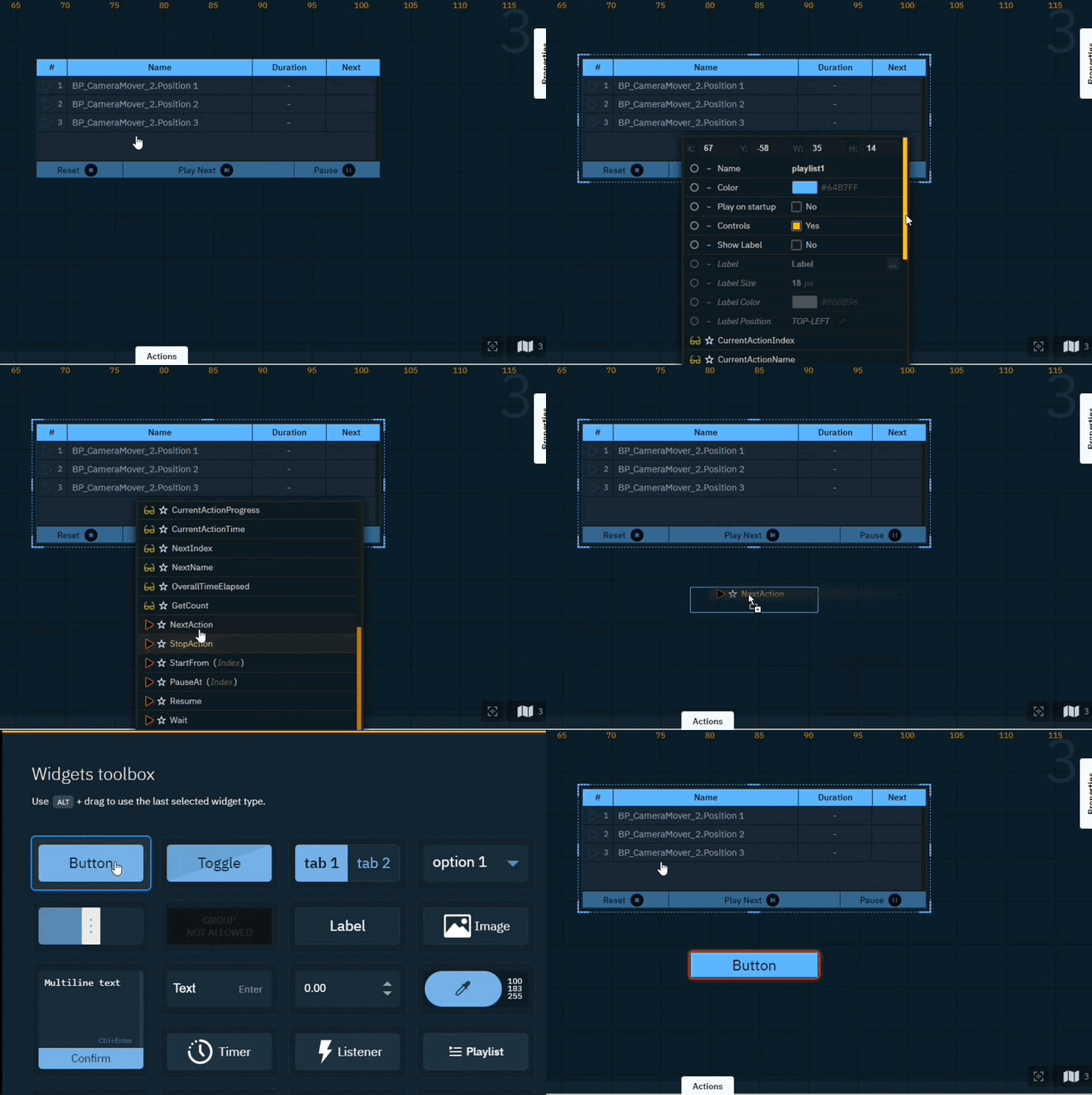
Trigger actions
|
NextAction |
Triggers the next action in the playlist |
|---|---|
|
StopActions |
Resets the entire playlist (Note: this will not reset the state of the actions, just the order of the playlist) |
|
StartFrom(Index) |
Triggers the specified action and continues the playlist from that point.
|
|
PauseAt(Index) |
Jumps to the specified action and pauses the playlist at that point.
|
|
Pause |
Pauses the playlist (Note: does not pause the action content) |
|
Resume |
Resumes the paused playlist |
|
Wait |
To be used in the playlist itself. There you can set a wait duration. |
Get actions
|
CurrentActionIndex |
Displays the index of the currently played action |
|---|---|
|
CurrentActionName |
Displays the name of the currently played action |
|
CurrentActionDuration |
Displays the duration of the currently played action, if available |
|
CurrentActionProgress |
Displays the progress (0-1) of the currently played action, if duration is set |
|
CurrentActionTime |
Displays a timer for how long an action has been playing |
|
NextIndex |
Displays the index of which action is up next |
|
NextName |
Displays the name of which action is up next |
|
OverallTimeElapsed |
Displays the overall time elapsed since triggering the first item in the playlist |
|
GetCount |
Displays the total number of actions in a playlist |
Go Live
Use the playlist controls at the bottom of the playlist or your custom created controls.
-
Per playlist only 1 action can be triggered at the same time. However multiple playlists can be played at the same time
-
Actions with no duration and Auto-next enabled are executed immediately after each other
-
Using trigger actions, one playlist can trigger other playlists