
Stream Deck keys can call Blueprint custom events, set Engine properties, change show settings in the Store and send any other Pixotope API message, all without a control panel. Keys can also show live values, for example a light's current intensity.
This page only covers what is specific to this approach. Set up the Buttons connection and learn how to create keys in Using Buttons with Pixotope
Actions on this page target objects by their object name, for example BP_CameraMover_2, not by their Outliner label. Renaming or re-placing an actor breaks every key that points at it. For shows where the scene changes often, consider triggering control panel actions instead.
Prerequisites
-
The Pixotope connection set up in Buttons
-
The level open on the target machine. In Editor mode, Call Event runs on the editor copy of the actor, so logic that depends on BeginPlay or runtime state only works in LIVE mode. Properties can be set and watched in Editor mode as well
Trigger a Blueprint custom event
-
In the Editor, open the Blueprint
-
In the My Blueprint panel, right click the custom event or function and click Pixotope API > Copy Call URL
-
The URL is copied with
ParamObjectSearch=FILL IN ACTOR NAMEand an emptyParamFunctionArguments=[] -
It targets the Engine on this machine by name,
Target=<Machine>-Engine. Replace that with~LOCAL~-Engineif the key should work on whichever machine runs Gateway -
ParamFunctionNameholds the internal name of the event, which can differ from the name shown in the Blueprint, for examplePX_PrintStringfor PX Print String
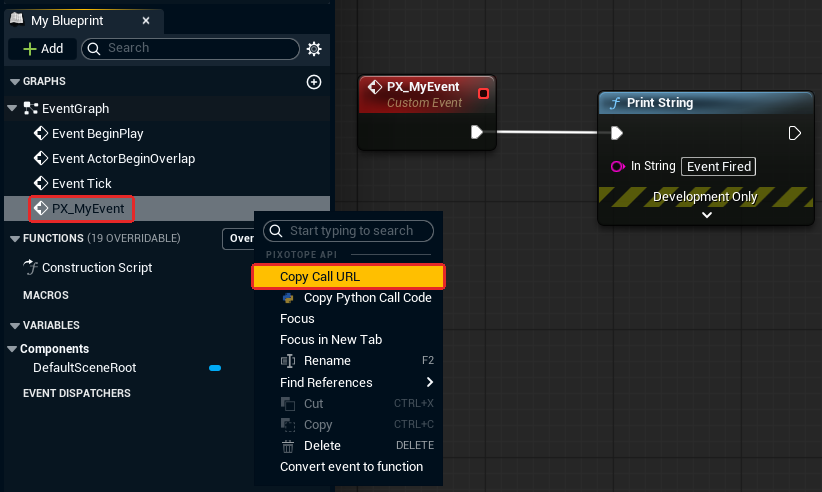
-
-
Replace
FILL IN ACTOR NAMEwith the unique name of the placed instance, for exampleBP_Sample_C_4-
The Outliner tooltip only shows the label. Enable the ID Name column in the Outliner to see unique names, or read them in the control panel editor's Engine Browser
-
To target several instances, see Choose which instance is called
-
Fill in
ParamFunctionArgumentsif the event has inputs, for example["HELLO"]. Leave[]for an event without inputs
-
-
In Buttons, add the Pixotope: Engine: Call Event (Blueprint) action to a key (1)
-
Paste the URL into Editor URL (2)
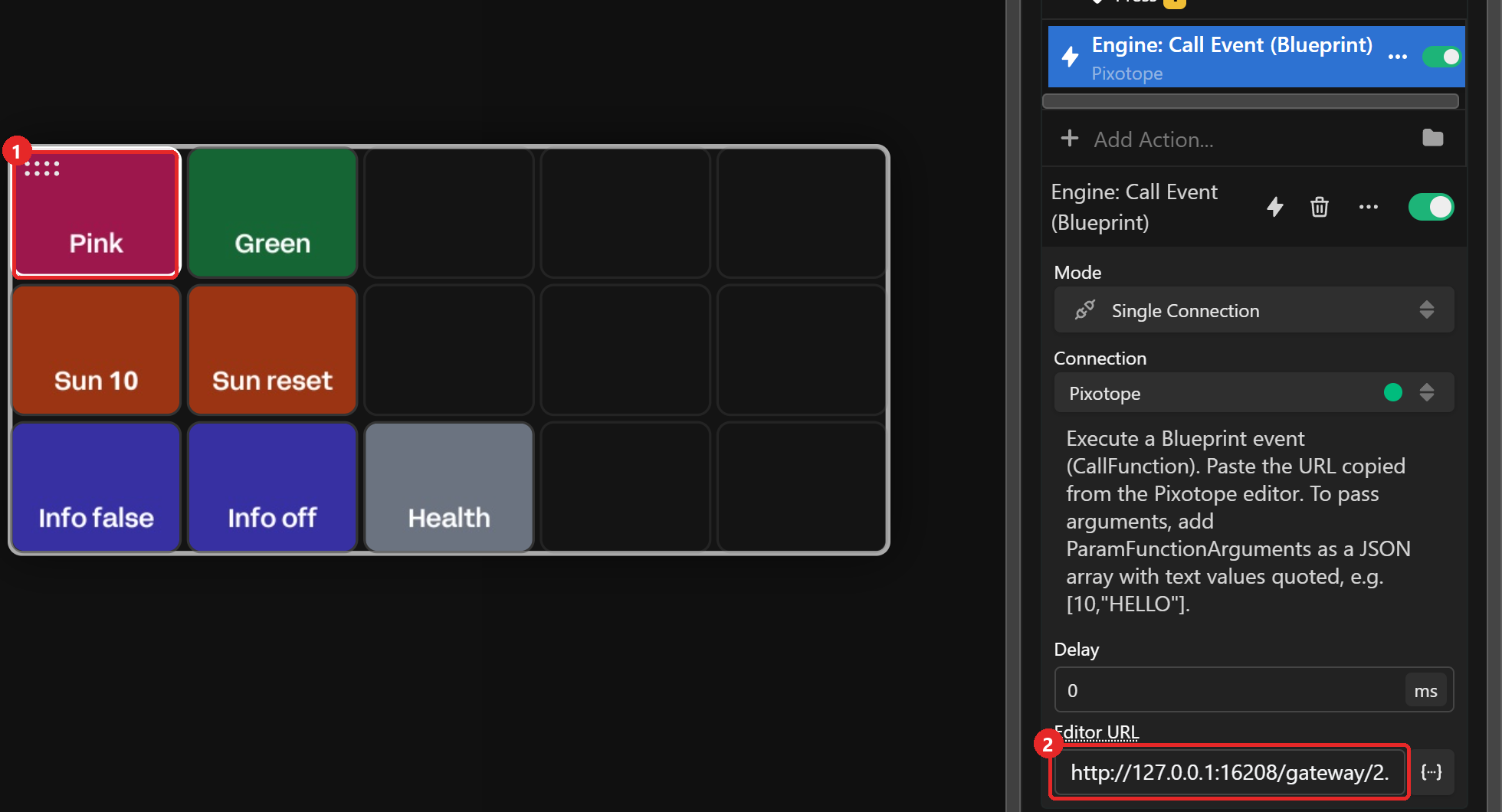
-
Click the lightning icon to fire the event once, then click Apply
Example URL as copied for the PX Print String event, with the placeholder replaced by BP_Sample_C_4 and one text argument. STUDIO-PC is the machine name:
http://localhost:16208/gateway/publish?Type=Call&Target=STUDIO-PC-Engine&Method=CallFunction&ParamObjectSearch=BP_Sample_C_4&ParamFunctionName=PX_PrintString&ParamFunctionArguments=["HELLO"]
|
Parameter |
Description |
|---|---|
|
ParamObjectSearch |
Unique object name of the placed instance that owns the event, not its Outliner label. Use |
|
ParamFunctionName |
Internal name of the custom event or function, as copied. Use it unchanged |
|
ParamFunctionArguments (Optional) |
Arguments as a JSON array, in the order the event declares them. Numbers and booleans are written as is, text values in double quotes, for example |
Write text arguments with quotes, for example ["HELLO"]. Buttons sends anything that is not valid JSON as plain text, so [HELLO] reaches the event as [HELLO], brackets included. The call still succeeds. Pasted into a browser, [10,HELLO] does work, because Gateway reads URL parameters differently.
Custom events on the Pixotope Event System's BP_Master are triggered the same way. Learn more about the Pixotope Event System
Choose which instance is called
The event runs on the instance named in ParamObjectSearch. Copy Call URL does not fill it in, whichever actor is selected, so set it yourself. The ID Name column in the Outliner shows the unique name, for example BP_Sample_C_4 for an actor labelled BP_Sample2.
|
ParamObjectSearch |
Calls the event on |
|---|---|
|
|
That instance only |
|
|
Each listed instance |
|
|
Every instance of the Blueprint in the level |
|
|
One instance of the Blueprint. Only use it when the level holds a single instance |
all_of_type and first_of_type take the Blueprint's class name with the _C suffix, separated by a space. The Outliner label and the plain Blueprint name return Failure: No objects found.
Pass Buttons values as arguments
Editor URL accepts Buttons variables once the field is in variable mode. They are filled in each time the key is pressed, before the request is sent, so the event can receive a live value, for example a property kept by a Watch feedback.
…&ParamFunctionArguments=["Sun $(Pixotope.prop_sun)"]
-
Click the variable icon next to Editor URL (Toggle Variable Mode)
-
The field is cleared, and a folder icon and Use expression appear next to it
-
Click the folder icon and paste the URL, including the variable, into the text field
-
The preview line below shows the resolved URL, for example
…ParamFunctionArguments=["Status Connected"]
-
-
Click Done and Apply
-
Write the variable as
$(<Variable Key>.<variable>), for example$(Pixotope.connection_status), or insert it from Browse Variables in the same dialog -
Keep the double quotes around text that contains a variable.
["Status $(Pixotope.connection_status)"]reaches the event asStatus Connected -
Without variable mode the text is sent as typed, and the event receives
Status $(Pixotope.connection_status). The lightning icon resolves variables the same way as a key press -
Other module fields that take variables, such as Value and State Path, work the same way
Set an Engine property
-
In the Editor, right click the property in the Details panel and click Copy SetProperty URL
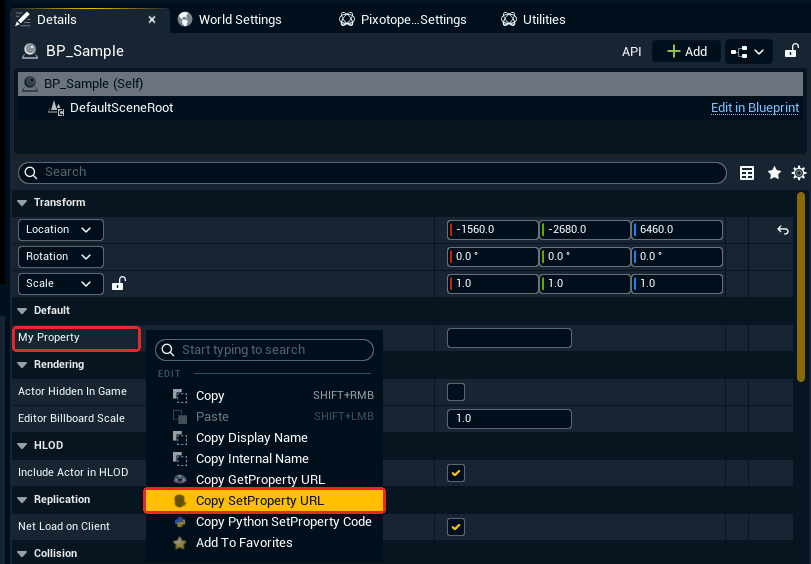
-
In Buttons, add the Pixotope: Engine: Set Property action
-
Paste the URL into Editor URL
-
Enter the value to send in Value
-
Any value already in the URL is ignored
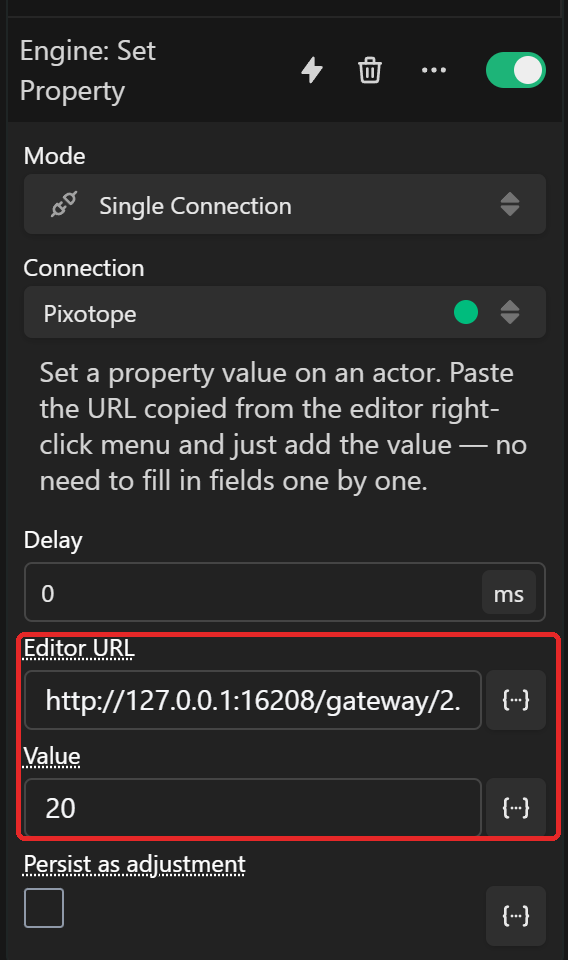
-
|
Field |
Description |
|---|---|
|
Editor URL |
The copied GetProperty or SetProperty URL. It identifies the object and property |
|
Value |
The value to set. Plain text, numbers, |
|
Persist as adjustment |
Stores the change as an adjustment, so it persists |
Show a live value on a key
-
Select the key and open the Feedbacks tab
-
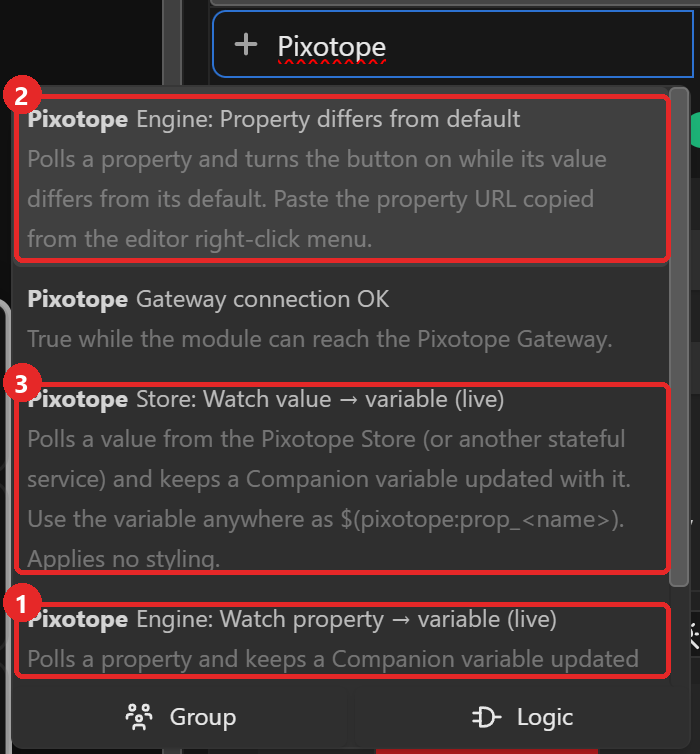
Click Add Feedback… and select Pixotope: Engine: Watch property → variable (live) (1)
-
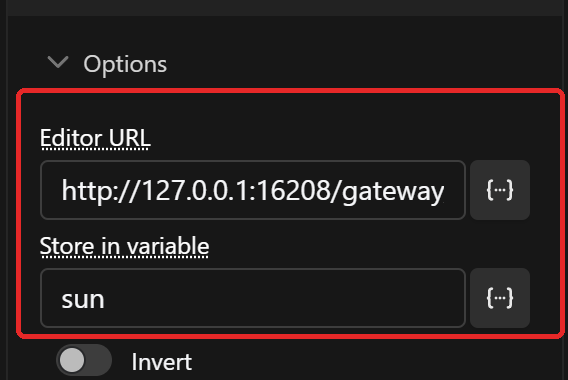
Paste the property's URL into Editor URL and enter a name in Store in variable, for example
sun-
The value is polled into the variable prop_sun. The module adds
prop_and lowercases the name, soSun Lightbecomes prop_sun_light -
prop_sun only appears in Browse Variables after both fields are filled in
-
Ignore the red Preview in the feedback panel. A Watch feedback does not restyle the key
-
-
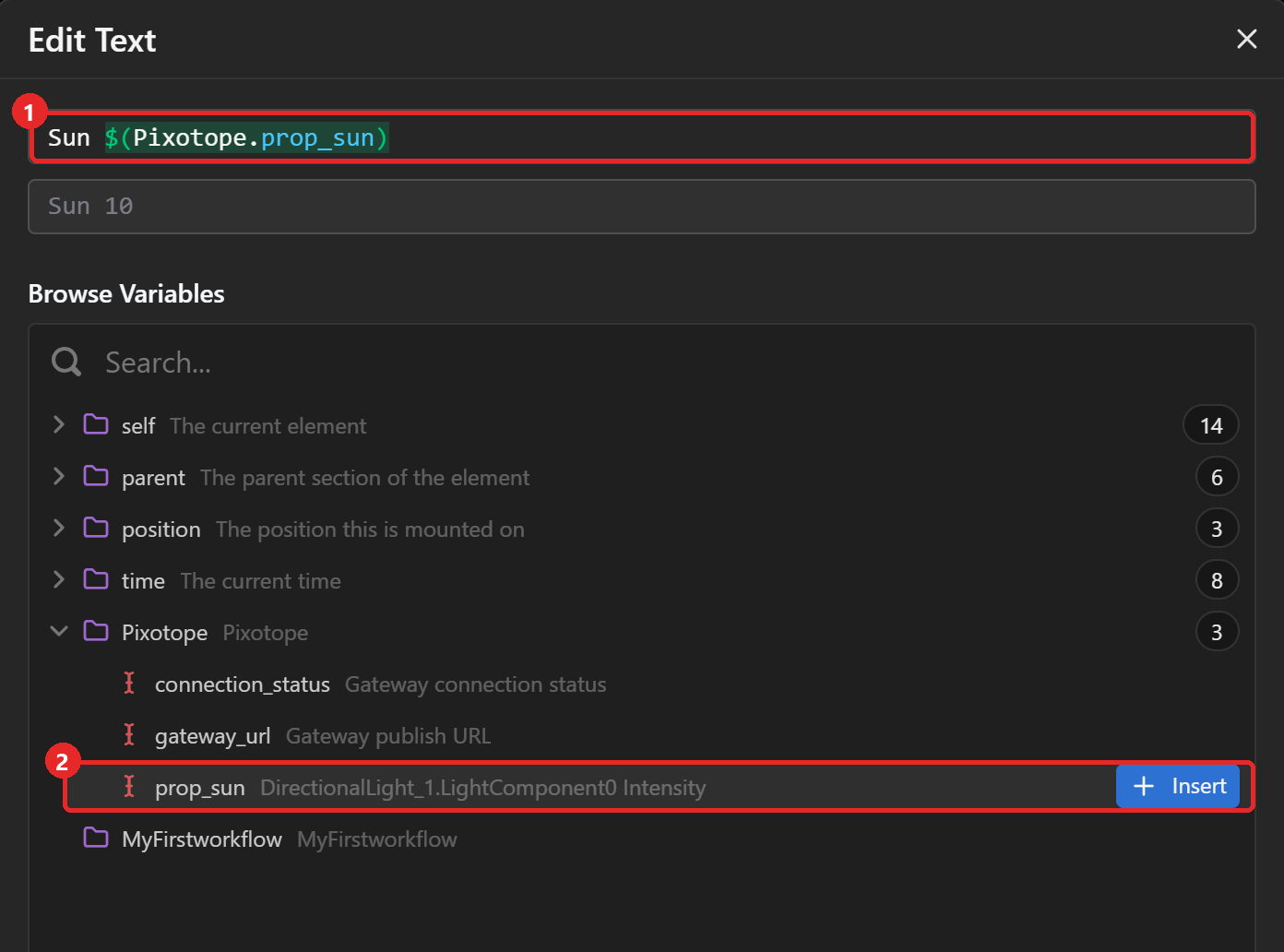
Open the Design tab and click the folder icon next to Text
-
Not fx, which turns Text into an expression
-
-
Type the label (1), then expand Pixotope in Browse Variables, hover prop_sun and click Insert (2)
-
The field below previews the result, here
Sun 10
-
-
Click Done and Apply
Buttons writes module variables as $(<Variable Key>.<variable>), for example $(Pixotope.prop_sun). Pixotope is the Variable Key in the connection's Config tab, and it is case-sensitive.
The module's feedback descriptions, tooltips and built-in help show the Companion syntax $(pixotope:prop_sun). It does not resolve in Buttons, and the key shows $ instead of the value. Insert variables from Browse Variables to get the right syntax.
-
Live values refresh at the connection's Live Value Poll Interval (default
1000ms). Only properties with a Watch feedback are polled -
Engine: Property differs from default (2) highlights a key while a property differs from its default value
-
To read a value only when a key is pressed, use the Engine: Get Property (→ variable) action instead
Change show settings in the Store
Show-wide settings live in the Pixotope Store.
-
Add the Pixotope: Store: Set Value action
-
Enter the State Path, for example
State.Compositing.MachineInfoVisualizer.Enabled -
Enter the Value, for example
true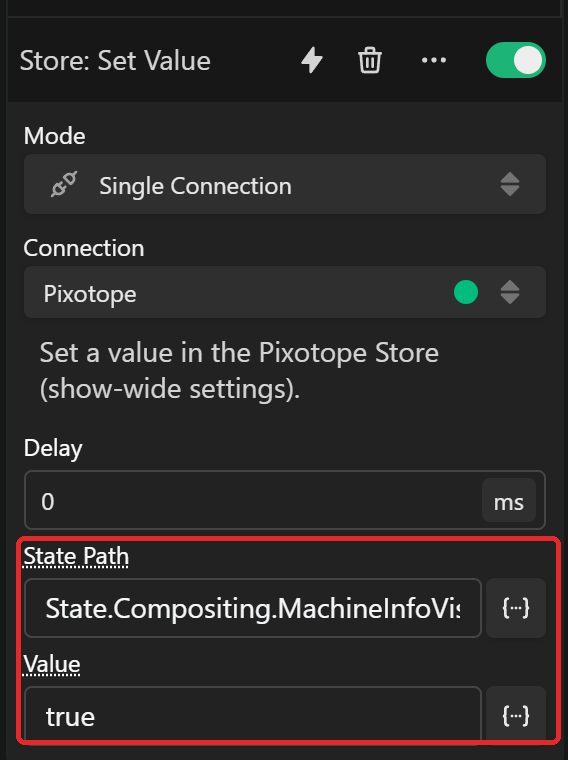
To find a state path, open this URL in a browser. The tree is under Message.Value. The path is State plus the keys below that, for example State.Compositing.MachineInfoVisualizer.Enabled:
http://127.0.0.1:16208/gateway/2.2.0/publish?Type=Get&Target=Store&Name=State
To check a path, open the same URL with the full path as Name. It returns the current value:
http://127.0.0.1:16208/gateway/2.2.0/publish?Type=Get&Target=Store&Name=State.Compositing.MachineInfoVisualizer.Enabled
To show a Store value on a key, add the Pixotope: Store: Watch value → variable (live) feedback (3), enter the same State Path and a name in Store in variable, for example info, which gives prop_info. Service defaults to Store and can point at another stateful service.
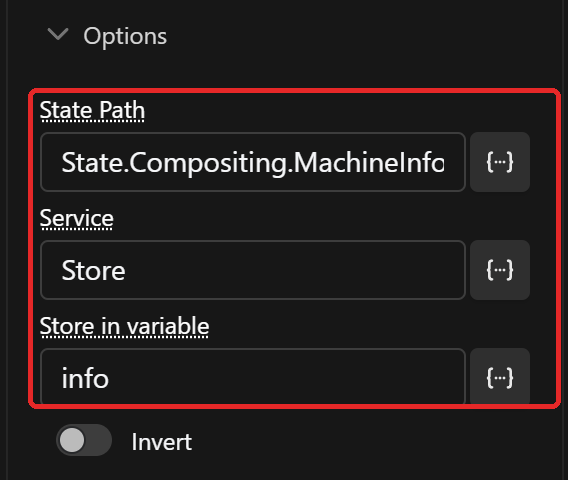
Store values apply to the whole show, on every machine. Test new paths on a non-critical setting first. A wrong or empty path returns nothing, and the variable stays blank.
Call other Director and service APIs
Anything else in the Pixotope API can be sent with the Pixotope: Raw API Request action.
-
Find the message you need
-
In Director, open the API Log tab, perform the action in the UI and copy the logged Topic and Message
-
OR copy the example URL from the "Try via Pixotope Gateway" section of the API documentation
-
-
Add the Raw API Request action and fill in the fields from the message
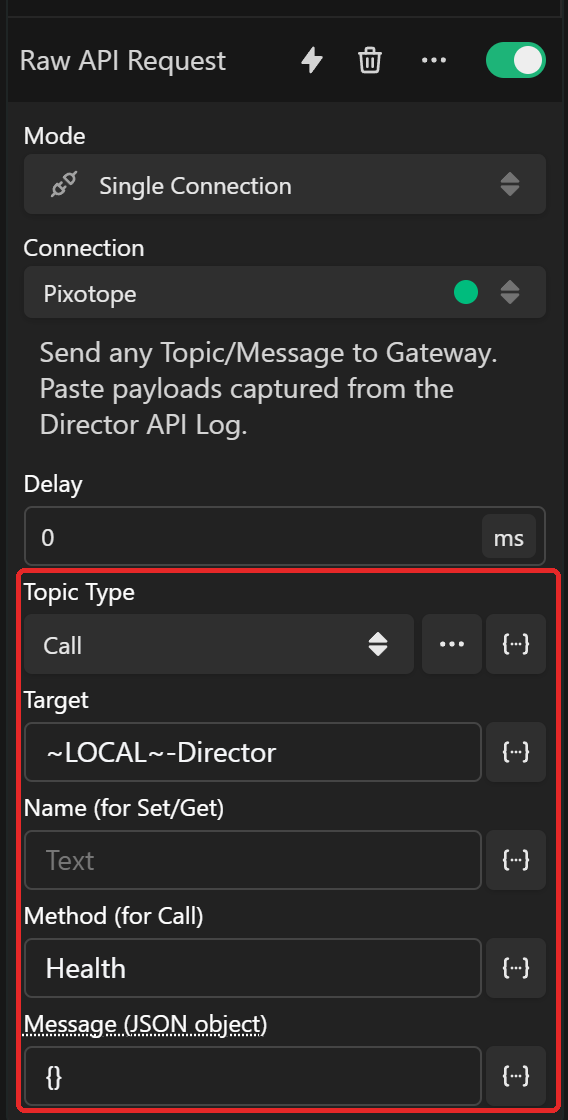
|
Field |
Taken from |
Example: Director health check |
|---|---|---|
|
Topic Type |
|
|
|
Target |
|
|
|
Name (for Set/Get) |
|
Leave empty |
|
Method (for Call) |
|
|
|
Message (JSON object) |
The Message object. In a URL, |
|
Raw API Request does not show the response. Use the Watch feedbacks to read values back.
Learn more about the Pixotope API
Example layout
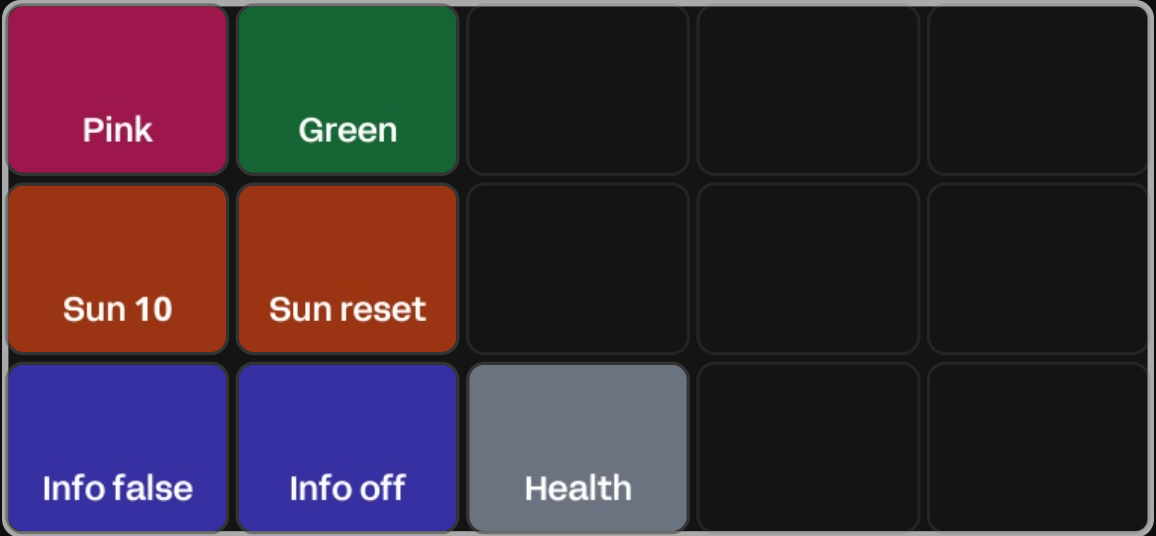
|
Key |
Action |
Feedback |
|---|---|---|
|
Pink / Green |
Call Event Change to Pink with |
- |
|
Sun |
Set Property light intensity to |
Watch property, text |
|
Sun reset |
Set Property light intensity to |
- |
|
Info / Info off |
Store: Set Value machine info overlay to |
Store: Watch value, text |
|
Health |
Raw API Request Director Health |
- |
Troubleshooting
|
Symptom |
Likely cause |
Fix |
|---|---|---|
|
Log shows 200, nothing happens |
Wrong object or event name, or the event needs runtime state |
Open the URL in a browser. |
|
Text argument arrives with brackets |
|
Quote text values and keep the event's input order, for example |
|
Key shows |
Variable written in Companion syntax or with the wrong case |
Insert it from Browse Variables. It must read |
|
Live value stays blank |
The path returned nothing |
Check the URL or State Path |
|
Connection shows disconnected |
Gateway is unreachable, or a Gateway passkey is set |
Check Gateway IP and port, and keep the passkey empty |