
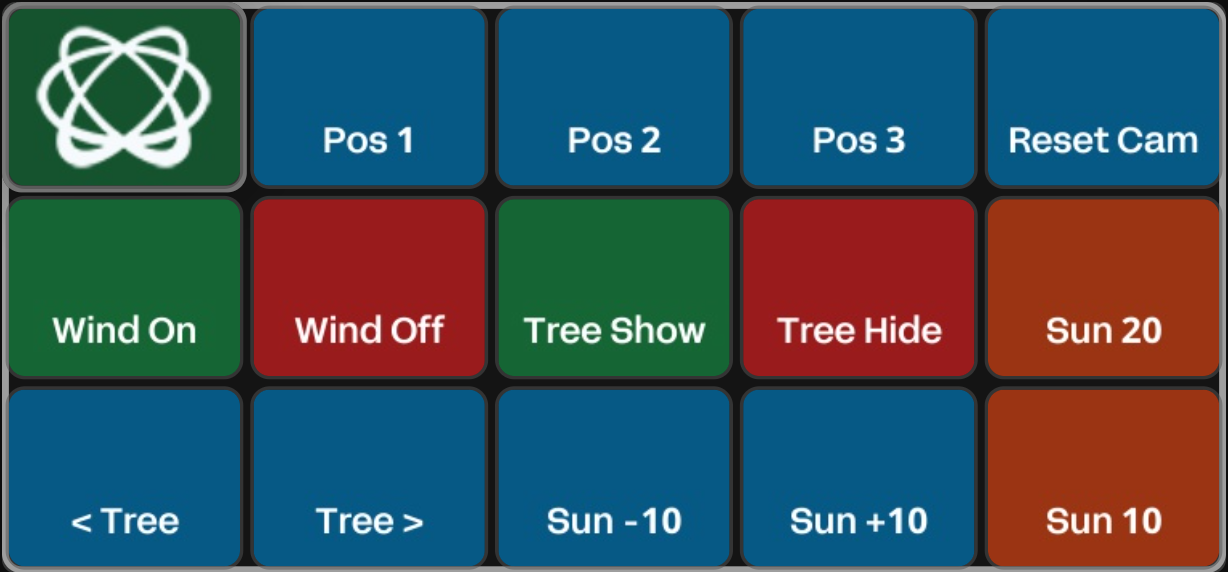
Each Stream Deck key sends a Remote Call to a control panel. The panel then clicks one of its own buttons, so the Stream Deck and the panel always run exactly the same logic.
This page only covers what is specific to this approach. Set up the Buttons connection and learn how to create keys in Using Buttons with Pixotope
Learn more about how to Remote control the control panel
Prerequisites
-
The Pixotope connection set up in Buttons
-
A control panel whose buttons already work in LIVE mode
-
Test every panel button by clicking it in LIVE mode first. If it does not work from the panel, it will not work from the Stream Deck either
-
Set up the control panel
Add a Remote Call widget
-
Open the control panel in Edit mode
-
Press
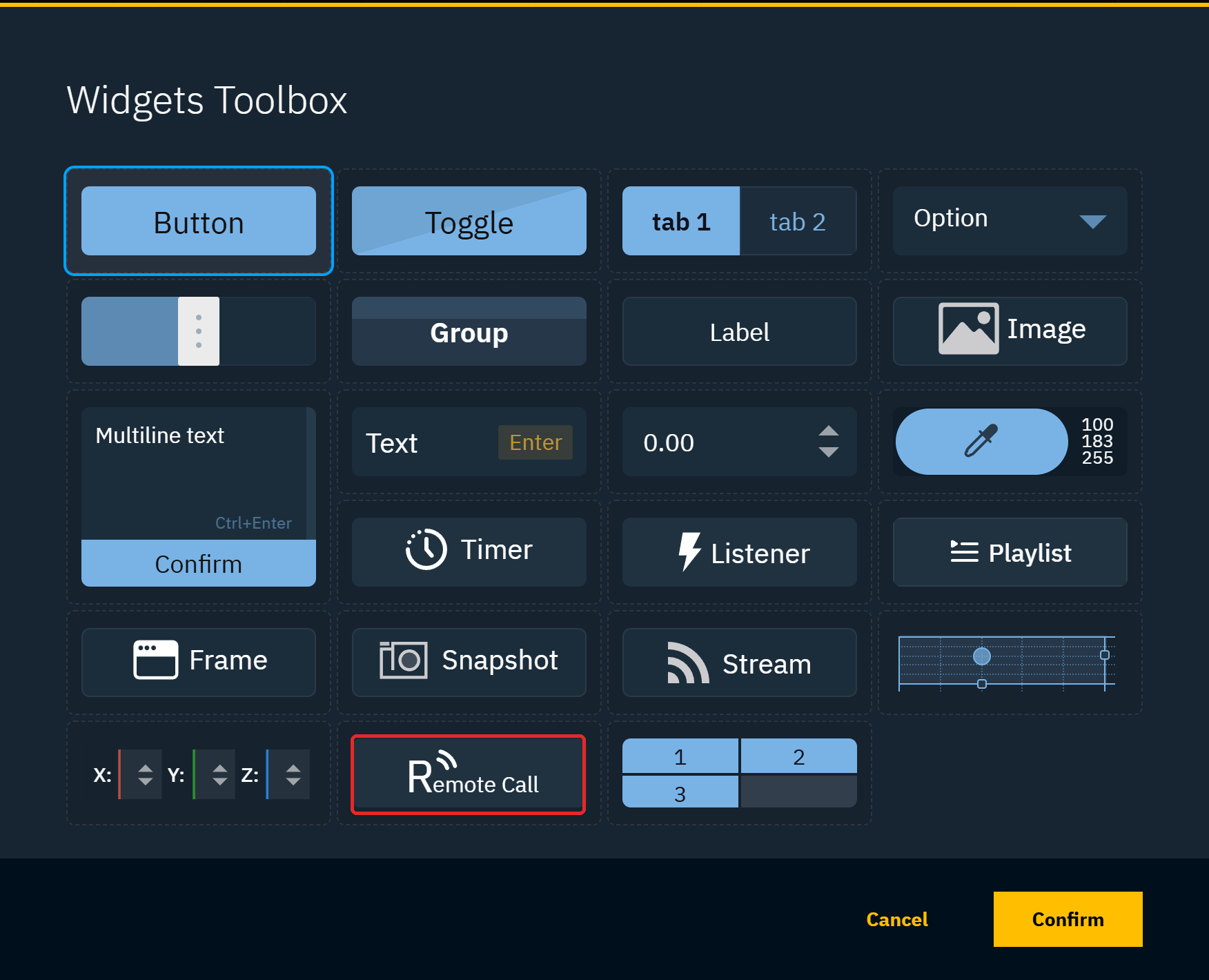
Tto open the Widgets Toolbox, select Remote Call, click Confirm and drag a rectangle on the canvas to place the widget-
One Remote Call widget per panel is enough. It is not shown in LIVE mode
-
-
Give the widget a clear Name in Properties, for example
StreamDeck-
Names typed in the editor cannot contain spaces. The field reverts to the previous name without a warning
-
Define the call keys
A call key is the name Buttons sends to trigger something on the panel. Add one call key per Stream Deck key.
-
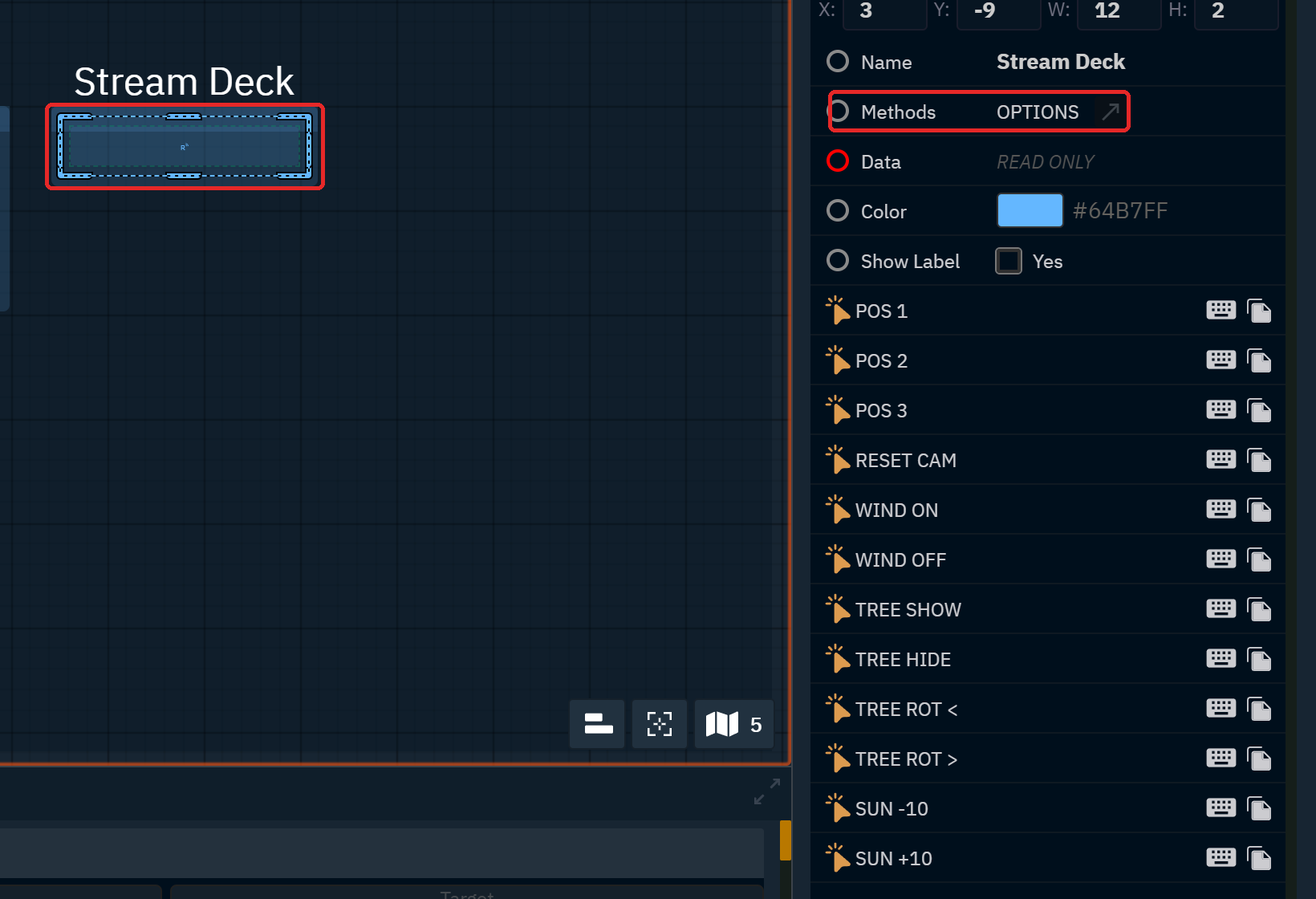
Right click the Remote Call widget and click OPTIONS next to Methods in the popup
-
The Options list already contains one call key,
METHOD_1
-
-
Click + Add new option (2) for every additional key you need
-
New options are named
option_valueuntil renamed
-
-
Double click each option and enter its Call Key (1), for example
SD_POS1orSD_WIND_ON -
Click Confirm
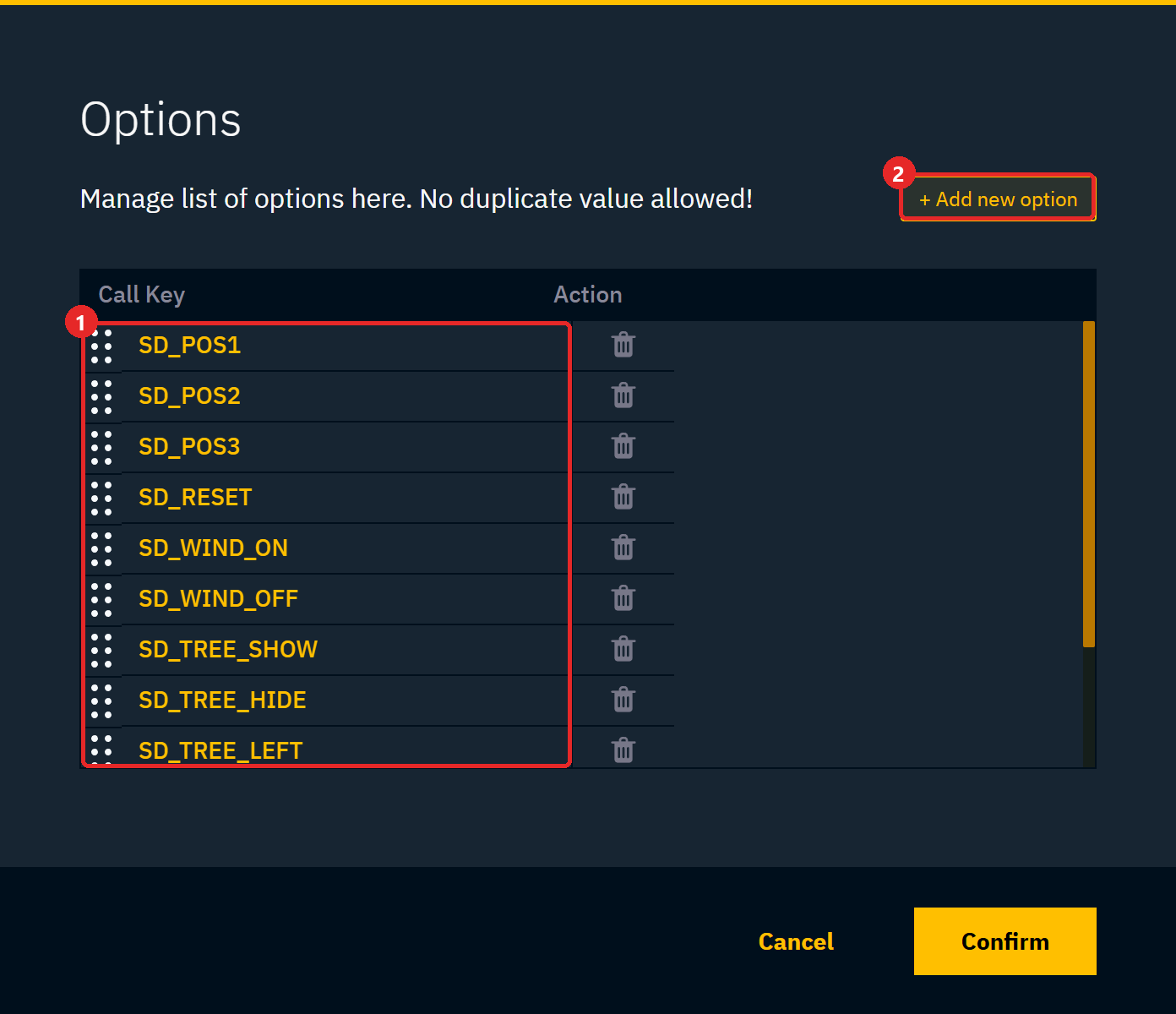
Use short upper-case names with a common prefix such as SD_. Call keys must be unique, and Buttons has to send them with exactly the same spelling and case.
Link each call key to a panel button
Instead of rebuilding the logic on the call key, let each call key click the matching panel button. The button keeps its actions, and changing what a button does later needs no change in Buttons.
-
Double click the Remote Call widget to focus its actions
-
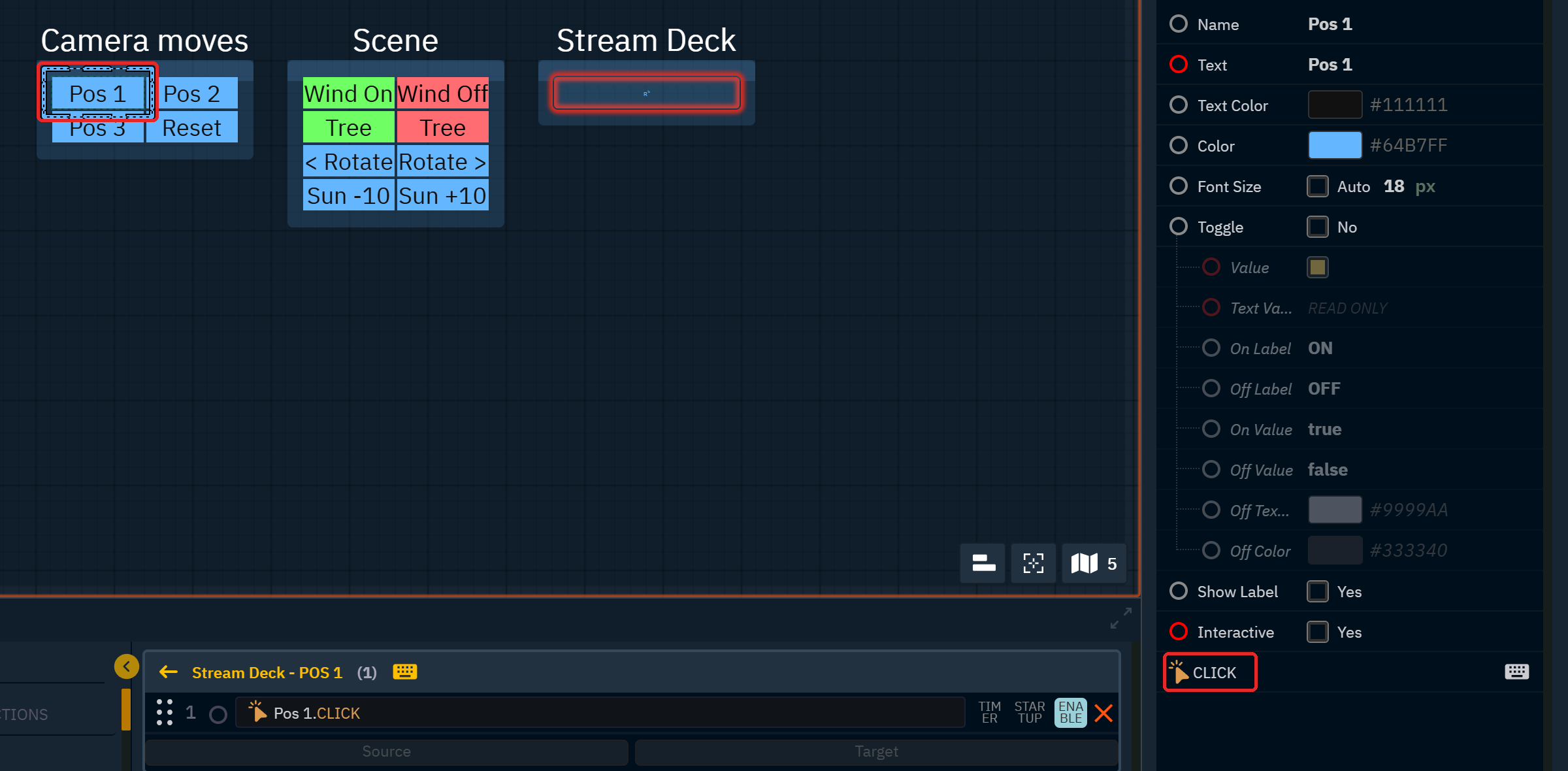
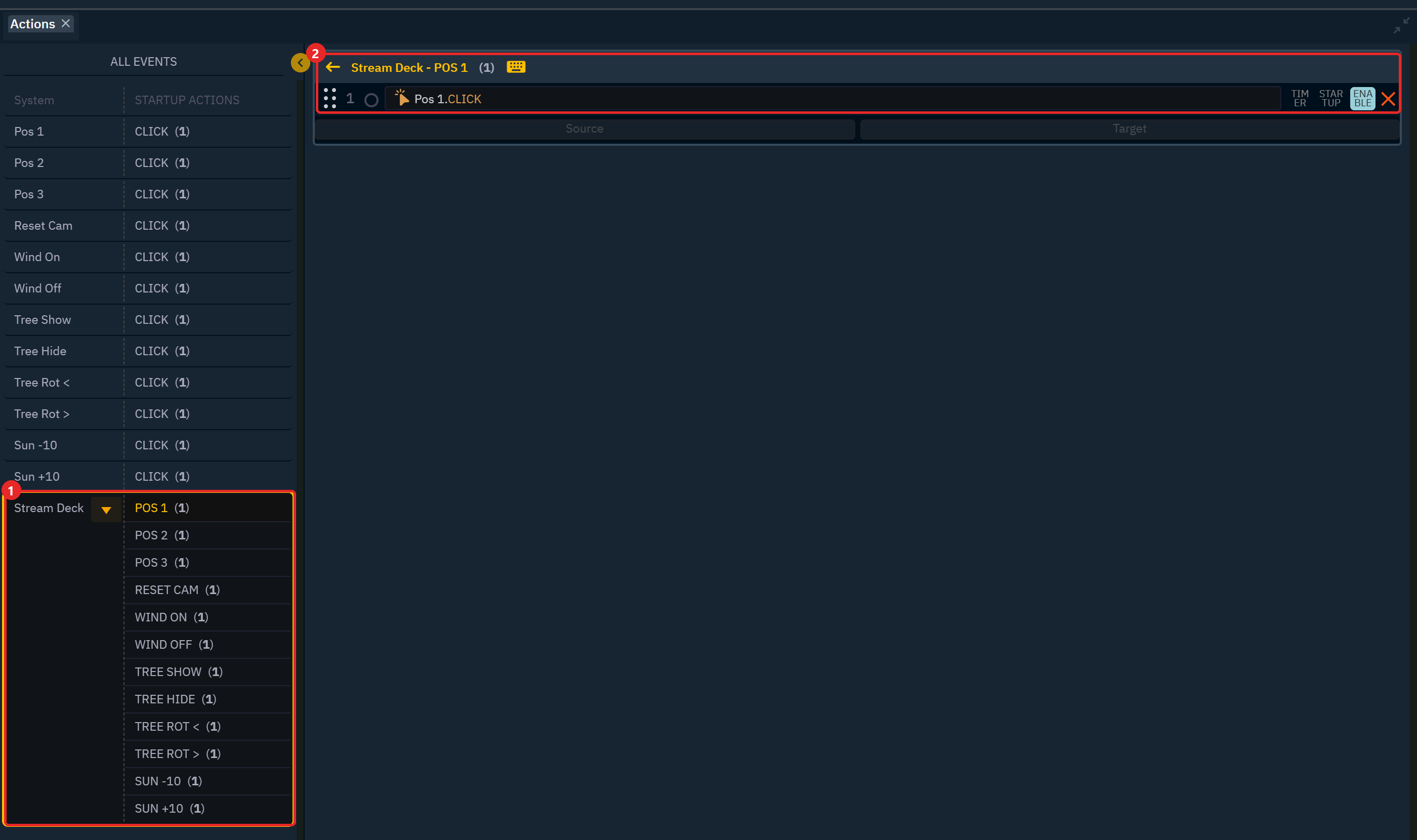
In the Actions section, select the first call key (1)
-
Right click the panel button this call key should press and scroll down to its CLICK event
-
Drag the CLICK event onto the action list of the call key
-
The action reads the button's Name followed by
.CLICK(2). The button's Text is not used
-
-
Repeat this for all call keys
-
Save the control panel
Learn more about how to Trigger using another widget
Set up the keys in Buttons
-
Create a key as described in Using Buttons with Pixotope
-
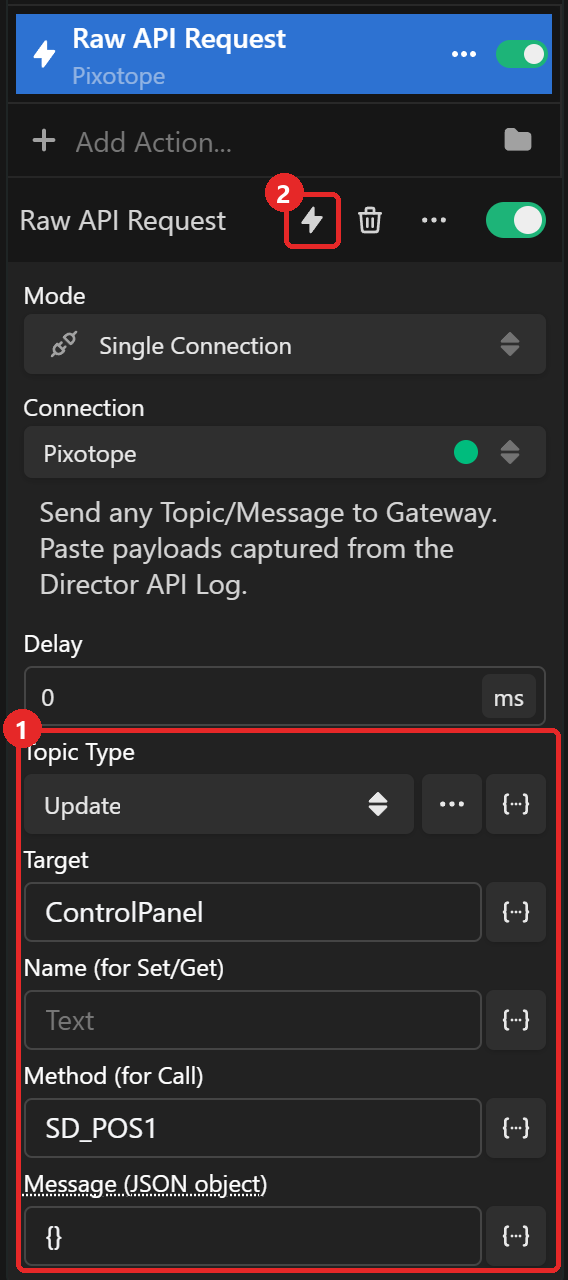
Under Press, add the Pixotope: Raw API Request action
-
Fill in the fields (1)
-
Click the lightning icon (2) to fire the call once
-
The matching panel button reacts
-
-
Click Apply
|
Field |
Value |
|---|---|
|
Topic Type |
|
|
Target |
|
|
Name (for Set/Get) |
Leave empty |
|
Method (for Call) |
The call key, for example |
|
Message (JSON object) |
|
Topic Type must be Update. The control panel only listens for Update messages addressed to ControlPanel, and ignores Call.
Duplicate the finished key for the other call keys, and change only Method, Text and colour.
Operate
-
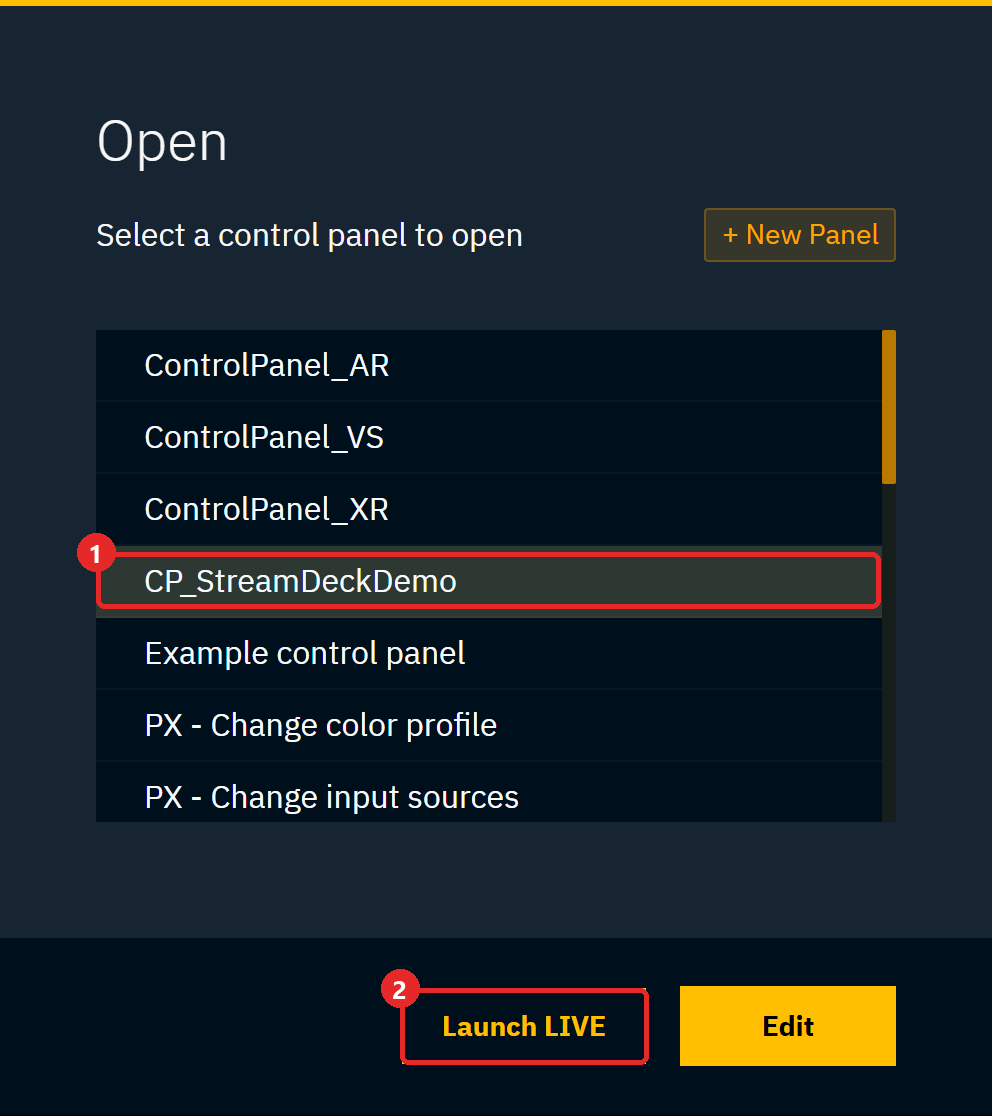
Launch the control panel in LIVE mode, either in Director or in a browser
-
Select the panel (1)
-
Click Launch LIVE (2)
-
-
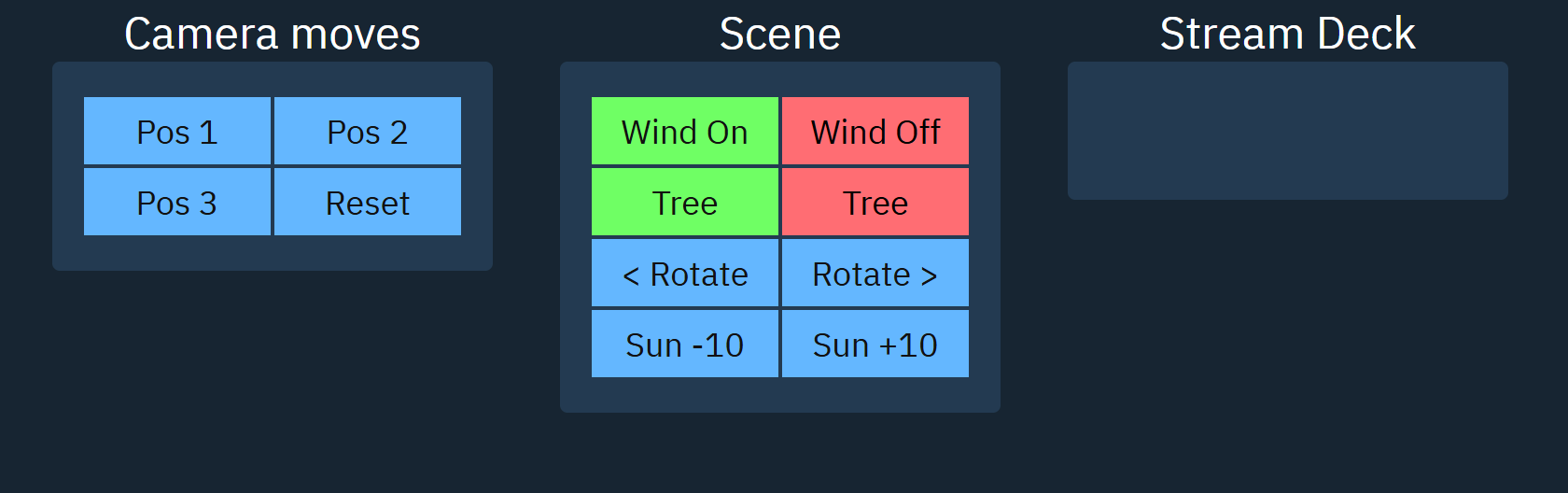
Press the keys on the Stream Deck
-
The Remote Call widget is not drawn in LIVE mode, but it still receives the calls
-
Remote Calls only fire while the panel is open in LIVE mode. A panel in Edit mode, or a closed panel, ignores them.
Keep the panel LIVE in one place only. Every LIVE instance reacts to each call, so two open instances run every action twice. That is harmless for absolute actions like Pos 1, but doubles relative ones like Sun +10.
Troubleshooting
|
Symptom |
Likely cause |
Fix |
|---|---|---|
|
Log shows 200, nothing happens |
The panel is not open in LIVE mode |
Launch the panel in LIVE mode |
|
Panel is LIVE, still nothing |
Method does not match a call key |
Compare spelling and case with the call key list |
|
Every action runs twice |
The panel is LIVE in two places |
Close the extra instance |
|
Panel button works, call key does not |
The call key has no action, or clicks the wrong button |
Check the call key's action list |
|
Panel button itself fails |
An actor was renamed or re-placed |
Re-link the button's action to the actor |