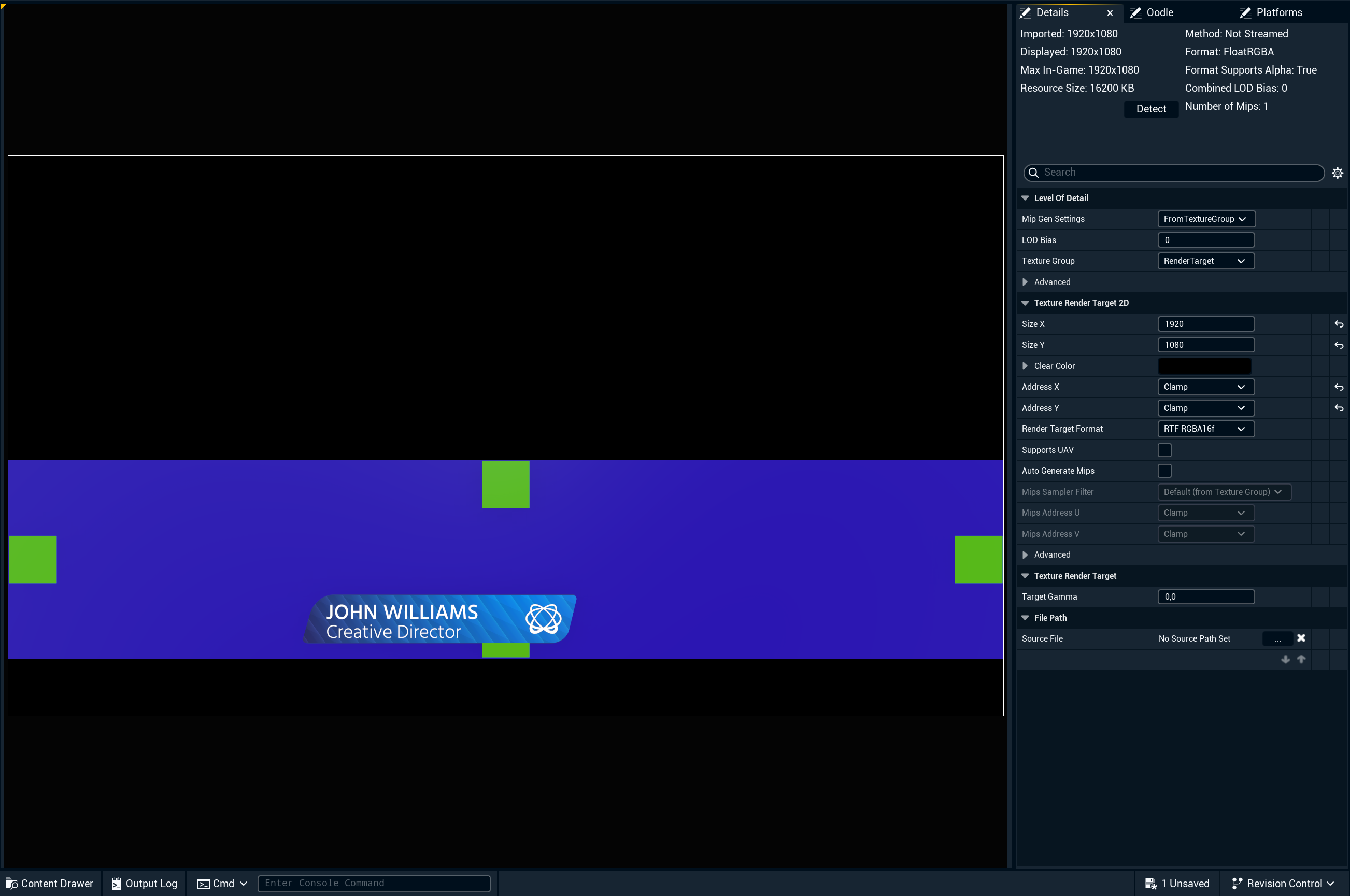
By default, a Motion Design scene is framed for a standard 16:9 output. When that scene is sent to a video wall slot with a very different ratio, what you designed and what appears on the wall will not line up.
Learn more about how to Use the video wall workflow
This example runs through how to set up the Editor to design in a 5:1 frame and how to set up the video wall slot so that it outputs correctly.
Set up workspace in Editor
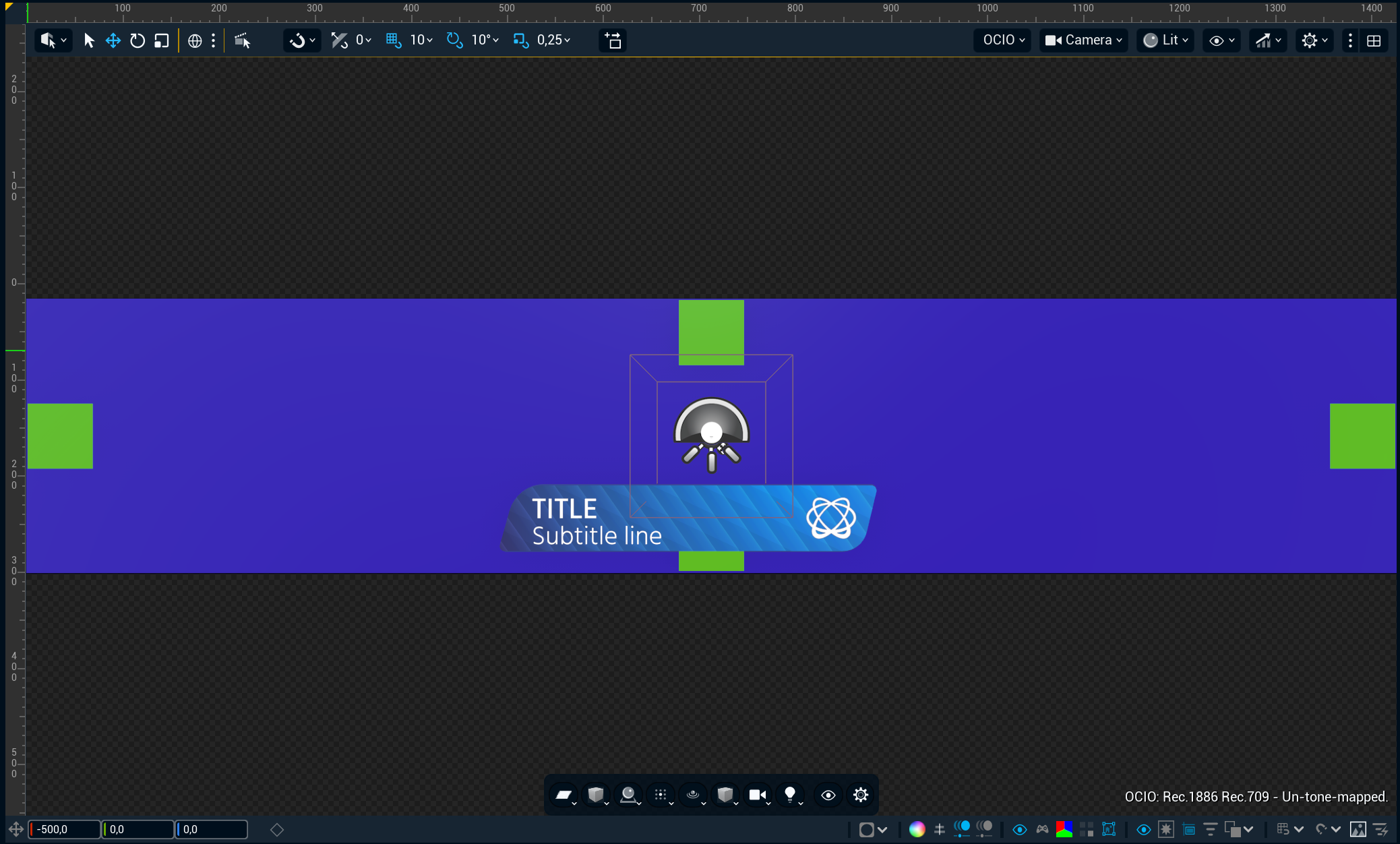
Setting the filmback to 50 mm × 10 mm gives the camera a 5:1 sensor, so the viewport frames the scene exactly as the wall will show it.
-
In the Outliner, select the AvaCineCameraActor
-
In the Details panel, expand Filmback
-
Set Sensor Width to
50mm and Sensor Height to10mm
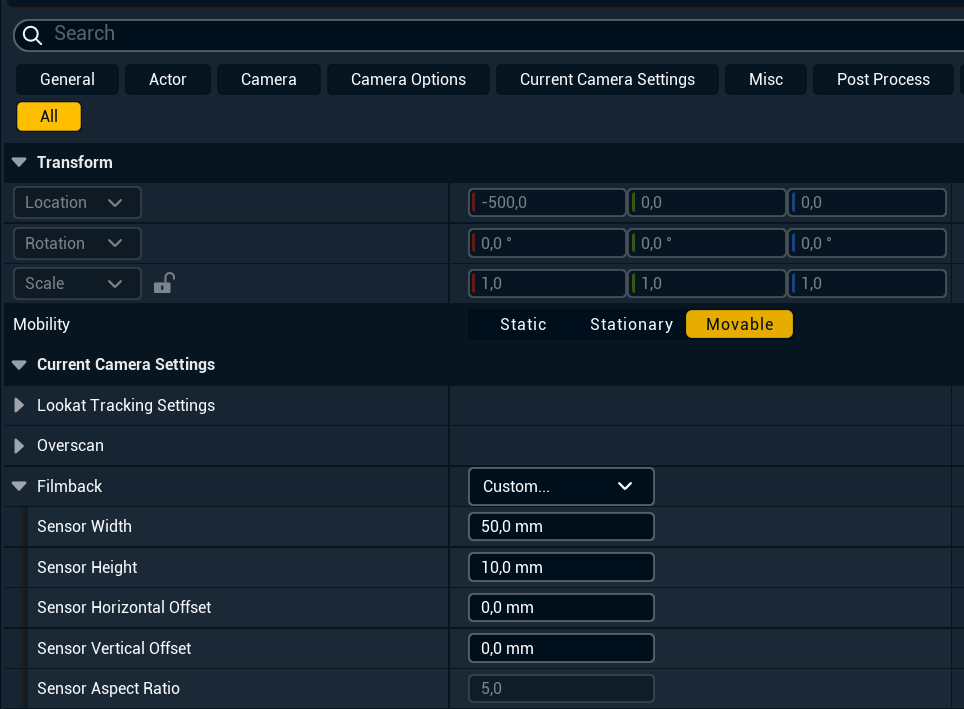
-
In the Details panel, expand Camera Options
-
Enable Constrain Aspect Ratio
-
Save the level
Set up the video wall slot in Director
-
In Director, open the video wall setup and add a new slot
-
Set the slot type to Motion
-
Set the slot's resolution to one with a 5:1 ratio, for example
3840 × 768or1920 × 384 -
Under Source framing, select Stretch
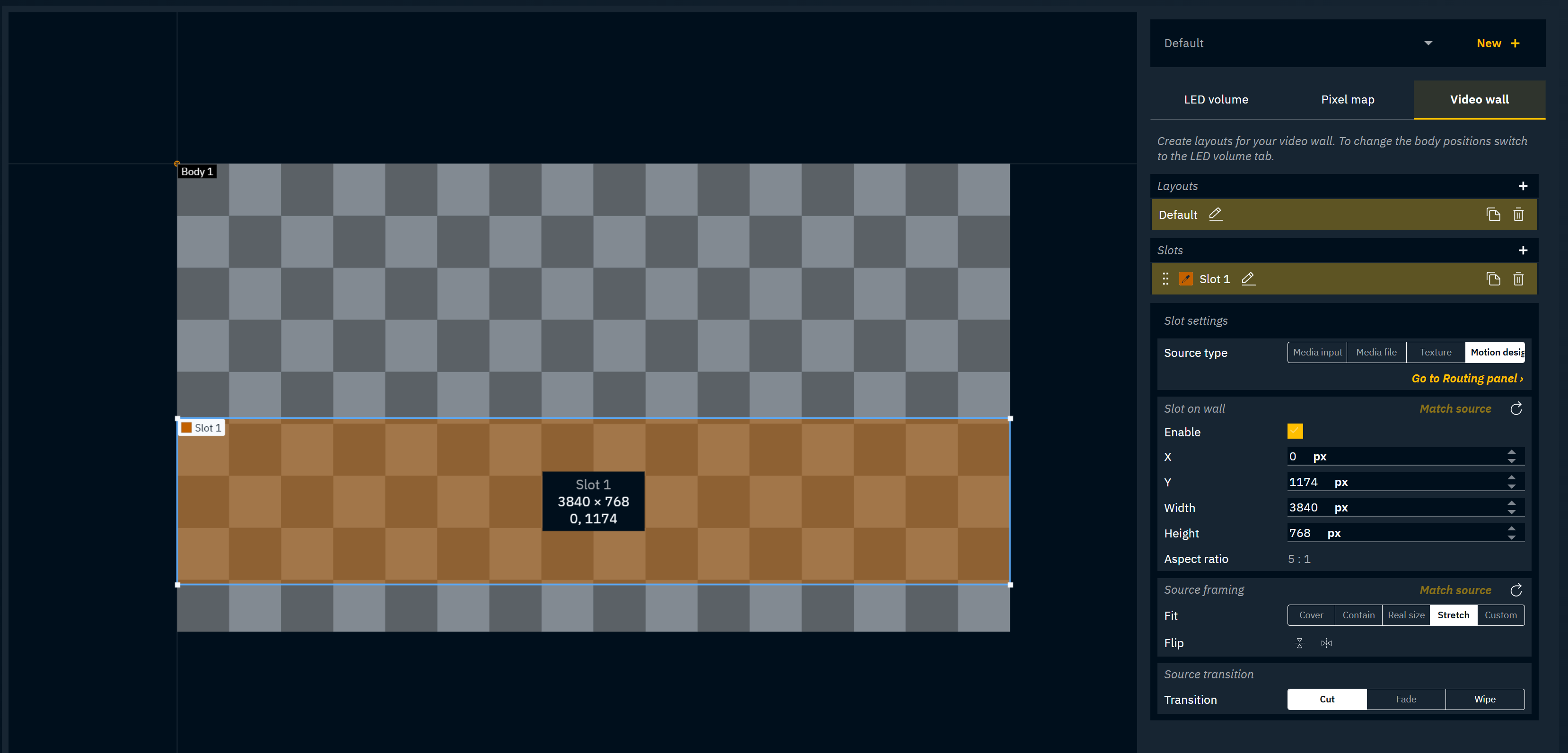
Check the wall: the full design should fill the slot edge to edge, with text and shapes in their correct proportions.