This page only covers what is different when using the Live controller with Engine templates. Learn more about Preparing levels in Pixotope Editor
The standard Live controller workflow is described in Using Pixotope Live controller
Prerequisites
Set up routing
-
In Director go to the Routing panel in Setup > Configure
-
Add one or more outputs to be used as Render output
-
Choose the desired Output
-
-
Add a Stream (WebRTC) output to be used as Preview
-
Set the Stream endpoint
-
Launch levels
-
Go to the Launch panel
-
Launch the level which is targeted by the templates
-
in LIVE mode
-
on all output target machines (Preview and Render)
-
Set up output target
Add output target
In addition to the standard steps for adding an output target:
-
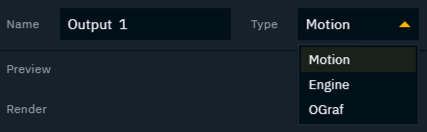
Change output target Type to Engine
-
Add one or more Preview and Render machines
Preview and Render must run on different machines.
Create template
Create Engine template
-
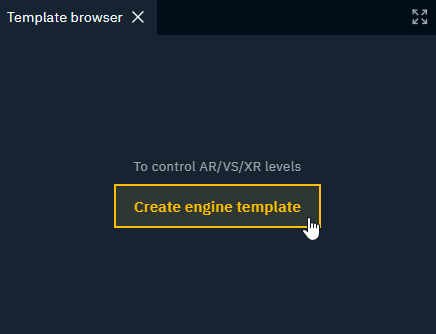
Click the "Create engine template" button in the Template browser

-
Give the template a name and click "Create"
The template is opened and can be edited.
Add properties
-
In the Property browser, select 1 or more objects to be controlled
-
Use
Shiftto select a range of objects -
Use
Ctrlto select/unselect single objects
-
The level to control needs to be running.
-
Search for the property to be controlled
Want to control the same property of multiple objects? Select multiple objects using Shift+Click
-
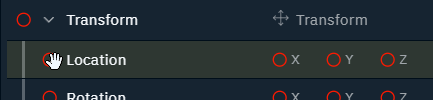
Drag the properties drag handle (red circle) into the IN or OUT action of the template
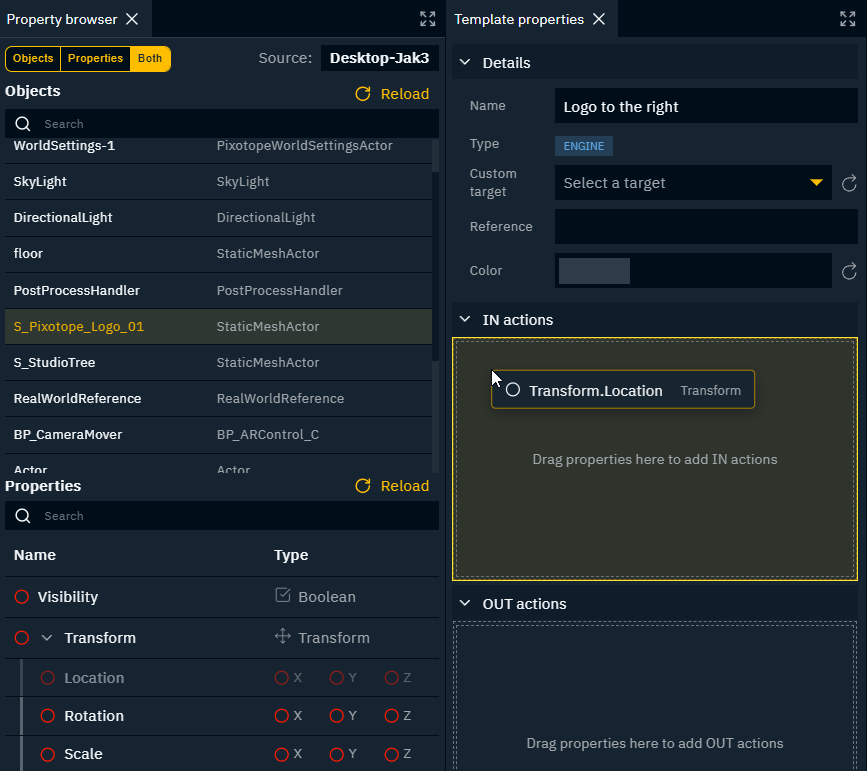
-
The values under the IN action are sent when taking an instance of that template IN
-
The values under the OUT action are sent when taking an instance of that template OUT
When controlling transform properties, the object’s Mobility has to be set to Movable before any transform change.
-
Add the Mobility property
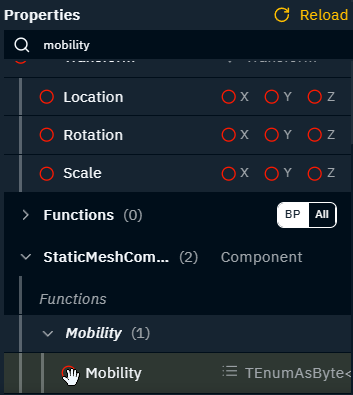
-
Set it to Movable
-
Move it before any transform change and hide it from the form by clicking the Eye icon
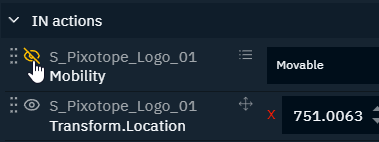
Remove objects from a multi object property
-
Click the "Objects" header in Template properties
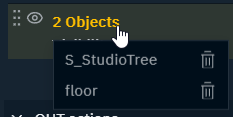
-
Click the Trash icon to remove the objects you want to stop controlling
Operate
Launch levels
Learn more about Launching levels above.
Preview an instance
In-context preview
Previewing an instance shows only the selected preview by default. Enabling "In-context" will try to show the Preview in context of all other Engine actions currently on-air.
Take preview to air
Engine templates without OUT actions are fire-and-forget triggers. They have no state to return to. Any number can be triggered, but only the most recently triggered instance is shown as taken in (red). Taking in a new instance moves the active highlight to it while the previous one returns to neutral.