This page only covers what is different when using the Live controller with OGraf.
The standard Live controller workflow is described in Using Pixotope Live controller
What is OGraf?
OGraf is an open specification from the EBU for broadcast graphics built with standard web technologies. A graphic is created once and can then be played out by any renderer that supports the specification, which makes graphics portable between systems and vendors. Each OGraf graphic consists of a manifest file describing its properties and actions, plus the web component that renders it. In Live controller, OGraf graphics are imported as templates and played out through an OGraf renderer.
Learn more about the → OGraf specification
Prerequisites
Set up routing
-
In Director go to the Routing panel in Setup > Configure
-
Add an output to be used as Render output
-
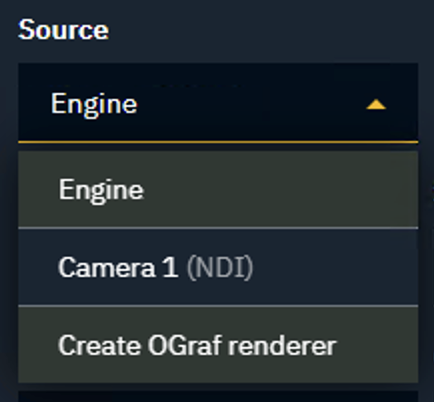
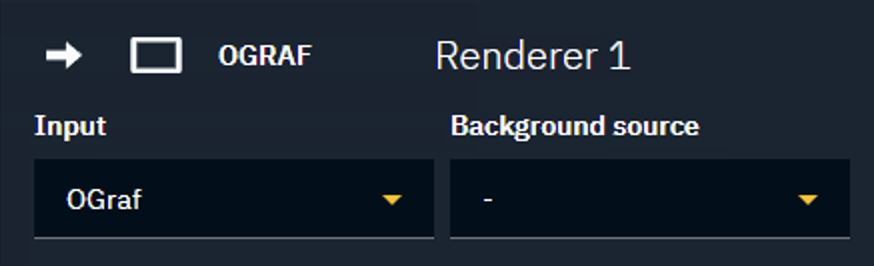
Set its source to "Create OGraf renderer"
-
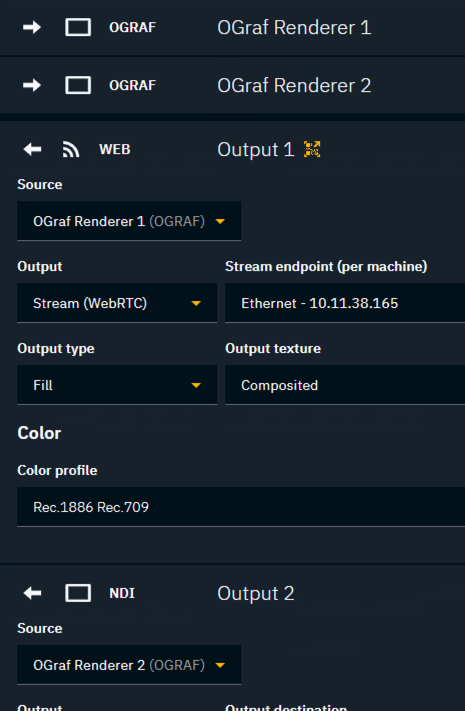
An OGraf renderer is created
-
One can think of an OGraf renderer as a browser window or tab
-
-
The created input is linked to the Render output
-
-
Choose the desired Output
-
-
Optional: Add a Stream (WebRTC) output to be used as Preview
-
Set its source to the newly created input
-
Set the Stream endpoint
-
The OGraf graphics preview can also be rendered directly in the browser which makes adding a separate preview output optional.
Learn more about how to Configure routing
Internal compositing
-
On the OGraf renderer
-
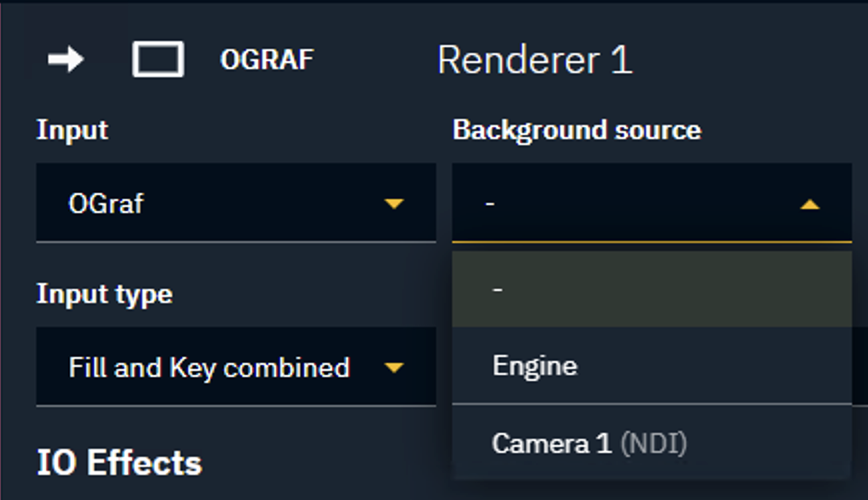
Change its Background source to Engine or an available Media input
-
Change Output type to Fill and Key combined
-
-
Optional: Repeat this for the OGraf renderer rendering the Preview
External compositing
-
Create a second Render output and set its Output type to Key
-
Optional: Repeat this for the OGraf Renderer rendering the Preview
Make sure that OGraf Renderer’s Background source is set to None(-)
The external compositing setup is the same as for AR. Learn more about how to Configure external compositing
Set up output target
Add output target
In addition to the standard steps for adding an Output target:
-
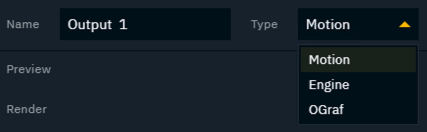
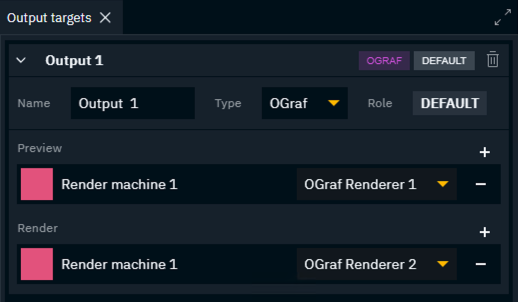
Change output target Type to OGraf
-
When adding the Preview and Render machine also select the OGraf renderer
Create template
Bulk create OGraf templates
-
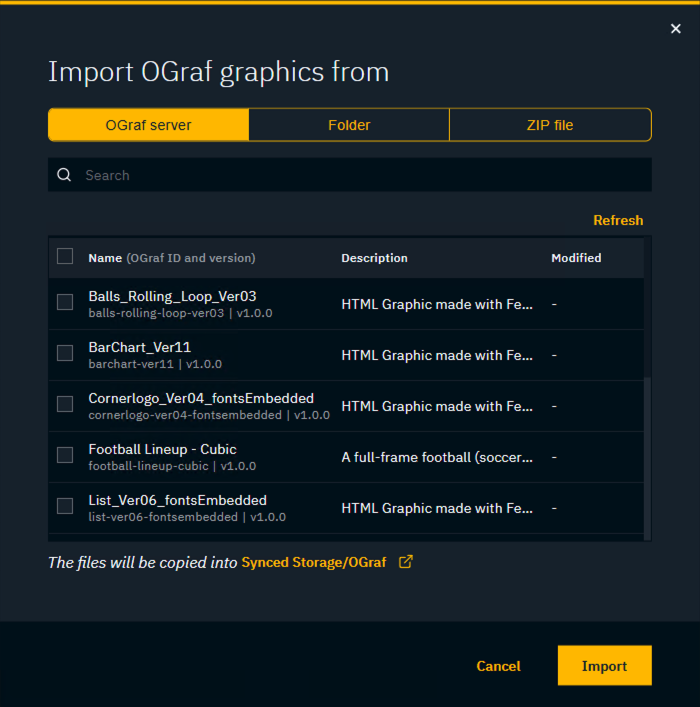
Click the arrow next to the "Create engine template" button and select Import OGraf graphics
-
Select where the graphics are imported from
-
OGraf server - previously imported OGraf graphics (across Pixotope versions)
-
stored in
Synced Storage\Internal\OGraf\Graphics
-
-
Folder
-
ZIP file(s)
-
-
Select the Graphics to create templates for
-
Click Import
Update form
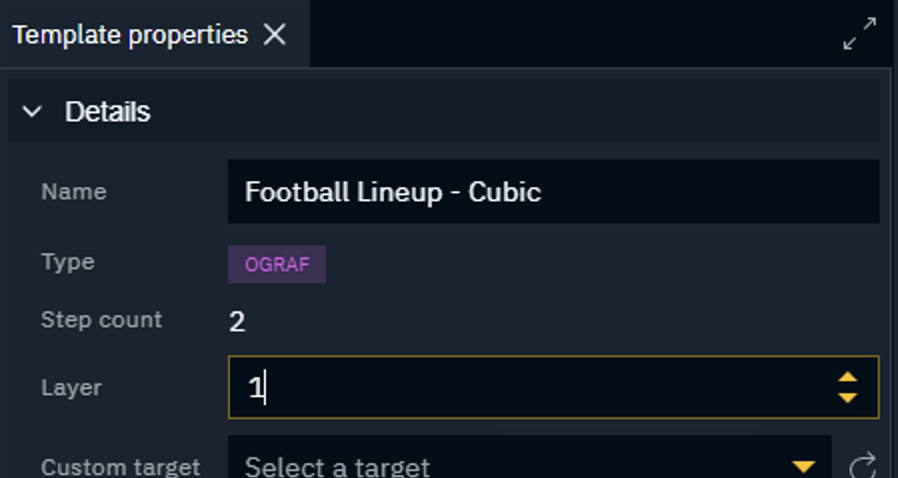
In addition to the graphic's own data properties, which are added to the form by default, OGraf also includes a set of OGraf-specific properties and actions.
OGraf specific template properties
|
Parameter |
Description |
|---|---|
|
Step count |
Read-only. The number of steps the graphic declares. Step controls appear only when the graphic has more than one step. |
|
Layer |
The layer in the OGraf renderer that the graphic instance is loaded onto. Use different layers to keep stacked graphics independent of each other. There can only be one graphic in a layer at all times. Taking a new graphic in onto the same layer a graphic is currently displayed on, will remove that graphic right away, without playing its out animation. |
OGraf specific actions
|
Parameter |
Description |
Auto-form |
|---|---|---|
|
Custom actions
|
If the graphic defines custom actions, each appears as a named button with a form for its arguments. |
Added by default |
|
Continue
|
Advances the graphic one step. Press repeatedly to walk through a multi-step graphic. |
Added by default when the step count is >1 |
|
Goto
|
Jumps straight to a specific step, in any order.
|
Can be added when the step count is >1 |
|
Delta step
|
Moves a number of steps relative to the current step.
|
Can be added when the step count is >1 |
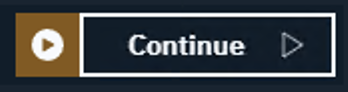
OGraf action button
The OGraf action buttons are split in two parts.
-
The left part (dark orange) triggers this action on the Preview output target
-
The larger right part triggers this action on the Render output target (on-air)
Operate
Launch levels
Only applicable when doing internal compositing over a AR/VS/XR level.
-
If the Background source is Engine, launch the background level in LIVE mode on all output target machines via the Director > Launch panel
Preview an instance
In-browser preview
-
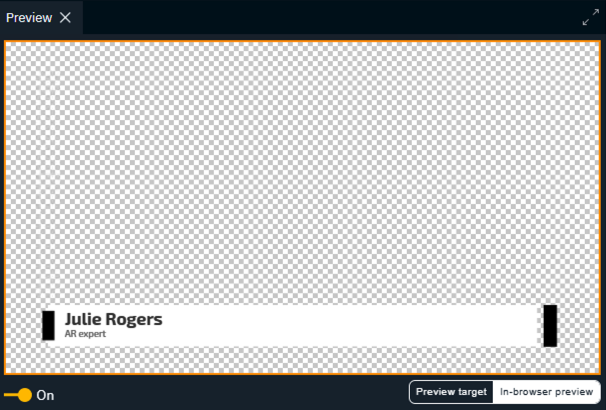
Inside the Preview panel click the "In-browser preview" button to render the OGraf graphics preview directly inside the browser
By default, OGraf graphics are previewed using the Preview target.
Be aware that the in-browser preview
-
might differ from the actual output
-
only renders a single layer
-
does not support internal compositing
Change layer order
OGraf templates are played out on a specific Layer. To stack graphics on top of each other, change their layer.
-
Select the OGraf template
-
Change the Layer number in Template properties
-
Templates on layers with higher numbers are displayed on top of graphics on a lower layer
-
There can only be one graphic in a layer at all times. Taking a new graphic in onto the same layer a graphic is currently displayed on, will remove that graphic right away, without playing its out animation.