
Check out the following examples:
-
LVL_PixotopeVSSample level in the PixotopeCalibration project included in the installer
-
Pixotope example projects, which can be downloaded from the Pixotope cloud → login.pixotope.com
For functionality specific to the Unreal Editor and some in-depth knowledge, check out https://docs.unrealengine.com/en-us/Engine/Editor.
Video tutorial - Using virtual cameras
Example setup
-
See the level Blueprint of the level LVL_PixotopeVSSample of the project PixotopeCalibration
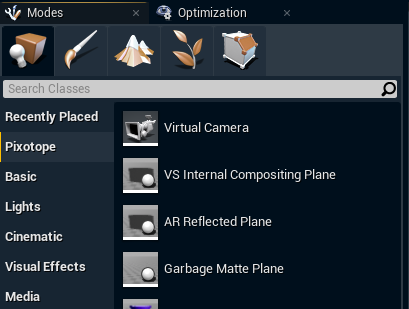
Create a virtual camera
Create a virtual camera in your level:
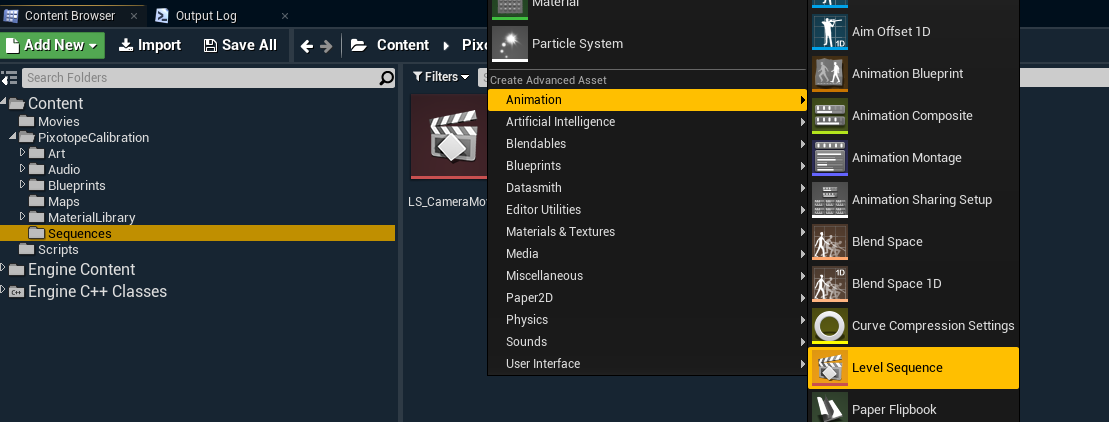
Create level sequence
Create a new level sequence:
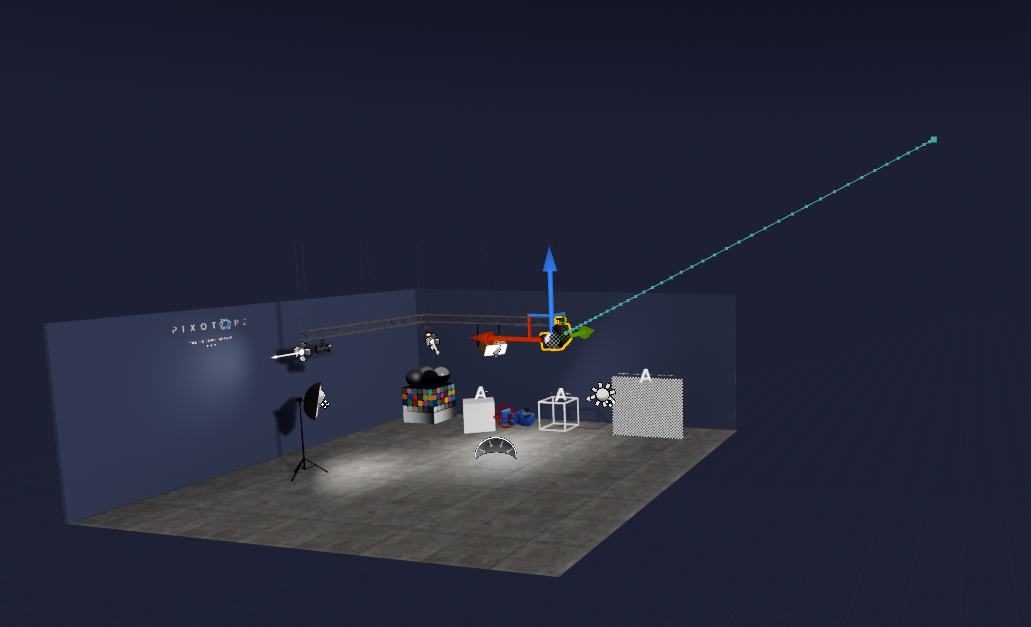
Animate virtual camera
Animate the virtual camera in the sequence:
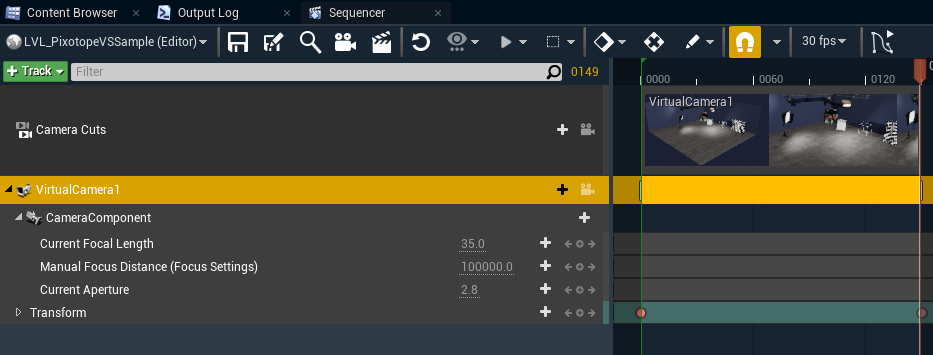
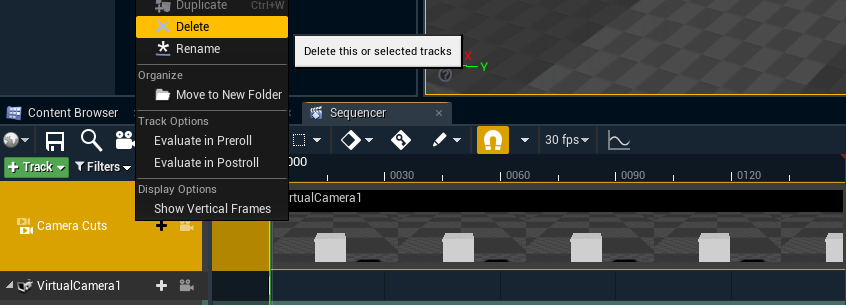
Delete the Camera Cuts track
Remove the cut track, as we will be blending, not cutting to our virtual camera:
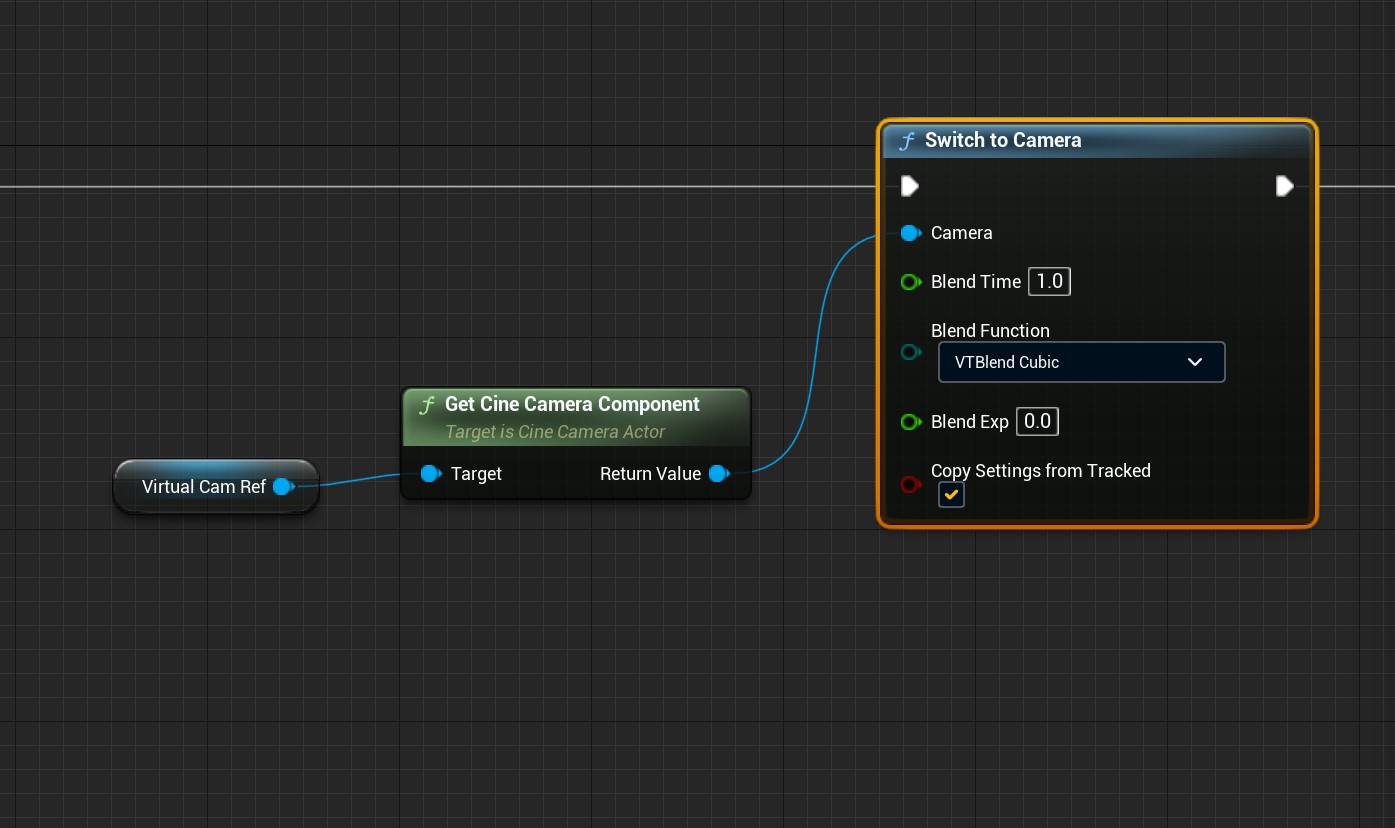
Create Blueprint logic
Create Blueprint logic for triggering the sequence:
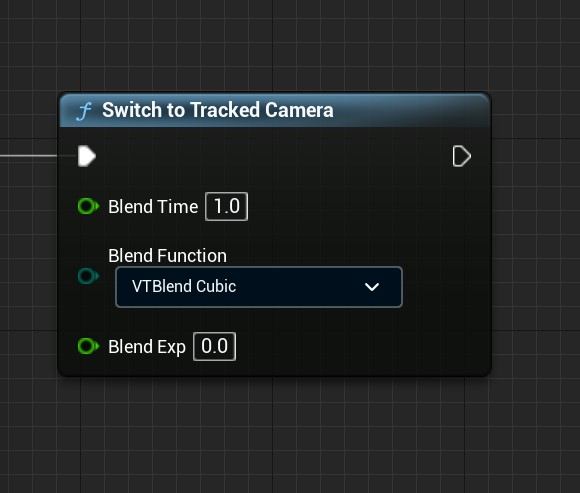
Create Blueprint logic for going back to the tracked camera:
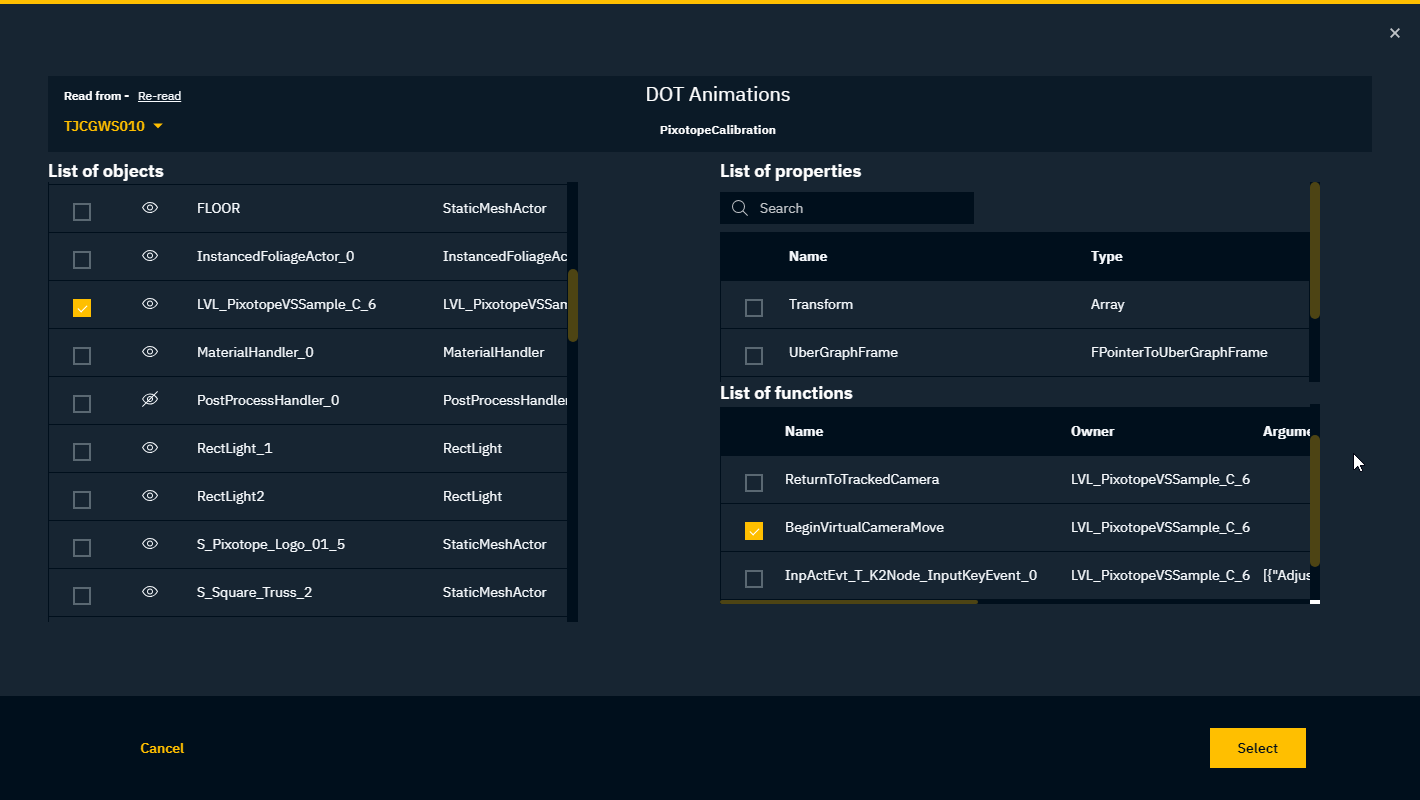
Create triggers in the control panel
Create triggers in the control panel and link them to the 2 Blueprint functions to trigger the animation between the virtual and the tracked camera from the control panel:
Check out the following examples:
-
LVL_PixotopeVSSample level in the PixotopeCalibration project included in the installer
-
Pixotope example projects, which can be downloaded from the Pixotope cloud → login.pixotope.com
For functionality specific to the Unreal Editor and some in-depth knowledge, check out https://docs.unrealengine.com/en-us/Engine/Editor.