Pixotope allows you to create custom remote-control panels, which run:
-
in a web browser on your Pixotope network
You can control:
-
all properties and functions of Pixotope Engine objects
-
all aspects of Pixotope Director which are controlled via the Pixotope API
Learn more about available widget types
Want to give feedback?
This is another step on the journey where we would welcome your input and thoughts. If you are interested in sharing your use cases do not hesitate to give feedback.
Academy Tutorial - User configurable control panel
-
Introduction to our new control panel
Create a control panel
-
Go to PRODUCTION > Show > Launch
-
Click "Create new control panel"
-
Give it a descriptive name
-
Choose the project, if there are more than one linked project available
-
-
The control panel is opened in your default browser
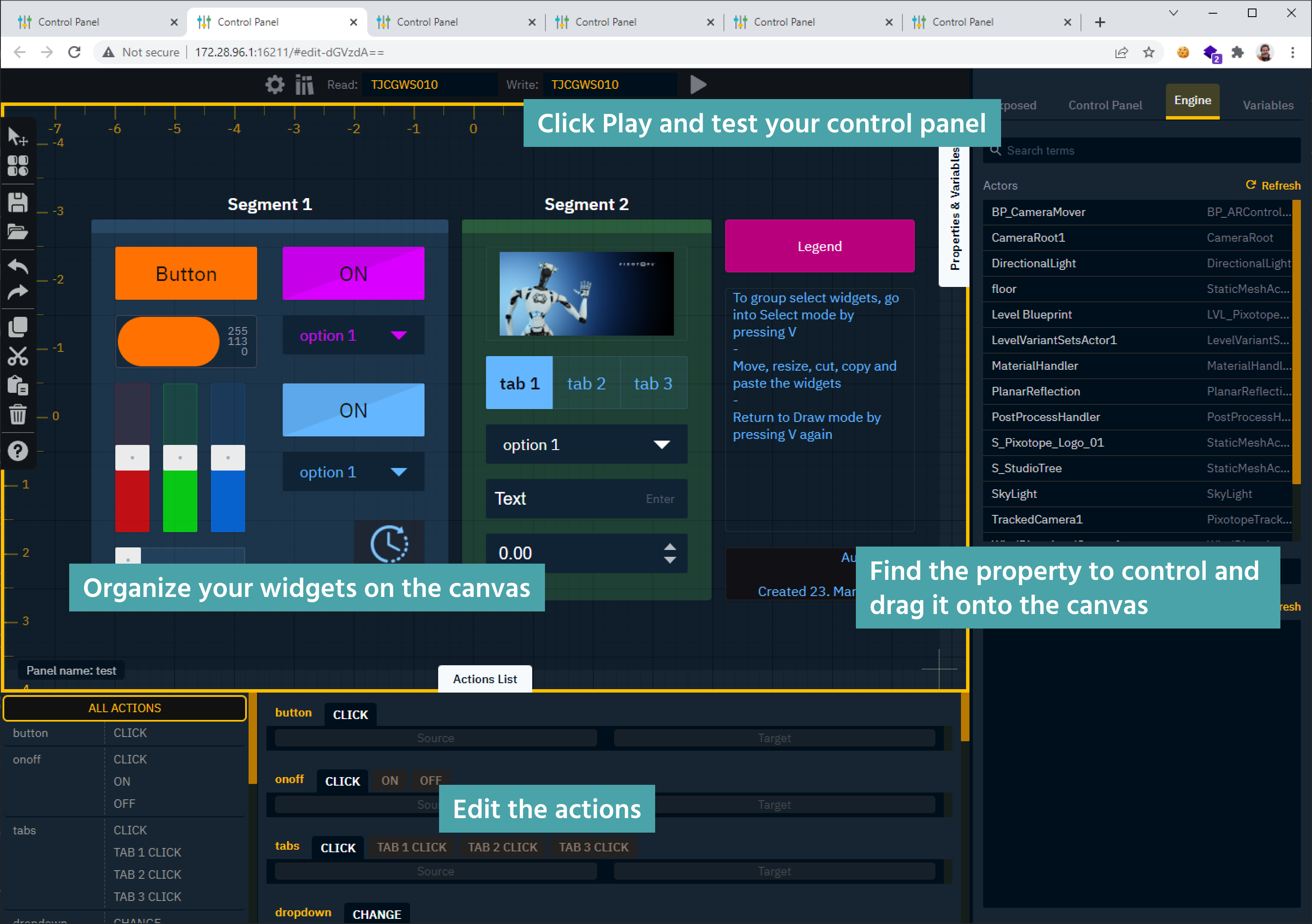
Learn more about the Control Panel - Interface and its Keyboard shortcuts
Learn more about where control panels are stored
Open a control panel
-
Go to PRODUCTION > Show > Launch
-
Hover over the control panel you want to open and click "Launch panel (Editor)"
-
The control panel is opened in your default browser
Duplicate, Rename, Delete a panel
Use the overflow menu to duplicate, rename or delete a control panel.
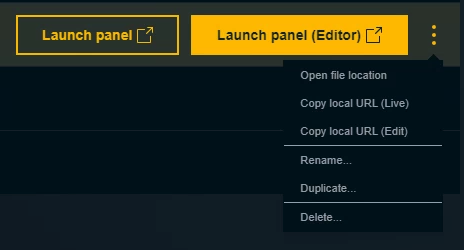
Every control panel is stored in its own folder together with potential image assets.
Find the property to control
Learn more about how to Find the property to control
Link the property to a widget
Learn more about how to Add widgets and actions
Edit and layout widgets
Learn more about how to Edit and layout widgets
Go live
Save a control panel
-
Click on the save icon in the shortcuts bar on the left
OR pressCtrl+S
To avoid losing data
-
we store the 10 last saved versions in a Version history, which is accessible via the history icon in the header
-
we warn you before you close or reload the tab
-
we try to recover the last unsaved version in case Director, which serves the page, crashes
Preview Live mode
-
Press
Ror the "Play" button in the header-
The yellow border is removed
-
The canvas is centered
-
You cannot add or move widgets
-
This mode allows you to continue editing the widgets properties and actions.
-
Click on the Settings icon in the header to open the Control panel editor settings
-
Enable "Show Drawers on Run mode"
-
Click "Apply"
Exit Preview Live mode
-
Press
Ror the "Stop" button in the header
Live mode
This mode removes any ability to edit the control panel including switching between Edit and Preview Live mode
-
Go to PRODUCTION > Show > Launch
-
Click on "Launch panel"
-
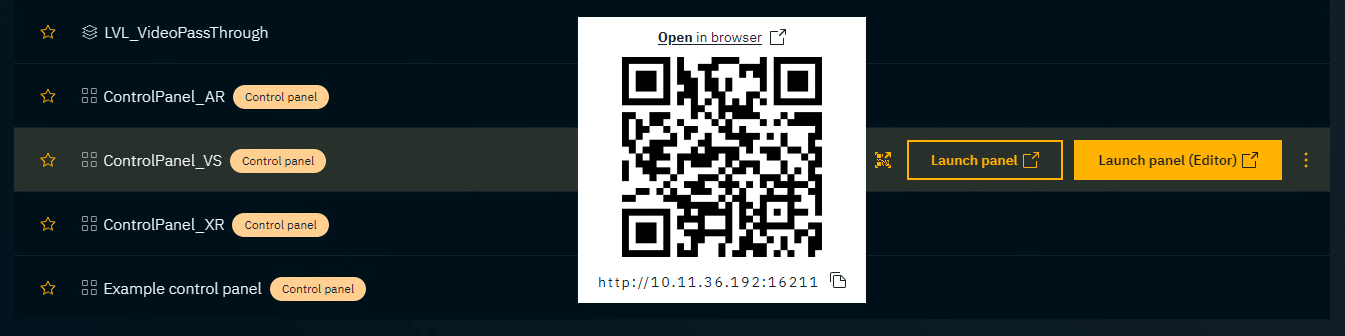
OR use the QR code
-