
Error Diagnostics Procedure
When encountering errors or unexpected behavior by the tracking, the troubleshooting in the Pixotope Tracking Maintenance Procedure should be consulted: Tracking Maintenance Procedure | Troubleshooting . For more advanced troubleshooting, check the descriptions below and expand the excerpt when they seem to describe your issue.
How to use this guide
-
Find the excerpt that seems to describe your issue
-
Read the Symptoms and see whether one or more definitions apply to your case. Sometimes, details differ, such as “engine does not boot” or “engine does boot but doesn’t show and output”. The symptoms description can help to narrow down the actual issue, for example by indicating how to move the camera to pinpoint a discrepancy.
-
In the expanded issue, read the Note part, if present. It may contain common tips or distinctions between different cases and can save you following wrong leads.
-
Read the Checks. They are mostly sorted in the order in which the checks would be performed.
-
If a check applies to your situation, expand the below excerpt to see troubleshooting steps
Operating System
Target harddrive is not recognized during installation
Symptom
The target hard drive for the Trackmen OS installation does not show up in the Trackmen OS installation summary
The correct hard drive is not selectable as installation target
Check
-
Check that the hard drive in question is properly installed and recognized in the Mainboard BIOS
Action
If the hard drive is not acting normally outside of the OS installation procedure, replace it. It does happen that even new drives are faulty and/or fail after short use.
-
If the hard drive seems intact, check which software you use to create the image on the TrackMenOS installation USB stick
Action
It has been reported in the past that trying to recreate the image with a different software solved issues with installation. Users seem to have found that using the software Rufus instead of Etcher solved issues for them.
-
Check which type of hard drive you are using: HDD, SSD or NVME.
Action
In some cases NVME drives may require manual partitioning. Refer to “Manual partitioning required during OS installation” below.
Manual partitioning required during OS installation
Symptom
Harddrive not selectable as target for OS installation
Note: Check the troubleshooting steps in the issue “Target harddrive is not recognized during installation” above before proceeding with this.
Action
If you need to manually format your drive for troubleshooting reasons:
-
On the TrackMen OS installation summary.
-
Click on "Partitioning".
-
Click on "Expert Partitioner" at the bottom of the "Suggested Partitioning" screen.
-
Select option "Start with Existing Partitions".
-
On the left side of the screen, below "Hard Disks", select the hard disk that is to be used for the operating system.
-
If there are partitions on that disk already, remove all of them by selecting each one and then clicking "Delete" at the bottom of the screen.
-
Create each of the following partitions by clicking on "Add Partition..." at the bottom of the screen (more details below):
-
a "BIOS Boot Partition" if installing on a legacy BIOS system
-
or an "EFI System Partition" if installing on a modern UEFI system (preferred)
-
or both a "BIOS Boot" and an "EFI System" partition if the system is to be used with a legacy BIOS system first and a UEFI system later
-
a "Root" partition for the operating system
-
a "Home" partition for user data and configurations
-
NO swap partition (it is useless for real-time tracking systems)
-
-
Create the "BIOS Boot Partition" (if applicable):
-
select custom size: "8 MiB" (8 mega bytes)
-
select "Raw Volume" as role
-
select "Format Device", filesystem "FAT"
-
select partition ID "BIOS Boot Partition"
-
select "Do not mount device"
-
-
Create the "EFI System Partition" (if applicable):
-
select custom size: "0.5 GiB"
-
select "EFI Boot Partition" as role
-
select "Format Device", filesystem "FAT"
-
select partition ID "EFI System Partition"
-
select "Mount Device", mount point "/boot/efi" (from pull-down list)
-
click on "Fstab Options", enter as volume label: "EFI" (capital letters, no quotation marks)
-
-
Create the "Root" partition:
-
select custom size: "64 GiB" (64 GB) if disk is at least 128 GB large
-
select "Operating System" as role
-
select "Format Device", filesystem "Btrfs" if disk is at least 32 GB large, otherwise "Ext4"
-
check "Enable Snapshots"
-
select partition ID "Linux"
-
select "Mount Device", mount point "/" (from pull-down list)
-
click on "Fstab Options", enter as volume label: "ROOT" (capital letters, no quotation marks)
-
-
Below the newly created root partition, several Btrfs subvolumes are automatically created (if "Btrfs" was used); select and DELETE the following subvolumes:
-
@/home
-
@/opt
-
@/usr/local
-
-
Create the "Home" partition:
-
select "Maximum Size"
-
select "Data and ISV Applications" as role
-
select "Format Device", filesystem "Ext4"
-
select partition ID "Linux"
-
select "Mount Device", mount point "/home" (from pull-down list)
-
click on "Fstab Options", enter as volume label: "HOME" (capital letters, no quotation marks)
-
-
After creating all partitions, click "Accept" on the bottom of the screen and proceed with the installation.
'No network found' error during installation
Symptom
When installing TrackMen OS an error message saying “Network Error” comes up even though there is a network line connected.
Additional packages, such as tracking software, can not be installed
Note: You can proceed regardless of this error.
Actions
This means the system could not detect any network while installing likely due to the system not assigning the correct port for the network connection, or because there is no DHCP server in place or local IT administration is blocking the connection. Proceed with the installation - all additional packages can be installed later from the OS GUI.
Check the network settings after the installation by right clicking the network icon on the taskbar and selecting “Edit Connections”.
Eth0 is to be assigned the ethernet port designated to the graphics network/internet connection. Associating the eth devices (NIC) with the physical port can be done by connecting/disconnecting the respective network cable on the tracking engine and watching the System Log. It will display a report and mention the eth device number.
Refer to the 3 Setting up the Network for more information on how to setup your networks after installation. If no internet connection is possible for some reason, refer to 4.3 Installing Software from a USB Drive to create an offline installation medium.
Tracking engine does not boot
Symptom
There is no response from the Tracking engine
The machine has power and shows signs of activity such as fans spinning and power LEDs but doesn’t show up on the display
Display remains black and/or goes into sleep mode
Potentially: the system shows a POST screen (bootscreen) but no TrackMen OS screen
Note: This behavior indicates a hardware failure or mainboard misconfiguration because the system does not get as far as to even boot the Linux operating system. If it reaches the TrackMen operating system loading screen, review the section “Tracking engine boots but shows no output”. Find some tips below that we have found to have helped users in the past. Beyond that, please contact your hardware support for your specific engines.
Checks
-
Does the system show a POST screen (bootscreen, mainboard manufacturer and/or BIOS access instructions) at all? Does it show mainboard LED warnings or make sounds to indicate a warning?
Action
Interpret the mainboard LEDs and/or the hardware sounds according to the mainboard manual. It may be necessary to reseat/replace hardware such as the GPU and check internal or external cable connections. Note that these errors appear after having just assembled a machine, but also to tested machines that were transported or to new hardware that worked only for a short moment.
-
Does the system not show any output at all? If so, does it seem to boot normally, or does it seem to stall during the process (can often be identified by the fan speeds)
Action
Make sure that all cables are properly connected and displays and KVM switches are set to correct modes. Frequently, a display won’t work (try different cables, inputs and display) or a KVM switch crashes and needs to be restarted, rather than the engine failing.
-
Does the system not show any output and seems to stall during the process?
Action
Try discharging the mainboard. Some have a dedicated button for this in the back of the case or on the mainboard itself, some have a procedure like: disconnect power, hold start-button for 20 seconds, then connect again and start.
-
Does the BIOS report any warnings?
Action
Check what the error reports. Sometimes it will claim that there is no boot drive found. In these cases, access the BIOS and:
-
Check that the correct boot priority has been set
-
Check that “Secure Boot” is disabled
-
Check Boot mode (UEFI compatible or not)
-
Check for other boot options that may be incompatible with non-Windows operating systems, such as Fast Boot, and disable them
In some cases, the BIOS gets reset by an electrical event (power surges, installation in OB trucks…), and empty BIOS battery (if this issue occurs more often, consider replacing that battery) or a BIOS failure (check for BIOS updates by the manufacturer)
Tracking engine boots but shows no output
Symptom
The tracking engine will boot past the TrackmenOS loading screen but the monitor output will turn black or go into sleep mode after boot.
The tracking engine will boot past the Trackmen operating system loading screen but shows a black screen with terminal (command line) output only
Note: This only applies if the tracking operating system does actually start. If the OS loading screen is not reached, refer to “Tracking engine does not boot”.
General Actions
In general, this behavior is caused by the display manager failing to start properly. It may mean that the system is still accessible by other means, which are:
-
Nomachine remote access: Open NoMachine on a computer in the same network and try connecting to the affected engine. (Nomachine is also a freeware and detects machines on when installed on any machine on the same network)
-
Console: Linux runs multiple command line consoles simultaneously. They can be switched between by pressing Ctrl + Alt + F-keys. The GUI usually runs on Ctrl + Alt + F7. The other consoles can be accessed when the display manager doesn’t work, like Ctrl + Alt + F1, and can be used to type commands.
Checks
-
Has the system recently received a new graphics card or have the graphics card’s drivers been updated?
Action
The drivers may be incompatible with the graphics card. This may happen to both more recent models or to very recent releases of old cards. The drivers should be upgraded to the most recent version available in the Software manager, or downgraded to the one before if the recent version seems to cause the issues. Refer to “Troubleshooting Nvidia drivers” below for more information.
-
Have the settings of a connected KVM switch or the connected display recently changed?
Action
Make sure that all cables are properly connected and displays and KVM switches are set to correct modes (usually 1920x1080@60Hz is the safest option). Frequently, a display won’t work (try different cables, inputs and display) or a KVM switch crashes and needs to be restarted, rather than the engine failing. Try going back to the old display, at least for troubleshooting. If this doesn’t work, continue with point 3.
-
Does the system behave like this with no changes done? Or the above checks or their below actions don’t apply?
Action
In a specific combination of software packages or by manual actions, there is a chance that an EDID setting gets saved in the system and doesn’t match the current display connection. Try removing it as explained in “Tracking engine has an EDID setting stuck”.
Troubleshooting Nvidia drivers: Updating
Symptom
The tracking engine will boot past the Trackmen operating system loading screen but the monitor output will turn black after that
Tracking engine shows no output after OS installation
Tracking engine shows no output after GPU change
Note: This only applies if the tracking operating system does actually start. If the OS loading screen is not reached, refer to “Tracking engine does not boot” .
Checks
Tests that lead to this troubleshooting procedure are outlined in “Tracking engine boots but shows no output”. These steps apply when the GPU has been swapped to a more recent one (including older cards with new firmware) or when the Operating Systems default drivers fail to give an output after initial installation. If the engine stopped giving an output with the same GPU but after a driver update, please refer to “Troubleshooting Nvidia drivers: Downgrading” below.
Actions
In general, this behavior is caused by the display manager failing to start properly. It may mean that the system is still accessible by other means, which are:
-
Placing the older card back into the machine, to get the GUI back, then handling the driver as explained below.
-
Nomachine remote access: Open NoMachine on a computer in the same network and try connecting to the affected engine. (Nomachine is also a freeware and detects machines on when installed on any machine on the same network)
-
Consoles: Linux runs multiple command line consoles simultaneously. They can be switched between by pressing Ctrl + Alt + F-keys. The GUI usually runs on Ctrl + Alt + F7. The other consoles can be accessed when the display manager doesn’t work, and can be used to type commands.
If the GUI is accessible
-
bring up the Software Manager. Learn more about the Software Manager here:Operating System.
-
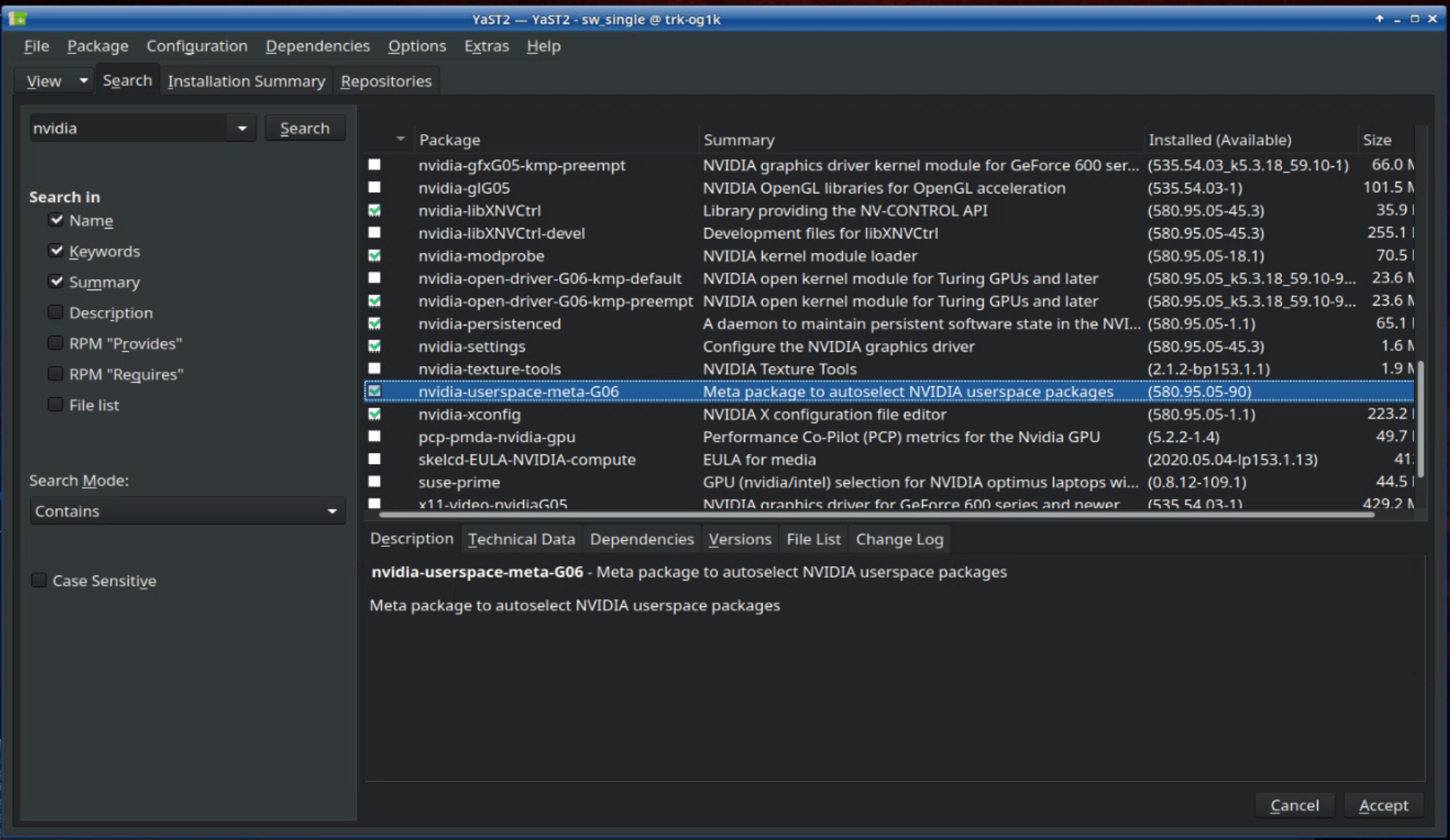
For updating, enter the search term “Nvidia” and find the package nvidia-userspace-meta-G06 (status: January 2026) to choose the correct package. Click the checkbox next to the package until it shows either a green checkmark (that means that a previous package with a different name is currently installed) or a green arrow (that means the package is installed but will be updated). A window is likely to pop up, asking you for a conflict resolution. Choose to install, making the suggested changes. Do not choose to not install or even to break the package. Other packages will also appear with green checkmark/green arrow, or with a red X. These are changed due to dependencies.
-
For a rollback to an older driver, select the package, then switch to the Versions tab below the package list. Select a different version and proceed as explained above.
-
Click Accept to install, wait for the process to finish, then click Finish and reboot the engine.
-
If the GUI is not accessible
the system is possibly still configurable by command lines by switching to a terminal instance with e.g. Ctrl + Alt + F1. For updating, log in as the user root with the usual password tmgmbh51105k. Then enter the command (status: January 2026):
zypper install nvidia-userspace-meta-G06
Confirm with the enter key and it will most likely show a conflict resolution message. Select the solution that will install the drivers and deinstall conflicting packages (mostly solution 1) to proceed with the installation. After the installation, reboot and mind to update tracking software packages to version 3.7 or later (Jan 2026) to maintain compatibility!
Troubleshooting Nvidia drivers: Downgrading
Symptom
The tracking engine will boot past the Trackmen operating system loading screen but the monitor output will turn black after that
Tracking engine shows no output after an Nvidia driver update
Tracking engine shows no output after a software update
Note: This only applies if the tracking operating system does actually start. If the OS loading screen is not reached, refer to “Tracking engine does not boot” .
Checks
Tests that lead to this troubleshooting procedure are outlined in “Tracking engine boots but shows no output”. These steps apply when the tracking engine stopped giving an output after a driver update. If the engine stopped giving an output after a GPU swap or directly after OS installation, please refer to “Troubleshooting Nvidia drivers: Upgrading” above.
Actions
In general, this behavior is caused by the display manager failing to start properly. It may mean that the system is still accessible by other means, which are:
-
Placing the older card back into the machine, to get the GUI back, then handling the driver as explained below.
-
Nomachine remote access: Open NoMachine on a computer in the same network and try connecting to the affected engine. (Nomachine is also a freeware and detects machines on when installed on any machine on the same network)
-
Consoles: Linux runs multiple command line consoles simultaneously. They can be switched between by pressing Ctrl + Alt + F-keys. The GUI usually runs on Ctrl + Alt + F7. The other consoles can be accessed when the display manager doesn’t work, and can be used to type commands.
Downgrading software
Downgrading software in the Linux environment can potentially be more complex than just selecting older packages, because older software versions are not aware of more recent packages and thus could miss conflicting packages when checking dependencies. Therefore, it is highly recommended to use the Snapper system snapshot tool to perform rollbacks. Please refer to “System Snapshots / Software Recovery using Snapper”. The Snapper tool is available both with a GUI version, as well as a terminal application.
Tracking engine has an EDID setting stuck
Symptom
The tracking engine will boot past the Trackmen operating system loading screen but the monitor output will turn black after that
The tracking engine shows an output on a certain display, but won’t output on a different screen or KVM switch.
Note: This only applies if the tracking operating system does actually start. If the OS loading screen is not reached, refer to “Tracking engine does not boot”.
Checks
Tests that lead to this troubleshooting procedure are outlined in “Tracking engine boots but shows no output”.
Actions
In general, this behavior is caused by the display manager failing to start properly. It may mean that the system is still accessible by other means, which are:
-
Nomachine remote access: Open NoMachine on a computer in the same network and try connecting to the affected engine. (Nomachine is also a freeware and detects machines on when installed on any machine on the same network)
-
Consoles: Linux runs multiple command line consoles simultaneously. They can be switched between by pressing Ctrl + Alt + F-keys. The GUI usually runs on Ctrl + Alt + F7. The other consoles can be accessed when the display manager doesn’t work, and can be used to type commands.
Deleting stuck EDID files
If you have access to the GUI via Nomachine or because the system is just displaying the wrong resolution, bring up a Terminal Window from the start menu. If you have to use a console, switch to text mode by pressing Ctrl + Alt + F1. Commands are entered exactly as shown below, case-sensitive and minding spaces, and are confirmed with <enter> key. If no error is displayed, this usually means it worked.
-
The console will ask for a login. Just use root and enter the usual root password tmgmbh51105k.
-
It will now accept commands. Mind that hitting <Tab> will auto-complete names of files and folder and such when the combination of letters you entered are unique to a name/command. Type the below command to check the monitor settings as mentioned in the description, if you like:
cat /var/log/Xorg.0.log
-
change directory to /etc/X11/xorg.conf.d/:
cd /etc/X11/xorg.conf.d/
-
Check the files in that folder (it is just a lower case L):
l
-
Remove the files mentioned above. To play it safe or for later analysis, move them to the desktop:
mv 90-nvidia-edid.conf /home/tracking/Desktop
mv _90-nvidia-edid.conf_ /home/tracking/Desktop
mv edid.bin /home/tracking/Desktop
-
Reboot the machine
reboot
Tools and Utilities
Can't log into License Manager
Symptom
License Manager won’t accept login credentials
License Manager fails to connect
License Manager is not working
Check
-
Has the system recently been updated? Frequently, it just needs to be rebooted after a License Manager or Nvidia driver change, to (re-)launch all services.
Action
Reboot and check again.
-
Double-check both the network connection and the login credentials. Sometimes typos slip in because of keyboard settings and similar factors.
Action
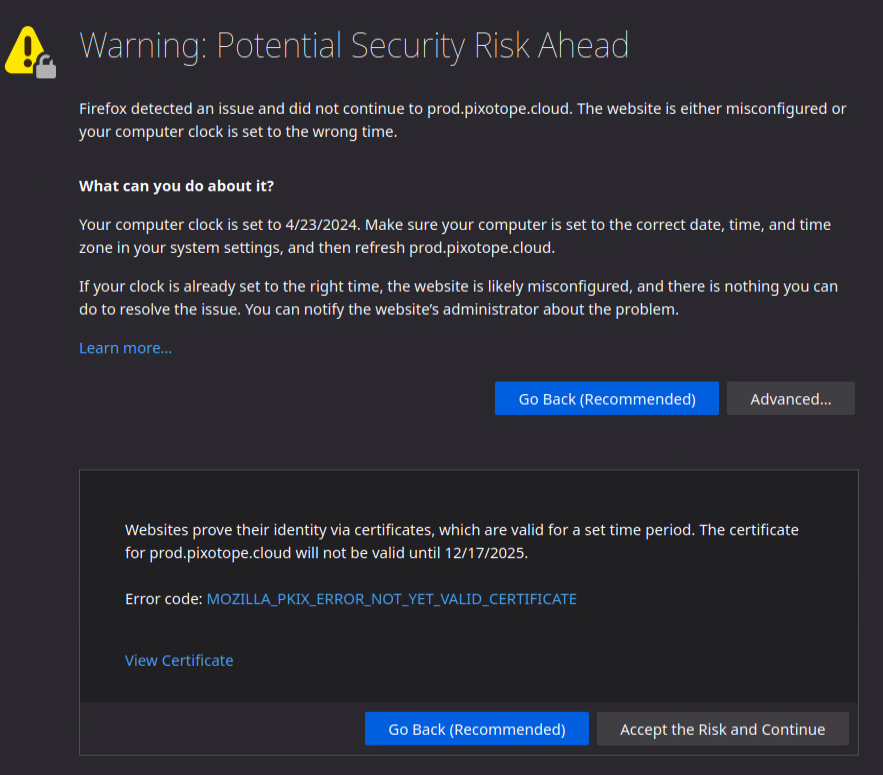
Bring up the browser on the machine and try to log into the Pixotope cloud on https://prod.pixotope.cloud. This will both test your login credentials and the internet connection. Mind that the browser reporting a non-valid certificate (see image) can be an indicator for the system date being off!
-
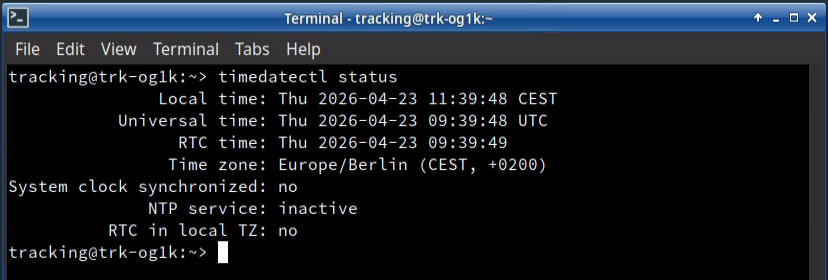
Check the system clock; are time and date correct? In order to double-check, you may use the terminal command
timedatectl status
Action
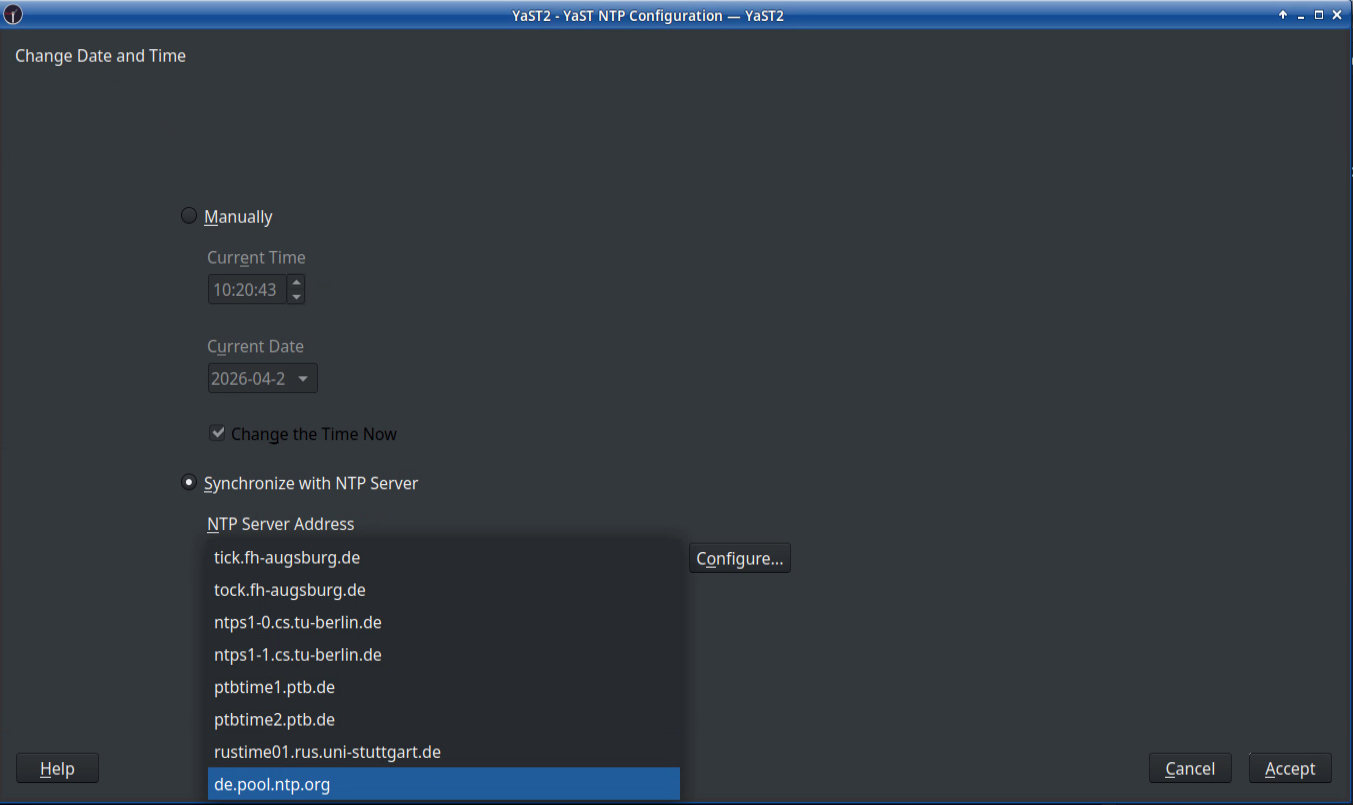
To set the clock correctly, go to the time and date settings from the startmenu:
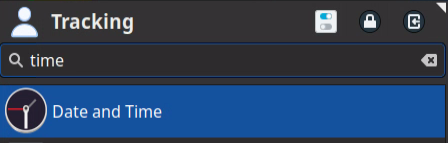
In the window coming up, set the region and time zone to match your location, then click Other Settings… on the lower right of the window. Then, if your engine is offline, select Manually and enter the correct time and date. If the engine is online, you may select to synchronize it with an NTP server, for example pool.ntp.org. Finally, Accept the changes.
-
Make sure the network connection is free of incongruities. There should be only one network connection going through the same router, the DNS server must make sense and there should be no connections to faulty networks or “bridge” Network connections in the list.
Action
Double-check network and IP settings, remove any unnecessary networks.
License Manager doesn't display my license
Symptom
Can’t select my license in the License Manager
Released a license in the Cloud but it doesn’t appear in the License Manager
License Manager logs in but doesn’t display any licenses
Check
-
Check the system clock; are time and date correct? In order to double-check, you may use the terminal command
timedatectl status
Action
To set the clock correctly, go to the time and date settings from the startmenu:
In the window coming up, set the region and time zone to match your location, then click Other Settings… on the lower right of the window. Then, if your engine is offline, select Manually and enter the correct time and date. If the engine is online, you may select to synchronize it with an NTP server, for example pool.ntp.org. Finally, Accept the changes.
-
Has the license only just been released in the cloud, rather than the License Manger?
Action
It can take up to 15 minutes for the License Manager to refresh a license that has been freed up in the Cloud. Please check again after some time has passed.
Sensor Unit (Worker) and SCB
No live video in Vision/Marker/GhosTrack Worker
Symptom
There is no live video in the Worker after setting it up according to Worker | 2.1 Video input and Worker | 3.1 Worker Video or Signal Collector Box (SCB) respectively.
The video in the Worker is frozen and doesn’t move
The area for the Worker video in the Worker main window is empty
This article is about connection to a Sensor Unit. For Pixotope Fly, please check “No video in Fly Worker” below.
Note
If the connection to the sensor unit or the power for the sensor unit gets interrupted, the video in the Worker will freeze, at default settings, and only be live again after restarting the image source or restarting the Worker.
If the video window is there after restarting the image source, but it is merely black, the Worker should get an image but it is actually black. In that case, check the iris, brightness software setting an potentially infrared light of the camera/sensor unit.
No video signal in the worker is very rarely resulting from a broken sensor unit. More often than not the cables connecting the sensor unit camera feed to the engine are at fault, or some misconfiguration may have happened. Follow these actions in order to efficiently troubleshoot a sensor unit that does not show video feed.
Check
-
Is the camera powered? There are 2 small red and green lights on the back of each sensor unit which will reveal if the Sensor Unit has power.
Action
If the sensor unit does not have power, please check the power cable and power source. Some rare Film/Broadcast camera 12V outputs will not provide a sufficient power output for the starting current of a sensor unit with IR light, and may disable the 12V output then until the camera body is restarted.
-
Is the camera recognized as a network device when connected to the tracking engine? Disconnect and re-connect the cable on the engine side. The System Log should display messages about the connection, also referring to the NIC (for example eth1) when doing so. Note that these messages can be checked for on both tracking engine and an SCB.
Action
What does the System Log report?
-
There is no connection reported: check whether the camera is powered at all. If it is but there is no connection reported, the cable might be broken.
-
Compare the reported NIC in the System Log with what is configured in the ZeroConf connection in the Network settings (see ). Check the Operating System | 6.2 Network Settings Ethernet tab in the ZeroConf network for it. Default is eth1. If possible, stick to eth0 for graphics network and eth1 for Zeroconf, for ease of support.
-
If the connection is established and seems correct and operating at full capacity, make sure that all devices in the chain have “Jumbo frames” enabled (MTU of 9000). Both sensor and ZeroConf will support this by default, but switches, fiber converters and other devices in the line may have difficulties.
-
Cables: the vast majority of connection failures is due to the cable connection. The cable should be a high-quality cable and the connection a direct and exclusive connection, with no switch with other devices in between.
Action
Replace the cable. If possible before any calibrations were done, take the sensor unit to the tracking engine and check connection with a very short cable. Note that this may apply to both the cable between engine and sensor unit and the cable between SCB and engine.
Note that the video transmission of the sensor unit video uses almost the entire bandwidth of a 1Gb network connection and that the packages have to arrive in time to produce a constant video stream. Even a cable that seems to work otherwise may fail to continuously meet these requirements. Measuring whether all wires are connected will not suffice, only a device that measures throughput and dampening can make a quality statement. The label “CAT7” does not indicate true quality, because faulty connector crimping and damage can still affect the performance. We specify a maximum cable length of 70m and mind that couplers, patch-fields and reduced shielding of the cable can reduce this range. The signal can be converted to fiber for increased range, as long as the fiber converter does not act as a switch with multiple devices on it.
-
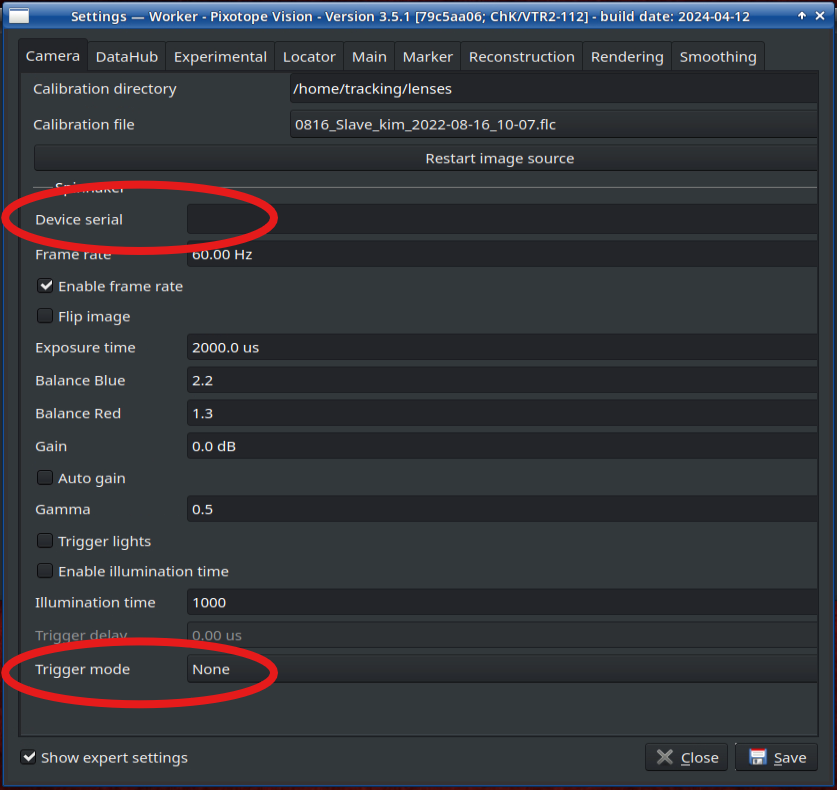
Check Worker Camera tab settings whether they are all as intended.
Action
Two settings that can interrupt the camera connections are in the expert settings:
-
Device Serial: this entry should be empty.
-
Trigger Mode: this setting should be None for Vision and Marker edition and Hardware for GhosTrack. The hardware trigger will only work with a GhosTrigger box that has a valid Genlock input.
-
For more debugging, individual programs for the sensor unit’s cameras may be checked.
Action
-
Check the sensor unit camera feed is reaching the tracking engine. Check the below programs. If no cameras appear in their lists then you should revise the steps above. Stop the Worker and:
-
For Vimba Interfaces, open a Terminal Emulator from the Start Menu and enter the command
VimbaViewer. If the camera works inside VimbaViewer and after that test, when having it shut down and bringing the Worker back up, it also works in the tracking, check “Sensor Unit / TalenTrack camera isn't connecting through the Vision/Marker Worker or TalenTrack Client” below. -
For Spinnaker interfaces, start SpinView from the Start Menu.
-
Can not connect to the SCB
Symptom
The SCB cannot be reached remotely, although it has been set up according to Signal Collector Box (SCB) | 2.2.1 Network
The SCB does not appear in the Nomachine Maschines window or won’t connect when selecting it and clicking connect
Note
The SCB is configured to automatically negotiate the connection between itself and the tracking engine. For this, the ZeroConf connection is crucial, so please double check the setup steps linked above and make sure the ZeroConf connection has not been manipulated. Check Operating System | 6.2.1 ZeroConf Connection[inlineExtension] for this.
Check
-
The SCB will indicate power supply with a green light. It will also show an active network connection visible on the lights on the respective port.
Action
If these lights are not present, the issue is most likely a cable or connection issue. Check power supply cable or network cable respectively.
-
Is the Nomachine main window refreshed? Is the issue persistent after restarting Nomachine?
Action
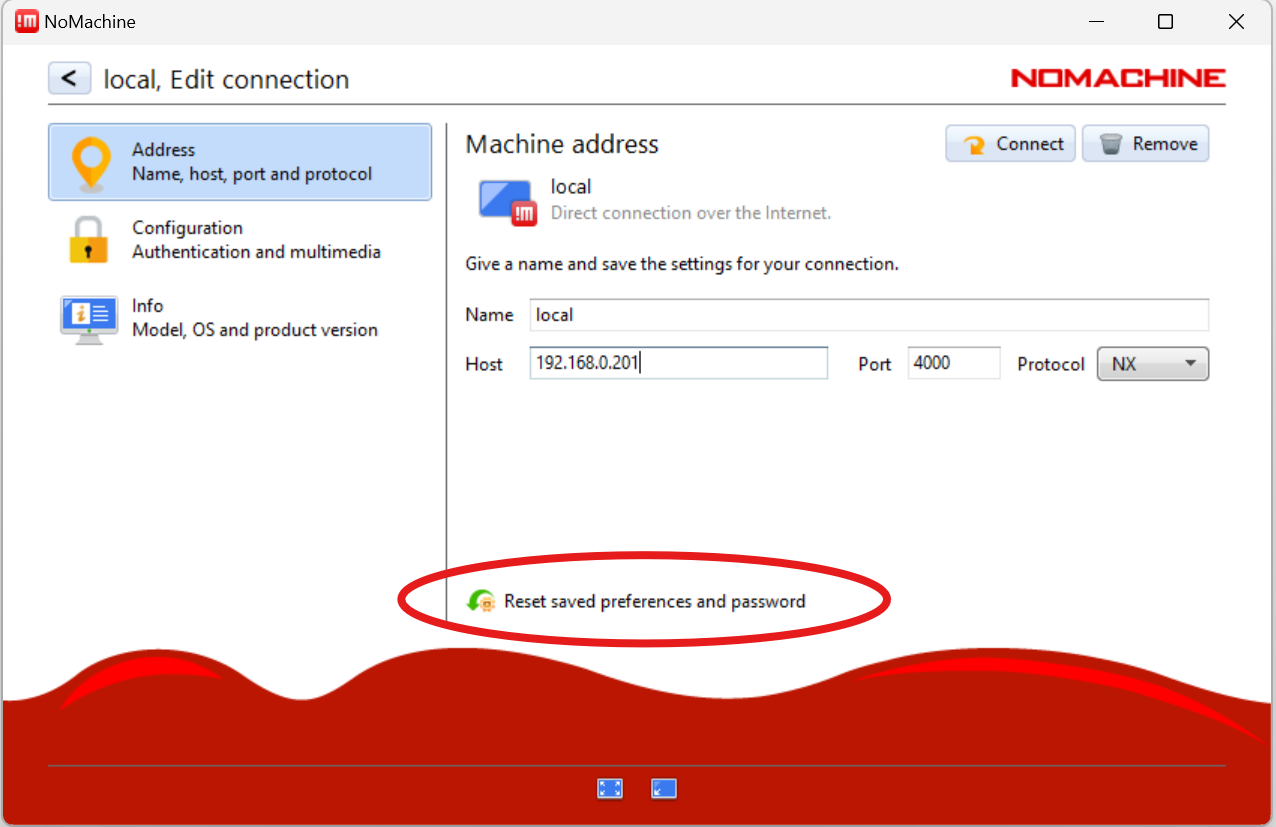
Nomachine might not have registered a change in IP addresses after for example rebooting the SCB. Restarting Nomachine should refresh it. Do not edit the connection to manually enter an IP - it will change that connection permanently while the IP might change later! If this has been done, it is possible to reset the Nomachine connection settings by selecting the connection and clicking Edit. In the Edit connection window, click Reset saved preferences and password:
-
Is the connection issue persistent after restarting the SCB (power off - power on) and after restarting the tracking engine?
Action
If the network settings have recently been revised, the SCB or tracking engine may not have refreshed them yet. Restarting should thoroughly fix that. If the connection is still not being established, this may be due to the network not allowing “Jumbo Frames” - check Sensor Unit / TalenTrack camera isn't connecting through the Vision/Marker Worker or TalenTrack Client section below. If there is still no connection to the SCB and the ZeroConf and setup steps mentioned above are double-checked, connect a display, mouse and keyboard to the SCB to check the system directly.
Sensor Unit video isn't working at full framerate
Symptom
The Worker video seems to be stuttering / is not smooth
The tracking seems to be stuttering / jumping
System log reports that the Worker camera’s frame rate can not be matched [when changing frame rate to anything above 7.5Hz]
System log reports dropped frames from the Worker at high rates (in bursts of multiple frames / several frames per minute)
Note
A low frame rate may not be obvious when viewing the tracking interface through a remote connection. When in doubt, go to the Worker Settings → camera tab and change the frame rate. Watch the system log for errors - if the frame rate can not be matched due to bandwidth, the System Log will report. In that case, a frame rate of below 7Hz should still work, because a 100Mbit/s connection suffices for that.
A faulty video in the Worker is very rarely resulting from a broken sensor unit. More often than not the cables connecting the sensor unit camera feed to the engine are at fault, or some misconfiguration may have happened. Follow these actions in order to efficiently troubleshoot a sensor unit that does not show a video at the correct frame rate.
Check
-
Restart the sensor unit (power cycle)
Action
If the behavior is persistent after a camera reboot, move on to step 2.
-
Replace the cables connecting the Sensor Unit’s camera to SCB and/or SCB to engine
Action
The vast majority of connection failures is due to the cable connection. The cable should be a high-quality cable and the connection a direct and exclusive connection, with no switch with other devices in between. Replace the cable. If possible before any calibrations were done, take the sensor unit to the tracking engine and check connection with a very short cable. Note that this may apply to both the cable between engine and sensor unit and the cable between SCB and engine.
-
Check Sensor Unit’s performance
Action
If the cable has been ruled out and the Sensor Unit has been restarted, checking the network connection in the engine through clicking the Network symbol in the task bar → Connection information → ZeroConf can indicate a low bandwidth connection; it should be at least 1Gbit/s. Swap the network ports with another available port (such as the LAN or tracking network). Remember to change the Device in the network settings and re-connecting, see Operating System | 6.2.1 ZeroConf Connection[inlineExtension]. If that doesn’t help, try swapping the sensor units of another camera tracking engine to see if the device is damaged. If no other tracking engine is available, the camera can also be connected to a Windows machine, using the SDK downloadable here.
Sensor Unit / TalenTrack camera isn't connecting through the Vision/Marker Worker or TalenTrack Client
Symptom
System log reports a connection to the camera but is not showing a live video
The video comes into the VimbaViewer interface at full framerate but only shows up in the Worker after performing a connection through VimbaViewer
Need to enable the camera using VimbaViewer before it becomes available in Marker/ Vision/ TalenTrack
Check
-
In TalenTrack, is the TalenTrack Front SDI video present and live?
Action
If the video is not there, it can not provide the trigger signal to the cameras and the tracking camera videos will not start in the Client.
-
Do all devices in the network chain allow Jumbo Frames (9000 MTU)? If not sure, try connecting the camera directly to a tracking engine network port and see whether the behavior is the same.
Action
If Jumbo Frames are not allowed at any point in the network chain, the Worker / TalenTrack Client connection will be established but the actual video packages will be too large to come through. VimbaViewer will be able to recognize this limitation and negotiate sending smaller packages, thus enabling the video feed until the camera is restarted. However, smaller packages will put more stress on the processing on the receiving end, which is undesirable. Jumbo Frames are enabled on the camera and engine side by default but other devices in between, such as switches, fiber converters, SFP modules etc. may not be compatible or configured accordingly, practically intercepting the packages.
Zoom Lens Data, Focus and Distortion
No zoom / lens data from Canon / Fujinon zoom lens with internal encoders
Symptom
Graphics don’t change when zooming in/out or focusing
Zooming in does not zoom in on the cuboid in the tracking engine
Zoom lens is not tracked even though the hardware setup Setup Checklist | 1. Hardware Setup and software setup Chief | 3 Setup and/or Signal Collector Box (SCB) | 2.2.2 SCB Software was completed correctly
Note: The TrackMen camera tracking protocol sends the full ready-to-use lens data (field of view or focal length, distortion and other parameters). This is the standard use case. If a FreeD sender is used, the tracking can only send raw data for zoom and focus (encoder count) and details that include data from the lens file explained below will not apply.
Checks
-
Does this apply to both graphics in the render engine and in the tracking engine Chief?
Action
If the lens data is being applied in the Chief video, but not in the graphics, the interfacing on the render side should be checked. There is no option to turn sending the lens data off in the tracking, unless a FreeD sender is used. Make sure that the graphics engine (any vendor) does not have an internal lens file configured but is set up to receive the full lens data from the tracking.
-
Is lens data coming into the tracking engine? Go to the Chief window and switch to the Lens tab. Check the Dump Parameters option and check the live lens data in the System Log.
Action
If the lens parameters are not being written in the System Log, it is likely that the connection is interrupted. If an SCB is being used and the ZeroConf network has recently been changed, it may happen that the IP for the tracking engine in the SCB is not updated automatically. Restarting the SCB would solve this issue. Assuming that the aforementioned setup was completed and there is still no lens data: double check the lens cable adapters for the correct connectors (Canon/Fujinon) and make sure to restart the Chief to apply changes of the serial connections in the interface. Make sure that the IMU serial connection in the IMU tab in the Chief is not configured to use the same serial device as the lens. Check the cable connection; most likely the physical connection is faulty. In rare cases, restarting the lens itself can help.
Note: When (re-)connecting a USB converter, restart the software that is reading the converter to (re-)establish connection. That software may be the Chief for a direct connection from lens to tracking engine, or the SignalCollector on an SCB, if an SCB is in place.
-
Is the lens file being read correctly and are zoom lenses authorized? When starting the Chief, check the System Log for messages. When using an SCB, connect to it via Nomachine and check for the same messages in the SCB system log after restarting the SignalCollector. Possible messages in connection with zoom lenses are:
-
Engine "lensSerial" -> status changed to 2 -> "Failed to specify serial device for engine lensSerial" -
Engine "DigitalDrive" -> status changed to 2 -> "No connection to lens" -
Engine "zoomLens" -> status changed to 2 -> "READING ZOOM LENS FILES IS NOT LICENSED" -
Engine "zoomLens" -> status changed to 2 -> "Failed to read lens file
-
Action
The respective system log messages can give clues:
a. The serial-USB-converter has not been found. Possibly it is connected to a faulty USB port?
b. This message means that there is no connection to the lens in general. Refer to point 2 if it does not go along with other system log messages listed here.
c. There is no active Vision or Marker license checked out in the License Manager. After checking out the license, restart the Chief to apply the change.
d. The .zlc lens file can not be read correctly by the system. If it is an old lens file, it may be bound to a specific dongle. It may also be corrupted during download or file transfer. Try re-downloading the lens file from the cloud, in Downloads → Tracking → Lens Files. When using FileZilla for the file transfer to the tracking engine, make sure to set the Transfer type to Binary.

No zoom / lens data from external encoders
Symptom
Graphics don’t change when zooming in/out or focusing
Zooming in does not zoom in on the cuboid in the tracking engine
Zoom lens is not tracked even though the hardware setup External Encoders and software setup Chief | 3 Setup was completed correctly
Note: The TrackMen camera tracking protocol sends the full ready-to-use lens data (field of view or focal length, distortion and other parameters). This is the standard use case. If a FreeD sender is used, the tracking can only send raw data for zoom and focus (encoder count) and details that include data from the lens file explained below will not apply.
Checks
-
Does this apply to both graphics in the render engine and in the tracking engine Chief?
Action
If the lens data is being applied in the Chief video, but not in the graphics, the interfacing on the render side should be checked. There is no option to turn sending the lens data off in the tracking, unless a FreeD sender is used. Make sure that the graphics engine (any vendor) does not have an internal lens file configured but is set up to receive the full lens data from the tracking.
-
Is lens data coming into the tracking engine? Go to the Chief window and switch to the Lens tab. Check the Dump Parameters option and check the live lens data in the System Log.
Action
If the lens parameters are not being written in the System Log, it is likely that the connection is interrupted. Assuming that the aforementioned setup was completed: double check the lens cable adapters for the correct connectors (external encoder USB converters, not those for Canon or Fujinon/RS-232) and make sure to restart the Chief to apply changes of the serial connections in the interface. Make sure that the IMU serial connection in the IMU tab in the Chief is not configured to use the same serial device as the lens, or that zoom and focus use the same serial device. Check the cable connection; most likely the physical connection is faulty. In rare cases, restarting the lens itself can help.
Note: When (re-)connecting a USB converter, restart the software that is reading the converter to (re-)establish connection. That software may be the Chief for a direct connection from lens to tracking engine, or the SignalCollector on an SCB, if an SCB is in place.
-
Is the lens file being read correctly and are zoom lenses authorized? When starting the Chief, check the System Log for messages. When using an SCB, connect to it via Nomachine and check for the same messages in the SCB system log after restarting the SignalCollector. Possible messages in connection with zoom lenses are:
-
Engine "zoomSerial" -> status changed to 2 -> "Failed to specify serial device for engine zoomSerial"Engine "focusSerial" -> status changed to 2 -> "Failed to specify serial device for engine focusSerial"Engine "zoomQSB" -> status changed to 2 -> "QSB communication error"
Engine "focusQSB" -> status changed to 2 -> "QSB communication error" -
Engine "zoomLens" -> status changed to 2 -> "READING ZOOM LENS FILES IS NOT LICENSED" -
Engine "zoomLens" -> status changed to 2 -> "Failed to read lens file
-
Action
The respective system log messages can give clues:
a. The serial-USB-converter(s) can not be found. Possibly they are connected to a faulty USB port?
b. There is no active Vision or Marker license checked out in the License Manager. After checking out the license, restart the Chief to apply the change.
c. The .zlc lens file can not be read correctly by the system. If it is an old lens file, it may be bound to a specific dongle. It may also be corrupted during download or file transfer. Try re-downloading the lens file from the cloud, in Downloads → Tracking → Lens Files. When using FileZilla for the file transfer to the tracking engine, make sure to set the Transfer type to Binary.
Graphics drag behind or lead the video when zooming in and out
Symptom
Graphics drag behind or lead the video when zooming in and out
Lens delay does not match the movement delay
Checks
Make sure that the delay for the position/orientation is correct first, as described in Chief | Setting the Delay. If all the delay seems off, refer to “Graphics drag behind or lead camera movements”.
Actions
Refer to Chief | 4.5.3 Lens Delay to adjust the lens delay.
Field of view seems wrong
See “Graphics don't stick to their positions when panning or tilting the camera” below.
No defocus applied to the graphics
Symptom
Changing the focus has no effect on the graphics
No focus distance information incoming on the graphics engine
Check
-
Is the zoom working properly?
Action
If the zoom is not working either or the lens is a prime lens with only variable focus, refer to “No zoom / lens data from Canon / Fujinon zoom lens with internal encoders” or “No zoom / lens data from external encoders” to check the general function.
-
Go to the Chief window and switch to the Lens tab. Check the Dump Parameters option and check the live lens data in the System Log.
-
The second column “f: “ shows the focus, normalized between 0 and 1. Does this value change when adjusting the focus?
-
The column “focdist” shows the calculated focus distance in meters. Does it show something other than 0?
-
Action
The dump can point to either the lens or the calibration file:
a. If the focus does not change but the zoom does, a Canon/Fujinon lens is likely to not have internal encoders for the focus and can not send the data. If external encoders are used, it is likely that the connection is interrupted. Double check the lens cable adapters for the correct connectors (external encoder USB converters, not those for Canon or Fujinon/RS-232) and make sure to restart the Chief to apply changes of the serial connections in the interface. Make sure that the IMU serial connection in the IMU tab in the Chief is not configured to use the same serial device as the lens, or that zoom and focus use the same serial device. Check the cable connection; most likely the physical connection is faulty.
b. If the focdist value is changing, the tracking system is actually calculating and sending focus distance data. There is no option to manually turn off this data in the protocol. If that is the case, look into the graphics engine to check whether defocus has been deactivated there. If the dump shows only 0 for focdist, the lens file does not contain focus distance data. This data is a separate measurement and is not included in fixed lens files (flc), if not manually created by the user, or in older zoom lens calibration files (zlc). If that is the case, focus values can be integrated based on measurements done on site.
No Lens Distortion in the graphics
Symptom
In the composition image, the graphics are not distorted according to the lens characteristics
Straight lines in the graphics do not align with the lines in the video near to the image edges
The field of view seems wrong in various distances to the image center, but not increasingly towards the edges in a linear way
Can’t find a proper value for field of view corrections, it depends on location of the object in the frame
Note: Both distortion and field of view can have similar effects that look like the graphics are too small or too big, but the distortion will also bend graphics. Also, during a pan, the distortion can make it look like the field of view is sometimes more wrong and then less again, even when panning in the same direction.
Checks
-
Is the lens distortion being applied to the composition? In case of a zoom lens, try turning the Use Distortion option in the Chief’s lens tab off and on - is a change in the graphics visible? In case of a fixed lens, try aligning a straight line with a straight real object towards the edges of the screen - are they bent in the same manner?
Actions
There are no Pixotope lens files without distortion parameters in them. Distortion for zoom lenses can be disabled in the Chief lens tab but this is a debugging feature and should always be enabled. If that option is on, discrepancies have to be investigated on the receiving side.
In Pixotope Graphics, the distortion can be disabled in the Director, in the Camera Tracking panel, in the Advanced section. Other graphics engines may have similar options and the distortion may also be a project- or scene-setting and not a global option.
Some engines may not apply distortion in some viewports but only e.g. on the actual SDI output.
Some custom settings, like post-processing volumes in Unreal, can overwrite distortion.
-
Is the distortion being applied but seems wrong?
Actions
Depending on multiple factors, the distortion applied in the image can differ from that saved in a .zlc Zoom Lens Calibration file. This may be the case, because the camera chip size has a different crop factor, or just because a unit of the same model line has a different distortion behavior than the one that has been calibrated. A small degree of discrepancy is expected, since lens distortion is a complex phenomenon and can only be approximated by the parameters applied in virtual graphics. Significant discrepancies can be addressed by playing with the values Scale K1 and Scale K2 in the Chief Lens tab. However, it is a demanding setting to make by the human eye and the basic setting in the Chief only applies a global value to all zoom levels.
Tracking Data and Precision
The graphics are shaking when the camera is static
Symptom
The graphics show small high-frequency motion in random directions while the tracked camera is standing still.
The graphics “shiver” or “jitter” while the tracked camera is standing still. It may be only or better visible while zoomed in, or while very close to the graphics.
Checks
-
Are enough feature points recognized in the current position? Insufficient feature points, bad feature point distribution across the video image or low quality feature points can cause noisy tracking data in which position/angle can not be reliably calculated, causing micro-offsets at high frequency. Go to the Worker and check the live video: Is the majority of the video covered by blue tiles that indicate tracked feature points in that area? Are the feature points scarce or in positions very far from the camera? Make sure the correct reconstruction is loaded; it will be displayed in the lower left of the Worker window and can be recognized in the Load Reconstruction menu.
Action
Refer to Worker | 4.4 Extending an existing Reconstruction to try to add some feature points for the affected area.
-
Are enough feature points recognized with the current lighting? Significant changes of the lighting will alter the look of the objects providing the feature points and may render a number of them unrecognizable for the system. Such changes are for example: Transition of daytime in a daylight situation, studio house (working-) lights are on, instead of show light. For a comparison, go to the Worker Settings, switch to the Locator tab and review the keyframes in the Refine Coordinates menu.
Action
Try to restore the original lighting situation or extending the reconstruction with the current lighting as explained in Worker | 4.4 Extending an existing Reconstruction .
-
Is the IMU data connection working? The IMU can help to smoothen noisy data with it’s redundant information about the camera’s movement. Go to the Chief configuration window and switch to the IMU tab. Check the Dump IMU option and watch the system log whether columns of numbers are being printed there at high speed. If not, the connection is likely to be interrupted.
Action
Check IMU Troubleshooting section.
-
Above points won’t help
Action
If these actions can not help, it may be necessary to add some filtering to the setup. Refer to Worker | 6.7 Smoothing and apply small amounts of error tolerance carefully. Start with 0.001 and test with 0.001 increments, stop at 0.005 maximum for Vision systems.
The graphics are shaking when the camera is moving
Symptom
The graphics show small high-frequency motion in random directions while the tracked camera is moving.
The graphics “shiver”, “shake” or “jitter” while the tracked camera is moving. It may be only or better visible while zoomed in, or while very close to the graphics.
Checks
-
The camera rig may rattle / shake / wobble as a whole, and that high-frequency movement may not be in perfect time sync for tracking and video. This may cause the composition to look like the tracking was wrong, when it is actually just a little bit delayed.
Action
Check Chief | Setting the Delay to precisely set the delay.
-
The camera rig may rattle / shake / wobble as a whole, and that high-frequency movement may not be properly represented by the tracking. Smoothing filter may reduce rattling because it is extremely similar to noise.
Action
Check the smoothing in the Worker settings; refer to Worker | 6.7 Smoothing and test with lower Error Tolerance (if possible without negative effect, 0 is preferrable). A negative effect might be shaking while the camera is not moving.
Mind that, if the physical camera rig itself shakes, whether a setting to adjust for a camera move is desired, because physical shaking is likely not supposed to be on air during a show.
-
Does the effect appear when only performing a smooth pan, with no other movements, making sure that the camera rig does not rattle / shake / wobble? Test in multiple positions in the studio and make sure. If so, the reconstruction (point cloud) may be disrupted by wrong feature points. Checking the 3D View in the Worker can reveal
-
Feature point duplicates representing the same objects very close to each other
-
Ghost structures like walls that do not align with the rest of the room as represented by the feature points
-
Feature points that have been taken for 3D tracked content “inside” LED walls
-
Action
Check the reconstruction:
-
Try loading an older reconstruction of the same calibration run an check whether that one is without errors.
-
Try creating a new reconstruction and check for errors with that.
-
Try adding feature points as described in Worker | 4.4 Extending an existing Reconstruction preferably of high quality, raising score thresholds as outlined in Worker | 6.3.1 Feature Detection.
-
If the errors are persistent, it may be necessary to re-adjust the focus of the sensor unit if the objects are defocused. Create a new Worker lens calibration after that, and a new reconstruction with the new flc file. If the focus is already set well, a new lens calibration can still generate better results. Set the brightness of the Worker camera and adjust Illumination time, so that objects (especially infrared reflectors) do not bloom due to over-exposure.
Graphics make small jumps during movement
Symptom
While doing a pan or moving the camera around, the graphics make small jumps, either once a second or more infrequent, or possibly at a high rate like multiple times per second.
Checks
-
Go to the Chief window, WorkerCam tab, and find the Dump dropdown menu. Select final and watch the system log. The last column in the dump is the timing. It should oscillate closely around the time for a frame, e.g. 20ms for a 50Hz production.
Action
If there are discrepancies in the timing, check the Worker performance as explained in point 3. If the Worker performance is fine, check the Chief video input - is the signal not clean enough to provide a proper reference? The Chief video input acts as the Genlock for the tracking data and if that is unstable, it will cause dropouts.
-
Go to the Chief window, to the Delay tab and check the Send Delay. It’s value is dependent on various outside factors and may vary per installation (not over time or from one day to the other without having changed the setup). It can be any number between 0 and the time for a frame (e.g. 20 at 50Hz). Test various settings to see if the behavior changes.
Action
If there is a change in the frequency of the jumps, depending on the Send Delay setting, try to find a number with which no jumps appear.
-
Check the Worker performance as explained here: Worker | 5 Performance Diagnostics
Action
If the Worker timing is showing dropped frames and the individual bars show a lot of yellow and red, the reconstruction is too big, has too many Keyframes and Feature Points, to be processed in real-time. If available, revert to a smaller instance of the same reconstruction found in the Worker, in the Load Reconstruction menu. If there is none, a new reconstruction with less Feature Points has to be created, as outlined in Worker | 5 Performance Diagnostics. If the dropped frames are periodic or do not go along with an overall bad performance, check whether remote access software like Anydesk or Teamviewer is active, and whether the Worker video input is stable.
-
Check the Performance of the graphics render engine. For Pixotope Graphics see here: Make performance optimizations
Action
If the graphics do not render in real-time consider performance optimizations as explained in Make performance optimizations. If the renderer works in real-time but still shows dropouts, double-check the synchronization settings and Genlock.
Graphics don't stick to their positions when moving the camera
Symptom
The graphics appear in a different place, depending on where the camera is.
The graphics shift when moving the camera left/right or forwards/back or up/down.
Note
Make sure that only the symptoms above apply by:
-
Keeping the graphic that is used as reference in the image center, where no distortion or field of view (fov) errors apply. If the graphics behave correctly in the image center but not elsewhere in the image, see “Graphics don't stick to their positions when panning or tilting the camera” below.
-
Stopping the camera movement for a short moment every now and then, to verify that a discrepancy does not come from a wrong delay. If when stopping, the graphics catch up with their original positions, see “Graphics drag behind or lead camera movements” below.
-
If the setup is a fixed installation that has been correct before, refer to “Graphics position is no longer correct” below.
Checks
-
Check for offsets in the Chief that may have been set temporarily or from previous configurations. Offsets may come from:
-
Relocator tab: it may be activated and deactivated using the Active option.
-
IMU tab: Update the biases of the IMU as explained here: Chief | 4.6.1 Activation
-
WorkerCam tab: check whether there are offsets configured in the Adjust Chief section. Also, if the tracking is Pixotope Fly, all offsets in the full tab should be 0.
-
Healer tab: there may be fine-tuning present from a previous configuration that don’t apply to your current setup.
-
Action
Disable the offsets
-
If possible, check whether the grid and it’s origin are in the correct position in the Worker video viewport.
Action
An offset in the Worker video means that the reconstruction is not where it is supposed to be. Adding additional Keyframes of the origin and processing them in the Keyframe Editor as explained here Worker | 4.2.2 Refine Coordinates can add additional 3D information to help the system allocate the coordinate system. If that won’t help, make sure the Worker lens calibration is correct. A bad lens calibration can possibly be identified by viewing the grid on the origin first in the image center, then panning or tilting the camera, so the origin is framed towards the edges of the video. If that changes the origin position, it is an indicator for a wrong field of view or distortion. A new fixed lens calibration should be created.
-
Double-check the graphics positioning. Very often, the graphics have been placed in incorrect correlation to the real world. Be aware that AR graphics will always be rendered on top of the real video, which may lead to confusing compositions to the human eye. For example, they may be in a distance that makes them intersect a real wall in the video. Or they are below or above the ground when they are supposed to be on the floor. In these cases, changing the camera perspective will make them appear to slide around.
Action
Incorrect graphics positioning can be subtle and hidden in odd places in the scene tree, or in various places of the Pixotope Director. Create an object outside the scene tree that is not affected by parent objects, or create a neutral reference scene that is empty, except for distinct and controlled objects.
If these procedures do not help, it is likely that an error during calibration has occurred and Lens Calibrations and Offset Calculations should be checked/repeated.
Graphics don't stick to their positions when panning or tilting the camera
Symptom
The graphics appear in a different place, depending on where it is located within the video frame.
The graphics shift when panning or tilting away from it.
The field of view seems wrong
Note
Make sure that only the symptoms above apply by:
-
Keeping camera static for checking the discrepancy. If the discrepancy does not appear when only panning/tilting in a fixed position, refer to “Graphics don't stick to their positions when moving the camera” above.
-
Stopping the camera movement for a short moment every now and then, to verify that a discrepancy does not come from a wrong delay. If when stopping, the graphics catch up with their original positions, see “Graphics drag behind or lead camera movements” below.
-
If the setup is a fixed installation that has been correct before, refer to “Graphics position is no longer correct” below.
Checks
-
Check for offsets in the Chief that may have been set temporarily or from previous configurations. Offsets may come from:
-
WorkerCam tab: check whether there are offsets configured in the Adjust Chief section. Also, if the tracking is Pixotope Fly, all offsets in the full tab should be 0.
-
Healer tab: there may be fine-tuning present from a previous configuration that don’t apply to your current setup.
-
Action
Disable the offsets
-
Check whether the Lens File selection in the Chief, in the Lens tab is correct.
Action
Select the appropriate lens file. In case of a fixed lens, there could be multiple files for the same lens.
-
Make sure that the camera settings are the same as during the calibration; especially film cameras change their used chip size when altering the recording or output resolution, which results in a different crop factor.
Action
Try switching the cameras recording format and the SDI output format to a different setting and check whether the result is better. If so, either stick to that original selection or revise the lens field of view settings as described here: Chief | 4.3 Field of View (FoV) for zoom lenses, or create a new fixed lens calibration: Fixed Lens Calibration (FLC) and Variable Focus.
-
In case of a zoom lens, check the incoming lens data by switching to the Lens tab in the Chief window and checking the Dump Parameters options. The live lens data should be printed in the System log and both the zoom and focus data should be 0 for wide angle/infinite focus and 1 for tele/MOD.
Action
If there is no change in zoom lens data when operating the zoom or focus, refer to the No zoom / lens data point above. If the lens range is wrong and the values do not reach from 0 to 1, do the following, depending on your setup:
-
With external encoders, check the alignment of the encoder with it’s magnetic tape or gear respectively. Then restart the Chief and re-home the encoders (zooming and focusing all the way in and out).
-
If the data is coming from a robotic camera, it may have shifted it’s encoder range. Restart the robotic camera support system.
-
If none of these apply, contact tracking support.
-
In case of a zoom lens, check whether the Fake FoV is correct or the Use FoV Table or Corrections table is active.
Action
If the zoom lens has not been configured yet, check the procedure here: Chief | 4.3 Field of View (FoV)
-
Is the lens distortion being applied to the composition? In case of a zoom lens, try turning the Use Distortion option in the Chief’s lens tab off and on - is a change in the graphics visible? In case of a fixed lens, try aligning a straight line with a straight real object towards the edges of the screen - are they bent in the same manner?
Action
Check “No Lens Distortion in the graphics” in the Zoom Lens Data, Focus and Distortion section.
Graphics drag behind or lead camera movements
Symptom
When panning/tilting or moving the camera, the graphics slide from their position and catch up when stopping the camera
The graphics do not move in sync with the video
Note: Delay will not be inconsistent. It doesn’t change depending on restarts, reboots, loading different reconstructions or similar factors. If no changes to the system were made, there should be no reason to manipulate the delay if it has been correct earlier. If changes need to be made after all, the cause should be investigated.
For lens delay, see “Graphics drag behind or lead the video when zooming in and out”
Checks
-
Has the delay been tuned before? If this is a fresh installation, it may be necessary to set the basic delay settings first.
Action
Configure the delay as explained in Chief | 4.5 Delay.
-
Check for an IMU connection; In the Chief, find the IMU tab and check the option Dump IMU to have the live incoming data printed in the system log. If nothing is printed, there is no connection.
Action
If no data is printed, please check “No IMU data” in the IMU section below.
-
Check whether the filtering is affecting the movement: Go to the Worker, open the Settings… and activate the Show expert settings option at the bottom of the window. Then, find the Smoothing tab. For a test, put Error Tolerance to 0 and Velocity Update to 1.
Action
If the filters are negatively affecting the result, try lowering them. Start with Error Tolerance 0.001 and raise it in 0.001 steps until no tracking noise (shaking) is visible from all positions and various zoom levels. Only lower Velocity Update below 1 when Error Tolerance does not suffice. See “The graphics are shaking when the camera is static” above for procedures to fight tracking noise and learn more about the filters in Worker | 6.7 Smoothing. Find the sweetspot between reaction time and smoothness when standing still.
-
Check whether the IMU is behaving correctly.
-
Set the delay without IMU: With IMU data present, if there is a Predict (ms) other than 0 set in that tab, change it to 0
-
Raise the video delay in the graphics engine or chromakeyer respectively.
-
Disable the IMU by unchecking the options Use gyros and Use accelerometers in the IMU tab, in the Chief.
-
Try to match the delay perfectly, using only video delay on the graphics side and Sample Delay in the Chief, Delay tab.
-
Re-enable the IMU, Predict (ms) still being 0, and check whether there is a difference.
-
Mind to set the Predics (ms) and the Graphics video delay back to their original values after testing.
-
Action
If the delay behavior differs between the checks 4a and 4b, refer to “Graphics are overshooting during movement” in IMU section below
-
Check the Performance of the graphics render engine. For Pixotope Graphics see here: Make performance optimizations
Action
Graphics not rendering in real-time or with a faulty timing can look like the delay was off. Make sure to render with correct and stable framerate.
Graphics position is no longer correct
Symptom
The graphics position is slightly off from where it used to be.
The system has been fully commissioned but today, the graphics appear wrong.
Checks
-
Check whether the graphics shift their position when zooming in and out while having them in the image center.
Action
The center shift is off. This usually happens when the Chief camera lens has been removed and re-mounted. Refer to Chief | 4.2 Center Shift to correct it.
-
Check whether the position changes when turning the IMU off: Go to the Chief, switch to IMU tab and uncheck Use accelerometers and Use gyros. Do the graphics move?
Action
Update the biases of the IMU as explained here: Chief | 4.6.1 Activation
-
Check if this change is the same from all angles (globally), for example the graphics appear to be a few centimeters higher and right from their reference. Look from another perspective to see if they are also higher and right from there.
Action
If point 1 and 2 do not apply but point 3 does, it may be an Offset change - the offset between the Sensor Unit (Worker) and the Broadcast camera (Chief) has been physically modified. As a quick fix, the offset in the system can be manipulated in the Adjust Chief section, in the WorkerCam tab in the Chief window. A proper solution would be to re-calculate the offset as explained here: Offset Calibration. However, be aware that this may render detailed fine-tuning void!
-
If this discrepancy is noticed in a certain place in the studio, check whether it is also present in more common camera places (locally).
Action
The reconstruction or some aspects of fine-tuning may not cover this place well. Try extending the reconstruction, starting in a well covered place in the studio, activating Allow Extension in the Worker main window, and move the camera to the area where the discrepancy has been detected. The system will automatically add new Keyframes. For best result, move around in the target area a bit, until around 4 Keyframes have been added there. If this improves the result, click Save Reconstruction. If not, please contact your support and request fine-tuning.
IMU Troubleshooting
No IMU data
Symptom
IMU data in the Chief’s IMU tab is not dumping in the System Log
The IMU is not working despite having it set up according to Cabling or for an SCB Signal Collector Box (SCB) respectively. The software has been configured according to Chief or Signal Collector Box (SCB) if an SCB is being employed.
Checks
-
Check the IMU version selected in the Chief and in the Signal Collector on the SCB respectively. Older systems that have a Sensor Unit labelled with TrackMen may have Gen2 IMUs.
Action
Selecting the wrong IMU will result in no connection. Make sure to set the correct IMU type in both SCB and Chief.
-
Double check USB converter recognition in the Chief or in the Signal Collector on the SCB respectively. Clicking the Rescan button next to the respective Device entry will refresh the list. Make sure that IMU and lens devices are not set to be the same USB converter.
Action
If a USB converter is not being detected, try re-connecting it to the tracking engine / SCB, potentially to a different port. The system log should display the ID of the converter, which can help with identification. The correct converter can also be identified by process of elimination, connecting only one converter at a time. A single converter can not be selected by multiple interfaces at the same time, so make sure that lens and IMU selections are different. Note that changing the device selecting will require a restart of the software to apply.
-
If none of the above apply, chances are always that the physical cable connection might be broken. Double check with another cable.
Action
Be aware that the range of around 50m for that cable in a setup without SCB is dependent on cable quality. Potentially, a shorter cable can reveal issues with a longer connection.
Note: IMUs very rarely break, so double checking software configuration and cable are worth the time!
Graphics are overshooting during movement
Symptom
Despite best efforts, the delay can not be precisely set
The graphics' delay behaves differently when turning the IMU on and off, even though the IMU prediction is set to 0, as determined in the check 4 in “Graphics drag behind or lead camera movements” in the Tracking Data and Precision section above
Note: In rare cases, an IMU misbehavior is not actually a delay but still fulfills the criteria “it catches up with it’s original position after the camera movement is stopped”. If the below procedure does not solve the issue, check “Graphics are moving into wrong directions during movement” below.
Checks
-
Check whether the IMU is behaving correctly.
-
Set the delay without IMU: With IMU data present, if there is a Predict (ms) other than 0 set in that tab, change it to 0
-
Raise the video delay in the graphics engine or chromakeyer respectively.
-
Disable the IMU by unchecking the options Use gyros and Use accelerometers in the IMU tab, in the Chief.
-
Try to match the delay perfectly, using only video delay on the graphics side and Sample Delay in the Chief, Delay tab.
-
Re-enable the IMU, Predict (ms) still being 0, and check whether there is a difference.
-
Action
If there is a difference between the two modes, proceed as follows:
f. with the IMU re-enabled, carefully add a Time shift until the graphics and real video move in perfect sync again. Go in steps of maybe 5ms until it’s better, then potentially add or remove single milliseconds.
g. Raise the Predict (ms) to the desired value again (standard is 40ms, which equals 2 frames at 50Hz) and lower the video delay accordingly
Graphics are moving into wrong directions during movement
Symptom
Graphics movements are wrong when panning or tilting
Graphics show a rotation while panning or tilting
Graphics move in wrong directions, then catch up to their original position
Graphics move up or down a bit when doing a fast pan, then settle back into their original position
Note
Identify whether the effect is actually caused by the IMU by disabling it and checking the same movements. Disable the IMU by unchecking the options Use gyros and Use accelerometers in the IMU tab.
Checks
-
Are the IMU biases correct? Update the biases as described in Chief | 4.6.1 Activation
Action
Wrong biases can cause the IMU to interpret the movements incorrect. Note that changing the flipped status or IMU generation will require renewing the biases.
-
Is the IMU flipped status correct and corresponding to whether the camera in the Worker is flipped or not? In normal cases, setting the IMU flip to Auto will be correct.
Action
The Chief will read the flipped status of the Worker camera from the lens file. The Worker will display a warning when selecting a file created for a flipped camera and using it with a currently non-flipped video. Mind that flipping the camera image must be selected throughout the whole workflow, from lens calibration to the actual tracking. A lens calibration for a flipped sensor is different from that for a non-flipped sensor.
-
When using an SCB, do both Signal Collector and Chief have the same IMU Generation selected in their respective Setup menu?
Action
The different options for IMUs do not have the same coordinate system orientations. So while a correct setting in the SCB will send data to the Chief, a wrong selection in the Chief itself can cause misbehavior.
-
Are the graphics only moving wrong when doing very fast movements?
Action
Some IMU devices need to be fine-tuned a bit, which can become recognizable when doing fast pans. The graphics may then appear to go up or down a small bit and then settle back to their original location. Usually, movement that are done on air will not be harsh enough to show visible effect. But if necessary, this can be done by playing with the Gyro Follow and Accel Follow values in the IMU tab in the Chief. Mostly, raising the values from the default of 0.1 to 0.2 will counter the effect.
Pixotope Fly
No Video in Fly Worker
Symptom
There is no live video in the Worker after setting it up according to Fly | 3.2 Software Setup
The video space in the Worker is empty or has a frozen frame in it
No live video in the Worker
This article is about connection to a broadcast or film camera in the Worker. For Pixotope Vision, Marker and GhostTrack, please check “No live video in Vision/Marker/GhosTrack Worker” above.
Checks
-
Check whether a Chief video window is present when launching Pixotope Fly.
Action
Double-check whether the software setup has been completed correctly, minding Fly | 3.3 Chief Setup. A video input can only be in use by one program at a time. If the Chief is falsely configured to use the video that is meant for the Worker, it will own it and the Worker can no longer grab it.
-
Check the video format in the Worker Settings, Camera tab.
Action
If the video format has been configured so it doesn’t match the actual incoming video, no video will be displayed. Change to the correct resolution / framerate combination and click Restart Image Source to apply.
-
Check the lens file Worker Settings, Camera tab.
Action
If the lens file has been created with a different resolution (not framerate, it’s about pixels) then the Worker video will not come up. The System Log will display an error message as shown below (the example shows a Sensor Unit lens file selected while the input is a 1080p video).
Mind that a 1080i signal does appear to have a different resolution than a 1080p signal, because only one field will be used for image processing! Hence, a .flc calibration done with a 1080i input can not be used for image processing on a 1080p feed.
[error] Image resolution (1920x1080) does not match calibration (1456x1088)