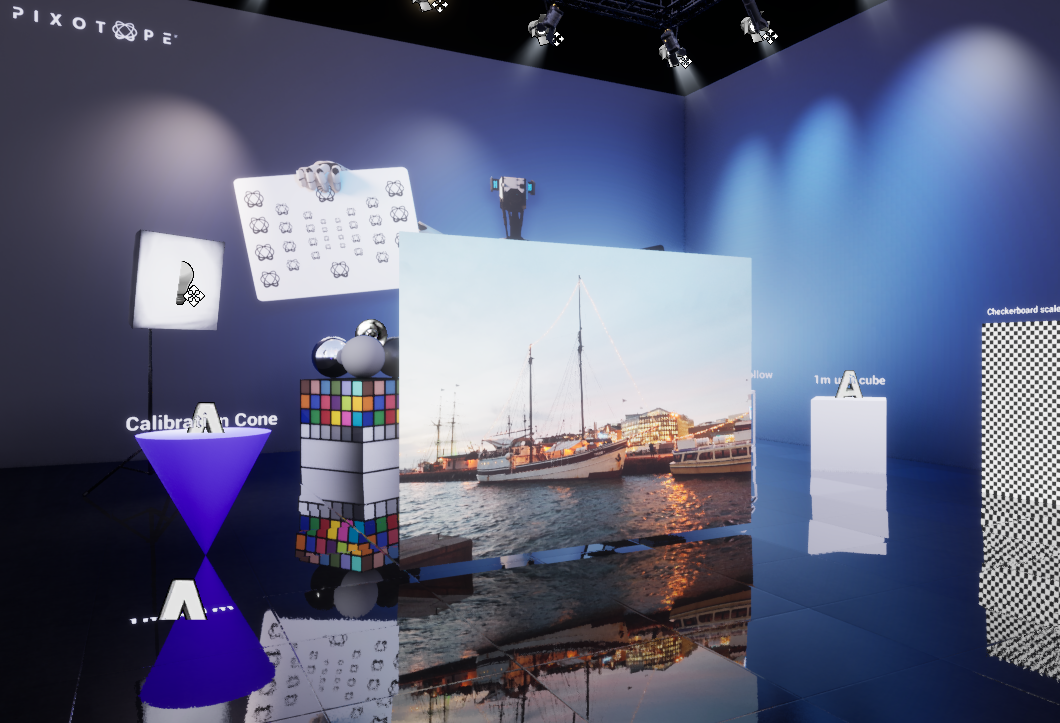
The URL Image Actor can be used to preload and display images from a URL in 3D space. It supports web links and local resources with the following formats:
-
PNG
-
JPEG
-
BMP
In Editor
-
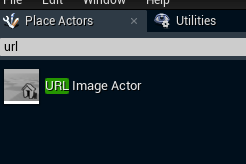
Add a URL Image Actor from the "Place Actors" list
-
Set the NextURL property
-
Example of a local URL (drag and drop an image into web browser and then copy the address):
file:///C:/Users/User/Downloads/file.jpg -
Example of a web URL:
https://upload.wikimedia.org/wikipedia/commons/8/87/Oslo%2C_Norway%2C_Jan_2020_00027.jpg
-
-
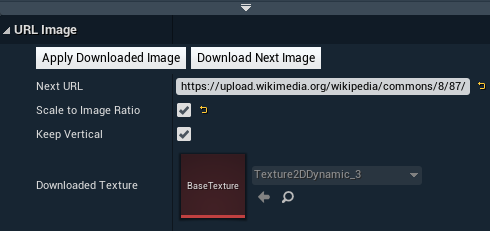
Click the Download Next Image function button
-
This preloads the image into a dynamic texture, but won’t display it yet
-
-
Call (via the control panel or the API) the IsNextImageReady function several times to check if the image is ready
-
When testing in Editor you can just make sure that a new downloaded texture appeared
-
-
Click the Apply Downloaded Image function button
-
The image is being displayed
-
Before triggering this function you might want to consider using scaling options to match your desired behaviour
-

All parameters and functions can be called remotely via the control panel or the API
Remote Usage
Using the control panel
Add an image source
-
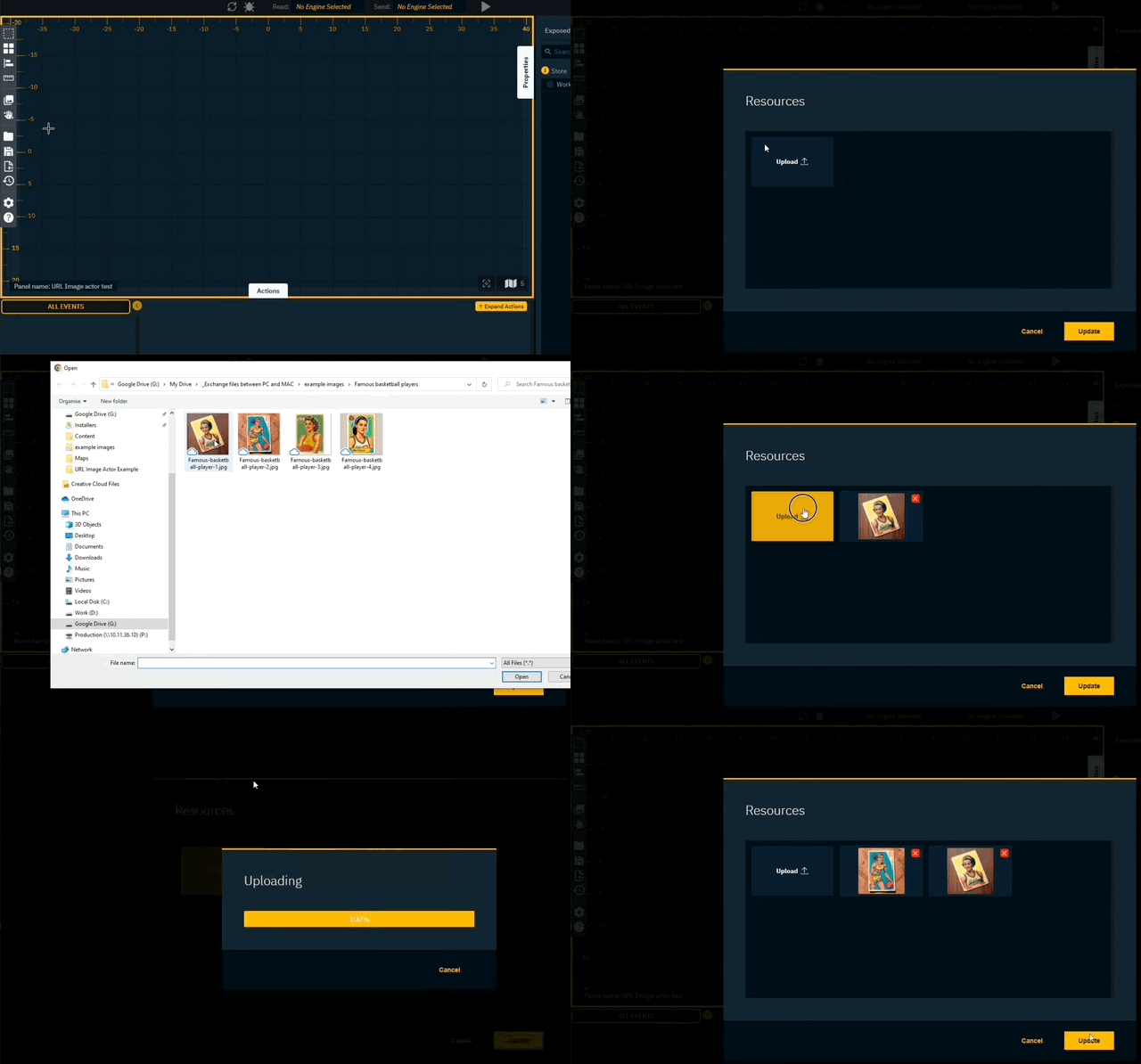
Click on the "Resources" icon in the toolbar to open the Resource library
-
Click on "Upload" button to browse and select an image file
-
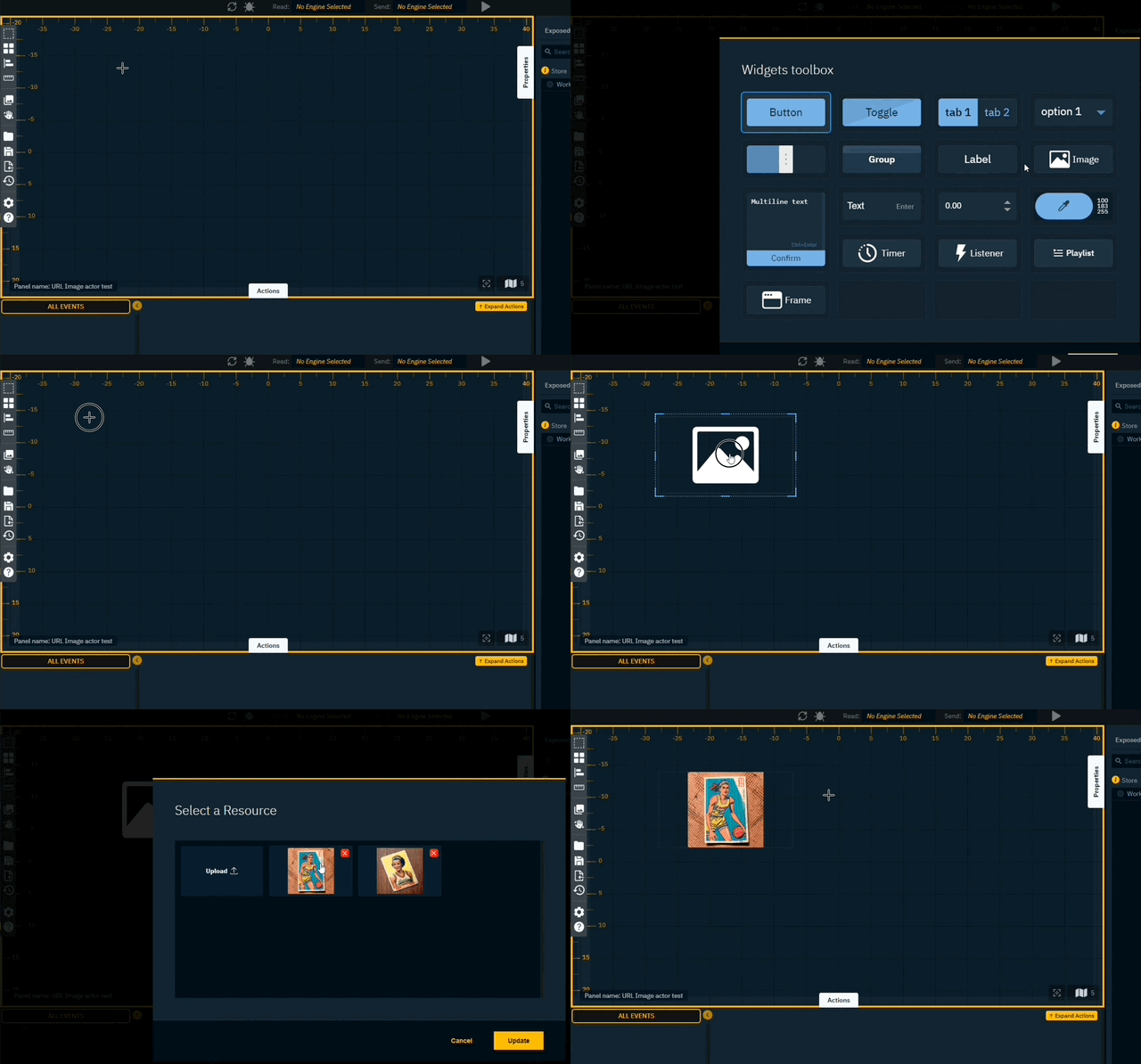
Double click the empty canvas to open the Widgets toolbox
-
Double click the image widget and click+drag the mouse to draw an image widget
-
Double click the widget and select an image from the Resource library
Send the image to the URL Image Actor
-
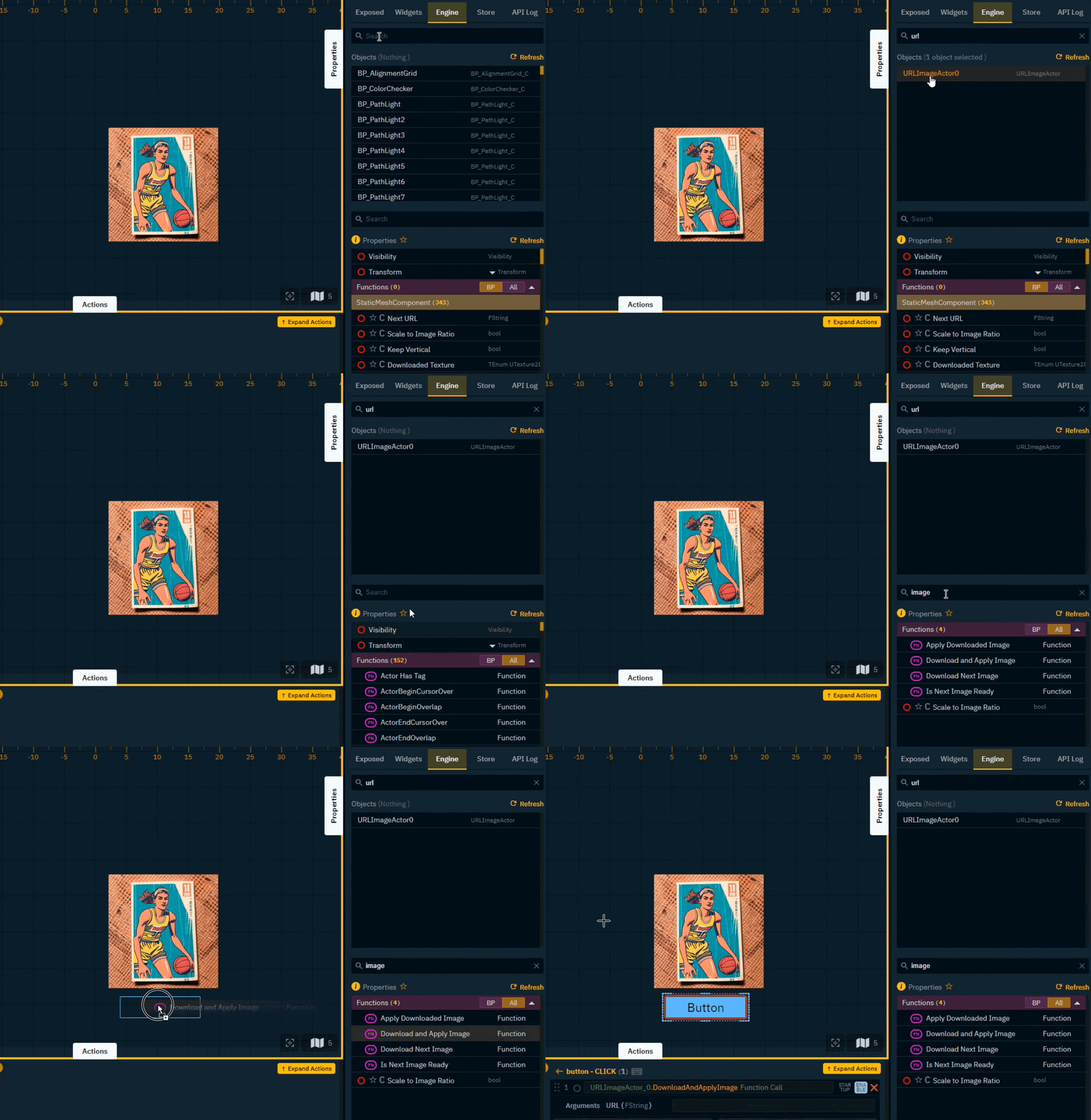
Select the URL Image Actor in the Engine tab
-
Search for the "Download and Apply Image" function
-
Drag it onto the canvas to create a trigger button
-
Add the URL of the image as argument of the Download and Apply Image function
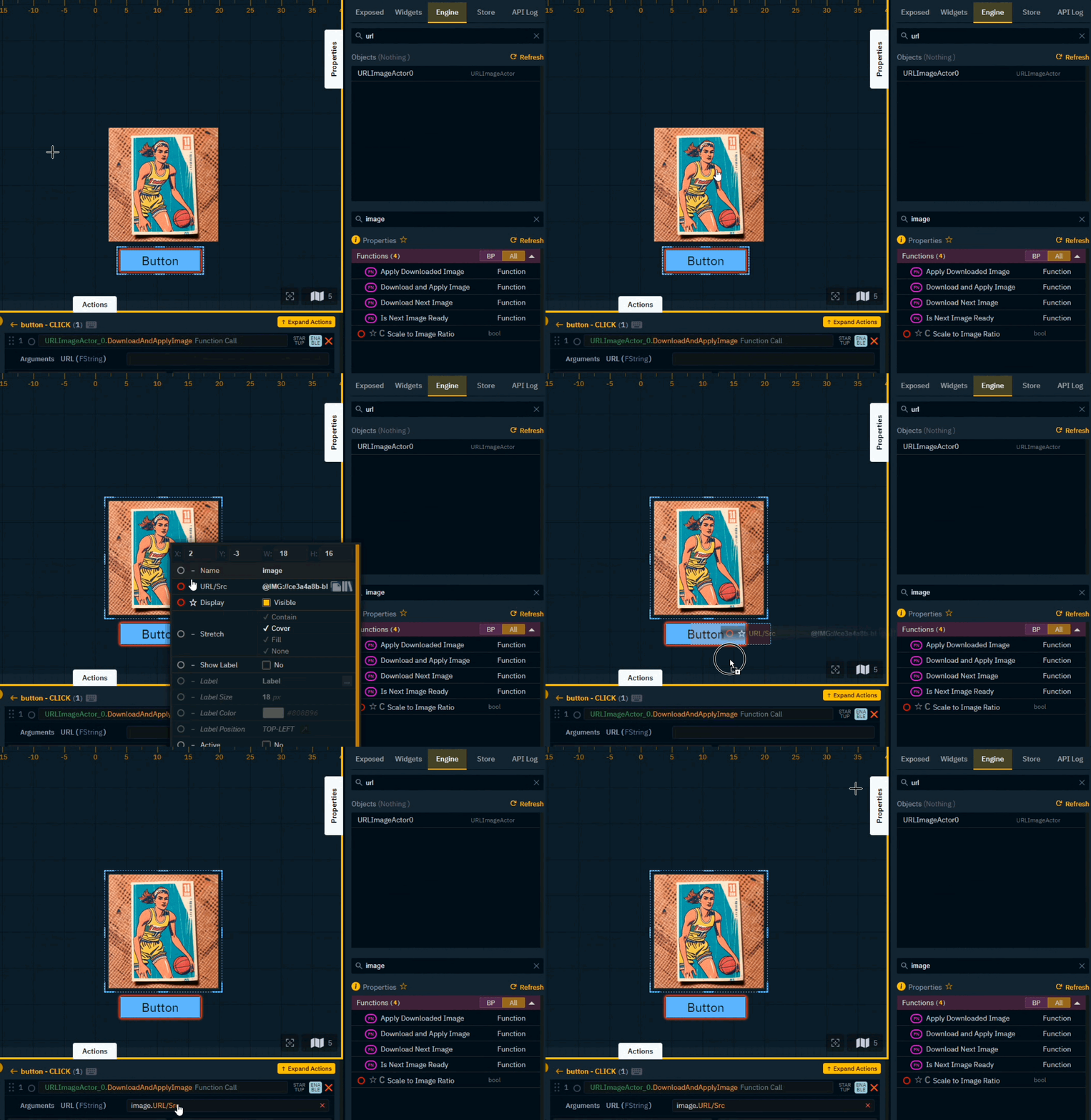
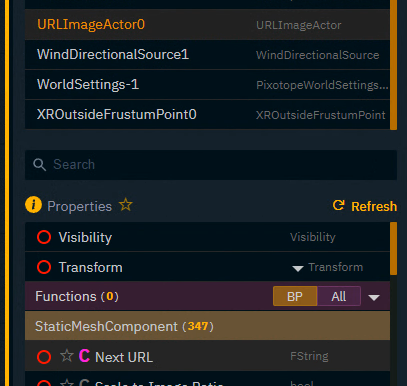
The Next URL string can also be set directly/independently
Any image web URL can be used. Depending on the size, the time to load the image might vary.
Here’s a URL-only example call via Pixotope Gateway (targeting an actor called URLImageActor_0):

Learn more about How to use Pixotope Gateway
URL Image Actor example control panel
-
Download zip file
-
Unpack it into your project and click "Rescan folders" in the Launch panel
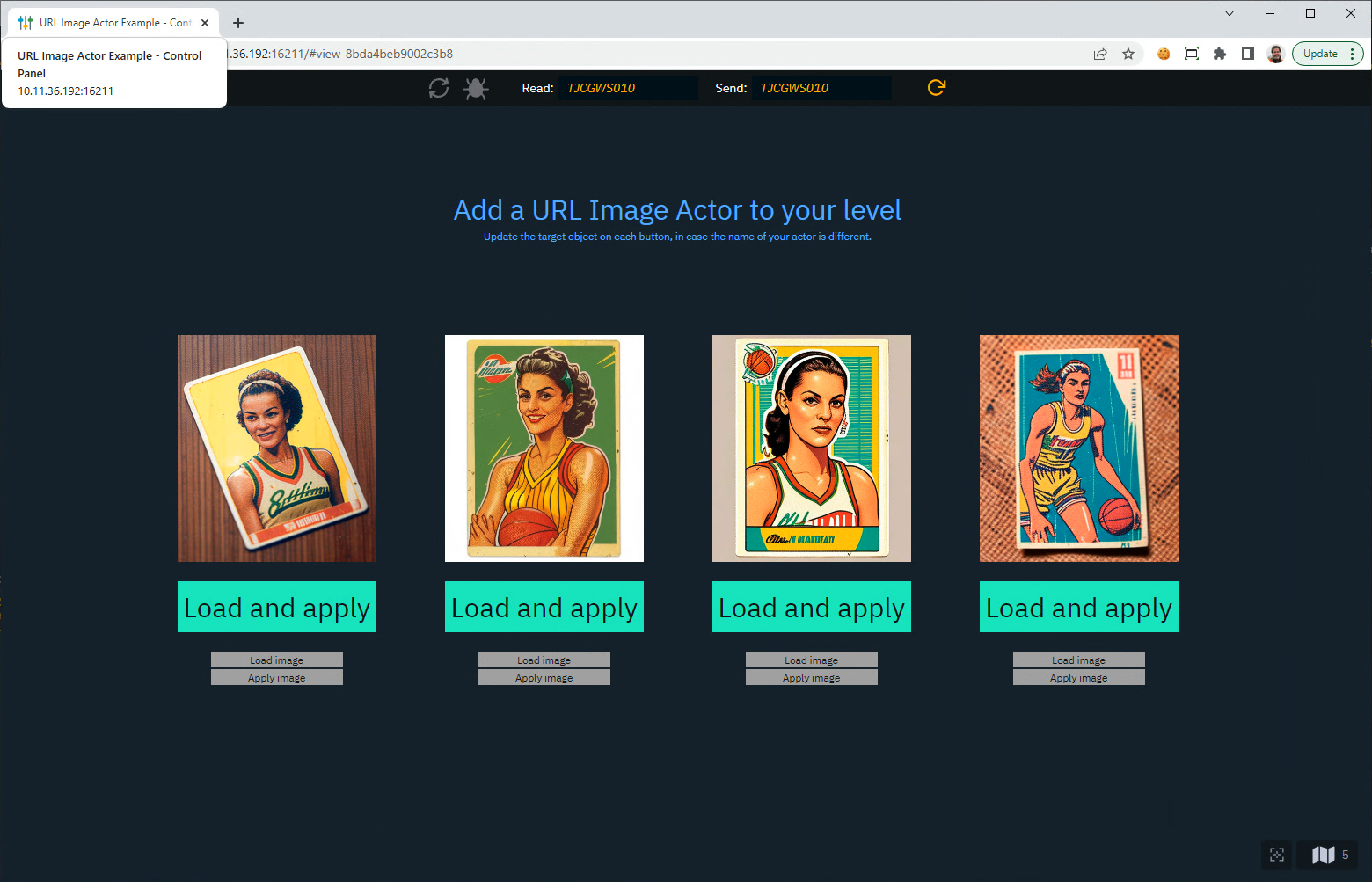
Using Blueprints
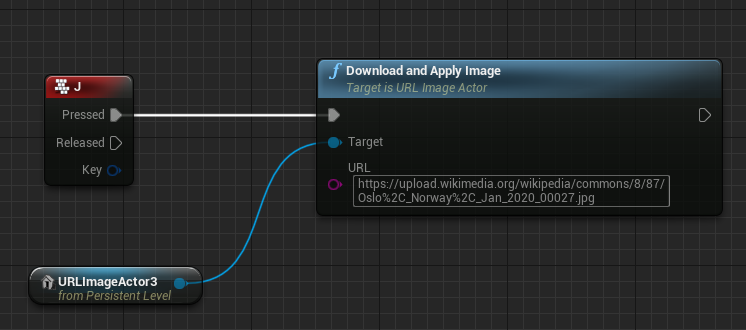
All of the above-mentioned functions and properties are also exposed to Blueprints and can be controlled this way.
Here is a simple test example that downloads and displays an image when user clicks button J on the keyboard:
Solving Color Issues
Depending on your virtual lights, post process, and the loaded image itself, the resulting colors might not be what you expect.
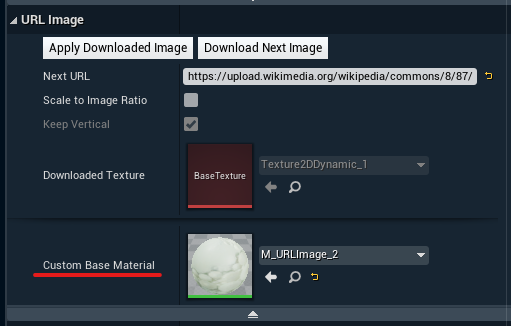
This can be adjusted by using a custom material for you URL Image Plane. This way you can design any adjustments and rendering qualities you like.